
Introduction
This manual provides detailed instructions for the setup, operation, and maintenance of your DrunkDeer A75 Pro Rapid Trigger Mechanical Gaming Keyboard. Designed for performance, the A75 Pro features silent magnetic switches, adjustable actuation, and customizable RGB lighting, all within a compact 75% TKL layout.
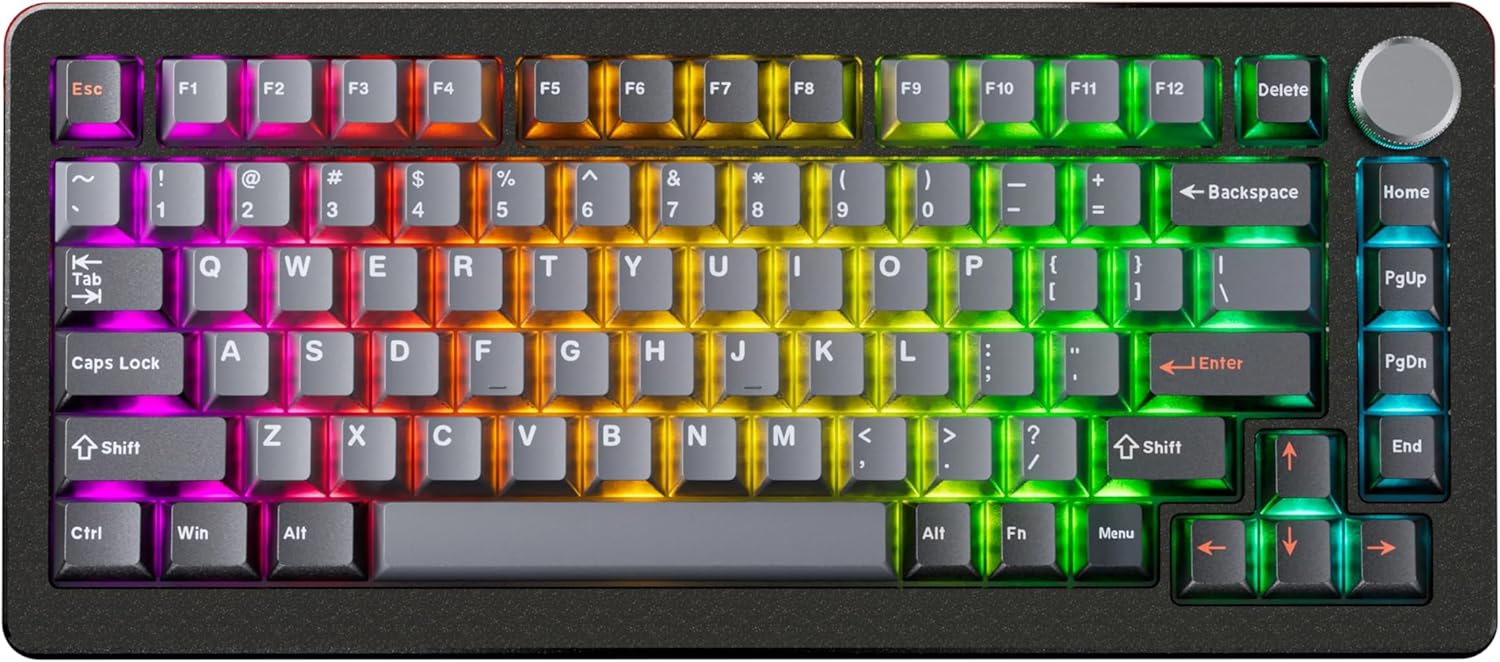
Image: The DrunkDeer A75 Pro keyboard showcasing its RGB lighting and 75% layout.
Package Contents
- DrunkDeer A75 Pro Mechanical Gaming Keyboard
- USB-A to USB-C Cable
- Keycap Puller (may vary by package)
- User Manual (this document)
Setup
Connecting the Keyboard
- Locate the USB-C port on the back of the DrunkDeer A75 Pro keyboard.
- Connect one end of the provided USB-A to USB-C cable to the keyboard's USB-C port.
- Connect the other end of the cable (USB-A) to an available USB port on your computer.
- The keyboard will automatically be recognized by your operating system.
Initial Configuration
The DrunkDeer A75 Pro utilizes a web-based driver for configuration. No software installation is required. This allows for quick setup and onboard memory for settings across devices.

Image: The web-based driver interface for the DrunkDeer A75 Pro, showing key remapping and performance settings.
- Open a web browser and navigate to the official DrunkDeer web driver page (refer to the product packaging or official DrunkDeer website for the exact URL).
- Ensure your keyboard is connected to the computer. The web driver should detect your keyboard.
- You can now adjust settings such as actuation points, rapid trigger sensitivity, and RGB lighting effects.
Operating Instructions
Rapid Trigger and Adjustable Actuation
The DrunkDeer A75 Pro features magnetic switches with Rapid Trigger technology and adjustable actuation points. This allows for precise control over keypress sensitivity and reset points.

Image: A diagram explaining the rapid trigger function and adjustable actuation distance of the magnetic switches.
- Adjustable Actuation: Use the web driver to set the key travel distance required to register a keypress. This can be adjusted from 0.2mm to 3.8mm.
- Rapid Trigger: This feature allows a key to register a reset as soon as it begins to move upwards, enabling faster repeated inputs. Configure Rapid Trigger sensitivity through the web driver.
- Dual Trigger, Single Key Emergency Stop (RDT): This advanced feature allows a key to trigger one action on press and another on release, providing enhanced control in specific applications. For example, pressing 'A' could trigger movement, and releasing 'A' could trigger a 'D' keypress for an emergency stop. This is configurable via the web driver.
- Last Win Mode: When enabled, if opposite directions are pressed simultaneously (e.g., 'A' and 'D'), the keyboard prioritizes the last key pressed, allowing for instant direction changes without stopping.
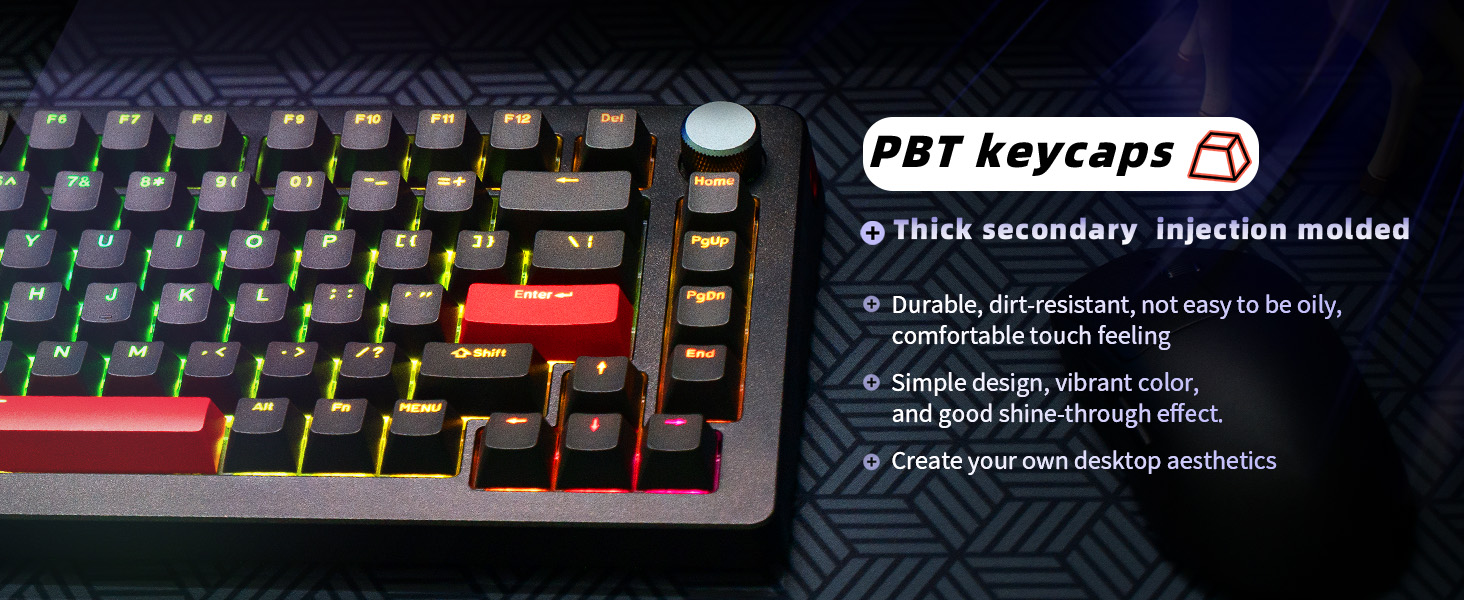
Image: An illustration demonstrating the "Last Win Mode" feature, showing how simultaneous opposite key presses are handled.
RGB Lighting Effects
The A75 Pro features customizable RGB lighting with multiple effects and brightness levels.

Image: The DrunkDeer A75 Pro keyboard displaying its customizable RGB lighting effects.
- Access the RGB settings through the web driver.
- Choose from 18 different lighting effects.
- Adjust brightness with 10 available levels.
- Single key custom RGB lamp effects are supported.
Knob Functionality
The multi-function knob located on the top right of the keyboard typically controls volume by default. Pressing the knob usually acts as a play/pause button.
- Rotate the knob clockwise to increase volume.
- Rotate the knob counter-clockwise to decrease volume.
- Press the knob to play or pause media.
- Customization options for the knob may be available through the web driver.
Maintenance
Cleaning the Keyboard
- Disconnect the keyboard from your computer before cleaning.
- Use a soft, lint-free cloth slightly dampened with water or a mild cleaning solution to wipe down the keycaps and case.
- For deeper cleaning, use a keycap puller to remove keycaps and clean underneath with compressed air or a small brush.
- Avoid spraying liquids directly onto the keyboard.
Switch Care
The DrunkDeer A75 Pro uses hot-swappable magnetic switches. These switches are specifically designed and manufactured by Raesha for DrunkDeer.
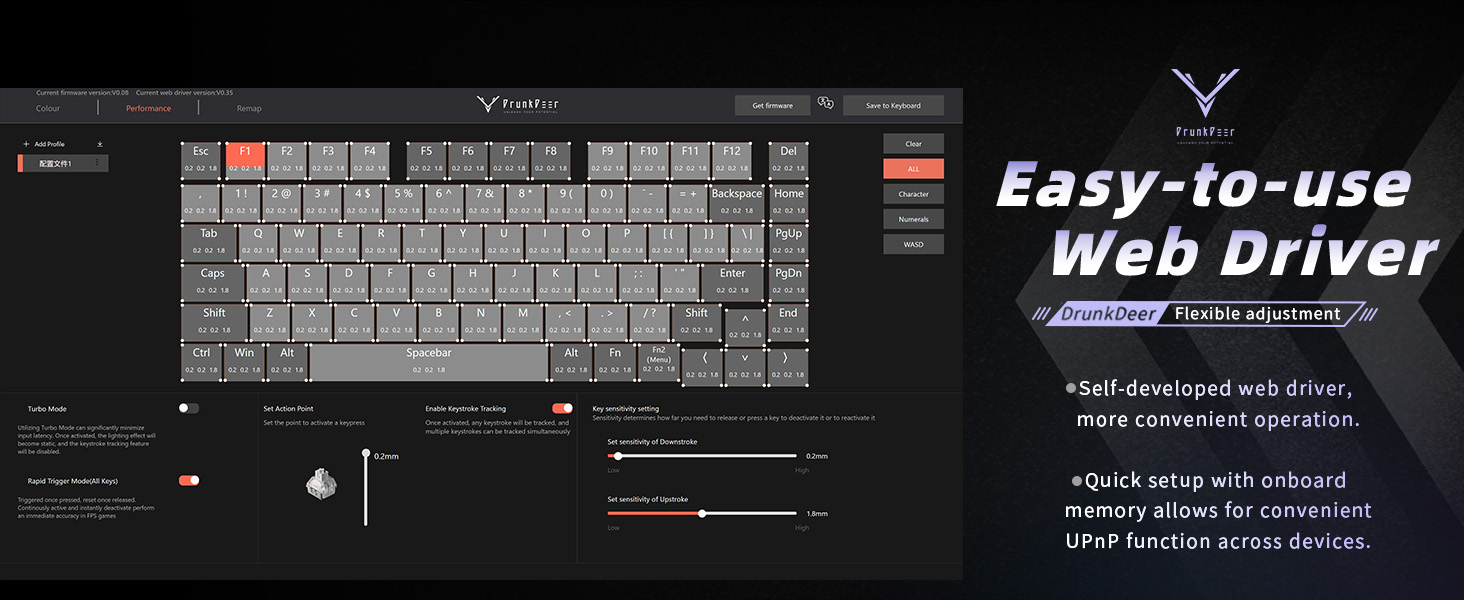
Image: An exploded view of a hot-swappable magnetic switch, highlighting its components.
- While switches are hot-swappable, only Raesha HE switches manufactured for DrunkDeer are compatible.
- The switches come pre-lubed for optimal performance and silent operation.
- If a switch needs replacement, carefully use a switch puller to remove it and insert a new compatible switch.
Troubleshooting
Keyboard Not Responding
- Ensure the USB cable is securely connected to both the keyboard and the computer.
- Try connecting the keyboard to a different USB port on your computer.
- Test the keyboard on another computer to rule out system-specific issues.
- Restart your computer.
Keys Registering Unintentionally (Too Sensitive)
- Access the web driver and increase the actuation point distance for the affected keys or globally.
- Adjust the Rapid Trigger sensitivity settings in the web driver to a less sensitive value.
- Ensure your fingers are not resting too heavily on the keys if a very low actuation point is set.
RGB Lighting Not Working Correctly
- Check the RGB settings in the web driver to ensure desired effects and brightness are selected.
- Verify that no specific key lighting has been disabled or set to a very low brightness.
- Ensure the keyboard firmware is up to date via the web driver.
Web Driver Not Detecting Keyboard
- Confirm the keyboard is properly connected via USB.
- Try a different USB cable or port.
- Ensure your web browser is up to date.
- Clear browser cache and cookies, then try accessing the web driver again.
Specifications
| Brand | DrunkDeer |
| Model Number | A75P-B0PM |
| Keyboard Description | Mechanical, Rapid Trigger, Silent Magnetic Switch |
| Layout | 75% TKL, 82 Keys, ANSI |
| Keycaps | PBT, Cherry Profile |
| Connectivity Technology | Wired USB-A |
| Special Features | Adjustable Actuation, RGB Lighting, Programmable Knob, Hot-swappable Switches (Raesha HE only) |
| Compatible Devices | Gaming Console, PC |
| Item Weight | 3.12 pounds |
| Package Dimensions | 14.61 x 8.15 x 2.24 inches |
Warranty and Support
For warranty information and technical support, please refer to the official DrunkDeer website or contact their customer service directly. Details regarding product registration, troubleshooting assistance, and warranty claims can typically be found on their support pages.
Manufacturer: DrunkDeer
Date First Available: July 17, 2024
For the most up-to-date support resources, visit the official DrunkDeer website: DrunkDeer Store on Amazon


