
1. Introduction
This manual provides comprehensive instructions for the AINAVITO 10.25-inch Multimedia System, designed for Audi Q5 and SQ5 models from 2009 to 2017 equipped with the MMI 3G Multimedia System. This system enhances your vehicle's infotainment capabilities by integrating modern features such as wireless Apple CarPlay and Android Auto, while retaining the original vehicle functions.
Key Features:
- 2-Second Fast Boot Linux OS: Experience rapid system startup and stable performance.
- Instant Wireless CarPlay & Android Auto: Seamless smartphone integration via dual-band 5G Wi-Fi and Bluetooth 5.0.
- Dual OS & 100% Factory Menu Retention: Easily switch between the new Linux interface and your original Audi MMI system, preserving all factory functions.
- 10.25-inch 1920x720 Ultra-HD IPS Display: A large, high-resolution capacitive touchscreen with anti-glare IPS technology for clear visuals.
- Retains OEM Knob Controller & Steering Wheel Controls (SWC): Maintain control over volume, music tracks, and navigation using existing vehicle controls.
2. Compatibility and Pre-Installation Check
This multimedia system is specifically engineered for Audi Q5/SQ5 models manufactured between 2009 and 2017. It is crucial to verify your vehicle's original multimedia system type before installation.
Critical Fitment Check: MMI 3G vs. Concert/Symphony
To determine compatibility, examine the control knob location on your center console:
- If your main control knob is located on the radio dashboard faceplate, your vehicle has a Concert/Symphony System. This product is NOT compatible.
- If your main control knob is located on the gear shift console, your vehicle has an MMI 3G Multimedia System. This product IS compatible.
The Concert/Symphony and MMI 3G systems are not interchangeable. Please verify your system type carefully before proceeding with installation.

Image: Comparison of Audi Multimedia (compatible) and Audi Concert (incompatible) systems, highlighting the control knob placement.
Applicable Audi Q5/SQ5 Models (2009-2017) with MMI 3G:
- Q5 2.0T Quattro (2009–2017)
- Q5 3.0T Quattro (2013–2017)
- Q5 3.0 TDI (2014)
- Q5 3.2 Quattro (2010–2012)
- SQ5 3.0T FSI (2014–2017)
3. Installation Guide
The AINAVITO Multimedia System is designed for a 100% non-destructive, plug-and-play installation. While professional installation is recommended, experienced users can perform a DIY installation by following these guidelines and referring to the provided video resources.
Required Tools:
- Radio removal keys
- T20 screwdriver
- 8mm socket wrench
- Small Phillips head screwdriver
- Trim removal tools (recommended to prevent scratches)
Pre-Installation Steps:
- Disconnect Battery: For safety, disconnect the vehicle's battery before starting any electrical work.
- Remove Original Components: Carefully remove the original radio unit and display screen using the appropriate tools.
- Airbag Light Switch Setting: Locate the circuit board switch on the new unit. Adjust the switch based on your vehicle's airbag light configuration:
- If your car does not come with airbag lights, adjust the switch to "1".
- If your car is equipped with airbag lights, adjust the switch to "ON".

Image: Airbag light switch on the circuit board. Ensure correct setting before installation.
Wiring and Connection:
Connect the provided ISO wiring harness cable and LVDS cable according to the instructions. Ensure all connections are secure. The system uses a customized plug-and-play wiring harness, eliminating the need for wire cutting or splicing.
Video: DIY Installation Guide for Linux Audi Q5 Multimedia System. This video provides a visual walkthrough of the installation process.
Video: How to install the car stereo for Audi Q5 SQ5 (2009-2017). This video offers additional installation guidance.
Final Steps:
- Secure the Unit: Install the new head unit and display screen into the dashboard.
- Reconnect Battery: Reconnect the vehicle's battery.
- Test Functionality: Turn on the ignition and test all functions of the new multimedia system.
4. Operating the System
The AINAVITO Multimedia System offers a user-friendly interface with seamless integration of modern features and original vehicle controls.
Initial Setup and Audio Configuration:
For audio output, the new system transmits sound through your car's original AUX port. After installation, you must enter the original car system, switch the audio source to AUX, and then return to the new system interface.
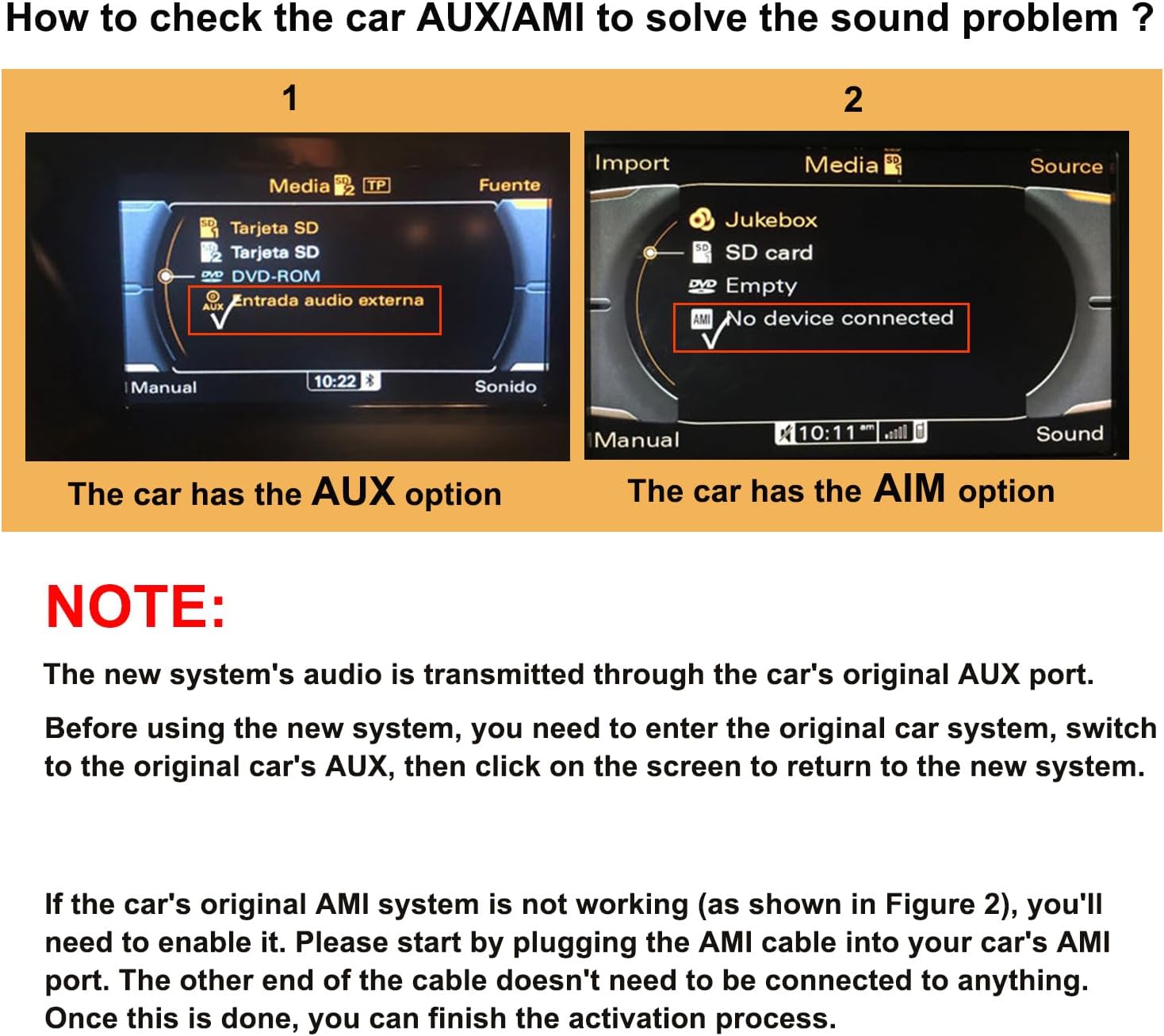
Image: Steps to check for AUX or AMI options in your original Audi MMI system to ensure proper audio routing.
If your car's original AMI system is not working, you may need to enable it by plugging the AMI cable into your car's AMI port. The other end of the cable does not need to be connected to anything.
Video: Troubleshooting guide on how to set the audio channel to AUX for correct sound output.
System Settings:
Access the system settings to configure various parameters, including car model selection, reverse view settings, and AUX switching methods. A pin code (8866) may be required to access factory settings.

Image: System settings menu, illustrating options for car model selection and AUX configuration.
Video: Demonstrates essential settings to be configured after installation for optimal performance.
Wireless CarPlay & Android Auto:
Connect your smartphone wirelessly via Bluetooth and Wi-Fi for Apple CarPlay or Android Auto functionality. This allows access to navigation (Waze, Google Maps), music streaming (Spotify), hands-free calls, and voice control (Siri, Google Assistant).
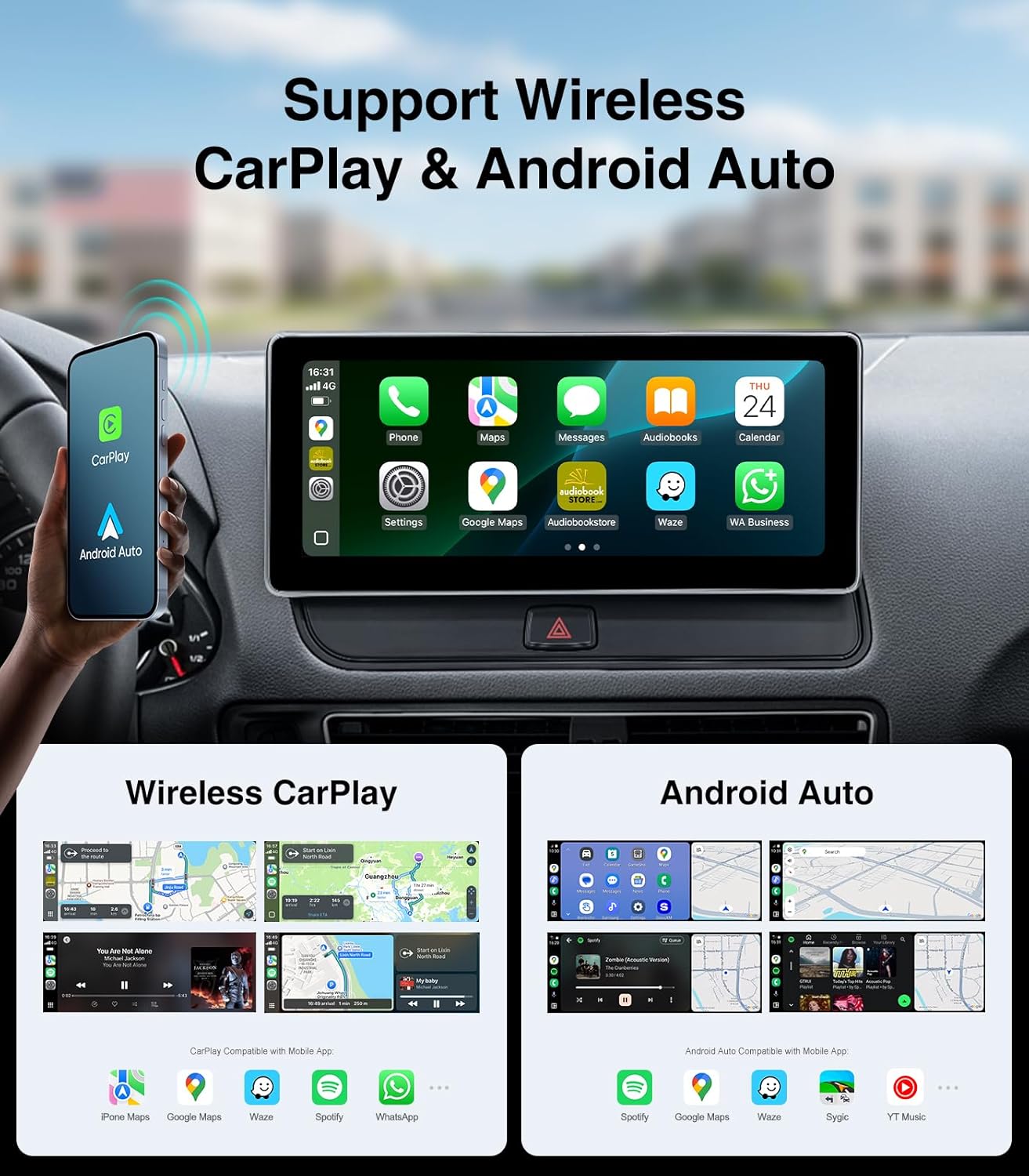
Image: Display interface showcasing wireless CarPlay and Android Auto features.
Retaining Original Functions:
The system seamlessly integrates with and retains your original Audi functions, including:
- Factory radio and CD player
- Optical fiber audio sound system
- Electronic oil level display
- OEM parking sensors and backup camera
- Steering Wheel Controls (SWC) and MMI knob/joystick

Image: Visual representation of retained original Audi system functions.
Video: Demonstrates the feature display of the 10.25-inch radio for Audi Q5 SQ5 (2009-2017).
5. Maintenance
To ensure the longevity and optimal performance of your AINAVITO Multimedia System, follow these simple maintenance guidelines:
- Screen Cleaning: Use a soft, lint-free cloth specifically designed for electronics to clean the touchscreen. Dampen the cloth slightly with water or a screen-safe cleaning solution if necessary. Avoid harsh chemicals, abrasive materials, or excessive moisture.
- Software Updates: Periodically check for available software updates to ensure you have the latest features and bug fixes. Follow instructions provided by AINAVITO for any update procedures.
- Environmental Conditions: Avoid exposing the unit to extreme temperatures or direct sunlight for prolonged periods when the vehicle is parked, as this can affect screen performance and lifespan.
6. Troubleshooting
This section addresses common issues you might encounter with your AINAVITO Multimedia System.
No Sound Output:
- Check AUX/AMI Setting: Ensure your original Audi MMI system is set to the AUX audio source. The new system's audio routes through this input. Refer to the "Initial Setup and Audio Configuration" section (Section 4) and the corresponding video for detailed steps.
- AMI Cable Connection: If your original AMI system is not functioning, ensure the AMI cable is correctly plugged into your car's AMI port.
- Volume Levels: Verify that both the multimedia system's volume and your original Audi system's volume are adequately set.
Connectivity Issues (CarPlay/Android Auto):
- Bluetooth & Wi-Fi: Ensure Bluetooth is enabled on your smartphone and paired with the multimedia system. Also, confirm Wi-Fi is active for wireless CarPlay/Android Auto.
- Re-pair Device: If connection is unstable, try forgetting the device on both your phone and the multimedia system, then re-pairing.
- System Restart: Restart both your smartphone and the multimedia system.
Scrambled Screen / Display Issues:
- Resolution Settings: Incorrect resolution settings can cause display issues. Access the system settings (refer to Section 4) and ensure the display resolution matches the recommended settings for your unit. If unsure, contact customer support for guidance.
- Cable Connections: Verify that all video cables (e.g., LVDS cable) are securely connected.
If you encounter persistent issues not covered here, please contact AINAVITO customer support for assistance.
7. Specifications
| Feature | Detail |
|---|---|
| Brand | AINAVITO |
| Model Number | Q5-Multimedia |
| Display Size | 10.25 inches |
| Resolution | 1920x720 HD |
| Operating System | Linux |
| Connectivity Technology | Bluetooth, USB, Wi-Fi |
| Special Features | Android Auto, Apple CarPlay, Built-In Bluetooth, GPS Navigation, Touchscreen |
| Compatible Devices | Smartphone, iPhone |
| Control Method | App, Touch |
| Audio Output Mode | Digital, USB |
| Item Weight | 2.21 kg |
8. Warranty & Support
Warranty Information:
- 12-Month Replacement Warranty: The product is covered by a 12-month replacement warranty for manufacturing defects.
- 30-Day Hassle-Free Return Policy: You may return the product within 30 days of purchase.
- 180-Day Direct Replacement: For quality issues, a direct replacement is offered within 180 days.
Customer Support:
For technical assistance, installation guidance, or troubleshooting, please contact AINAVITO customer support:
- Hotline: +1 833-310-5550
- Email: Help@apexnav.vip
Support is available Monday-Friday: 9:00 AM - 9:00 PM (PST/PDT) and Saturday: 2:00 PM - 10:00 PM (PST/PDT). If your call goes unanswered, please keep your line available, and a representative will call you back promptly. You can also email a brief description of your issue along with relevant photos for quicker support.