
ECHTPower SP06GA
ECHTPower Switch 2 Wireless Controller User Manual
Model: SP06GA | Brand: ECHTPower
1. Introduction
Welcome to your new ECHTPower Switch 2 Wireless Controller. This manual provides detailed instructions for setup, operation, maintenance, and troubleshooting to ensure you get the most out of your gaming experience. This controller features vibrant RGB lighting, advanced macro programming, responsive turbo functions, and adjustable vibration feedback, offering broad compatibility with Nintendo Switch/Switch 2, PC, Android, and iOS devices.
2. Safety Information
- Do not expose the controller to extreme temperatures, humidity, or direct sunlight.
- Avoid dropping or subjecting the controller to strong impacts.
- Do not attempt to disassemble or modify the controller. This will void the warranty.
- Keep the controller away from water and other liquids.
- Use only the provided charging cable or a certified equivalent.
- Keep out of reach of small children.
3. Package Contents
Please check the package contents to ensure all items are present:
- 1 x ECHTPower Wireless Controller (Starry Sky Blue)
- 1 x USB Charging Cable
- 1 x User Manual
4. Controller Layout
Familiarize yourself with the buttons and features of your ECHTPower controller:
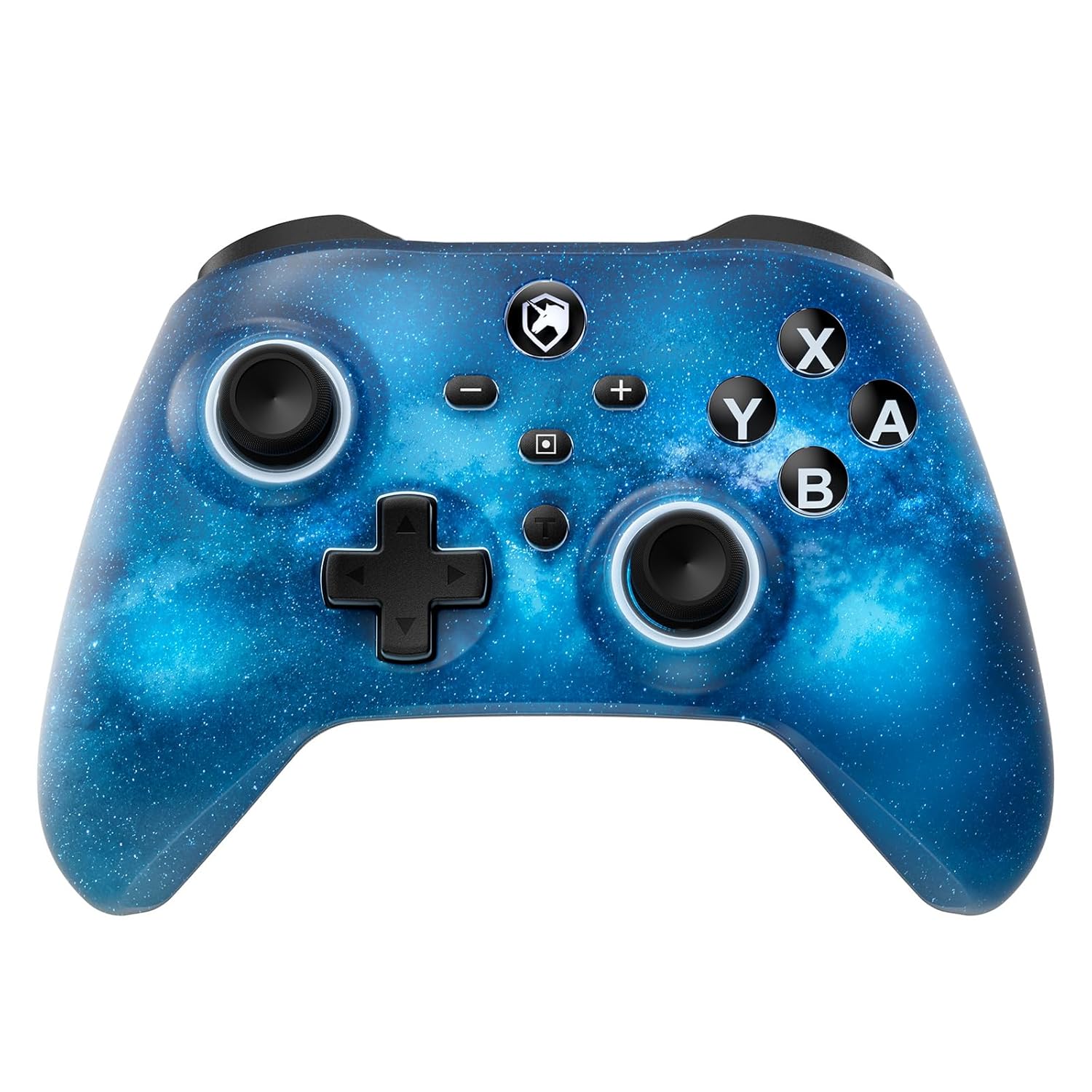
Front view of the ECHTPower Wireless Controller, showcasing its Starry Sky Blue design and button layout.
- Left Analog Stick: For movement and camera control.
- Right Analog Stick: For camera control and aiming.
- D-Pad: Directional input.
- A/B/X/Y Buttons: Standard action buttons.
- L/R Buttons: Shoulder buttons.
- ZL/ZR Triggers: Analog triggers for precise input.
- Home Button: Returns to the system home screen.
- Screenshot Button: Captures screenshots.
- Plus (+) / Minus (-) Buttons: System menu navigation.
- Turbo (T) Button: Activates and adjusts turbo functions.
- Macro (M) Button: Initiates macro programming.
- M1/M2 Buttons: Programmable back paddles.
5. Setup
5.1 Initial Charging
Before first use, fully charge your controller. Connect the included USB charging cable to the controller's USB-C port and a USB power source (e.g., console, PC, USB wall adapter). The charging indicator will illuminate during charging and turn off when fully charged.

The controller features a 1000mAh battery, providing approximately 6-8 hours of playtime with lights on, and takes 2-3 hours to fully charge.
5.2 Pairing with Nintendo Switch/Switch 2
To pair your controller with a Nintendo Switch or Switch 2 console:
- From the HOME Menu, select Controllers > Change Grip/Order.
- On the controller, press and hold the Home button for 3-5 seconds until the LED indicators begin to flash rapidly.
- Once paired, the corresponding player LED(s) on the controller will light up solid.

The ECHTPower controller is compatible with Nintendo Switch 2, though it does not support the C key, 3.5mm audio jack, or wake-up function on Switch 2.
5.3 Pairing with PC (Windows)
To connect to a Windows PC:
- Ensure your PC has Bluetooth enabled.
- Go to Settings > Devices > Bluetooth & other devices.
- Select Add Bluetooth or other device > Bluetooth.
- Press and hold the Home button on the controller until the LEDs flash.
- Select the controller from the list of available devices to pair.
5.4 Pairing with Android/iOS
To connect to Android or iOS devices:
- Enable Bluetooth on your mobile device.
- Press and hold the Home button on the controller until the LEDs flash.
- Select the controller from the Bluetooth device list on your phone/tablet.

The ECHTPower Wireless Controller offers wide compatibility across Switch, PC, Android, and iOS platforms.
6. Operating Instructions
6.1 Power On/Off
- Power On: Press the Home button once.
- Power Off: Press and hold the Home button for 5 seconds, or the controller will automatically power off after 5 minutes of inactivity (adjustable via KeyLinker app).
6.2 RGB Lighting Control
The controller features 9 different light effects and 3 light models (Breathing Cycle, Laser Mode, Neon Mode) with 4 levels of brightness adjustment (25%-50%-75%-100%).
- Change Color: Press Macro (M) + Minus (-).
- Change Light Mode: Press Macro (M) + Plus (+).
- Adjust Brightness: Press Macro (M) + Left Analog Stick (down).

The controller's RGB lighting offers 9 colors and 4 light modes, creating a dynamic visual experience.
Official ECHTPower video demonstrating the wireless controller's features, including its RGB lighting and responsiveness.
6.3 Macro Programming
The programmable function allows you to map up to 16 button functions to the M1 or M2 back paddles, enabling complex skill execution with a single press.
- Enter Programming Mode: Press and hold the Macro (M) button, then press the M1 or M2 button you wish to program. The indicator light will flash slowly.
- Record Sequence: Press the sequence of buttons you want to record (up to 16 inputs).
- Exit Programming Mode: Press the Macro (M) button again. The indicator light will stop flashing.
- Clear Macro: In programming mode, press the M1 or M2 button twice without inputting any sequence.

The controller's ultra-programmable design allows mapping various buttons to the M1 and M2 back paddles for enhanced gameplay.
6.4 Turbo Function
The controller supports both auto and manual Turbo functions with three adjustable speeds: 5 rounds/s, 12 rounds/s, and 25 rounds/s.
- Set Turbo: Press and hold the Turbo (T) button, then press the desired action button (A/B/X/Y/L/R/ZL/ZR). The button will now have Turbo functionality.
- Adjust Turbo Speed: Press and hold the Turbo (T) button, then press the Right Analog Stick (up/down) to cycle through speeds.
- Clear Turbo: Press and hold the Turbo (T) button, then press the Turbo-enabled action button again.

The controller offers strong manual and auto turbo capabilities, allowing up to 25 shots per second for rapid actions.
6.5 Vibration Adjustment
The built-in dual vibration motors provide 4 levels of feedback: Strong, Medium, Weak, and None, for a realistic gaming experience.
- Adjust Vibration: Press and hold the Turbo (T) button, then press the D-Pad (up/down) to cycle through vibration intensities.

Adjustable dual vibration provides four intensity levels (0%, 30%, 70%, 100%) for a customized gaming experience.
7. Maintenance
- Cleaning: Use a soft, dry cloth to clean the controller. Do not use harsh chemicals or abrasive materials.
- Storage: Store the controller in a cool, dry place away from direct sunlight and extreme temperatures when not in use.
- Battery Care: To prolong battery life, avoid fully discharging the controller frequently. Charge it regularly, even if not in constant use.
8. Troubleshooting
If you encounter any issues with your ECHTPower controller, please refer to the table below for common problems and solutions:
| Problem | Possible Cause | Solution |
|---|---|---|
| Controller does not power on. | Low battery. | Charge the controller for 2-3 hours. |
| Unable to pair with device. | Controller not in pairing mode; Bluetooth interference; device Bluetooth off. | Ensure controller is in pairing mode (flashing LEDs). Turn off/on device Bluetooth. Move closer to the device. |
| Buttons/Joysticks unresponsive. | Connection issue; software glitch. | Reconnect the controller. Reset the controller (refer to manufacturer's specific reset instructions if available, usually a small pinhole button). |
| Vibration not working or too weak/strong. | Vibration setting is off or at minimum/maximum. | Adjust vibration intensity using Turbo (T) + D-Pad (up/down). |
| Macro not working correctly. | Incorrect programming. | Re-program the macro carefully following the instructions in Section 6.3. |
9. Specifications
| Feature | Detail |
|---|---|
| Model Number | SP06GA |
| Battery Capacity | 1000 mAh Lithium Ion |
| Charging Time | Approx. 2-3 hours |
| Playing Time | Approx. 6-8 hours (with lights on) |
| Compatibility | Nintendo Switch/Switch Lite/Switch 2, PC (Windows), Android, iOS |
| Connectivity | Wireless (Bluetooth), Wired (USB-C) |
| Vibration | Dual motors, 4 adjustable levels |
| Gyro Sensor | 6-axis gyro |
| Dimensions | 6.3 x 4.69 x 2.72 inches |
| Weight | 9.91 ounces |
10. Warranty and Support
ECHTPower provides a standard warranty for this product. For detailed warranty information, product support, or any questions not covered in this manual, please contact ECHTPower customer service through the retailer's platform or visit the official ECHTPower website. Please retain your proof of purchase for warranty claims.
Related documentsSP06GA


Ask a question about this manual
Ask about setup, troubleshooting, compatibility, parts, safety, or missing instructions. Manuals+ will review the question and use this page’s manual context to help answer it.