
1. Introduction
The NelkoGlobal 243BT Thermal Label Printer is a versatile and efficient solution designed for shipping packages and small business needs. This printer utilizes advanced thermal printing technology, eliminating the need for ink or toner, offering a cost-effective and clean printing experience. With dual connectivity options (Bluetooth and USB), it provides seamless compatibility across various operating systems including Android, iOS, Windows, and Mac.
Its compact and portable design, combined with high-speed and high-resolution printing capabilities, makes it an ideal tool for generating clear and scannable labels quickly. This manual provides detailed instructions for setting up, operating, and maintaining your NelkoGlobal 243BT Thermal Label Printer.

Figure 1: NelkoGlobal 243BT Thermal Label Printer in operation.
2. What's in the Box
Upon unboxing your NelkoGlobal 243BT Thermal Label Printer, please ensure all the following components are present:
- 1 x 243BT-PK Bluetooth Label Printer
- 1 x Power Cable
- 1 x USB Cable
- 1 x Power Adapter
- 1 x Type-C Adapter
- Random Thermal Labels (for initial testing)
- 1 x User Manual (this document)
3. Setup Guide
Follow these steps to set up your printer for the first time:
3.1. Power Connection
- Connect the power cable to the power adapter.
- Plug the power adapter into the printer's power port.
- Plug the other end of the power cable into a wall outlet.
- Turn on the printer using the power switch, usually located at the back or side.

Figure 2: Printer connectivity options (USB and Bluetooth).
3.2. Loading Thermal Labels
This printer is designed for thermal labels only. Ensure you are using compatible thermal labels (1.0 to 4.6 inches wide).
- Open the top cover of the printer.
- Place the thermal label roll into the label compartment, ensuring the labels feed from the bottom of the roll and the printable side is facing up.
- Feed the leading edge of the labels into the printer's feed slot until the printer automatically grips them.
- Close the top cover. The printer will automatically calibrate and adjust the label position.
3.3. Software and Driver Installation
The printer supports both mobile and desktop printing. Download the "Labelife" app for mobile devices or drivers for your computer.
3.3.1. Mobile App Setup (Android/iOS)
- Scan the QR code provided in the quick start guide or search for "Labelife" in your device's app store (Google Play Store for Android, Apple App Store for iOS).
- Download and install the "Labelife" app.
- Ensure Bluetooth is enabled on your mobile device.
- Open the "Labelife" app and follow the on-screen instructions to connect to your printer via Bluetooth. The printer's name will typically appear as "AM-243-BT".
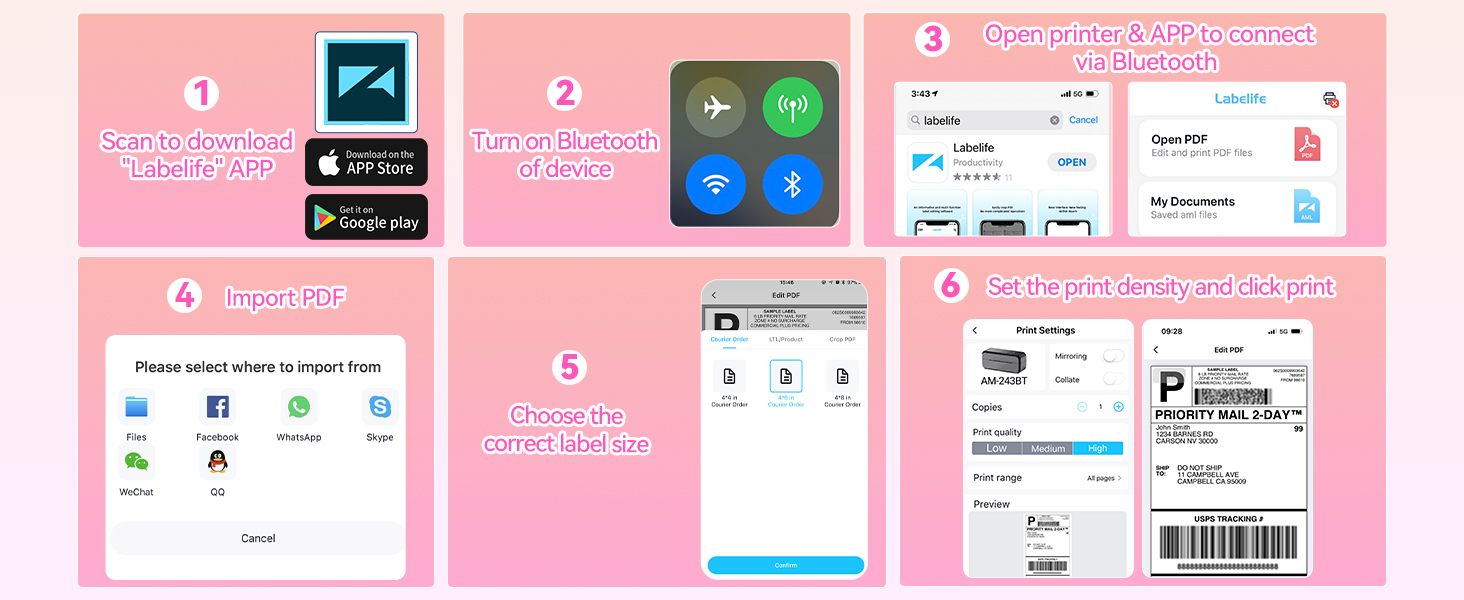
Figure 3: Mobile App Setup Process.
Video 1: Overview of the NelkoGlobal Bluetooth Label Printer, demonstrating its features and ease of use for various label types.
3.3.2. Desktop Driver Installation (Windows/Mac)
- Connect the printer to your computer using the provided USB cable.
- Visit the official NelkoGlobal website to download the latest drivers for your operating system (Windows 10 or newer, Mac).
- Run the installer and follow the on-screen prompts. During installation, select "Bluetooth Connection" if you intend to print wirelessly from your computer, or "USB Connection" for wired printing.
- After successful installation, you can open the driver software or the "Labelife" application (if available for desktop) to configure printer settings and print.
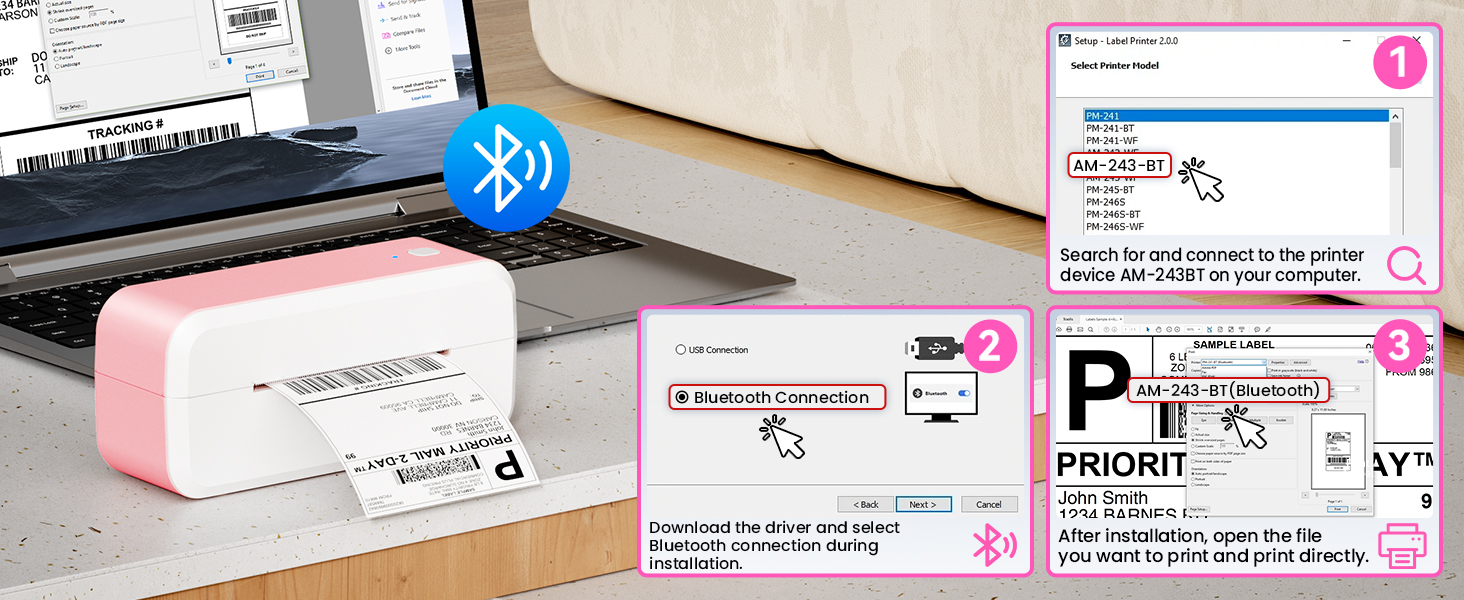
Figure 4: Desktop Setup Process.
4. Operating Instructions
4.1. Printing a Label
- Ensure the printer is powered on and connected to your device (via Bluetooth or USB).
- Open the document or image you wish to print (e.g., a shipping label PDF).
- Select the print option from your application.
- Choose "NelkoGlobal 243BT Thermal Label Printer" from the list of available printers.
- Adjust print settings as needed, such as label size (supports 1.0 to 4.6 inches), print density, and number of copies. The printer offers 203 DPI resolution for clear prints and a speed of 150 mm/s, capable of printing a 4x6 label in approximately one second.
- Click "Print".

Figure 5: High-speed and High-resolution Printing.

Figure 6: Supported Label Sizes.
4.2. Platform Compatibility
The NelkoGlobal 243BT Thermal Label Printer is widely compatible with major e-commerce platforms and shipping carriers, including but not limited to:
- eBay
- Shopify
- Amazon
- Etsy
- Poshmark
- USPS
- FedEx
- DHL
- UPS
- Stamps.com
- EasyPost
- PayPal
- ShipWire
- ShipStation

Figure 7: Broad Platform Applicability.
5. Maintenance
To ensure optimal performance and longevity of your NelkoGlobal 243BT Thermal Label Printer, follow these simple maintenance guidelines:
- Cleaning the Print Head: Regularly clean the print head to prevent dust and debris buildup, which can affect print quality. Use a lint-free cloth lightly dampened with isopropyl alcohol. Ensure the printer is off and cooled down before cleaning.
- No Ink/Toner Required: As a thermal printer, it does not require ink cartridges or toner, significantly reducing maintenance complexity and cost.
- Preventing Paper Jams: Always ensure labels are loaded correctly and aligned. The printer comes with an adapter designed to help prevent paper jams and wastage.
- Storage: Store the printer in a clean, dry environment away from direct sunlight and extreme temperatures.
6. Troubleshooting
If you encounter issues with your printer, refer to the following common troubleshooting tips:
| Problem | Possible Cause | Solution |
|---|---|---|
| Printer not responding/printing. | Power issue, loose connection, driver not installed/updated. |
|
| Poor print quality (faded, unclear). | Incorrect label type, dirty print head, low print density setting. |
|
| Labels not feeding correctly/jamming. | Labels improperly loaded, incorrect label size. |
|
| Bluetooth connection issues. | Bluetooth not enabled, printer out of range, interference. |
|
7. Specifications
| Feature | Detail |
|---|---|
| Brand | NelkoGlobal |
| Model Name | 243BT Thermal Label Printer |
| Printing Technology | Thermal |
| Connectivity Technology | Bluetooth, USB |
| Compatible Devices | Android/iOS and MAC/Win 10 or newer |
| Maximum Media Size | 4 x 6 inch |
| Supported Label Width | 1.0 to 4.6 inches (25.4-117mm) |
| Print Resolution | 203 x 203 DPI |
| Maximum Print Speed | 150 mm/s (72 labels/min) |
| Product Dimensions | 3.15"D x 8.39"W x 3.74"H |
| Item Weight | 2.84 pounds |
| Ink Type | No ink required (Thermal) |
| Control Method | App |
8. Warranty and Support
NelkoGlobal is committed to delivering exceptional technical support to its valued customers. Your NelkoGlobal 243BT Thermal Label Printer comes with comprehensive text guides to ensure a seamless setup and operation experience.
For any technical assistance, troubleshooting, or inquiries regarding your product, please refer to the contact information provided in the packaging or on the official NelkoGlobal website. Our dedicated team is ready to assist you.
Please note that specific warranty terms and conditions may vary. Refer to the warranty card included with your product or the official NelkoGlobal website for detailed warranty information.


