
1. Introduction
This manual provides essential instructions for setting up, operating, maintaining, and troubleshooting your Maxcom Iron R FW66 Smartwatch. Please read this manual thoroughly before using your device to ensure proper function and longevity.
The Maxcom Iron R FW66 smartwatch combines elegance and distinctive style with modern technology. Designed for discerning users, its timeless design and two included high-quality straps make it suitable for both business and intense workouts.
2. Package Contents
Verify that all items are present in your package:
- Maxcom Iron R FW66 Smartwatch
- Two (2) interchangeable straps (e.g., metal and silicone)
- USB Charging Cable
- Strap Link Remover Tool (for metal strap adjustment)
- User Manual
3. Initial Setup
3.1. Charging the Smartwatch
Before first use, fully charge your smartwatch. Connect the USB charging cable to the charging contacts on the back of the watch and to a standard USB power adapter (not included).

Image: Rear view of the smartwatch, highlighting the charging contacts and health sensors.
- Ensure the charging contacts are clean and dry.
- A full charge typically takes approximately 2-3 hours.
- The battery icon on the screen will indicate charging status.
3.2. Attaching/Changing Straps
Your Maxcom Iron R FW66 comes with two interchangeable straps. To attach or change a strap:
- Locate the quick-release pins on the back of each strap.
- Slide the pin inwards to detach the current strap.
- Align the new strap with the watch lugs and slide the pin inwards to insert one side.
- Release the pin to secure the strap. Gently pull on the strap to ensure it is properly locked.
For the metal strap, use the included link remover tool to adjust the length if necessary. Refer to the separate instructions provided with the tool for detailed steps.
3.3. Pairing with Your Smartphone
To unlock the full functionality of your smartwatch, pair it with your smartphone via Bluetooth:
- Download the official Maxcom companion app from your smartphone's app store (iOS App Store or Google Play Store).
- Ensure Bluetooth is enabled on your smartphone.
- Open the Maxcom app and follow the on-screen instructions to create an account or log in.
- In the app, select "Add Device" or a similar option.
- The app will search for available devices. Select "Maxcom Iron R FW66" from the list.
- Confirm the pairing request on both your smartphone and the smartwatch.
Once paired, the watch will synchronize data and settings with your phone.
4. Operating Your Smartwatch
4.1. Basic Navigation
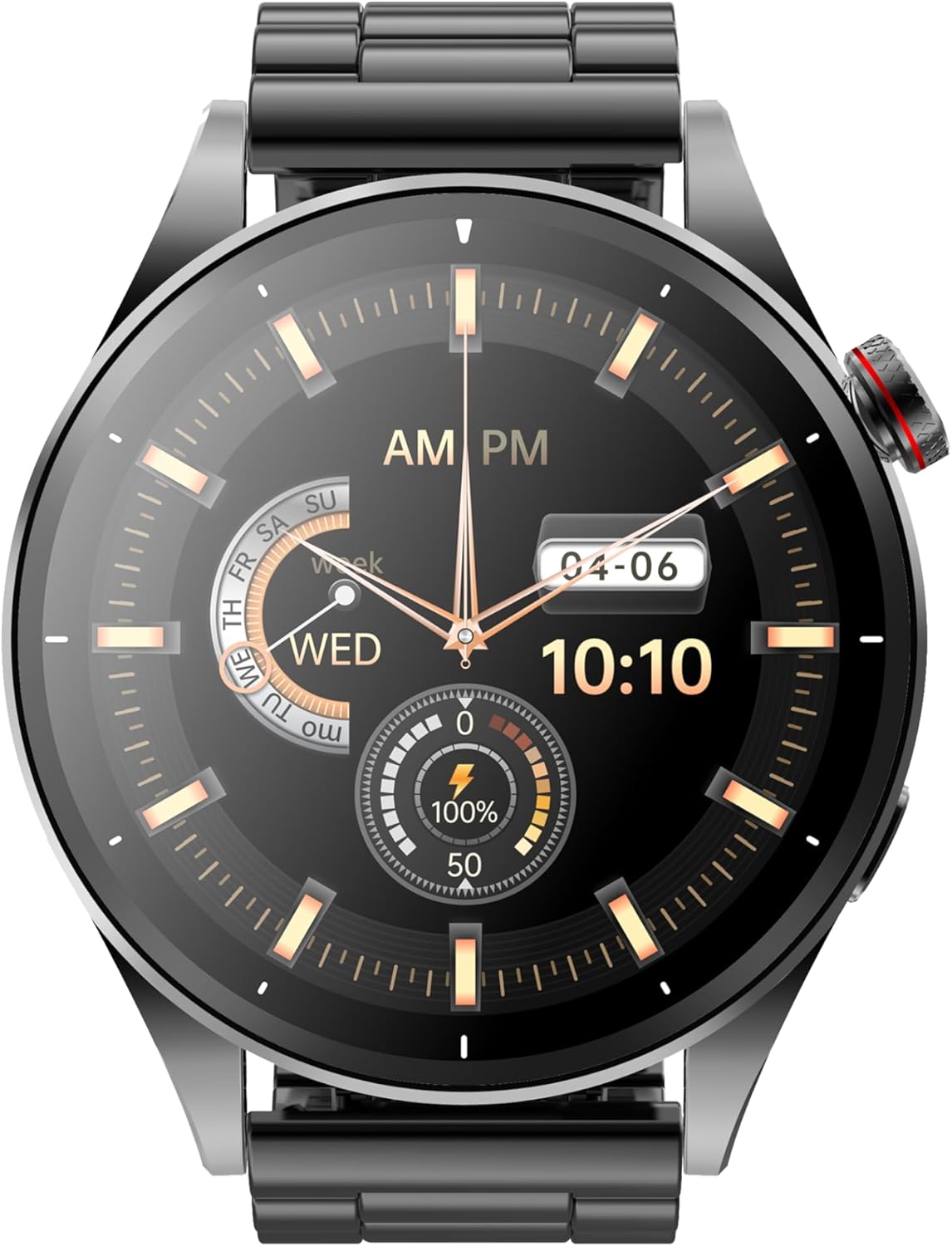
Image: Front view of the smartwatch displaying an analog watch face.
- Touchscreen: Swipe left, right, up, or down to navigate through menus and notifications. Tap to select.
- Rotating Button: Use the rotating button on the side to scroll through menus, change watch faces, or adjust settings. Press the button to return to the home screen or confirm a selection.
- Side Button: A secondary button (if present) may be customizable for quick access to a specific function or to turn the screen on/off.
4.2. Watch Faces and Menu Layout
The Maxcom Iron R FW66 offers a variety of watch faces, including both analog and digital displays. You can change the watch face by:
- Long-pressing the home screen and swiping to select a new face.
- Using the rotating button to cycle through available watch faces.
- Downloading additional watch faces via the companion app.
The menu layout can also be customized. Use the rotating button to change the menu display style (e.g., list view, grid view).
4.3. Health Monitoring
Your smartwatch is equipped with sensors to monitor various health metrics:
- Heart Rate: Access the heart rate monitor from the main menu. Ensure the watch is snug on your wrist for accurate readings.
- Blood Oxygen (SpO2): Follow the on-screen instructions to measure your blood oxygen level. Remain still during measurement.
- Blood Pressure: The watch can provide an estimate of blood pressure. For medical accuracy, consult a professional medical device.
- Activity Tracking: The watch automatically tracks steps, distance, and calories burned.
- Sleep Monitoring: Wear the watch during sleep to track sleep patterns. For best results, ensure the watch is worn correctly.
Note: The health data provided by this device is for reference only and should not be used for medical diagnosis or treatment. Consult a healthcare professional for any health concerns.
4.4. Voice Calls and Notifications
Once paired with your smartphone, the Maxcom Iron R FW66 allows you to manage calls and receive notifications:
- Making/Receiving Calls: Use the built-in microphone and speaker to make or answer calls directly from your wrist. Ensure the watch is within Bluetooth range of your phone.
- Notifications: Receive alerts for incoming calls, messages, emails, and app notifications. Customize which notifications appear on your watch through the companion app.
5. Maintenance and Care
- Cleaning: Wipe the watch screen and body with a soft, damp, lint-free cloth. Avoid using harsh chemicals or abrasive materials.
- Strap Care: Clean straps regularly. Silicone straps can be washed with mild soap and water. Metal straps can be wiped with a damp cloth. Ensure straps are completely dry before reattaching.
- Water Resistance: Refer to the product specifications for the watch's water resistance rating. Avoid exposing the watch to hot water, steam, or high-pressure water jets.
- Storage: When not in use for extended periods, store the watch in a cool, dry place.
- Avoid Extreme Temperatures: Do not expose the watch to extremely high or low temperatures, as this can affect battery life and performance.
6. Troubleshooting
| Problem | Solution |
|---|---|
| Watch does not turn on. | Ensure the watch is fully charged. Press and hold the power button for several seconds. |
| Cannot pair with smartphone. |
|
| Inaccurate health readings. |
|
| Short battery life. |
|
| Notifications not appearing. |
|
7. Specifications
| Brand | Maxcom |
| Model Name | FW66 Iron R |
| Item Model Number | FW66 |
| Color | Black |
| Screen Size | 1.43 Inches |
| Shape | Round |
| Connectivity Technology | Bluetooth |
| Wireless Communication Standard | Bluetooth |
| Special Features | Email, Alarm Clock, Activity Tracker |
| Compatible Devices | Smartphone |
| Battery Composition | Lithium-ion |
| Rechargeable Battery | Yes |
| Battery Capacity | 300 Milliampere-hour (mAh) |
| GPS | Integrated GPS |
| Manufacturer | Maxcom |
| Date First Available | June 15, 2024 |
| Spare Parts Availability | Information unavailable |
| Software Updates Guaranteed Until | Information unavailable |
8. Warranty and Support
For warranty information and customer support, please refer to the warranty card included in your product packaging or visit the official Maxcom website. Keep your proof of purchase for warranty claims.
For technical assistance or further inquiries, please contact Maxcom customer service through their official channels.


