
1. Product Overview
The SOYES F8 Pro Max is a compact mini smartphone designed for portability and essential communication. It features a 3-inch HD display, runs on Android 8.1, and includes face recognition for enhanced security.
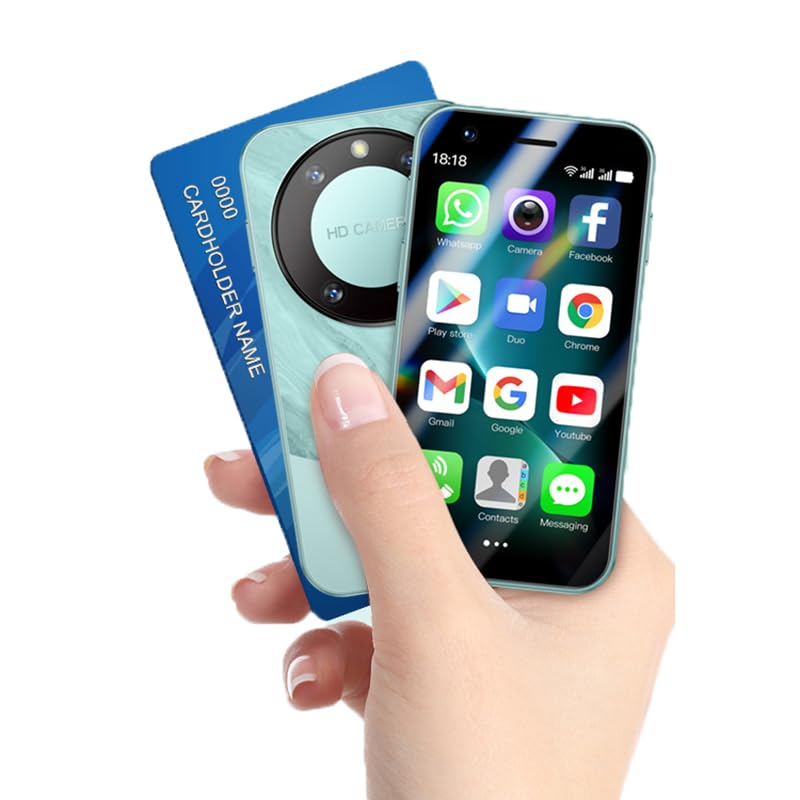
Image 1.1: The SOYES F8 Pro Max mini smartphone, showcasing its compact design.
Key Features:
- Compact Design: Measuring 89.65 x 45.80 x 12 mm, it is lightweight and designed for easy one-hand use.
- 3-inch HD Display: Features a 3-inch HD touchscreen with 480x854 resolution for clear visuals.
- Android 8.1 OS: Powered by Android 8.1 with 1GB RAM and 16GB ROM, expandable via TF card.
- 3G Connectivity: Supports 2G/3G SIM frequency bands (WCDMA/B1/B2/B5/B8, GSM 850/900/1800/1900).
- Dual Cameras & Face Unlock: Equipped with front (0.3MP) and rear (2.0MP) cameras, and supports face recognition for secure access.
- 2000mAh Battery: Provides reliable power for daily use.
2. Package Contents
Ensure all items are present in the box:
- SOYES F8 Pro Max Mini Smartphone
- Phone Case
- USB Cable (Type-C)
- Screen Protector
- SIM Tray Ejector
3. Setup
3.1 Inserting SIM and Memory Card
- Locate the SIM card tray on the side of the device.
- Insert the SIM tray ejector tool into the small hole next to the tray and press gently until the tray pops out.
- Place your Nano SIM card(s) and/or TF memory card into the designated slots on the tray. The device supports two Nano SIMs or one Nano SIM and one TF card.
- Carefully reinsert the tray into the phone until it clicks into place.

Image 3.1: The compact size of the SOYES F8 Pro Max, indicating where the SIM tray is typically located on the side.
3.2 Initial Charging
- Connect the Type-C USB cable to the charging port at the bottom of the phone.
- Connect the other end of the USB cable to a compatible power adapter (not included) and plug it into a wall outlet.
- Allow the phone to charge fully before first use. A charging indicator will appear on the screen.
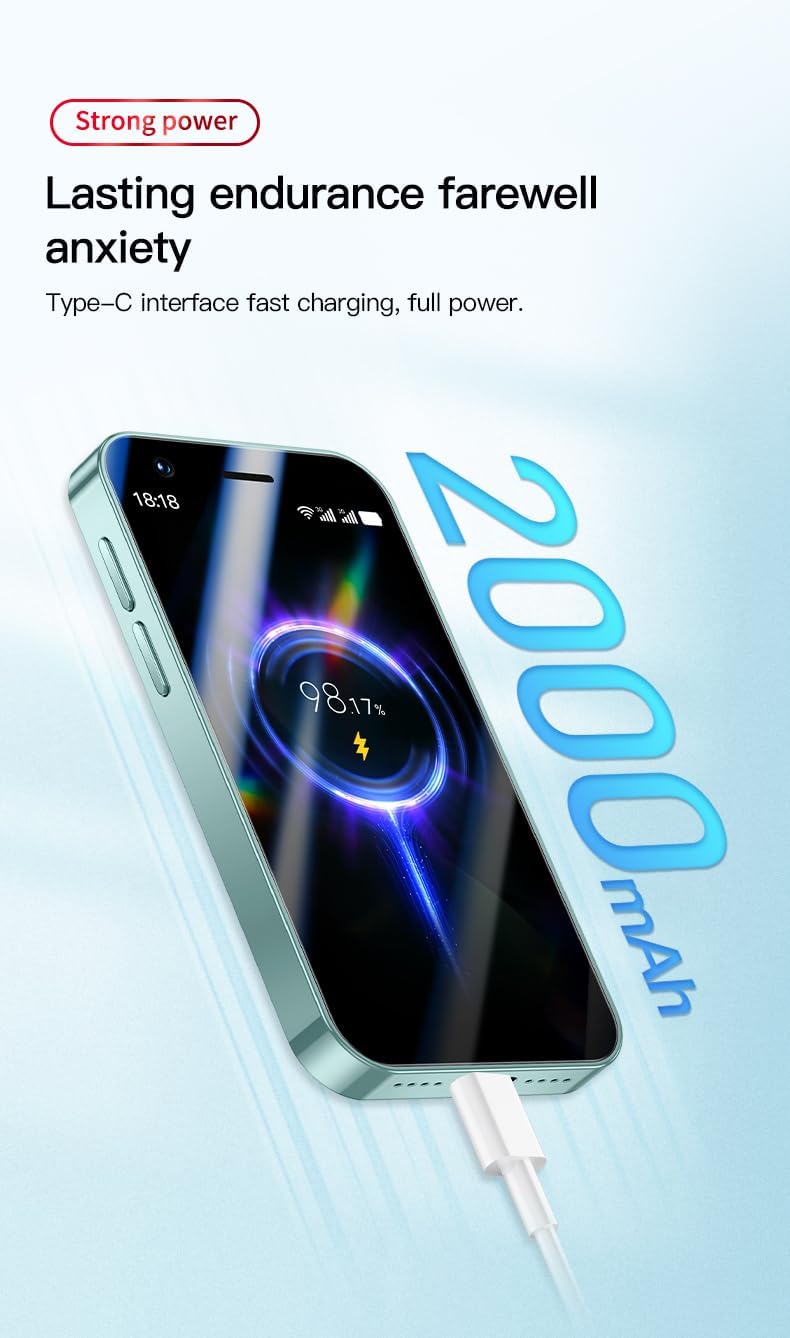
Image 3.2: The SOYES F8 Pro Max connected to a Type-C charger, showing the charging status.
3.3 Power On/Off
- To Power On: Press and hold the Power button (usually on the right side) until the screen lights up.
- To Power Off: Press and hold the Power button, then select 'Power off' from the options on the screen.
4. Operating Instructions
4.1 Basic Navigation
- Touchscreen: Tap to select, swipe to scroll, pinch to zoom.
- Home Screen: Swipe left or right to access different app pages.
- Notification Panel: Swipe down from the top of the screen to view notifications and quick settings.
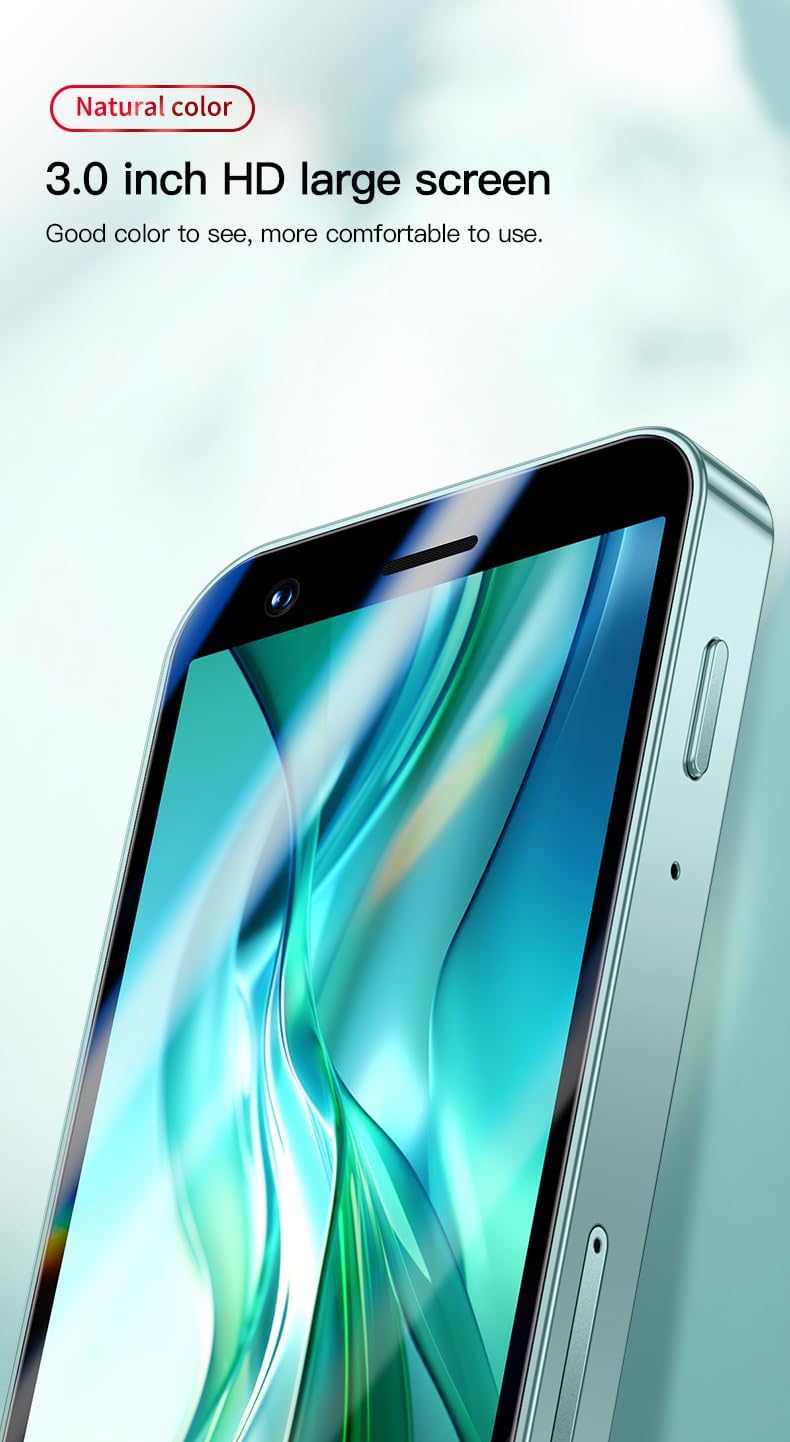
Image 4.1: A close-up of the 3-inch HD display, illustrating its clarity for navigation.
4.2 Calls and Messaging
- Making Calls: Open the 'Phone' app, enter the number, and tap the call icon.
- Answering Calls: Swipe up on the screen when a call comes in.
- Sending Messages: Open the 'Messages' app, tap the new message icon, enter the recipient and your message.
4.3 Internet and Connectivity
- Wi-Fi: Go to Settings > Network & Internet > Wi-Fi. Turn Wi-Fi on and select your desired network.
- Mobile Data (3G): Go to Settings > Network & Internet > Mobile network. Ensure 'Mobile data' is enabled.
- Bluetooth: Go to Settings > Connected devices > Bluetooth. Turn Bluetooth on to pair with other devices.
4.4 Camera Usage
- Open the 'Camera' app.
- Tap the shutter button to take a photo.
- Tap the camera switch icon to toggle between the front (0.3MP) and rear (2.0MP) cameras.

Image 4.2: Examples of images captured, demonstrating the camera's capabilities.
4.5 Face Recognition Setup
- Go to Settings > Security & location > Face Unlock.
- Follow the on-screen instructions to register your face. Ensure you are in a well-lit area.
- Once registered, you can unlock your phone by looking at the front camera.
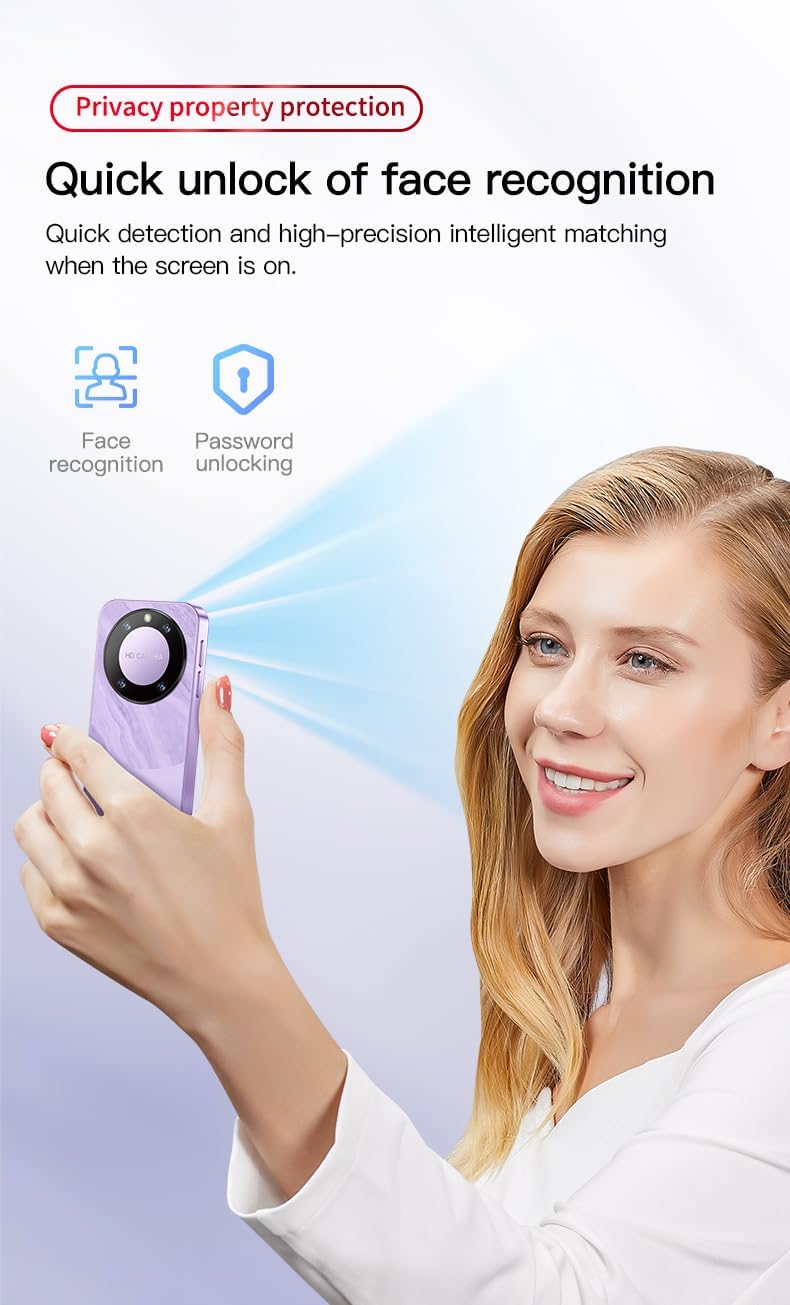
Image 4.3: A user demonstrating the face recognition feature for quick and secure device access.
4.6 App Management and Storage
- Installing Apps: Use the Google Play Store to download and install applications.
- Storage: The phone has 16GB of internal storage. You can expand this using a TF (microSD) card.
- Managing Storage: Go to Settings > Storage to view usage and free up space.
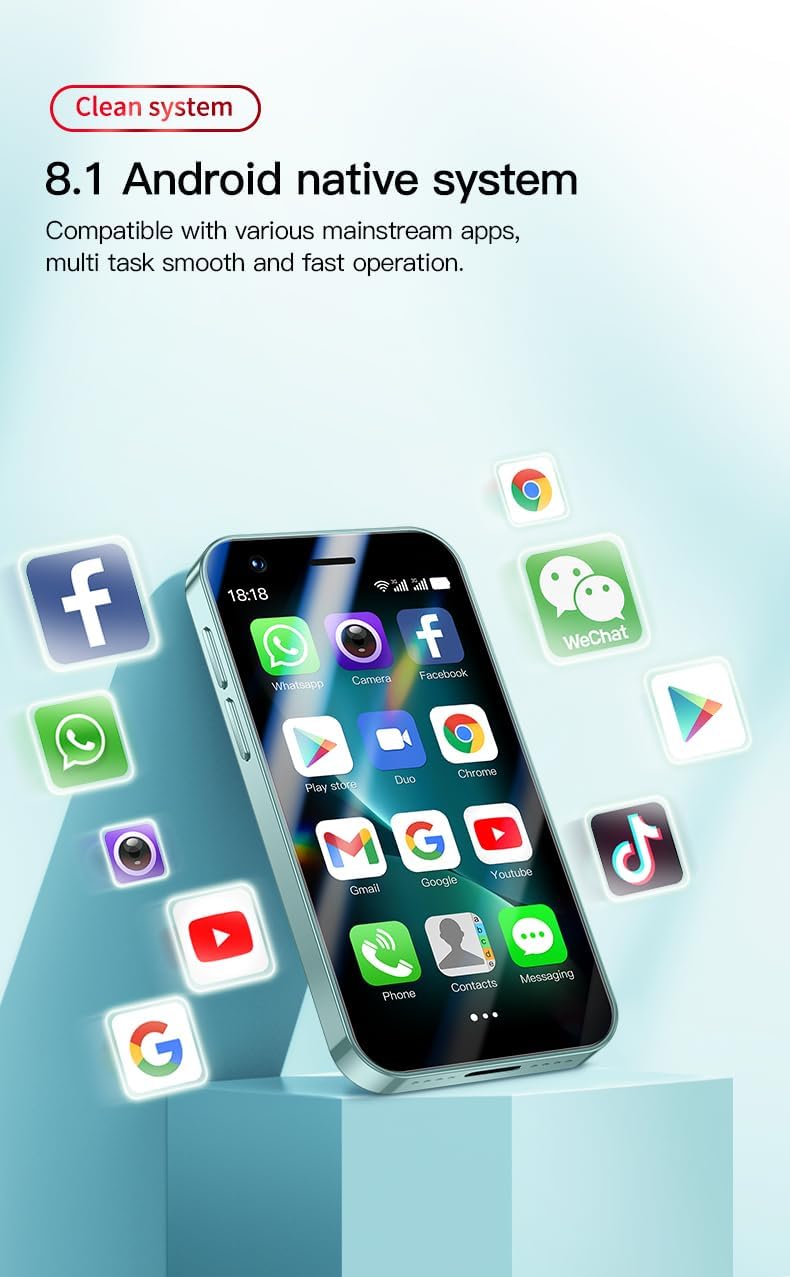
Image 4.4: The SOYES F8 Pro Max displaying various Android applications, highlighting its compatibility with mainstream apps.
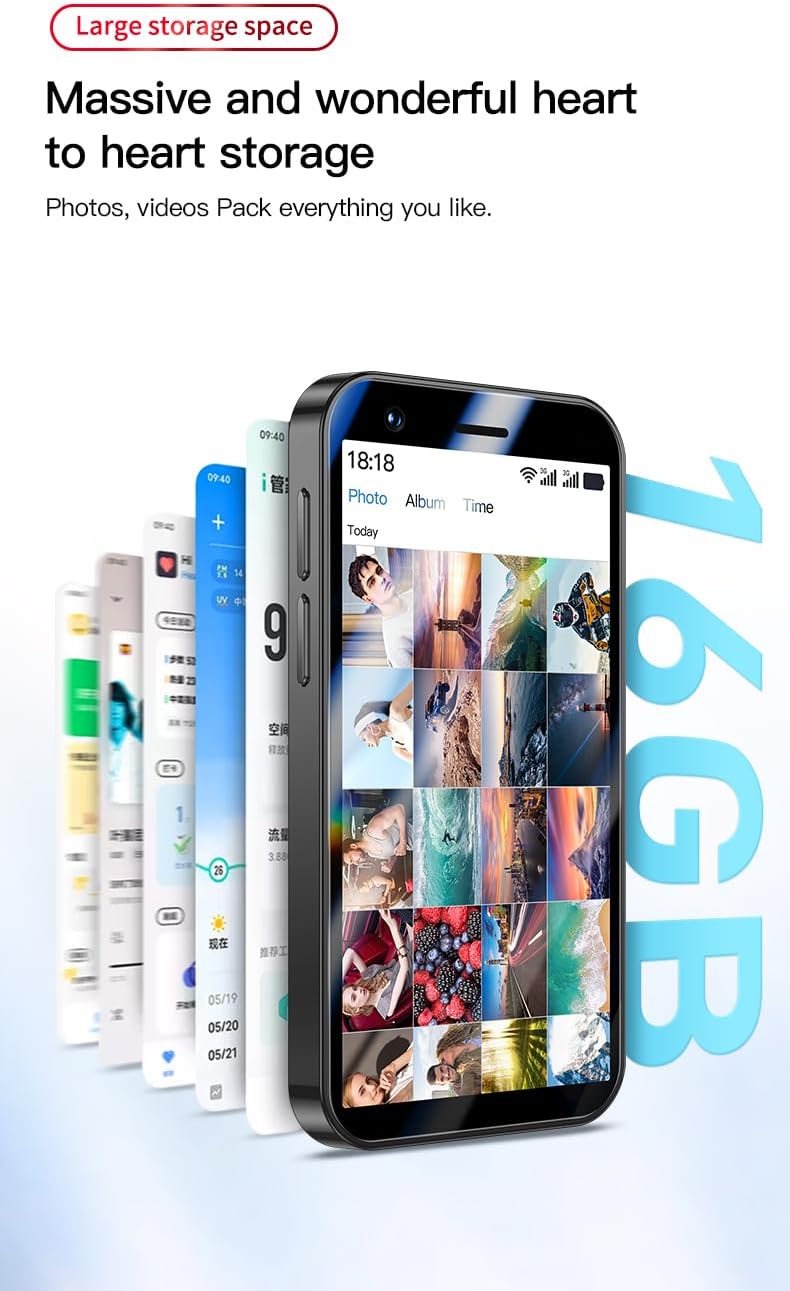
Image 4.5: The SOYES F8 Pro Max illustrating its 16GB internal storage capacity.
5. Maintenance
- Cleaning: Use a soft, lint-free cloth to clean the screen and body. Avoid harsh chemicals.
- Battery Care: Avoid extreme temperatures. Do not let the battery fully discharge frequently. Use the provided or a compatible charger.
- Software Updates: Periodically check for system updates in Settings > System > System update to ensure optimal performance and security.
- Storage Management: Regularly clear unnecessary files and uninstall unused apps to maintain performance.
6. Troubleshooting
| Issue | Possible Solution |
|---|---|
| Device won't turn on | Ensure the battery is charged. Connect to a charger for at least 30 minutes. If still unresponsive, perform a forced restart by holding the Power button for 10-15 seconds. |
| Poor signal or no network | Check if the SIM card is correctly inserted. Verify with your carrier if your SIM plan is active and compatible with 2G/3G bands. Try restarting the phone. |
| Apps crashing or freezing | Clear the app's cache (Settings > Apps & notifications > [App Name] > Storage & cache > Clear cache). Update the app to the latest version. If the issue persists, uninstall and reinstall the app. |
| Battery drains quickly | Reduce screen brightness. Close unused apps running in the background. Disable Wi-Fi, Bluetooth, or GPS when not in use. Check battery usage in Settings > Battery to identify power-hungry apps. |
| Face recognition not working | Ensure your face is well-lit and clearly visible to the front camera. Re-register your face in Settings > Security & location > Face Unlock. |
7. Specifications
| Feature | Detail |
|---|---|
| Brand | SOYES |
| Model Name | F8 Pro Max |
| Operating System | Android 8.1 |
| CPU Model | MediaTek Helio (MTK6580M Quad Core) |
| CPU Speed | 1.3 GHz |
| Installed RAM Size | 1 GB |
| Memory Storage Capacity | 16 GB |
| Max Supported Flash Memory Size | 16 GB (TF card) |
| Screen Size | 3 Inches |
| Resolution | 480 x 854 |
| Display Type | LCD |
| Rear Camera Sensor Resolution | 2 Megapixels |
| Number of Rear Cameras | 1 |
| Number of Front Cameras | 2 (Note: Product description states 0.3MP front camera, specification lists 2 front cameras. Assuming 1 functional front camera for user purposes.) |
| Battery Capacity | 2000 mAh |
| Cellular Technology | 3G |
| Wireless Technology | GSM, Bluetooth |
| Wireless Carrier | Unlocked |
| Number of SIM Card Slots | Dual SIM |
| SIM Card Size | Nano |
| Biometric Security Feature | Face Recognition |
| Input Interface | USB Type C |
| Color | Green |
| Form Factor | Bar |
| Water Resistance Level | Not Waterproof |
| Model Year | 2018 |
8. Warranty Information
Specific warranty details are not provided in the product information. Please refer to the retailer's return policy or contact the manufacturer directly for warranty terms and conditions.
9. Support
For further assistance or technical support, please contact the product manufacturer or your point of purchase. Keep your purchase receipt and product model information handy when seeking support.


