
1. Introduction
This manual provides essential instructions for setting up, operating, and maintaining your Brother DCP-L2622DW multifunction laser printer. The Brother DCP-L2622DW is a versatile device offering print, scan, and copy functionalities, designed for efficient use in home or small office environments. It features high-resolution monochrome printing, automatic duplex printing, and flexible connectivity options including Wi-Fi and USB.
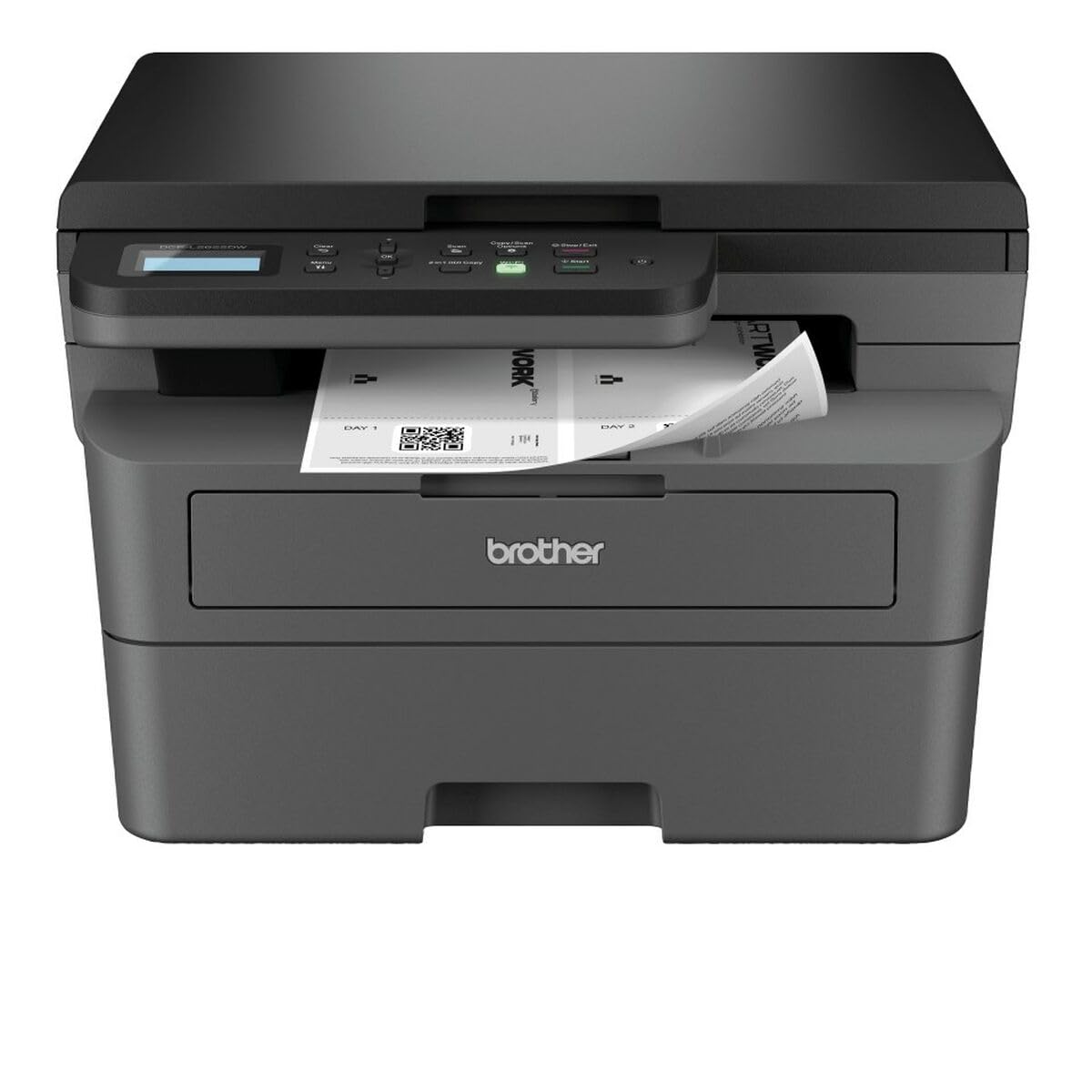
Figure 1: Brother DCP-L2622DW Multifunction Laser Printer. This image displays the front view of the printer, highlighting its compact design and integrated control panel.
2. Setup
2.1 Unpacking and Placement
- Carefully remove the printer from its packaging.
- Remove all protective tapes and packing materials from the exterior and interior of the printer.
- Place the printer on a flat, stable surface with adequate ventilation.
2.2 Power Connection
- Connect the power cord to the printer's power input.
- Plug the other end of the power cord into a grounded electrical outlet.
- Do not power on the printer until all other setup steps are complete.
2.3 Toner Cartridge and Drum Unit Installation
- Open the front cover of the printer.
- Remove the toner cartridge and drum unit assembly from its protective bag.
- Insert the toner cartridge firmly into the drum unit until it locks into place.
- Slide the combined toner and drum unit assembly into the printer until it clicks.
- Close the front cover.
2.4 Loading Paper
- Pull out the paper tray completely.
- Adjust the paper guides to fit the paper size (e.g., A4).
- Load paper into the tray, ensuring it is flat and not exceeding the maximum fill line.
- Gently push the paper tray back into the printer.
2.5 Connecting to a Computer (USB/Wi-Fi)
- USB Connection: Connect a USB cable (not included) from the printer to your computer.
- Wi-Fi Connection:
- Power on the printer.
- Use the printer's control panel to navigate to the Network settings.
- Select WLAN and then Setup Wizard.
- Choose your Wi-Fi network from the list and enter the password.
- Confirm the connection.
2.6 Driver Installation
- Insert the installation CD (if provided) into your computer, or download the latest drivers from the official Brother support website.
- Follow the on-screen instructions to complete the driver installation.
3. Operating the Printer
3.1 Basic Printing
- Open the document you wish to print on your computer.
- Select Print from the application's menu (e.g., File > Print).
- Ensure the Brother DCP-L2622DW is selected as the printer.
- Adjust print settings such as number of copies, paper size, and duplex printing (if desired).
- Click Print.
3.2 Automatic Duplex Printing
- When printing from your computer, access the printer properties or preferences.
- Look for an option related to 2-sided printing or Duplex.
- Select the desired duplex setting (e.g., Long-edge binding, Short-edge binding).
- Proceed with printing. The printer will automatically print on both sides of the paper.
3.3 Scanning Documents
- Place the document face down on the scanner glass, aligning it with the guide marks.
- From your computer, open the Brother iPrint&Scan application or other scanning software.
- Select Scan and choose your desired settings (e.g., resolution, color mode, destination).
- Click Scan to begin the process.
- Alternatively, you can initiate a scan from the printer's control panel and send it to your computer.
3.4 Copying Documents
- Place the document face down on the scanner glass.
- On the printer's control panel, press the Copy button.
- Use the arrow keys to adjust the number of copies or other settings (e.g., reduce/enlarge).
- Press Start to begin copying.
4. Maintenance
4.1 Cleaning the Printer
- Exterior: Wipe the exterior of the printer with a soft, lint-free cloth. Do not use abrasive cleaners or solvents.
- Scanner Glass: Gently clean the scanner glass with a soft, lint-free cloth moistened with a non-abrasive glass cleaner.
- Corona Wire: Periodically clean the corona wire inside the drum unit by sliding the green tab from left to right several times.
4.2 Replacing Toner Cartridge and Drum Unit
- When the printer indicates a low toner or drum life, order a replacement.
- Open the front cover and remove the old toner/drum assembly.
- Separate the toner cartridge from the drum unit.
- Unpack the new toner cartridge and insert it into the old or new drum unit until it clicks.
- Insert the new assembly into the printer and close the front cover.
- Reset the drum counter if prompted by the printer.
4.3 Clearing Paper Jams
- If a paper jam occurs, the printer's display will show an error message.
- Open the appropriate covers (front cover, back cover, or paper tray) as indicated by the error message.
- Carefully pull out the jammed paper in the direction of the paper path. Avoid tearing the paper.
- Close all covers and trays. The printer should resume printing.
5. Troubleshooting
5.1 Common Issues and Solutions
| Issue | Possible Cause | Solution |
|---|---|---|
| Printer not printing | Not powered on, cable disconnected, driver issue, paper jam, out of toner. | Check power and connections. Reinstall drivers. Clear jams. Replace toner. |
| Poor print quality | Low toner, dirty drum unit, incorrect paper type, fuser issue. | Replace toner. Clean corona wire/drum. Use recommended paper. Contact support if fuser issue suspected. |
| Wi-Fi connection unstable | Weak signal, incorrect password, router issue. | Move printer closer to router. Re-enter Wi-Fi password. Restart router and printer. |
| Paper jam error | Paper stuck in paper path. | Follow instructions in section 4.3 to clear the jam. |
5.2 Error Messages
Refer to the printer's LCD display for specific error codes or messages. Consult the full online manual or Brother support website for detailed explanations and solutions for each error code.
6. Specifications
| Feature | Detail |
|---|---|
| Model Name | DCP-L2622DW |
| Functions | Print, Scan, Copy |
| Print Technology | Laser |
| Print Output | Monochrome |
| Max Print Speed (Monochrome) | 34 Pages per minute |
| Max Print Resolution | 1200 x 1200 dpi |
| First Page Out Time | 8.5 seconds |
| Duplex Printing | Automatic |
| Scanner Type | Flatbed |
| Max Scan Resolution | 1200 x 1200 dpi |
| Connectivity | USB, Wi-Fi |
| Internal Memory | 256 MB |
| Paper Input Capacity | 250 sheets |
| Paper Output Capacity | 120 sheets |
| Supported Media Sizes | A4, A5, A6, B5, Envelopes, Labels |
| Dimensions (D x W x H) | 42.5 x 57.5 x 42.5 cm |
| Item Weight | 10100 Grams |
| Power Consumption | 470 Watts |
7. Warranty Information
This Brother DCP-L2622DW multifunction laser printer comes with a Limited Warranty. For detailed information regarding the terms, conditions, and duration of your warranty, please refer to the warranty card included with your product or visit the official Brother support website. Keep your proof of purchase for warranty claims.
8. Customer Support
For further assistance, technical support, driver downloads, or to access the complete user manual, please visit the official Brother support website. You can typically find support resources by searching for your model number (DCP-L2622DW) on their website.
Brother Official Support Website: www.brother.com/support


