
HiFuture EVO2 Siyah
Contents
HiFuture EVO2 Smart Bracelet User Manual
Brand: HiFuture | Model: EVO2
1. Introduction
The HiFuture EVO2 Smart Bracelet is a versatile and robust companion designed for active individuals. It features a 1.47-inch IPS display, IP68 water resistance, and an ultra-lightweight design for comfortable daily wear. With up to 7 days of battery life on a single charge, it keeps you connected and tracks your activities seamlessly.
Key features include Bluetooth 5.2 connectivity for calls, messages, and app notifications, real-time heart rate tracking, and over 100 sport modes to monitor various workouts like running, walking, cycling, swimming, and yoga.
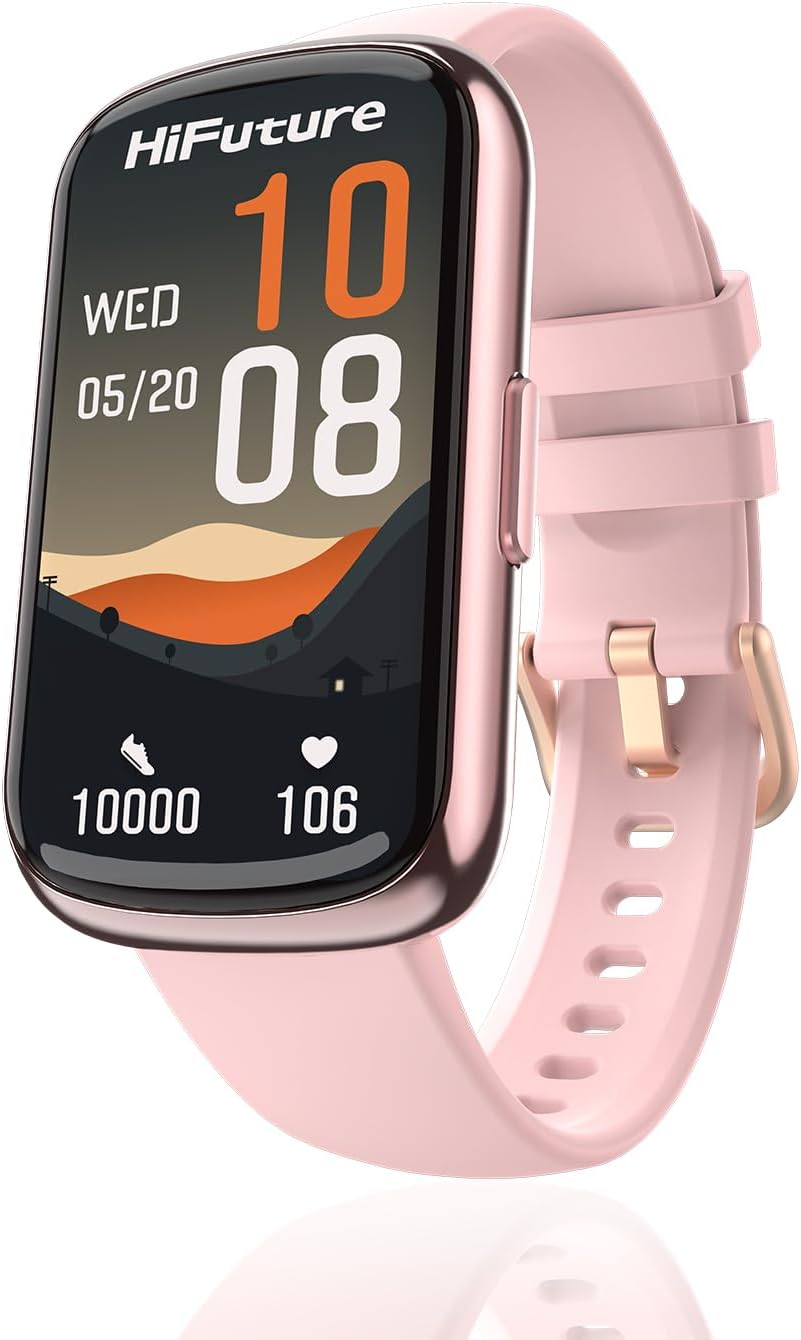
Figure 1.1: HiFuture EVO2 Smart Bracelet, showcasing its sleek design and vibrant display in rose gold.

Figure 1.2: Overview of the HiFuture EVO2's main features, including 100+ sport modes, 7-day battery life, 1.47-inch IPS screen, IP68 water resistance, and heart rate tracking.
2. Setup Guide
2.1 Initial Charging
Before first use, fully charge your HiFuture EVO2 Smart Bracelet. Connect the charging cable to the charging contacts on the back of the device and plug the USB end into a power adapter (not included) or a computer's USB port. The screen will indicate charging status.
2.2 App Installation
To unlock the full potential of your smart bracelet, download the companion application on your smartphone. Search for the official HiFuture app (e.g., "HiFuture Fit" or similar, check product packaging for exact name) on the App Store (iOS) or Google Play Store (Android).
- Scan the QR code provided in the product packaging or search for the app manually.
- Install the app on your smartphone.
- Create an account or log in if you already have one.
2.3 Device Pairing
Ensure your smartphone's Bluetooth is enabled and the smart bracelet is sufficiently charged.
- Open the HiFuture companion app on your smartphone.
- Follow the in-app instructions to add a new device. This usually involves selecting "Add Device" or "Pair Device".
- The app will search for nearby devices. Select "HiFuture EVO2" from the list of found devices.
- Confirm the pairing request on both your smartphone and the smart bracelet if prompted.
- Once paired, the bracelet will synchronize data with the app, and you can customize settings.
3. Operating Instructions
3.1 Basic Navigation
The HiFuture EVO2 features a full touch screen for easy interaction. Swipe up, down, left, or right to navigate through menus and functions. A short press on the side button (if present) typically returns to the previous screen or activates the display.

Figure 3.1: The HiFuture EVO2 Smart Bracelet comfortably worn on a wrist, demonstrating its ergonomic design.
3.2 Health Monitoring
The smart bracelet continuously tracks various health metrics:
- Heart Rate: Real-time heart rate monitoring. Access this feature from the main menu or through a dedicated widget.
- Activity Tracking: Records steps, distance, and calories burned throughout the day.
- Sleep Monitoring: Automatically tracks your sleep patterns, including deep sleep, light sleep, and awake times.

Figure 3.2: Visual representation of the HiFuture EVO2's health tracking capabilities, including heart rate, blood oxygen, and calorie/step counting.

Figure 3.3: A close-up view of the health sensors on the back of the HiFuture EVO2 Smart Bracelet, responsible for accurate health data collection.
3.3 Sport Modes
The EVO2 supports over 100 sport modes. To select a sport mode:
- Swipe on the screen to find the "Workout" or "Sport Modes" icon.
- Tap to enter the sport mode selection.
- Scroll through the list and tap on your desired activity (e.g., Running, Cycling, Swimming).
- The bracelet will start tracking your activity. Tap to pause or end the workout.
3.4 Notifications
Once paired with your smartphone, the EVO2 can display notifications for calls, messages, and various apps. Ensure notification permissions are granted in your phone's settings and within the HiFuture app.
4. Maintenance
4.1 Cleaning Your Device
Regular cleaning helps maintain the device's appearance and functionality.
- Wipe the screen and body with a soft, lint-free cloth. If necessary, dampen the cloth slightly with water.
- Clean the charging contacts periodically with a dry cloth to ensure good connection.
- For the strap, follow the manufacturer's recommendations based on the material. For silicone straps, mild soap and water can be used, then rinse thoroughly and dry.
- Avoid using abrasive cleaners, solvents, or harsh chemicals.
4.2 Water Resistance (IP68)
The HiFuture EVO2 is IP68 water-resistant, meaning it can withstand immersion in water up to 1.5 meters for up to 30 minutes. It is suitable for swimming and showering.

Figure 4.1: The HiFuture EVO2 Smart Bracelet demonstrating its IP68 water resistance, suitable for various water activities.
Important:
- Do not expose the device to hot water, steam, or high-pressure water jets (e.g., car wash).
- Water resistance is not a permanent condition and may decrease over time with normal wear and tear.
- Dry the device thoroughly after exposure to water, especially the charging contacts, before charging.
4.3 Storage
When not in use for extended periods, store the smart bracelet in a cool, dry place away from direct sunlight and extreme temperatures. Ensure it is fully charged before storing to preserve battery health.
5. Troubleshooting
If you encounter issues with your HiFuture EVO2 Smart Bracelet, try the following solutions:
| Problem | Possible Solution |
|---|---|
| Device won't turn on | Ensure the device is fully charged. Connect it to the charger for at least 30 minutes. |
| Device won't charge | Check if the charging contacts on both the device and cable are clean and free of debris. Ensure the USB power source is working. Try a different USB port or adapter. |
| Cannot pair with smartphone | Ensure Bluetooth is enabled on your phone. Make sure the bracelet is within range. Restart both the bracelet and your phone. Forget the device in your phone's Bluetooth settings and try pairing again through the app. |
| Inaccurate health data | Ensure the bracelet is worn snugly but comfortably on your wrist, about one finger's width above the wrist bone. Clean the sensor area. Avoid excessive movement during readings. |
| Notifications not appearing | Check notification permissions in your phone's settings for the HiFuture app. Ensure the app is running in the background. Verify notification settings within the HiFuture app. |
If the problem persists, refer to the official HiFuture support website or contact customer service.
6. Specifications
| Feature | Detail |
|---|---|
| Brand | HiFuture |
| Model Number | EVO2 |
| Color | Rose Gold (other colors may be available) |
| Screen Size | 1.47 Inches |
| Display Type | IPS Touch Screen |
| Connectivity | Bluetooth 5.2 |
| Water Resistance | IP68 |
| Battery Type | Lithium-ion |
| Battery Capacity | 200 mAh (approx.) |
| Battery Life | Up to 7 days (typical usage) |
| Special Features | Lightweight, Heart Rate Tracking, 100+ Sport Modes |
| RAM | 192 KB |
| Flash Memory | 64 MB |
7. Warranty and Support
For warranty information, please refer to the warranty card included with your product or visit the official HiFuture website. Warranty terms and conditions may vary by region and retailer.
If you require technical support, have questions about your device, or need to report an issue, please contact HiFuture customer service through their official website or the contact information provided in your product packaging.
Official Website: www.hifuture.com (Please verify the exact URL from your product documentation)
Ask a question about this manual
Ask about setup, troubleshooting, compatibility, parts, safety, or missing instructions. Manuals+ will review the question and use this page’s manual context to help answer it.