1. Introduction
This manual provides essential instructions for using your OPPO A3X 5G smartphone. It covers device setup, basic operations, maintenance, and troubleshooting to ensure optimal performance and user experience. The OPPO A3X 5G features a 6.67-inch HD+ 120Hz display, an 8MP dual rear camera, a 5100mAh battery with 45W SUPERVOOC flash charging, and runs on Android 14 with ColorOS 14.0.
2. Getting Started
2.1 Package Contents
Verify that your package contains the following items:
- OPPO A3X 5G Smartphone
- Phone Case
- Power Adapter
- USB Cable
- SIM Tray Ejector
2.2 Device Layout
Familiarize yourself with the physical components of your OPPO A3X 5G.

Image: Front and back view of the OPPO A3X 5G smartphone in Sparkle Black. The front shows the display with a punch-hole camera, and the back features a dual-camera module and the OPPO logo.

Image: Close-up front view of the OPPO A3X 5G display, showcasing the screen and front camera.

Image: Side profile of the OPPO A3X 5G, illustrating the placement of the power button, volume buttons, and SIM tray slot.
- Front Camera: Located at the top center of the display.
- Volume Buttons: Typically on the left side for adjusting audio levels.
- Power Button: Usually on the right side, used for turning the device on/off and screen lock.
- USB-C Port: At the bottom for charging and data transfer.
- Speaker: Located at the bottom.
- 3.5mm Audio Jack: For connecting headphones.
- SIM Card Tray: On the side, requires the ejector tool to open.
- Rear Cameras: Dual camera setup on the back.
3. Setup
3.1 Inserting SIM and SD Card
- Locate the SIM card tray on the side of the device.
- Insert the SIM tray ejector tool into the small hole next to the tray and press gently until the tray pops out.
- Place your Nano-SIM card(s) and/or microSD card into the designated slots on the tray. Ensure the gold contacts face downwards.
- Carefully reinsert the tray into the phone until it clicks into place.
3.2 Initial Device Setup
- Press and hold the Power button until the OPPO logo appears.
- Follow the on-screen prompts to select your language, region, and connect to a Wi-Fi network.
- Sign in with your Google account or create a new one.
- Set up screen lock methods (PIN, pattern, fingerprint, face unlock).
- Review and accept the terms and conditions to complete the setup.
4. Operating Your Device
4.1 Basic Operations
- Power On/Off: Press and hold the Power button. Select "Power off" or "Restart" from the menu.
- Screen Lock/Unlock: Press the Power button briefly to lock or wake the screen. Use your chosen security method to unlock.
- Volume Adjustment: Use the Volume Up/Down buttons on the side.
- Navigation: Utilize gestures or the navigation bar (Back, Home, Recent Apps) as configured in settings.
4.2 Display Features
The OPPO A3X 5G features a 6.67-inch HD+ LCD display with a 120Hz refresh rate for smooth visuals and improved responsiveness. It offers an ultra-bright viewing experience.
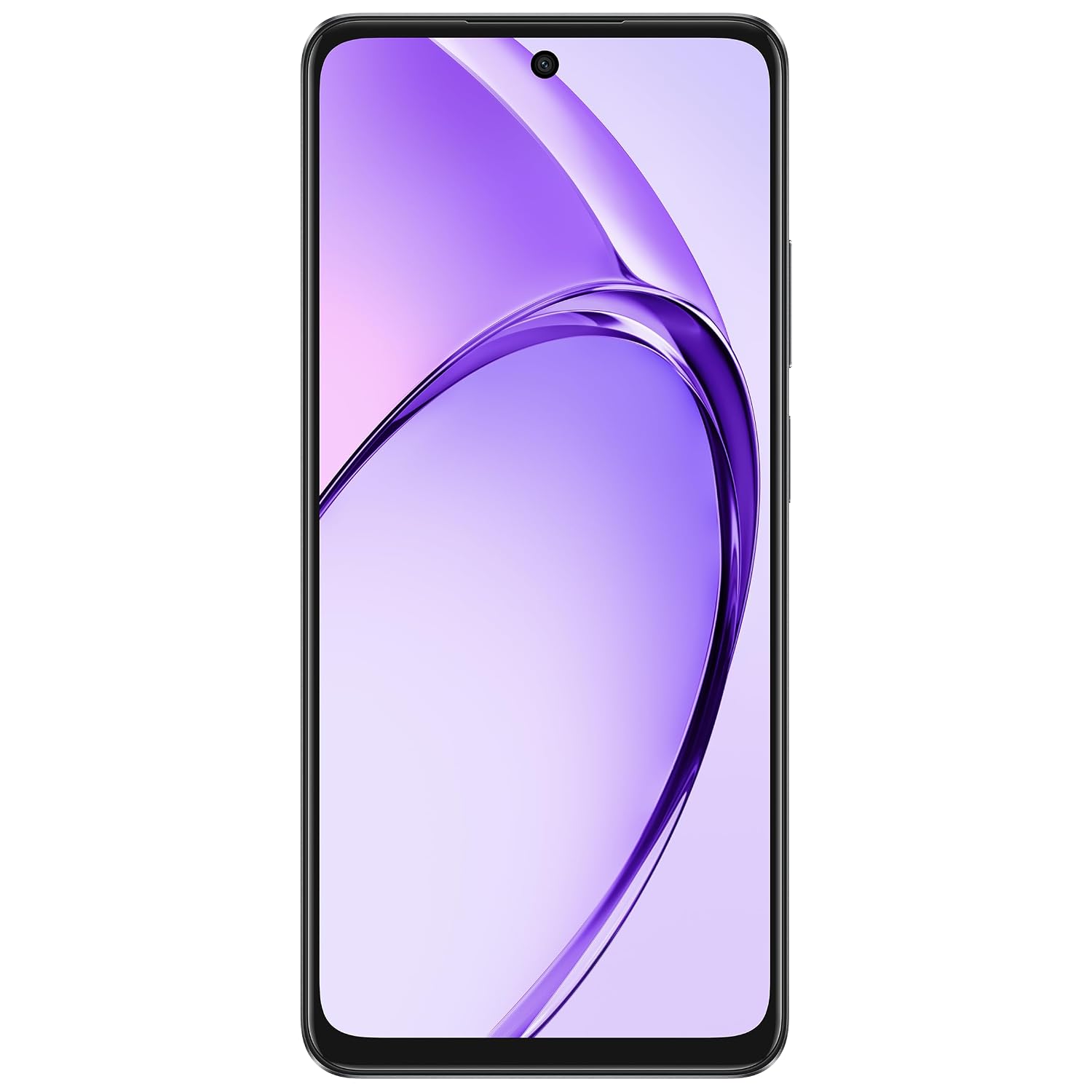
Image: A composite image showing key features of the OPPO A3X 5G, including its robust design, water resistance, vibrant 120Hz display, and fast charging capability.
4.3 Camera Usage
Your device is equipped with an 8MP dual ultra-clear rear camera and a 5MP front selfie camera. Key features include:
- AI Portrait Retouching: Enhances portrait photos.
- Dual-View Video: Allows simultaneous recording from both front and rear cameras.
- Access the Camera app from the home screen or lock screen.
- Tap to focus, pinch to zoom, and swipe to switch between modes (Photo, Video, Portrait, etc.).
4.4 Battery and Charging
The OPPO A3X 5G is powered by a 5100mAh hyper-energy battery. It supports 45W SUPERVOOC flash charging for rapid power replenishment. Use the provided power adapter and USB cable for optimal charging performance.
- Connect the USB cable to the power adapter.
- Plug the power adapter into a wall outlet.
- Connect the USB-C end of the cable to your phone's charging port.
- The charging indicator will appear on the screen.
4.5 Connectivity
- Wi-Fi: Connect to wireless networks for internet access. Go to Settings > Wi-Fi.
- Bluetooth: Pair with other Bluetooth devices like headphones or speakers. Go to Settings > Bluetooth.
- 5G Network: Enjoy high-speed mobile data connectivity where available.
- NFC: For contactless payments and quick pairing with compatible devices.
- GPS: For location services and navigation.
5. Maintenance
5.1 Care and Cleaning
- Keep your device dry. Liquids can cause damage.
- Clean the screen and body with a soft, lint-free cloth. Avoid harsh chemicals.
- Protect the screen with a screen protector and use the provided phone case.
- Avoid extreme temperatures and direct sunlight.
5.2 Software Updates
Regularly check for and install software updates to ensure your device has the latest features, security patches, and performance improvements. Go to Settings > About device > Up to date or Software update.
6. Troubleshooting
If you encounter issues with your device, try the following common solutions:
- Device not turning on: Ensure the battery is charged. Connect to the charger for at least 10 minutes before attempting to power on.
- Apps crashing or freezing: Close the app and reopen it. If the issue persists, restart your phone.
- Poor network signal: Check your SIM card insertion. Move to an area with better network coverage.
- Battery draining quickly: Reduce screen brightness, close background apps, or enable power-saving mode.
- Touchscreen unresponsive: Restart the device. If it remains unresponsive, contact customer support.
7. Specifications
| Feature | Detail |
|---|---|
| Model Number | CPH2681 |
| Operating System | Android 14 (ColorOS 14.0) |
| RAM | 4 GB |
| Storage | 64 GB (Internal) |
| Display | 6.67-inch HD+ LCD, 120Hz Refresh Rate, 1604 x 720 Resolution |
| Rear Camera | 8MP Dual Ultra-Clear Camera |
| Front Camera | 5MP |
| Battery Capacity | 5100 mAh |
| Charging | 45W SUPERVOOC Flash Charge |
| Processor | MediaTek Dimensity 6300 |
| Connectivity | 5G, Wi-Fi, Bluetooth, NFC, GPS |
| Audio Jack | 3.5 mm |
| Dimensions (LxWxH) | 16.6 x 7.6 x 0.8 cm |
| Item Weight | 187 g |
| Color | Sparkle Black |
8. Safety Information
- Do not use the device in prohibited areas (e.g., aircraft, hospitals).
- Avoid exposing the device to extreme heat or cold.
- Use only approved chargers and accessories.
- Do not attempt to disassemble or repair the device yourself.
- Dispose of the device and its battery responsibly according to local regulations.
- Maintain a safe distance from medical implants when using the device.
9. Warranty and Support
Specific warranty details for your OPPO A3X 5G smartphone are not included in this manual. For comprehensive warranty information, technical support, or service inquiries, please refer to the official OPPO website or contact OPPO customer service directly. Keep your proof of purchase for warranty claims.
You can visit the official OPPO store for more information: OPPO Store on Amazon.in


