
Introduction
This document provides detailed instructions for the KCEVE 4-Port HDMI KVM Switch, Model KCKC401B. This device allows you to share a single monitor, keyboard, and mouse between up to four different computers or devices. It is designed to optimize your workspace by reducing the need for multiple peripherals, offering a streamlined solution for managing multiple systems.
What's in the Box
- 1 x KCEVE 4-Port HDMI KVM Switch (Model KCKC401B)
- 1 x HDMI 1.4 Cable (1.5m)
- 4 x USB A-B Cables
Note: To achieve 4K@60Hz resolution, additional HDMI 2.0 cables may be required and are not included.
Product Overview
The KCEVE KVM Switch is a versatile device designed for efficient multi-computer management. It supports high-resolution video output and offers multiple switching methods for user convenience.

Image: Front view of the KCEVE 4-Port HDMI KVM Switch, showcasing its compact design and port layout.
Key Features:
- 4-Port HDMI KVM Switch: Connects up to four computers to a single monitor, keyboard, and mouse.
- 4K@60Hz Resolution Support: Delivers ultra-HD visual enjoyment, ensuring clear and detailed images. Requires HDMI 2.0 cables for optimal performance.
- Integrated USB 2.0 Hub: Features 4 USB 2.0 ports for connecting various USB devices such as printers, scanners, and USB drives.
- Multiple Switching Methods: Switch between connected computers using front panel buttons or keyboard hotkeys.
- Broad System Compatibility: Compatible with Windows 10/8.1/8/7/XP/Vista, Linux, and Chrome OS. Note: Mac OS and Ubuntu systems are not officially recommended due to potential compatibility issues.
- Plug and Play: No driver installation required for basic functionality.
Setup Instructions
Follow these steps to correctly set up your KCEVE KVM Switch.
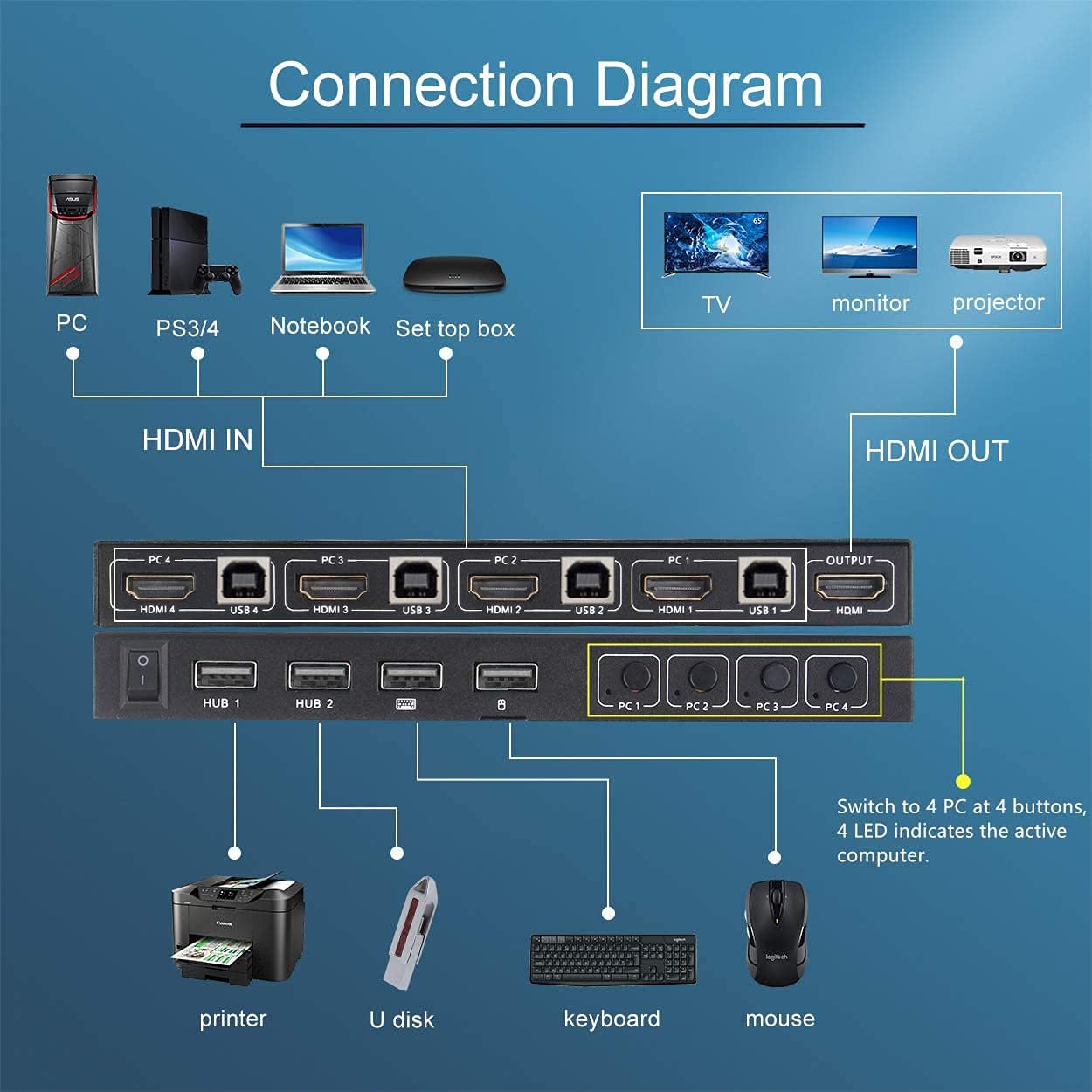
Image: A detailed connection diagram showing how to connect PCs, game consoles, notebooks, and set-top boxes to the KVM switch's HDMI IN and USB ports, and how to connect a monitor, TV, or projector to the HDMI OUT port. Peripheral devices like printers, U disks, keyboards, and mice are shown connected to the KVM's USB HUB ports.
- Connect Input Devices (Computers/Sources):
For each computer (PC, PS3/4, Notebook, Set-top box) you wish to connect:- Connect an HDMI cable from the computer's HDMI output to an HDMI IN port (HDMI 1-4) on the KVM Switch.
- Connect a USB A-B cable from the computer's USB port to the corresponding USB A-B port (USB 1-4) on the KVM Switch. Ensure the USB A-B cable matches the HDMI IN port (e.g., PC1 HDMI IN to PC1 USB A-B).
- Connect Output Display:
Connect an HDMI cable from the HDMI OUT port on the KVM Switch to the HDMI input of your monitor, TV, or projector.For 4K@60Hz resolution, ensure both your display and source device support 4K@60Hz, and use HDMI 2.0 cables for all connections between the KVM and your devices.
- Connect Peripherals:
Connect your keyboard, mouse, and other USB devices (e.g., printer, USB drive) to the USB HUB ports on the KVM Switch. - Power On:
The KVM switch typically draws power from the connected USB devices. No external power adapter is usually required. However, if you experience instability or issues with connected USB devices, ensure multiple USB A-B cables are connected to provide sufficient power.

Image: The KVM switch shown with its dimensions (17.8cm x 7.7cm x 2cm) and illustrating the included HDMI 1.4 cable (x1) and USB A-B cables (x4).
Operating Instructions
The KVM switch offers two primary methods for switching between connected computers.

Image: Demonstrates two methods of switching: by pressing the PC selection buttons on the KVM unit, and by using keyboard hotkeys (double-clicking Scroll Lock or Ctrl followed by 1, 2, 3, or 4).
1. Button Switching
Press the corresponding PC1, PC2, PC3, or PC4 button on the front panel of the KVM switch to select the desired computer. An LED indicator will illuminate to show the active computer.
2. Keyboard Hotkey Switching
The KVM switch supports hotkey combinations for quick switching. Ensure your keyboard and mouse are connected to the dedicated USB interfaces on the KVM switch for hotkey functionality.
- Hotkey Combination 1: Double-press the "Scroll Lock" key, then press the number key corresponding to the desired PC (1, 2, 3, or 4).
Example: Scroll Lock, Scroll Lock, 1 (to switch to PC1) - Hotkey Combination 2: If your keyboard lacks a "Scroll Lock" key, double-press the "Ctrl" key, then press the number key corresponding to the desired PC (1, 2, 3, or 4).
Example: Ctrl, Ctrl, 2 (to switch to PC2)
Important Note: Hotkey functionality cannot be disabled.
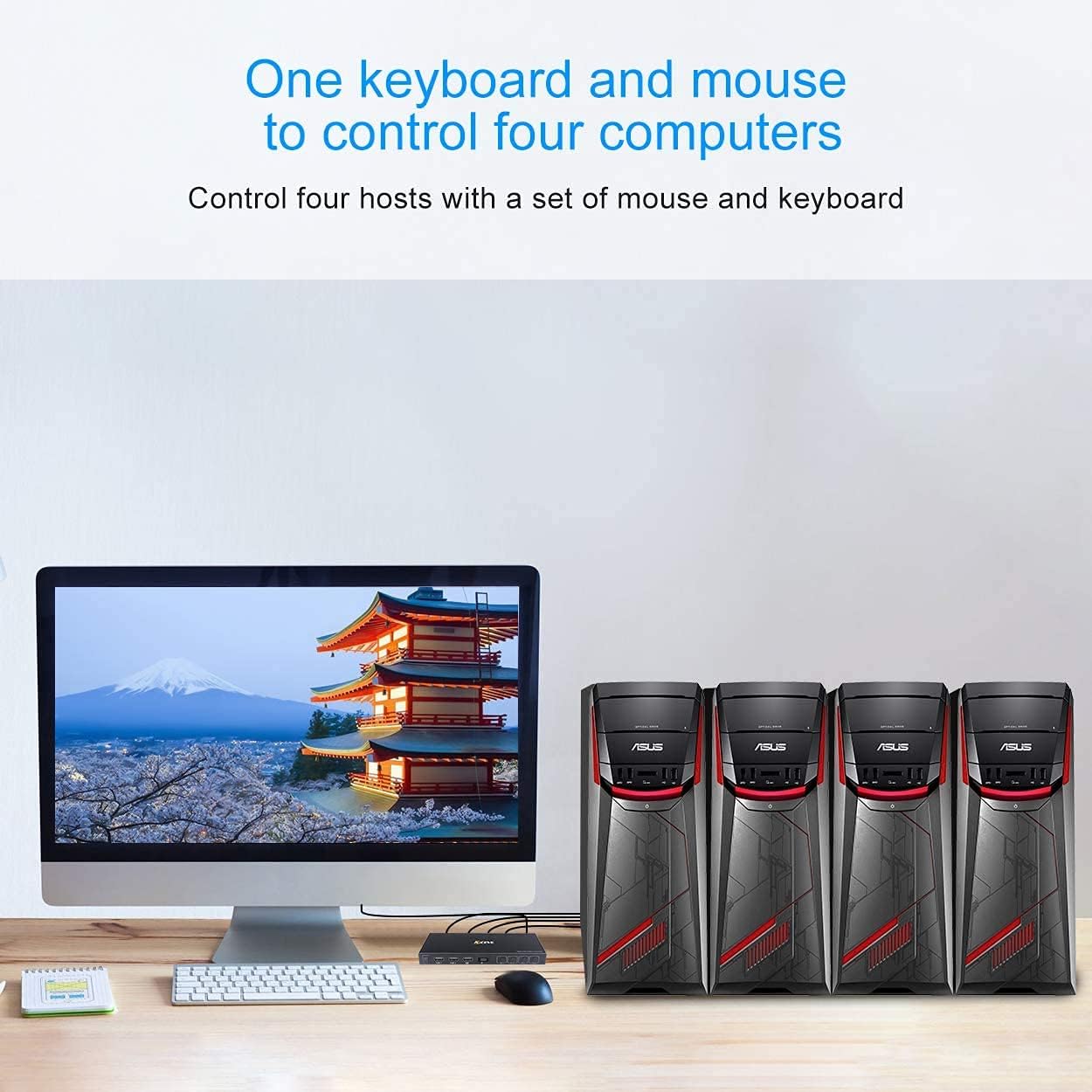
Image: A desk setup showing a single monitor, keyboard, and mouse connected to the KVM switch, which in turn is connected to four separate computer towers, illustrating the core function of controlling multiple systems with one set of peripherals.
Maintenance
To ensure the longevity and optimal performance of your KCEVE KVM Switch, consider the following maintenance tips:
- Keep the device in a dry, dust-free environment.
- Avoid exposing the switch to extreme temperatures or direct sunlight. The upper temperature rating is 60 Degrees Celsius.
- Clean the exterior with a soft, dry cloth. Do not use liquid cleaners or solvents.
- Ensure all cable connections are secure to prevent signal loss or intermittent issues.
Troubleshooting
If you encounter issues with your KVM switch, refer to the following common problems and solutions:
- No Display or Flickering Screen:
- Ensure all HDMI cables are securely connected.
- Verify that your monitor and source devices support the selected resolution and refresh rate.
- If using 4K@60Hz, confirm that all HDMI cables are HDMI 2.0 compliant and that your display and source device support this resolution.
- Try connecting the source directly to the monitor to rule out cable or source issues.
- Keyboard or Mouse Not Responding:
- Ensure the keyboard and mouse are connected to the dedicated USB ports on the KVM switch.
- If disconnected, unplug and re-plug the USB A-B cables connecting the KVM to the computers to re-establish recognition.
- Ensure sufficient power is supplied to the KVM by connecting all USB A-B cables to your computers.
- Test the keyboard and mouse directly with the computer to confirm they are functional.
- Hotkey Switching Not Working:
- Confirm your keyboard and mouse are connected to the correct USB ports on the KVM switch. Hotkey functionality relies on these specific connections.
- Ensure you are using the correct hotkey sequence (double-press Scroll Lock or Ctrl, then 1/2/3/4).
- Compatibility Issues:
- The KVM switch is compatible with Windows 10/8.1/8/7/XP/Vista, Linux, and Chrome OS.
- Mac OS and Ubuntu systems are not officially recommended due to potential compatibility limitations.
Specifications
| Feature | Specification |
|---|---|
| Brand Name | KCEVE |
| Model Number | KCKC401B |
| Item Type Name | KVM SWITCH |
| Operation Mode | ON-OFF |
| Current Rating | 2 Amps |
| Operating Voltage | 5 Volts |
| Connector Type | Plug In (HDMI, USB) |
| Switch Type | Push Button, Hotkey |
| Material Type | Metal |
| Item Dimensions (L x W x H) | 17.8 x 7.7 x 2 Centimeters |
| Item Weight | 500 Grams |
| Upper Temperature Rating | 60 Degrees Celsius |
| International Protection Rating | IP00 |
| Country of Origin | China |
| UPC | 085353578222 |

Image: Visual representation of supported operating systems including Windows 8.1, Windows 8, Windows 10, Windows Vista, Windows 7, Windows XP, and Linux.
Warranty and Support
KCEVE provides a one-year guarantee for this KVM switch. If you require assistance, encounter any issues during use, or have questions not covered in this manual, please contact the seller service directly for support.
Seller: KCEVE-IN