
1. Introduction
This manual provides comprehensive instructions for the MillSO USB Gooseneck Microphone (Model MUSBPCMIC560-35B). It covers product features, setup, operation, maintenance, troubleshooting, and technical specifications. Please read this manual thoroughly before using the product to ensure optimal performance and longevity.
2. Product Overview
The MillSO USB Gooseneck Microphone is a portable, omnidirectional external microphone designed for use with PCs and laptops. It features a flexible gooseneck, one-touch mute, and intelligent noise-canceling technology, making it suitable for various applications such as online meetings, streaming, recording, and gaming.
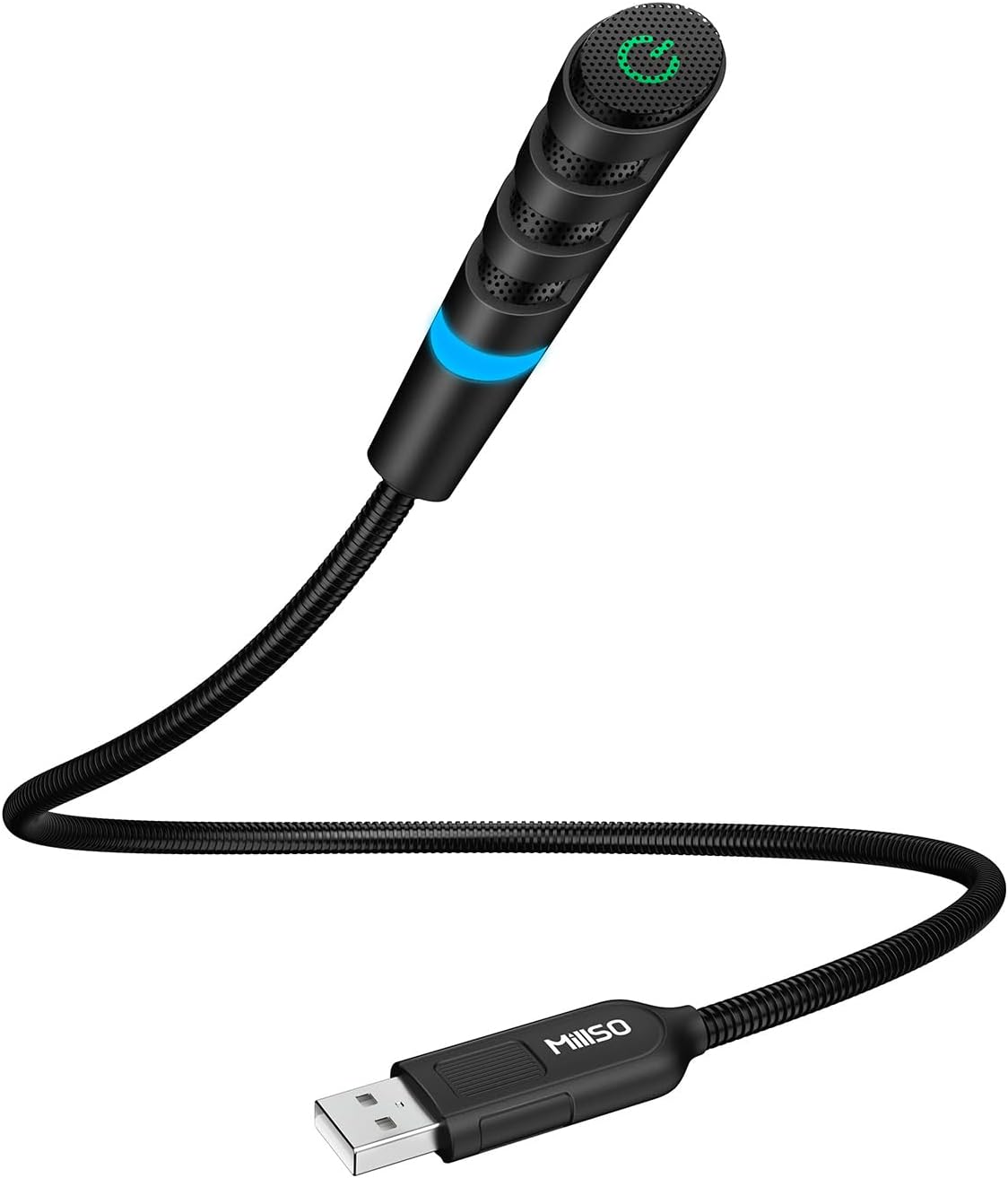
Image 2.1: MillSO USB Gooseneck Microphone with USB-A connector.
Key Features:
- LED Status Indicator Lights: Provides visual feedback on microphone status (Blue: normal, Green: noise reduction on, Off: muted).
- User-friendly One-touch Mute: Easily mute/unmute the microphone with a single tap on the top touch key.
- Intelligent Noise-Canceling Technology: Long press the touch button to activate or deactivate noise cancellation, reducing background noise and echo.
- 360° Adjustable Gooseneck Design: Flexible gooseneck allows for easy positioning to an ideal angle.
- Driver-Free, Plug and Play: No drivers or software required; simply plug into a USB-A port to begin use.
- Omnidirectional Pickup Pattern: Captures sound equally from all directions, ideal for clear voice capture within 30cm.
- Wide Compatibility: Compatible with Windows and Mac OS systems, and other USB 2.0-enabled devices.

Image 2.2: Diagram illustrating the omnidirectional polar pattern of the microphone.
3. Package Contents
Verify that all items are present in the package:
- Mini computer microphone with USB-A male plug
- Metal carbon steel gooseneck (integrated with microphone)
- Customized packaging box
4. Setup
The MillSO USB Gooseneck Microphone is designed for simple plug-and-play operation.
- Connect the Microphone: Insert the USB-A plug of the microphone into an available USB-A port on your PC or laptop.
- System Recognition: Your operating system (Windows or Mac OS) will automatically detect and install the necessary drivers. This process typically takes a few seconds.
- Select as Input Device: Once recognized, navigate to your computer's sound settings (e.g., Sound Control Panel on Windows, System Preferences > Sound on Mac) and select the MillSO USB Microphone as your default input device.
- Position the Microphone: Adjust the flexible gooseneck to position the microphone approximately 30cm (12 inches) from your mouth for optimal sound capture.
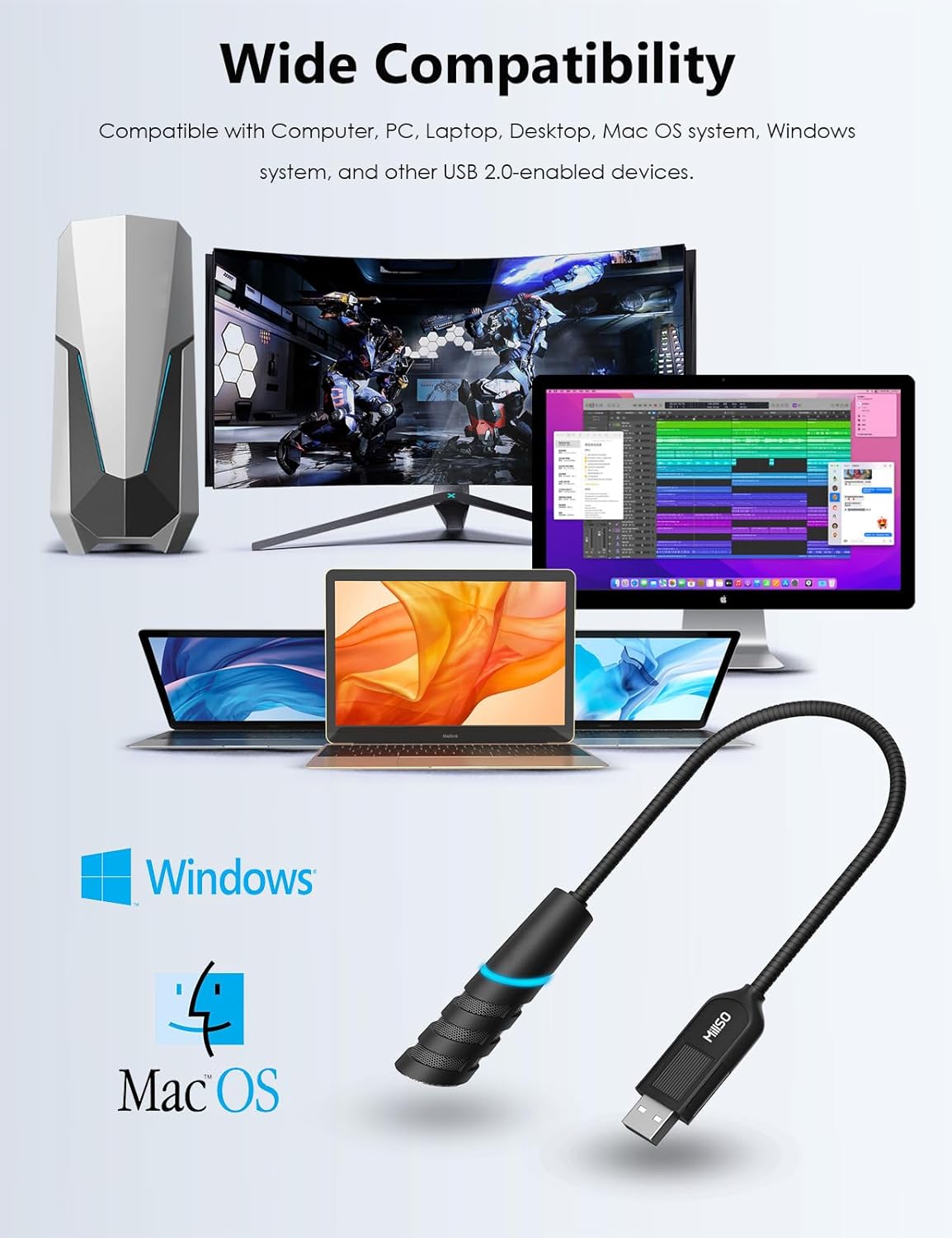
Image 4.1: The microphone connected to a laptop, demonstrating wide compatibility with various devices and operating systems.
5. Operating Instructions
LED Status Indicators and Touch Key Functions:
The microphone features an LED indicator and a touch-sensitive key on its top for easy control.

Image 5.1: Diagram showing the touch key, LED indicator states (Blue, Off, Green), flexible gooseneck, and USB interface.
- Blue Light (Default State): Indicates normal operation. Noise reduction is off.
- Green Light: Indicates noise reduction is active. To activate/deactivate, long press the touch key on the top of the microphone.
- Light Off: Indicates the microphone is muted. To mute/unmute, short press the touch key on the top of the microphone.
Adjusting the Gooseneck:
The flexible gooseneck allows for 360° adjustment. Bend the gooseneck to position the microphone head optimally for your speaking position. Ensure it is stable and does not obstruct your view or other devices.

Image 5.2: The microphone's adjustable gooseneck being positioned for use with a laptop.
6. Maintenance
To ensure the longevity and optimal performance of your MillSO USB Gooseneck Microphone, follow these maintenance guidelines:
- Cleaning: Use a soft, dry cloth to clean the microphone. Avoid using liquid cleaners or solvents, as they may damage the device.
- Storage: When not in use, store the microphone in a cool, dry place away from direct sunlight and extreme temperatures.
- Handling: Avoid excessive bending or twisting of the gooseneck beyond its natural flexibility. Do not drop the microphone or subject it to strong impacts.
- Connectivity: Always grasp the USB plug when inserting or removing it from a port. Avoid pulling on the cable.
7. Troubleshooting
If you encounter issues with your MillSO USB Gooseneck Microphone, refer to the following common solutions:
- Microphone Not Detected:
- Ensure the USB plug is fully inserted into a working USB-A port.
- Try connecting the microphone to a different USB port on your computer.
- Restart your computer and try again.
- Check your computer's sound settings to ensure the MillSO USB Microphone is selected as the input device.
- No Sound Output/Low Volume:
- Verify the microphone is not muted (LED light off). Short press the touch key to unmute.
- Adjust the input volume level in your computer's sound settings.
- Ensure the microphone is positioned within 30cm of your mouth.
- Check the volume settings within the application you are using (e.g., Zoom, Discord, recording software).
- Excessive Background Noise:
- Activate the noise cancellation function by long pressing the touch key (Green LED).
- Ensure the microphone is not placed too close to noise sources (e.g., fans, air conditioners).
- Reduce ambient noise in your environment.
- Intermittent Connection:
- Ensure the USB connection is secure.
- Avoid using unpowered USB hubs; connect directly to the computer if possible.
- Test with another USB port.
8. Specifications
Detailed technical specifications for the MillSO USB Gooseneck Microphone (Model MQ7 / MUSBPCMIC560-35B):

Image 8.1: Visual representation of microphone dimensions and a table of key specifications.
| Feature | Specification |
|---|---|
| Model Name | MQ7 |
| Item Model Number | MUSBPCMIC560-35B |
| Connectivity Technology | USB |
| Connector Type | USB Type-A |
| Microphone Form Factor | Mini, Gooseneck |
| Polar Pattern | Omnidirectional |
| Sensitivity | -38±3dB |
| Frequency Response | 50Hz - 16KHz |
| Sampling Rate | 44.1/48KHz |
| Bit Rate | 16Bit |
| Signal-to-Noise Ratio | 92dB |
| Power Source | Corded Electric (USB bus-powered) |
| Power Supply Mode | USB=5V |
| Working Current | 62mA±5mA |
| Material | Acrylonitrile Butadiene Styrene, Metal |
| Compatible Devices | Desktop computer, Laptop, Personal Computer |
| Item Weight | 1.41 ounces (40 Grams) |
| Package Dimensions | 5.51 x 3.98 x 0.75 inches |
9. Warranty and Support
MillSO is committed to customer satisfaction. We offer 24/7 customer service and technical support for our USB desktop microphone. If you encounter any quality issues or compatibility problems, please contact us for assistance.
For support, please refer to the contact information provided with your purchase or visit the official MillSO website.


