
Product Overview
The Divoom Tiivoo-2 is a versatile FM Radio Bluetooth Speaker with an alarm clock and pixel art display. Its retro mini TV design makes it a unique addition to any space. Beyond audio playback, it offers DIY pixel art creation, photo uploads, white noise functions, a Pomodoro timer, and a stopwatch, serving as both an entertainment device and a daily assistant.
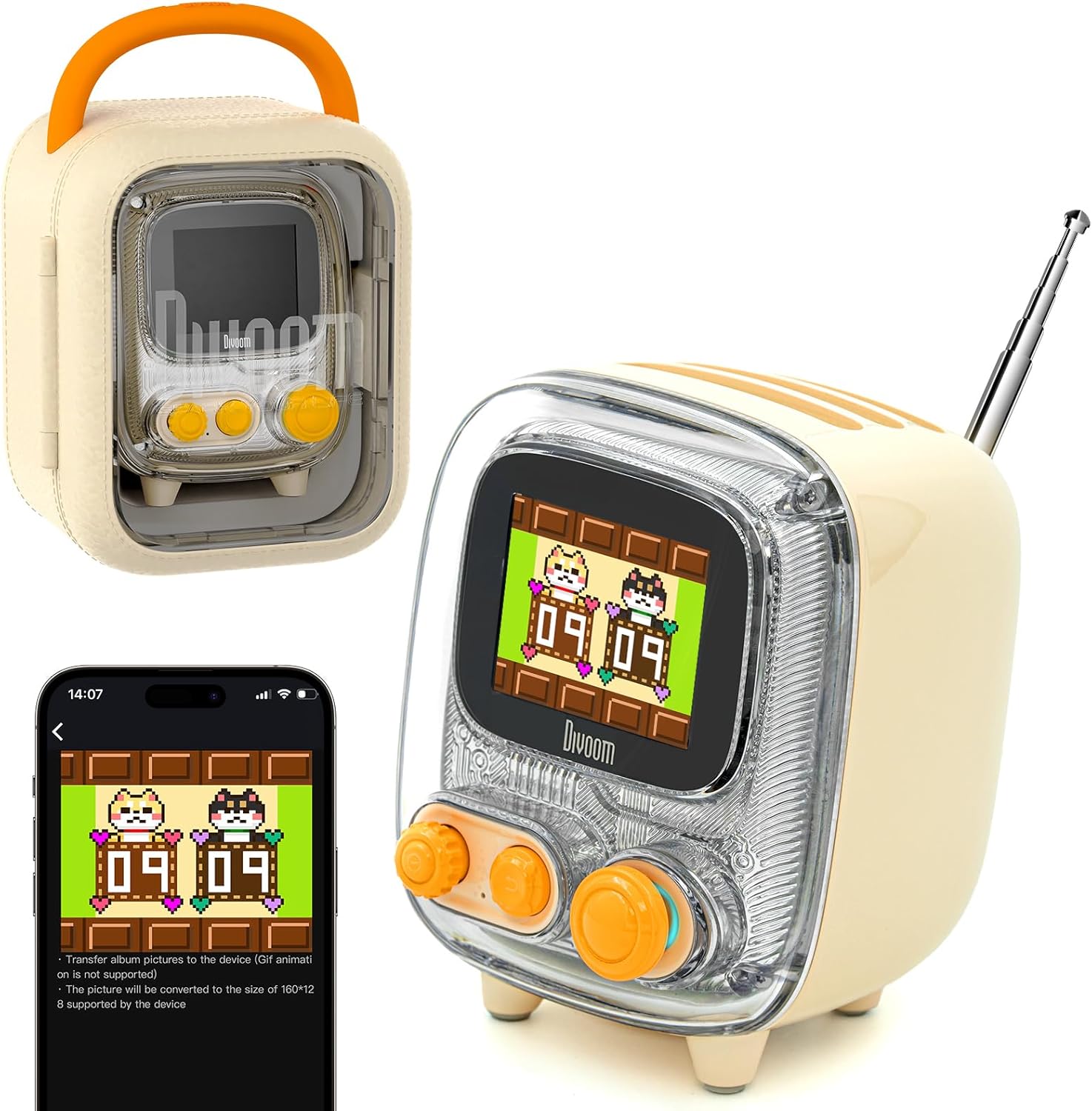
Image: The Divoom Tiivoo-2 speaker in cream color, showcasing its retro TV design and the accompanying mobile application interface for pixel art and settings.
What's in the Box
- Divoom Tiivoo-2 Speaker
- USB Type-C Charging Cable
- Owner's Manual
- Gift Bag (for presentation)
- Sticker Set

Image: Contents of the Divoom Tiivoo-2 package, including the speaker, charging cable, and gift bag.
Setup
Initial Charge
Before first use, fully charge the Tiivoo-2 speaker using the provided USB Type-C cable. Connect the cable to the Type-C charging port on the device and a compatible USB power adapter (not included). The battery indicator on the screen will show charging status.
Power On/Off
To power on the device, long press the Knob (1) until the screen illuminates. To power off, long press the Knob (1) again.

Image: The Divoom Tiivoo-2 speaker connected via its Type-C charging port.
Operating Instructions
Controls Overview
| Control | Function |
|---|---|
| 1. Knob | Turn left: Decrease volume Turn right: Increase volume Single click: Play/Pause Double click: Next track Triple click: Previous track Long press: Power on/off |
| 2. Button | Single click: Return to the previous menu Double click: Quickly switch between Bluetooth/TF card/USB/FM modes |
| 3. Joystick | Single click: Confirm/Switch/Enter menu Up/Down: Select among the vertical list Left/Right: Select among the horizontal menu / Make adjustments for single settings / Switch tracks in some modes |
| 4. TF card slot | Insert card to automatically switch to TF mode |
| 5. Type-C charging port | For charging the device |
| 6. Antenna | Extend for improved FM radio reception |

Image: Labeled diagram showing the various controls and ports on the Divoom Tiivoo-2 speaker.
Bluetooth Pairing
To pair your Tiivoo-2 with a Bluetooth device:
- Ensure the Tiivoo-2 is powered on.
- Double-click the Button (2) to cycle through modes until "Bluetooth" is displayed.
- On your mobile device, enable Bluetooth and search for "Tiivoo-2".
- Select "Tiivoo-2" to connect. A confirmation sound will play upon successful pairing.

Image: An exploded view of the Divoom Tiivoo-2 speaker's internal components, emphasizing its 16-core 40mm speaker and connectivity options like FM radio, TF card, and Bluetooth.
FM Radio
To use the FM Radio function:
- Extend the antenna (6) for optimal reception.
- Double-click the Button (2) to switch to FM mode.
- Use the Joystick (3) to tune to different radio stations.
Pixel Art & Photo Uploads
The Divoom Tiivoo-2 features a vibrant pixel art display. To fully utilize this feature, download the official Divoom app from your device's app store.
- DIY Pixel Art: Use the Divoom app to create your own pixel art designs. These can then be uploaded and displayed on the Tiivoo-2 screen.
- Pixel Art Community: Explore a vast gallery of user-created pixel art within the Divoom app. You can download and display these designs on your speaker.
- Photo Uploads: Upload your favorite photos via the Divoom app to be displayed on the Tiivoo-2. The device supports up to 20 personal pictures, which can be set to display in a slideshow.

Image: A user interacting with the Divoom app on a smartphone to create custom pixel art, which is simultaneously displayed on the Tiivoo-2 speaker.

Image: A user uploading a personal photo from their smartphone to the Divoom Tiivoo-2 speaker, which then displays the image on its screen.
Alarm Clock & Timers
The Tiivoo-2 includes several time management features:
- Alarm Clock: Set alarms with customizable wake-up sounds and ringtones through the Divoom app.
- Pomodoro Timer: Utilize the built-in Pomodoro timer for efficient work and study sessions. This feature helps manage focus and breaks.
- Stopwatch: A basic stopwatch function is available for timing activities.

Image: A collage demonstrating the multi-functional capabilities of the Divoom Tiivoo-2, including white noise for sleep, alarm clock, pixel games, and DIY pixel art.
White Noise
The Tiivoo-2 offers 12 soothing white noise sounds, including nature sounds and animal noises, to aid relaxation and improve sleep. These can be accessed and controlled via the Divoom app.
Video Demonstration
Video: A demonstration of the Divoom Tiivoo-2's functional properties and available color options, provided by the seller.
Maintenance
- Cleaning: Use a soft, dry cloth to clean the exterior of the speaker. Avoid using harsh chemicals or abrasive materials.
- Storage: Store the device in a cool, dry place away from direct sunlight and extreme temperatures.
- Battery Care: To prolong battery life, avoid fully discharging the battery frequently. Charge the device regularly, even if not in use for extended periods.
- Water Resistance: The Tiivoo-2 is not waterproof. Avoid exposing it to water or high humidity.
Troubleshooting
- No Power: Ensure the device is fully charged. Try connecting it to a different USB power source.
- Cannot Pair Bluetooth:
- Make sure Bluetooth is enabled on your source device and the Tiivoo-2 is in Bluetooth mode.
- Ensure the Tiivoo-2 is not already connected to another device. Disconnect from previous devices if necessary.
- Move the Tiivoo-2 closer to your source device.
- Poor FM Reception: Fully extend the antenna. Try moving the speaker to a different location to improve signal.
- App Connectivity Issues: Ensure the Divoom app is updated to the latest version. Restart both the app and the Tiivoo-2. Check your device's internet connection.
- Display Not Working: If the screen is unresponsive or blank, try restarting the device by long-pressing the power knob. If the issue persists, contact customer support.
Specifications
| Feature | Detail |
|---|---|
| Product Dimensions | 2.92 x 2.91 x 3.8 inches (7.42 x 7.39 x 9.65 cm) |
| Item Weight | 1.3 pounds (0.59 kg) |
| Item Model Number | Tiivoo-2 |
| Batteries | 1 Lithium Ion battery (included) |
| Playback Time | Up to 8 hours (depends on volume and audio content) |
| Charging Voltage | 5V=1A |
| Bluetooth Version | 5.3 |
| Special Feature | Display |
| Connectivity Technology | Bluetooth |
| Tuner Technology | FM |
| Style | Retro |
| Power Source | Battery Powered |
| Radio Bands Supported | 8-Band |

Image: Visual representation of the Divoom Tiivoo-2's dimensions and key specifications.
Warranty and Support
Divoom products are designed for quality and reliability. For warranty information, technical support, or any product-related inquiries, please refer to the official Divoom website or contact their customer service directly. Keep your purchase receipt for warranty claims.


