
1. Introduction
The Goiaey GO1 Projector is a portable, high-definition projector designed for various entertainment and presentation needs. Featuring AI auto-focus, auto keystone correction, WiFi 6, and Bluetooth 5.2, it delivers a clear and immersive viewing experience. This manual provides essential information for setting up, operating, maintaining, and troubleshooting your projector.

Image: The Goiaey GO1 Projector in use, projecting a high-quality image onto a screen.
2. Package Contents
Please check the box for the following items:
- Goiaey GO1 Projector
- Power Adapter
- Remote Control
- User Manual
- HDMI Cable (may vary by region)
3. Product Overview
Familiarize yourself with the main components of your Goiaey GO1 Projector.

Image: A detailed view of the Goiaey GO1 Projector, showing its compact design and lens.
Input/Output Ports:

Image: The rear panel of the projector highlighting the AV, USB, and HDMI ports for connecting various devices.
- HDMI Ports (x2): Connect to laptops, gaming consoles, TV sticks, etc.
- USB Port: Connect USB drives for media playback.
- AV Port: Connect to older devices using an AV cable.
- Ethernet Port: For wired network connection.
- 3.5mm Audio Out: Connect external speakers or headphones.
4. Setup
4.1 Placement
Place the projector on a stable, flat surface. Ensure there is adequate ventilation around the unit. For optimal image quality, position the projector perpendicular to the projection surface.
4.2 Power Connection
- Connect the power adapter to the projector's power input port.
- Plug the power adapter into a wall outlet.
- Press the power button on the projector or remote control to turn it on.
4.3 Initial Image Adjustment (Auto Focus & Keystone)
The Goiaey GO1 features AI Auto Focus and Auto 6D/4P Keystone Correction for quick and easy setup.
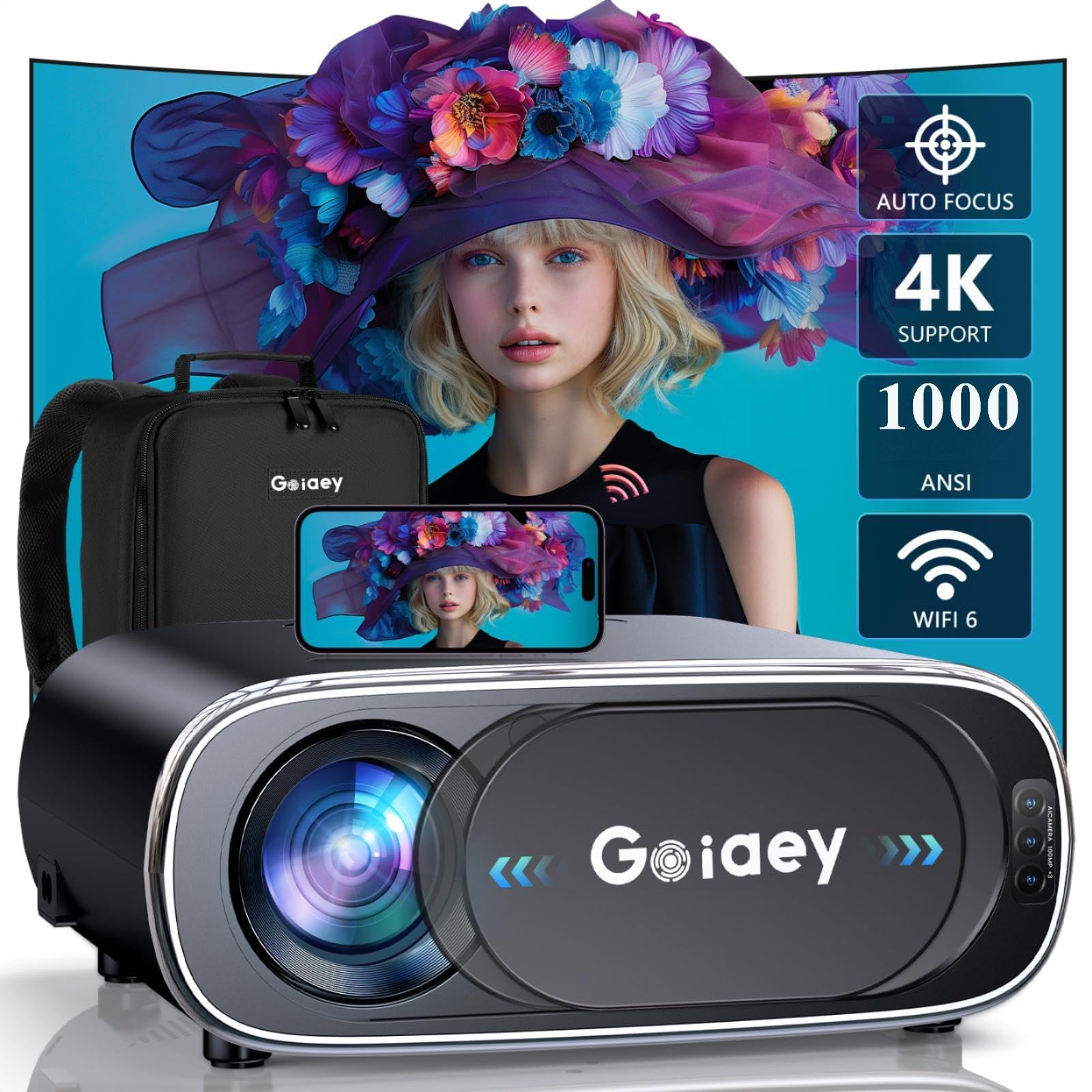
Image: The projector automatically adjusting its focus for a clear image.
- Upon power-on, the projector will automatically focus the image within approximately 5 seconds.
- The built-in sensor and 6-way gyroscope will automatically adjust the screen to a rectangular shape, even if the projector is placed at an angle.

Image: Visual representation of the automatic keystone correction feature, transforming a trapezoidal image into a correct rectangular projection.
5. Operation
5.1 Connecting to Wi-Fi
The GO1 supports both 2.4G and 5G Wi-Fi networks for stable and fast wireless connectivity.

Image: Illustrates the difference in speed between 2.4G and 5G Wi-Fi connections, with 5G offering faster data transfer.
- Navigate to the projector's settings menu.
- Select 'Network' or 'Wi-Fi Settings'.
- Turn on Wi-Fi and select your desired network from the list.
- Enter the Wi-Fi password if prompted and connect.
5.2 Connecting to Bluetooth Devices
The projector features bi-directional Bluetooth 5.2, allowing connection to external audio devices or using the projector as a standalone Bluetooth speaker.

Image: The projector wirelessly connected to various Bluetooth audio devices, such as headphones and a portable speaker.
- Go to the projector's settings menu and select 'Bluetooth'.
- Turn on Bluetooth.
- Put your Bluetooth device (e.g., speaker, headphones) into pairing mode.
- Select your device from the list on the projector screen to pair.
5.3 Connecting External Devices (HDMI, USB, AV)
Use the appropriate ports to connect various media sources.
- HDMI: Connect your laptop, game console, or TV stick to an HDMI port. Select the corresponding HDMI input source from the projector's menu.
- USB: Insert a USB flash drive into the USB port. The projector's media player interface should appear, allowing you to browse and play content.
- AV: Use an AV cable to connect older devices. Select the AV input source.
5.4 Screen Mirroring and Casting
The projector supports screen mirroring from various devices. Due to copyright protection, direct mirroring of content from services like Netflix or Amazon Prime Video is not supported. For these services, please use a TV Stick (e.g., Amazon Fire TV Stick, Roku) connected via HDMI.

Image: The smart interface of the projector, displaying options for various applications and media content.
5.5 Zoom Function
Adjust the image size from 50% to 100% without moving the projector.

Image: A visual guide demonstrating the projector's zoom capability, allowing adjustment of screen size from 50% to 100%.
6. Maintenance
6.1 Lens Care
The Goiaey GO1 features an auto electric slide lens cap that protects the lens from dust and scratches when the projector is turned off.

Image: The automatic lens cap mechanism, showing it closed for protection and open for projection.
To clean the lens:
- Ensure the projector is turned off and cooled down.
- Use a soft, lint-free cloth or a lens cleaning brush to gently wipe the lens surface.
- Avoid using abrasive cleaners or excessive force, which can damage the lens coating.
6.2 Dust Prevention
The GO1 projector is designed with a fully sealed optical structure to minimize dust entry, reducing the occurrence of black spots and maintaining image quality over time.
7. Troubleshooting
If you encounter issues with your Goiaey GO1 Projector, please refer to the following common solutions:
| Problem | Possible Solution |
|---|---|
| No Power | Ensure the power adapter is securely connected to both the projector and a working power outlet. Try a different outlet. |
| No Image / Blurry Image | Check input source selection. Allow auto-focus to complete. If image remains blurry, ensure the projection surface is flat and the projector is stable. |
| No Sound | Check volume settings on both the projector and the connected device. Ensure external speakers are properly connected or paired via Bluetooth. |
| Wi-Fi/Bluetooth Connectivity Issues | Ensure Wi-Fi/Bluetooth is enabled on the projector and the device. Restart both devices. Check Wi-Fi password. Reduce distance to router/device. |
| Remote Control Not Working | Check and replace batteries. Ensure there are no obstructions between the remote and the projector's IR receiver. |
If the problem persists, please contact customer support for further assistance.
8. Specifications
| Feature | Detail |
|---|---|
| Brand | Goiaey |
| Model | GO1 |
| Native Resolution | 1920 x 1080 (FHD) |
| Display Resolution Maximum | 1980 x 1080 pixels (4K Supported) |
| Brightness | 1000 ANSI lm |
| Contrast Ratio | 20000:1 |
| Connectivity Technology | Ethernet, Wi-Fi 6, Bluetooth 5.2, HDMI (x2), USB, AV, 3.5mm Audio |
| Special Features | AI Auto Focus, Auto 6D/4P Keystone Correction, Auto Lens Cover, Built-In Speaker (20W), 50%-100% Zoom |
| Display Type | LCD |
| Form Factor | Portable |
| Maximum Image Size | 300 inches |
| Minimum Throw Distance | 4.3 feet |
| Maximum Throw Distance | 16 feet |
| Wattage | 170 watts |
| UPC | 789044828589 |
9. Warranty and Support
The Goiaey GO1 Projector comes with a 3-year warranty. Goiaey is committed to providing friendly customer support and aims to respond to any issues within 24 hours.
For technical assistance, warranty claims, or any questions regarding your projector, please refer to the contact information provided with your purchase or visit the official Goiaey website.