1. Introduction
This manual provides detailed instructions for the operation and maintenance of your new Fanvace M31 MP3 Player. Please read this manual thoroughly before using the device to ensure proper functionality and to maximize your user experience. Keep this manual for future reference.
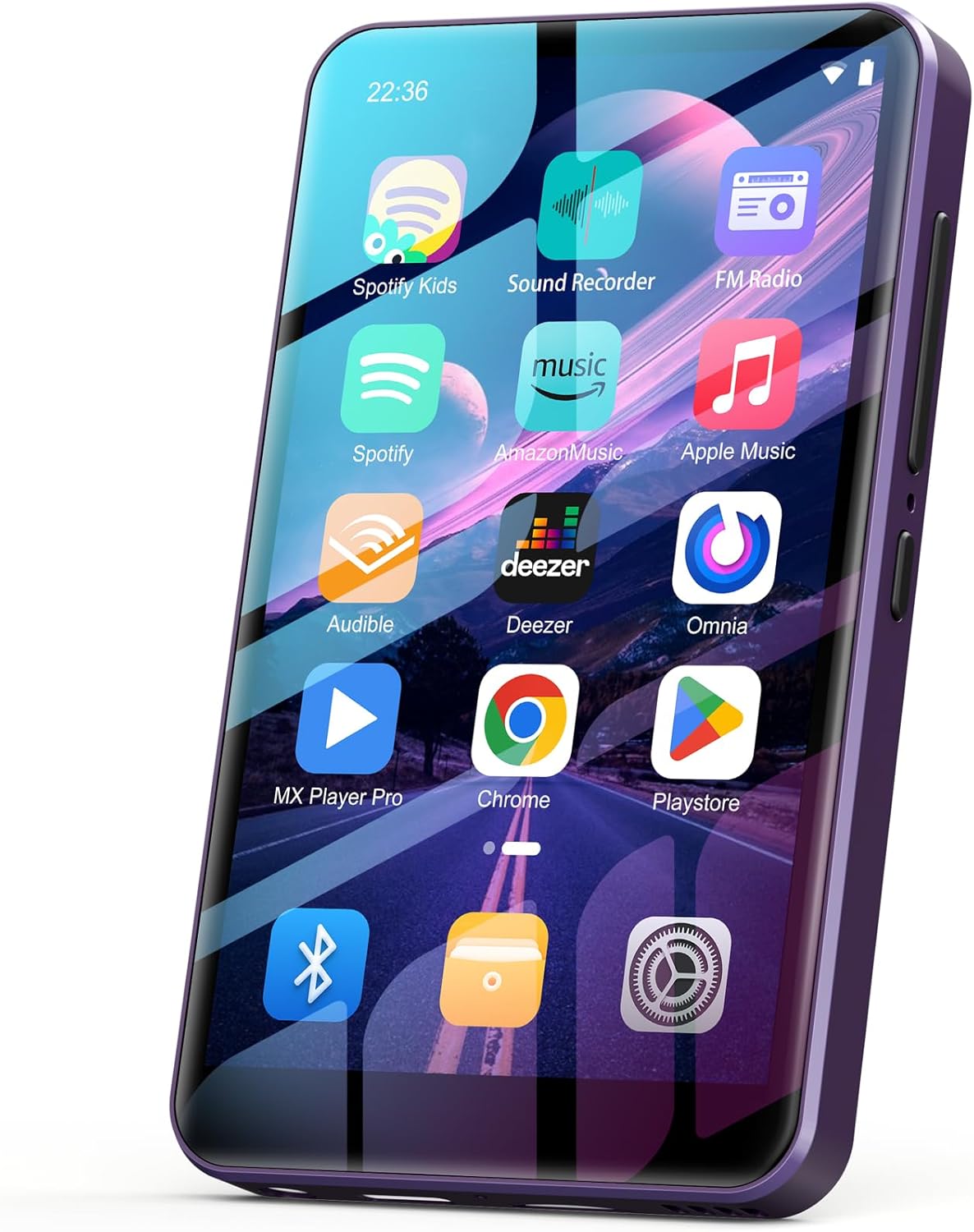
Image 1.1: Front view of the Fanvace M31 MP3 Player, showcasing its 4-inch touchscreen with pre-installed applications like Spotify, Amazon Music, and Play Store.
2. What's in the Box
Upon unpacking, please verify that all items listed below are present and in good condition:
- 1 x Fanvace M31 MP3 Player
- 1 x 64GB SD Card (pre-installed or separate)
- 1 x USB C Cable
- 1 x Wired Earphones
- 1 x Screen Protector
- 1 x Protective Case
- 1 x User Manual (this document)

Image 2.1: The complete packing list for the Fanvace M31 MP3 Player, showing all included accessories.
3. Product Overview
3.1 Physical Components and Controls
The Fanvace M31 MP3 Player features a compact design with essential controls and ports for ease of use.

Image 3.1: Detailed diagram of the Fanvace M31 MP3 Player, highlighting its physical dimensions and the location of its various ports and buttons.
- Volume + / Volume -: Adjust the audio output level.
- On/Off / Reset: Power the device on or off, or perform a reset.
- 3.5mm Output: Connect wired headphones or external audio devices.
- USB-C Port: For charging and data transfer.
- TF Card Slot: Insert a microSD card for expanded storage.
- Speaker: Integrated speaker for audio playback without headphones.
- Recording Hole: Built-in microphone for voice recording.
4. Setup
4.1 Initial Power On and Charging
- Charge the Device: Before first use, fully charge the MP3 player using the provided USB-C cable and a compatible power adapter (not included). The battery indicator on the screen will show charging status.
- Power On: Press and hold the On/Off button until the screen illuminates.
4.2 Wi-Fi Connection
- From the home screen, tap the 'Settings' icon.
- Select 'Network & Internet' then 'Wi-Fi'.
- Toggle Wi-Fi to 'On'.
- Select your desired Wi-Fi network from the list and enter the password if prompted.
- Once connected, the Wi-Fi icon will appear in the status bar.
4.3 Bluetooth Pairing
- From the home screen, tap the 'Settings' icon.
- Select 'Connected devices' then 'Bluetooth'.
- Toggle Bluetooth to 'On'.
- Ensure your Bluetooth headphones or speaker are in pairing mode.
- The MP3 player will scan for available devices. Select your device from the list to pair.
- Confirm pairing on both devices if prompted.

Image 4.1: The Fanvace M31 MP3 Player demonstrating its Bluetooth 4.1 connectivity with headphones.
5. Operating Instructions
5.1 Music Playback
The device supports various music formats including MP3, WAV, FLAC, APE, OGG, M4A, AAC, WMA. You can play local files or stream from pre-installed apps.
- Local Music: Transfer music files to the device's internal storage or microSD card. Use the 'Music' app or a file manager to browse and play your tracks.
- Streaming Apps: Open pre-installed apps like Spotify, Pandora, Deezer, or Amazon Music. Log in to your accounts to access streaming content.

Image 5.1: User enjoying HiFi music playback on the Fanvace M31 MP3 Player.
5.2 Video Playback
The MP3 player supports 720p and 1080p HD video playback for formats such as RM, RMVB, FLV, MP4, DAT, MKV, MPG, MOV, TS without conversion.
- Transfer video files to the device.
- Open a video player app (e.g., MX Player Pro) to browse and play your videos.

Image 5.2: The Fanvace M31 MP3 Player showcasing its visual impact with HD video playback.
5.3 App Usage and Google Play Store
The device runs on Android and comes with the Google Play Store pre-installed, allowing you to download and install additional applications.
- Ensure you are connected to Wi-Fi.
- Open the 'Play Store' app.
- Sign in with your Google account.
- Browse or search for apps and install them as needed.

Image 5.3: The Google Play Store interface on the Fanvace M31, demonstrating app download capabilities.
5.4 File Transfer
Connect the MP3 player to your computer using the USB-C cable. The device will appear as a removable storage device, allowing you to drag and drop files (music, videos, documents) to and from its internal storage or the inserted microSD card.
6. Features
- Smart MP3 Music Player: Equipped with an 8-core MTK chip for faster response and smoother operation. Runs on Android and comes pre-installed with popular online music apps like Spotify, Pandora, Deezer, and Amazon Music.
- HiFi Lossless Sound Quality: Features a powerful audio decoding chip and optimized circuit technology for HIFI-level sound. Compatible with MP3, WAV, FLAC, APE, OGG, M4A, AAC, WMA, and other formats.
- High-performance MP4 Player: Boasts a 4-inch full-touch IPS screen and HiFi sound module. Supports 720p and 1080p HD video playback for formats including RM, RMVB, FLV, MP4, DAT, MKV, MPG, MOV, TS without prior conversion.
- Bluetooth & Wi-Fi Connectivity: Supports wireless network connection for app downloads, online music/video playback, and web browsing. Features stable and fast two-way Bluetooth for latency-free connection to headphones, speakers, or other playback devices.
- 80GB Large Capacity: Built-in 2GB RAM and 80GB storage (16GB ROM + 64GB TF card). Supports external storage expansion up to 1TB via microSD card (FAT32 format only).
- 2000mAh High Capacity Battery: Integrated 2000mAh lithium battery with a low-power solution, providing up to 50 hours of continuous music playback or 8 hours of video playback.
- Multifunctional Device: Beyond music and video playback, it includes FM radio, voice recorder, e-book reader, calculators, and web browsers. Allows for desktop customization by installing or removing apps.
Video 6.1: A demonstration of the Fanvace M31 MP3 Player's user interface, showcasing navigation through apps, settings, and media playback options.
7. Maintenance
- Cleaning: Use a soft, dry cloth to clean the screen and body of the device. Avoid using harsh chemicals or abrasive materials.
- Storage: Store the device in a cool, dry place away from direct sunlight and extreme temperatures.
- Battery Care: To prolong battery life, avoid fully discharging the battery frequently. Charge the device regularly, even if not in use for extended periods.
- Software Updates: Periodically check for system updates in the device settings to ensure optimal performance and security.
8. Troubleshooting
| Problem | Possible Cause | Solution |
|---|---|---|
| Device does not power on | Low battery; System crash | Charge the device for at least 30 minutes. If unresponsive, press and hold the power/reset button for 10-15 seconds to force a restart. |
| Cannot connect to Wi-Fi | Incorrect password; Out of range; Router issue | Verify Wi-Fi password. Move closer to the router. Restart your Wi-Fi router. |
| Bluetooth device not pairing | Device not in pairing mode; Out of range | Ensure Bluetooth accessory is in pairing mode. Move devices closer. Restart Bluetooth on both devices. |
| Device is slow or unresponsive | Too many apps running; Low storage | Close unnecessary background apps. Clear cache. Uninstall less frequently used apps. Check available storage. |
| Charging issues (slow or not charging) | Faulty cable/adapter; Dirty USB-C port; Software glitch | Try a different USB-C cable and power adapter. Clean the USB-C port gently. Restart the device. If issues persist, contact customer service. |
9. Specifications
| Feature | Detail |
|---|---|
| Model Number | M31 |
| Brand | Fanvace |
| Screen Size | 4 Inches IPS Touchscreen |
| Processor | 8-core MTK Chip |
| Operating System | Android |
| Internal Storage | 16GB ROM (80GB total with included 64GB TF card) |
| RAM | 2GB |
| Expandable Storage | Up to 1TB via microSD card (FAT32 format only) |
| Connectivity | Bluetooth, USB-C, Wi-Fi |
| Battery | 2000mAh Lithium Ion |
| Audio Formats | MP3, WAV, FLAC, APE, OGG, M4A, AAC, WMA |
| Video Formats | RM, RMVB, FLV, MP4, DAT, MKV, MPG, MOV, TS (720p, 1080p HD) |
| Dimensions | 5.83 x 5.79 x 0.75 inches |
| Item Weight | 7.8 ounces |
10. Warranty and Support
Fanvace provides customer service for its products. If you encounter any problems during use, please contact customer service for assistance. They aim to resolve issues within 12 hours.
For more detailed user guides or specific inquiries, please refer to the online customer service resources.


