
Introduction
Thank you for choosing the JOMAA Wireless Bluetooth Transparent Keyboard. This manual provides detailed instructions for setting up, operating, maintaining, and troubleshooting your new keyboard. Please read this manual carefully before use to ensure optimal performance and longevity of your device.
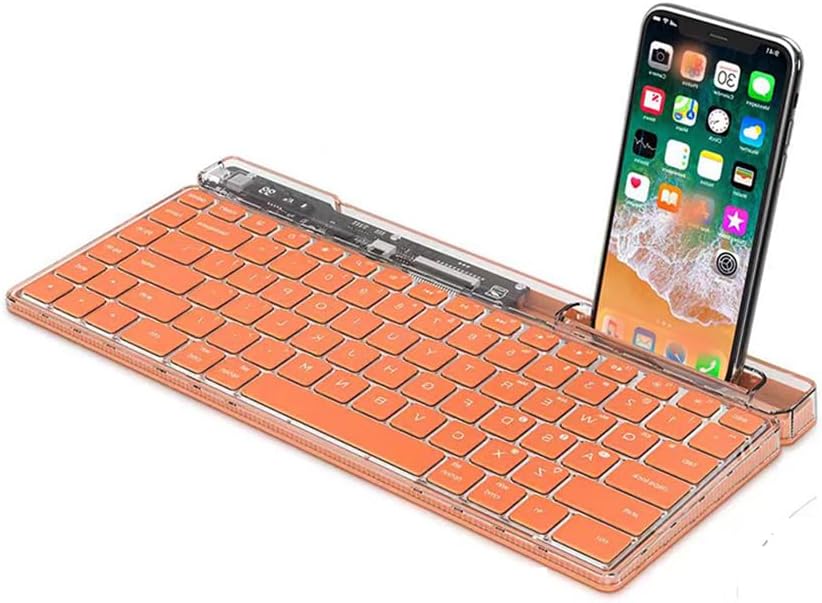
The JOMAA Wireless Bluetooth Transparent Keyboard, showcasing its unique transparent design and compact form factor.
Setup
1. Charging the Keyboard
Before initial use, fully charge the keyboard. Connect the provided Type-C charging cable to the keyboard's charging port and to a USB power source. The integrated display will show the battery status, indicating when charging is complete.
2. Connecting to Devices
The JOMAA keyboard supports both 2.4G USB and Bluetooth connectivity, allowing connection to mobile phones, tablets, laptops, and desktop computers.
2.1. 2.4G USB Connection
- Locate the 2.4G USB receiver (dongle) typically stored within the keyboard or packaging.
- Insert the 2.4G USB receiver into an available USB port on your computer or device.
- Turn on the keyboard using the power switch. The keyboard should automatically connect to your device.
2.2. Bluetooth Connection
- Turn on the keyboard using the power switch.
- Activate Bluetooth on your device (e.g., smartphone, tablet, laptop).
- On the keyboard, press and hold the Bluetooth pairing key (refer to keyboard layout for specific key, often indicated by a Bluetooth symbol or 'BT1', 'BT2', 'BT3') until the indicator light flashes, signifying pairing mode.
- On your device, search for available Bluetooth devices and select "JOMAA Keyboard" (or similar name) from the list.
- Follow any on-screen prompts to complete the pairing process.
The keyboard can connect to up to three devices simultaneously via Bluetooth. Use dedicated keys (e.g., BT1, BT2, BT3) to switch between paired devices.

This image illustrates the keyboard's key features, including its integrated display for battery and connection status, rechargeable capability, quiet keys, and the ability to connect to three devices simultaneously.
3. Using the Device Slot
The keyboard features an integrated slot at the top, designed to securely hold your smartphone or tablet, providing a convenient viewing angle while typing.
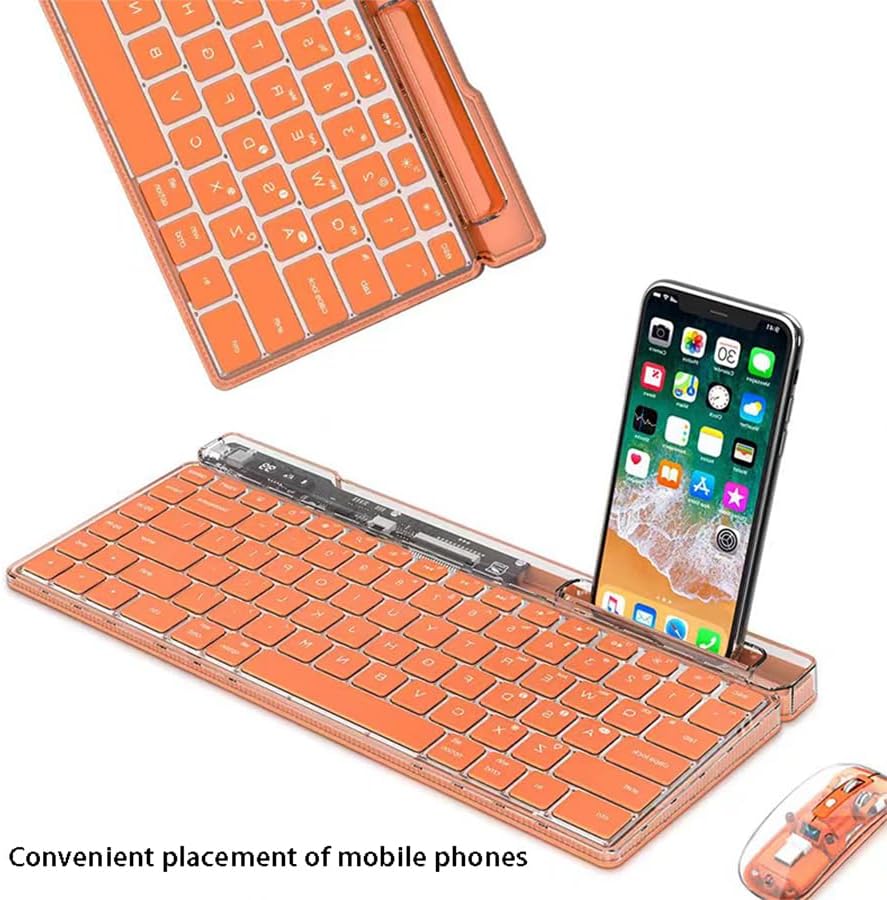
The keyboard features a convenient built-in slot designed to hold a smartphone or tablet, providing an optimal viewing angle during use.
Operating Instructions
1. Key Features
- Silent Keys: The keyboard utilizes scissor-foot key design, providing a soft tactile feel and significantly reducing typing noise.
- Ergonomic Design: The keyboard is designed with a slight incline (higher at the front, lower at the back) to promote a comfortable wrist posture and reduce fatigue during extended typing sessions.
- Integrated Display: The electronic display in the upper corner provides real-time information on battery level and connection status.

The keyboard is designed with silent keys, ensuring a quiet typing experience. A matching transparent mouse is also shown.
2. Multi-Device Switching
If you have paired the keyboard with multiple Bluetooth devices, you can switch between them by pressing the corresponding Bluetooth channel key (e.g., BT1, BT2, BT3). The keyboard will automatically connect to the selected device.
3. Mac Compatibility Notes
For macOS users, please be aware that the default mapping for the Option and Command keys may be swapped compared to standard Apple keyboards. You can remap these keys within your macOS System Settings (Keyboard > Modifier Keys). Additionally, the Fn key functionality is hardware-controlled, and the Control key is positioned outside the Fn key, which may require adjustment for muscle memory.

A visual representation of the transparent membrane keyboard, demonstrating its cross-platform compatibility with iOS/macOS, Android, and Windows operating systems.
Maintenance
To ensure the longevity and optimal performance of your JOMAA keyboard, follow these simple maintenance guidelines:
- Cleaning: Gently wipe the keyboard surface with a soft, dry, lint-free cloth. For stubborn dirt, slightly dampen the cloth with water or a mild, non-abrasive cleaner. Avoid excessive moisture.
- Storage: When not in use for extended periods, store the keyboard in a cool, dry place away from direct sunlight and extreme temperatures.
- Avoid Liquids: Do not expose the keyboard to liquids. In case of accidental spills, immediately power off the keyboard and allow it to dry completely before attempting to use it again.
Troubleshooting
If you encounter issues with your JOMAA keyboard, please refer to the following common solutions:
- Keyboard Not Connecting:
- Ensure the keyboard is powered on and fully charged.
- For 2.4G connection, verify the USB receiver is securely plugged into your device.
- For Bluetooth connection, ensure Bluetooth is enabled on your device and the keyboard is in pairing mode. Try unpairing and re-pairing the keyboard.
- Check if the keyboard is connected to another device. Switch to the correct Bluetooth channel if using multi-device pairing.
- Keys Not Responding:
- Recharge the keyboard. A low battery can cause intermittent key response.
- Reconnect the keyboard (either 2.4G or Bluetooth).
- Incorrect Key Output (macOS):
- If Option/Command keys are swapped, adjust their mapping in macOS System Settings > Keyboard > Modifier Keys.
- Familiarize yourself with the Fn key and Control key placement, as their behavior is hardware-defined.
- Display Not Working:
- Ensure the keyboard is powered on.
- Charge the keyboard to ensure sufficient power.
Specifications
| Brand | JOMAA |
| Model | Wireless BT Transparent Keyboard |
| Connectivity Technology | 2.4G, Bluetooth |
| Compatible Devices | Laptop, PC, Projector, Smartphone, Tablet |
| Keyboard Description | Flexible |
| Recommended Uses | Office |
| Special Feature | Ergonomic |
| Material | Plastic |
| Item Weight | 1.5 pounds |
| Package Dimensions | 14 x 6 x 1.2 inches |
| Batteries | 1 Lithium Ion battery required (included) |
| Date First Available | July 14, 2024 |
Warranty and Support
For warranty information or technical support, please refer to the documentation included with your purchase or contact JOMAA customer service through the retailer's platform or the official JOMAA website. Please have your product model and purchase date available when contacting support.


