
ADESSO iMouse X1
ADESSO iMouse X1 6-Button Gaming Mouse User Manual
Comprehensive guide for setup, operation, and maintenance.
Introduction
Thank you for choosing the ADESSO iMouse X1 Multi-Color 6-Button Gaming Mouse. This manual provides detailed instructions to help you set up, operate, and maintain your new gaming mouse, ensuring optimal performance and longevity. The iMouse X1 is designed for precision and comfort, featuring an optical sensor, adjustable DPI settings, and an ergonomic ambidextrous design.
Setup
Connecting the Mouse
- Locate an available USB port on your computer.
- Plug the USB connector of the iMouse X1 into the USB port.
- Your operating system should automatically detect and install the necessary drivers. No additional software installation is typically required for basic functionality.
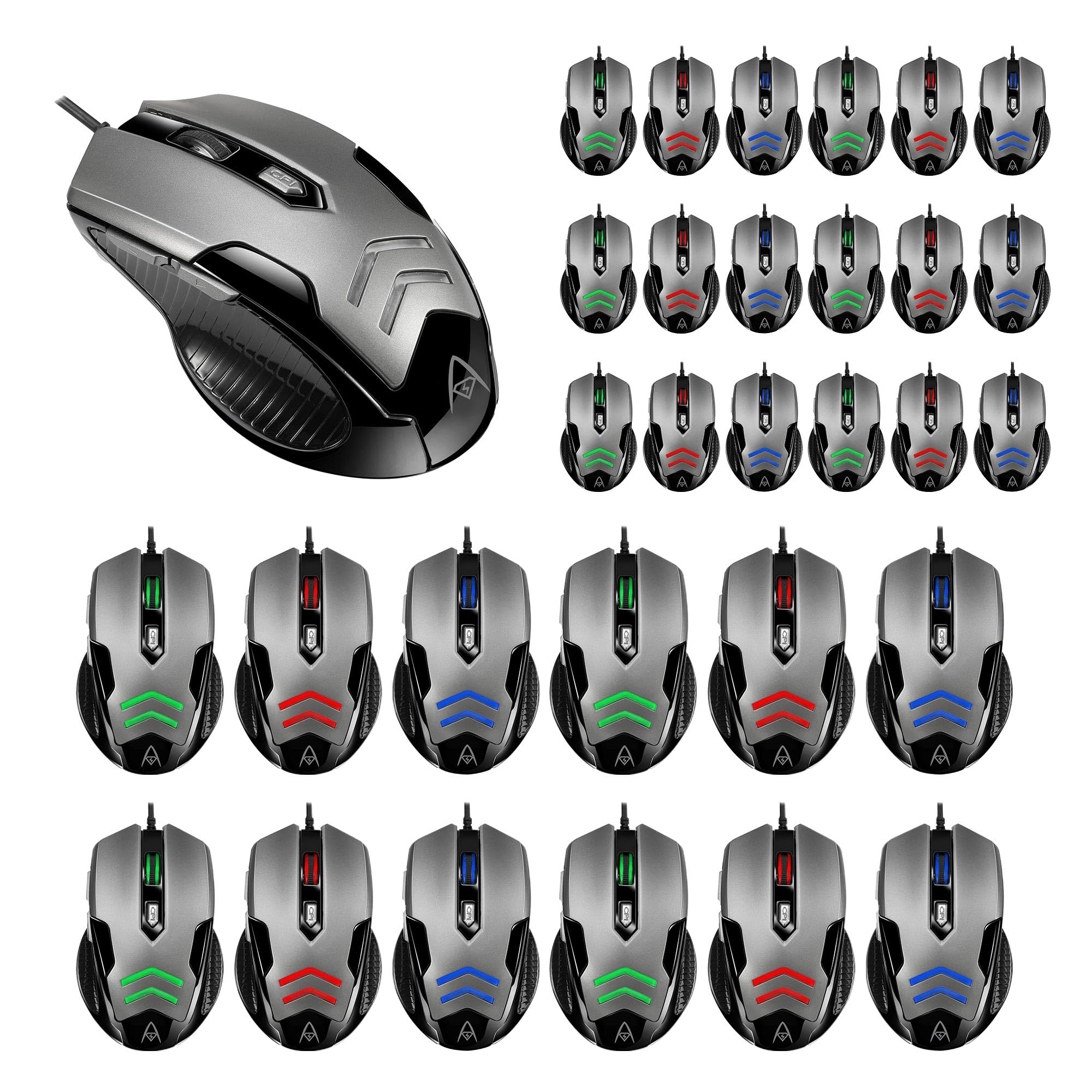
Figure 1: The ADESSO iMouse X1 Gaming Mouse, illustrating its sleek design and USB connectivity. This image shows the overall appearance of the mouse, ready for connection to a computer.
Operating the iMouse X1
Button Functions
The iMouse X1 features 6 programmable buttons for enhanced control and navigation:
- Left Click Button: Standard primary click function.
- Right Click Button: Standard secondary click function, typically for context menus.
- Scroll Wheel: Scrolls content up or down. Can also be pressed for a middle-click function.
- DPI Switch Button: Adjusts the mouse sensitivity (DPI).
- Forward Button: Navigates forward in web browsers or file explorers (located on the left side).
- Back Button: Navigates backward in web browsers or file explorers (located on the left side).
Adjusting DPI Sensitivity
The iMouse X1 allows you to change its sensitivity on the fly using the dedicated DPI switch button. Each DPI setting is indicated by a different LED backlight color:
- 1000 DPI: White LED backlight
- 1600 DPI: Green LED backlight
- 2400 DPI: Blue LED backlight
- 3200 DPI: Red LED backlight
Press the DPI switch button repeatedly to cycle through these sensitivity levels until you find your preferred setting.
Ergonomic Design
The iMouse X1 features an ambidextrous design with texturized sides, providing a comfortable and secure grip for both left and right-handed users during extended use.
Maintenance
Cleaning Your Mouse
- Disconnect the mouse from your computer before cleaning.
- Use a soft, lint-free cloth slightly dampened with water or a mild cleaning solution to wipe the surface of the mouse.
- Avoid using harsh chemicals, abrasive cleaners, or excessive moisture, as these can damage the mouse.
- For the optical sensor, use a cotton swab lightly dampened with isopropyl alcohol to gently clean the lens. Ensure it is dry before reconnecting.
Storage
When not in use for extended periods, store the mouse in a clean, dry environment away from direct sunlight and extreme temperatures.
Troubleshooting
Mouse Not Responding
- Check USB Connection: Ensure the USB cable is securely plugged into a working USB port on your computer. Try a different USB port.
- Restart Computer: Sometimes a simple computer restart can resolve connectivity issues.
- Test on Another Computer: If possible, test the mouse on another computer to determine if the issue is with the mouse or your computer's setup.
DPI Settings Not Changing
- Ensure you are pressing the correct DPI switch button.
- Observe the LED backlight color change to confirm DPI adjustment. If no color change occurs, the button might be malfunctioning.
Cursor Movement is Erratic or Inaccurate
- Clean Optical Sensor: Dust or debris on the optical sensor can interfere with tracking. Refer to the Maintenance section for cleaning instructions.
- Mouse Pad Surface: Ensure you are using the mouse on a suitable, non-reflective, and uniform surface. Avoid glass or highly reflective surfaces.
Specifications
| Brand | ADESSO |
| Model | iMouse X1 |
| Connectivity Technology | USB |
| Movement Detection | Optical |
| DPI Levels | 1000 / 1600 / 2400 / 3200 |
| Number of Buttons | 6 |
| Switch Lifespan | 10 Million Clicks |
| Ergonomics | Ambidextrous with Texturized Sides |
| Special Feature | Multi-Color LED Backlight (DPI indicator) |
Warranty and Support
For detailed warranty information and technical support, please refer to the official ADESSO website or contact their customer service. Keep your purchase receipt for warranty claims.
ADESSO Official Website: www.adesso.com
Related documentsiMouse X1


Ask a question about this manual
Ask about setup, troubleshooting, compatibility, parts, safety, or missing instructions. Manuals+ will review the question and use this page’s manual context to help answer it.