1. Introduction
Welcome to your new Dghrti TAB30 Android 14 Tablet. This manual provides essential information for setting up, operating, and maintaining your device. The Dghrti TAB30 is a versatile 10.1-inch tablet featuring the latest Android 14 operating system, a powerful Octa-Core CPU, 22GB RAM, 128GB ROM (expandable up to 1TB), and an 8000mAh battery. It comes with a keyboard and mouse, transforming it into a 2-in-1 device suitable for both work and entertainment.
2. What's in the Box
Please check the contents of your package to ensure all items are present:
- One (1) 10.1-inch Tablet
- One (1) Wireless Mouse
- One (1) Bluetooth Keyboard
- One (1) Protective Case
- One (1) US Power Adapter
- One (1) Type-C Data Cable
- One (1) Plastic Protective Film
- One (1) User's Manual (this document)
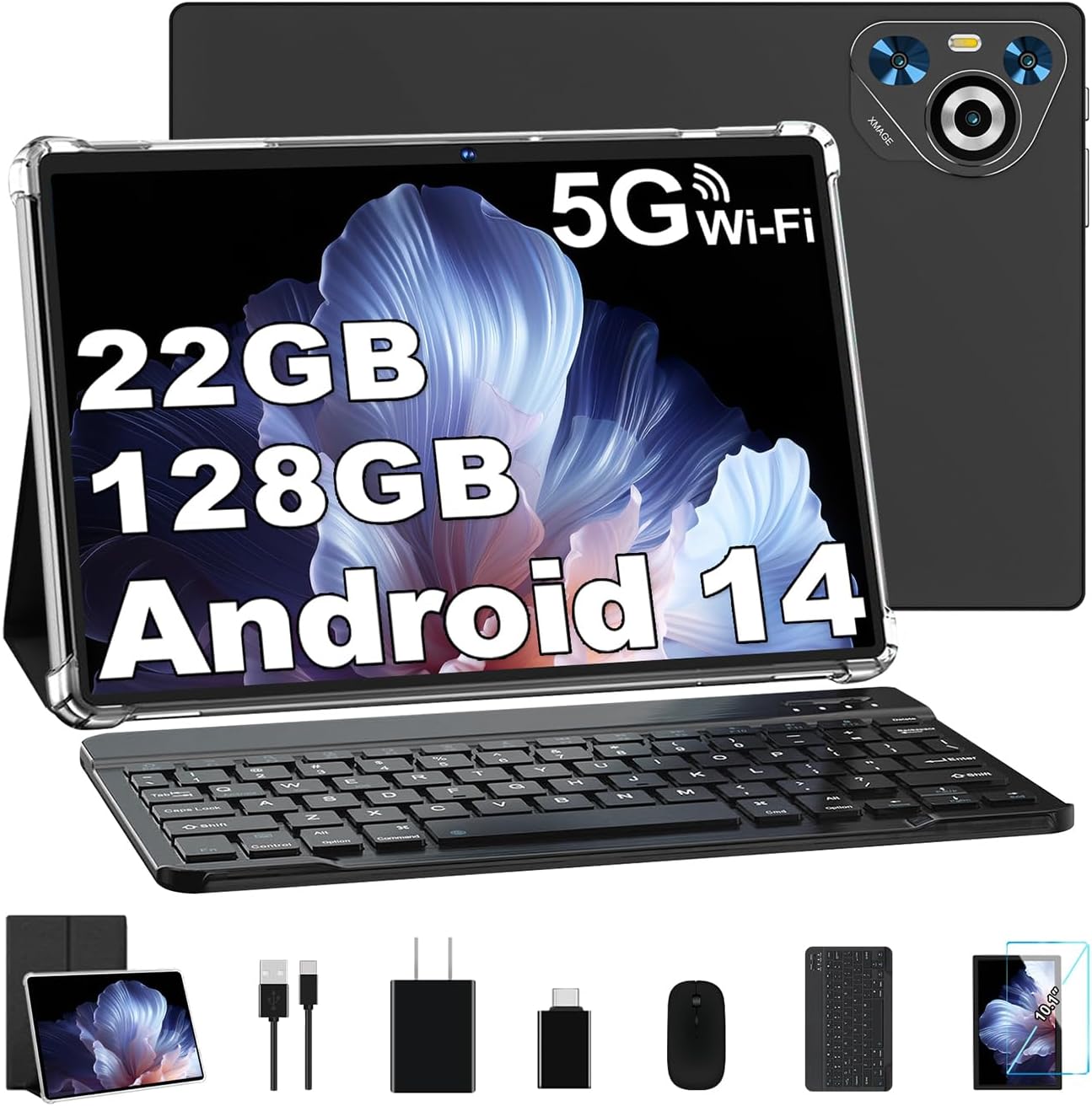
Image: The Dghrti TAB30 tablet displayed with its full set of accessories, including the keyboard, mouse, protective case, and charging cables.
3. Setup Guide
3.1 Initial Power On
- Press and hold the Power button located on the side of the tablet until the Dghrti logo appears.
- Follow the on-screen prompts to select your preferred language, region, and other initial settings.
3.2 Wi-Fi Connection
- From the home screen, swipe down from the top to open the Quick Settings panel.
- Tap and hold the Wi-Fi icon to go to Wi-Fi settings.
- Select your desired Wi-Fi network from the list and enter the password if prompted.
- Tap 'Connect'.
3.3 Google Account Setup
To access the Google Play Store and other Google services, you will need to sign in with your Google account. Follow the on-screen instructions during initial setup or go to Settings > Accounts > Add account > Google.
3.4 Connecting Keyboard and Mouse
The Dghrti TAB30 supports Bluetooth connectivity for the included wireless keyboard and mouse.
- Ensure the keyboard and mouse are charged and powered on.
- On your tablet, go to Settings > Connected devices > Bluetooth.
- Turn on Bluetooth. The tablet will scan for available devices.
- Select the keyboard and mouse from the list of available devices to pair them. Follow any on-screen pairing instructions.
Video: Demonstrates the Dghrti TAB30 tablet in use with its keyboard and mouse accessories, showcasing its functionality as a 2-in-1 device.
4. Operating Instructions
4.1 Basic Navigation
- Tap: Touch the screen once to select an item or open an app.
- Swipe: Drag your finger across the screen to scroll through pages or lists.
- Pinch-to-Zoom: Place two fingers on the screen and move them apart or together to zoom in or out.
- Home Screen: Tap the Home button (usually a circle or square) to return to the main screen.
4.2 App Management
- Installing Apps: Open the Google Play Store app, search for your desired app, and tap 'Install'.
- Uninstalling Apps: Press and hold an app icon on the home screen or app drawer, then drag it to 'Uninstall' or select the uninstall option. Alternatively, go to Settings > Apps > See all apps, select the app, and tap 'Uninstall'.
- Organizing Apps: Drag and drop app icons to rearrange them on the home screen or into folders.
4.3 Notifications and Quick Settings
Swipe down from the top of the screen to view notifications and access quick settings like Wi-Fi, Bluetooth, brightness, and more.
4.4 Charging the Tablet
Connect the provided Type-C data cable to the tablet's charging port and the US Power Adapter to a wall outlet. The battery indicator will show charging status.
Video: A brief overview of the Dghrti TAB30 Android 14 tablet, highlighting its design and key features.
5. Features Overview
The Dghrti TAB30 is engineered for a smooth and responsive user experience, combining powerful hardware with the latest Android features.
5.1 Performance
- Operating System: Android 14, offering enhanced privacy, UI customization, and improved accessibility.
- Processor: 2.0 GHz Octa-Core Unisoc T606 CPU with A75 high-performance cores, ensuring efficient multitasking and smooth operation.
- Memory (RAM): 22GB (6GB physical + 16GB virtual expansion) for seamless app switching and performance.
- Storage (ROM): 128GB internal storage, expandable up to 1TB via TF card.

Image: Visual representation of the tablet's powerful Octa-Core processor and its long-lasting 8000mAh battery.
5.2 Display and Audio
- Screen: 10.1-inch LCD display with 1280x800 pixel resolution, designed to filter harmful blue light for reduced eye strain.
- Audio: Stereo Dual Speakers provide clear and immersive sound.

Image: The tablet's stereo dual speakers are highlighted, emphasizing their role in delivering quality audio.
5.3 Cameras
- Rear Camera: 8MP for capturing photos and videos.
- Front Camera: 5MP for video calls and selfies.

Image: Illustrates the tablet's 8MP rear camera and 5MP front camera, suitable for various photography and video conferencing needs.
5.4 Connectivity
- Wireless: 802.11a/ac/b/g/n Wi-Fi for reliable internet access.
- Bluetooth: BT5.0 for connecting wireless accessories.
- Navigation: Integrated GPS for location services.
6. Maintenance
Proper care and maintenance will extend the life of your Dghrti TAB30 tablet.
- Cleaning: Use a soft, lint-free cloth to clean the screen and body. Avoid abrasive materials or harsh chemicals. For stubborn smudges, slightly dampen the cloth with water or a screen cleaner designed for electronics.
- Battery Care: To optimize battery lifespan, avoid exposing the tablet to extreme temperatures. Do not allow the battery to fully discharge frequently. Charge the tablet using the provided adapter and cable.
- Software Updates: Regularly check for and install system updates to ensure optimal performance, security, and access to new features. Go to Settings > System > System update.
- Storage Management: Periodically clear unnecessary files and app caches to maintain performance. Go to Settings > Storage to manage your device's memory.
7. Troubleshooting
If you encounter issues with your Dghrti TAB30, refer to the following common solutions:
7.1 Tablet is Slow or Unresponsive
- Restart the Tablet: A simple restart can often resolve minor performance issues.
- Close Background Apps: Too many apps running simultaneously can consume resources. Close unused applications.
- Clear Cache: Go to Settings > Apps > See all apps, select an app, then Storage & cache > Clear cache.
- Check Storage: Ensure you have sufficient free storage space. Delete unnecessary files or move them to expandable storage.
7.2 Wi-Fi or Bluetooth Connectivity Issues
- Toggle On/Off: Turn Wi-Fi or Bluetooth off and then back on in Quick Settings or the main Settings menu.
- Restart Device: Restarting both the tablet and your router (for Wi-Fi) can help.
- Forget Network/Device: For Wi-Fi, go to Wi-Fi settings, tap on the network, and select 'Forget'. Then reconnect. For Bluetooth, go to Bluetooth settings, tap on the paired device, and select 'Forget'. Then re-pair.
7.3 Battery Drains Quickly
- Adjust Screen Brightness: Lowering screen brightness significantly reduces battery consumption.
- Close Unused Apps: Apps running in the background can drain battery.
- Check Battery Usage: Go to Settings > Battery to see which apps are consuming the most power.
- Disable Unnecessary Features: Turn off Wi-Fi, Bluetooth, or GPS when not in use.
8. Specifications
| Feature | Specification |
|---|---|
| Brand | Dghrti |
| Model Name | TAB30 |
| Operating System | Android 14 |
| Screen Size | 10.1 Inches |
| Screen Resolution | 1280 x 800 pixels |
| Processor | 2 GHz Octa-Core (Unisoc T606) |
| RAM | 22 GB (6GB + 16GB Expansion) |
| Flash Memory Size | 128 GB |
| Expandable Storage | Up to 1 TB (TF Card) |
| Rear Webcam Resolution | 8 MP |
| Front Webcam Resolution | 5 MP |
| Battery Capacity | 8000 mAh |
| Average Battery Life | 8 Hours (video playback) |
| Wireless Type | 802.11a, 802.11ac, 802.11b, 802.11g, 802.11n |
| Bluetooth | BT5.0 |
| GPS | Yes |
| Item Weight | 1.06 pounds |
| Product Dimensions | 9.53 x 6.34 x 0.31 inches |
| Color | Black |
9. Warranty and Support
Your Dghrti TAB30 tablet comes with a manufacturer's warranty. For specific warranty terms, conditions, and duration, please refer to the warranty card included in your product packaging or contact Dghrti customer support. If you require technical assistance, troubleshooting, or have questions regarding your device, please reach out to the seller or manufacturer's support channels.
Please retain your proof of purchase for any warranty claims.


