
Hisense 58E77NQ
Hisense 58E77NQ 58-inch QLED 4K Smart TV User Manual
Model: 58E77NQ
1. Introduction
This manual provides essential information for the safe and efficient operation of your Hisense 58E77NQ 58-inch QLED 4K Smart TV. Please read it thoroughly before using the product and retain it for future reference. This television features a 4K QLED display, VIDAA U7 Smart TV platform, Dolby Vision, HDR10+, Dolby Atmos audio, Game Mode Plus, and integrated voice control with Alexa.
2. Safety Information
Always observe the following safety precautions to prevent fire, electric shock, or injury:
- Do not expose the TV to rain or moisture.
- Do not open the TV casing; refer all servicing to qualified personnel.
- Ensure proper ventilation around the TV.
- Place the TV on a stable, level surface or mount it securely to a wall.
- Keep the TV away from direct sunlight, heat sources, and open flames.
- Unplug the TV during lightning storms or when unused for extended periods.
- Use only the power cord supplied with the TV.
3. Package Contents
Verify that all items are present in the packaging:
- Hisense 58E77NQ 58-inch QLED 4K Smart TV
- Remote Control
- Power Cable
- TV Stands (2x)
- Screws for Stands
- User Manual (this document)
- Quick Start Guide
4. Setup
4.1 Unpacking and Handling
Carefully remove the TV from its packaging. It is recommended that two people handle the TV to prevent damage or injury. Avoid touching the screen directly.
4.2 Installing the TV Stands
If placing the TV on a surface, attach the included stands:
- Place the TV face-down on a soft, clean cloth to protect the screen.
- Align each stand with the corresponding slots on the bottom of the TV.
- Secure each stand with the provided screws.

Image: Close-up view of the TV stand, showing its design and how it connects to the television base.
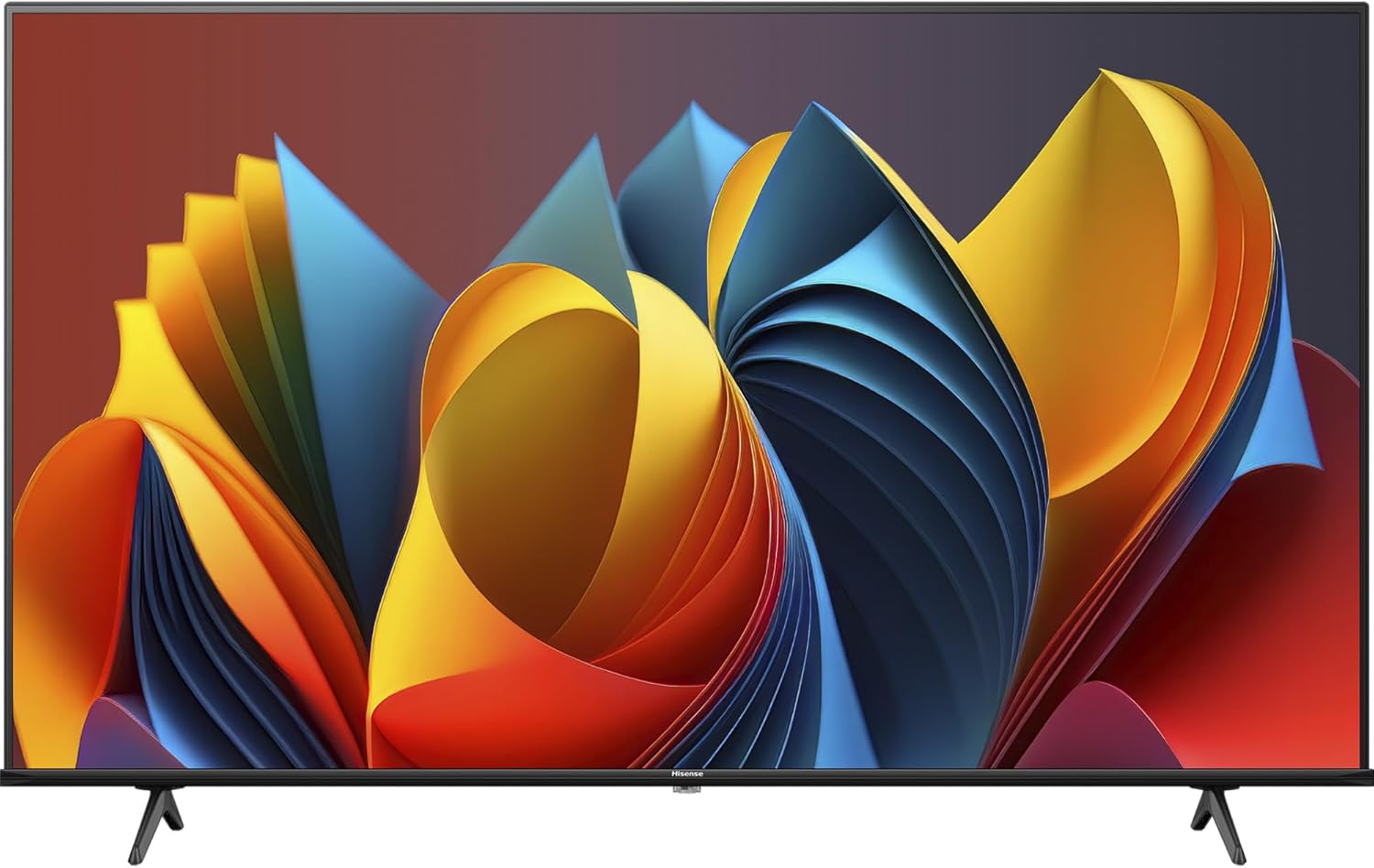
Image: Front view of the Hisense 58E77NQ television, showcasing its display and the two attached stands.
4.3 Wall Mounting (Optional)
If wall-mounting, ensure you use a VESA-compatible wall mount (not included) and follow the mount manufacturer's instructions. Remove the TV stands before wall mounting. Consult a professional for installation if unsure.
4.4 Connecting External Devices
Connect your devices (e.g., cable box, Blu-ray player, gaming console) to the TV's input ports. Refer to the diagram below for port locations.

Image: Detailed view of the Hisense TV's side and rear input ports, including HDMI, USB, optical, and antenna connections.
- HDMI: Connect high-definition devices. This TV has 3 HDMI ports.
- USB: Connect USB storage devices for media playback. This TV has 3 USB ports.
- Antenna/Cable: Connect an antenna or cable TV signal.
- Optical Audio Out: For connecting to an external sound system.
- Ethernet (LAN): For a wired internet connection.
4.5 Initial Power-On and Setup Wizard
After connecting the power cable, press the power button on the remote control or TV. The TV will guide you through the initial setup process, including language selection, network connection, and channel scanning.
5. Operating Your TV
5.1 Remote Control Functions
The remote control allows you to navigate the TV's features. Common buttons include:
- Power: Turns the TV on/off.
- Input: Selects input source (HDMI, TV, etc.).
- Volume +/-: Adjusts volume.
- Channel +/-: Changes channels.
- Navigation (Arrow) Buttons: Move through menus.
- OK/Enter: Confirms selections.
- Back/Exit: Returns to the previous screen or exits a menu.
- Home: Accesses the Smart TV interface (VIDAA U7).
- App Shortcut Buttons: Direct access to popular streaming services (e.g., Netflix, Prime Video).
- Microphone Button: Activates voice control.
5.2 Smart TV (VIDAA U7)
Your Hisense TV runs on the VIDAA U7 operating system, providing access to a wide range of applications and streaming services. Press the Home button on your remote to access the Smart TV interface.
- App Store: Download and install additional applications.
- Streaming Services: Pre-installed apps like Netflix, Prime Video, Disney+, DAZN, NOW, and RaiPlay are available.
- Customization: Organize your favorite apps for quick access.
5.3 Voice Control
The TV supports both Alexa Built-in and VIDAA Voice for convenient control. Press the microphone button on your remote and speak your commands to:
- Change channels or adjust volume.
- Search for content or launch applications.
- Get information (weather, news).
- Control compatible smart home devices (with Alexa).
5.4 Picture and Sound Settings
Access the TV's settings menu to adjust picture and sound preferences. This model supports advanced technologies for an enhanced viewing and listening experience:
- Dolby Vision / HDR10+ / HLG: These High Dynamic Range (HDR) formats provide superior contrast, brightness, and color detail with compatible content.
- Dolby Atmos: Delivers immersive, multi-dimensional audio that moves around you.
- Picture Modes: Select from various preset picture modes (e.g., Standard, Cinema, Game, Sports) or customize your own.
- Sound Modes: Choose sound presets (e.g., Standard, Music, Speech) or adjust equalizer settings.
6. Connectivity
Your Hisense TV offers various connectivity options:
- Wi-Fi: Connect wirelessly to your home network for internet access and streaming.
- Bluetooth: Pair with compatible Bluetooth devices such as headphones or soundbars.
- AirPlay 2 & Android Screen Sharing: Cast content directly from your compatible Apple or Android devices to the TV screen.
7. Special Features
7.1 QLED 4K Display
The Quantum Dot LED (QLED) technology delivers vibrant, accurate colors and enhanced brightness, providing a rich visual experience with 4K resolution (3840 x 2160 pixels).

Image: A vibrant landscape scene displayed on a Hisense QLED 4K TV, illustrating the detailed and rich color reproduction.
7.2 Game Mode Plus
Optimized for gaming, Game Mode Plus reduces input lag and improves responsiveness, ensuring a smoother and more engaging gaming experience. This mode is ideal for connecting gaming consoles.
7.3 Filmmaker Mode
Filmmaker Mode preserves the original aspect ratio, colors, and frame rates of movies, allowing you to experience content as the creators intended, without artificial processing.
7.4 AI Sports Mode
AI Sports Mode automatically detects sports broadcasts and optimizes picture and sound settings for a more immersive stadium-like experience, enhancing motion clarity and audio dynamics.
7.5 Smooth Motion
This feature enhances motion clarity in fast-paced scenes, reducing blur and ensuring smooth, fluid on-screen action, particularly beneficial for sports and action movies.
7.6 Pixel Tuning and Depth Enhancer
Pixel Tuning refines individual pixels for optimal brightness and detail. The Depth Enhancer feature analyzes images to create realistic layers and surprising details, adding depth to scenes.
8. Maintenance
- Cleaning the Screen: Gently wipe the screen with a soft, lint-free cloth. For stubborn marks, use a screen cleaner specifically designed for TVs. Do not spray liquid directly onto the screen.
- Cleaning the Casing: Use a soft, dry cloth to wipe the TV casing. Avoid abrasive cleaners.
- Software Updates: The TV may receive automatic software updates. Ensure your TV is connected to the internet to receive these updates, which can improve performance and add new features.
9. Troubleshooting
| Problem | Possible Solution |
|---|---|
| No power | Check if the power cable is securely connected to the TV and the power outlet. Try a different outlet. |
| No picture, but sound is present | Ensure the correct input source is selected. Check cable connections to external devices. |
| No sound, but picture is present | Check volume level and mute status. Verify audio output settings if using external speakers. |
| Remote control not working | Replace batteries. Ensure there are no obstructions between the remote and the TV's IR sensor. |
| Cannot connect to Wi-Fi | Check your router and modem. Re-enter the Wi-Fi password. Try restarting the TV and router. |
| Smart TV apps not loading | Ensure a stable internet connection. Try restarting the TV. Check for system updates. |
10. Specifications
| Feature | Detail |
|---|---|
| Brand | Hisense |
| Model Number | 58E77NQ |
| Screen Size | 58 Inches |
| Display Technology | QLED |
| Resolution | 4K (3840 x 2160) |
| Refresh Rate | 60 Hz |
| Operating System | VIDAA U |
| Special Features | Voice Assistant (Alexa Built-in, VIDAA Voice), Frameless Design, Blue Light Filter, Browser, Dolby Vision, HDR10+, HLG, Dolby Atmos, Game Mode Plus, AI Sports Mode, Filmmaker Mode, Smooth Motion, Pixel Tuning, Depth Enhancer |
| Connectivity | Wi-Fi, Bluetooth, 3x HDMI, 3x USB, Ethernet, Optical Audio Out |
| Compatible Devices | Headphones, Speakers, Smartphone, Tablet |
| Product Dimensions | 8.1D x 123.4W x 71.6H centimeters |
| Color | Black |
| Power Source | AC Power (Power Cable included) |
| Remote Control Batteries | 2 AAA batteries (required) |
11. Warranty and Support
For warranty information and technical support, please refer to the warranty card included with your product or visit the official Hisense website. Contact customer service for assistance with product registration, troubleshooting, or service requests.
Ask a question about this manual
Ask about setup, troubleshooting, compatibility, parts, safety, or missing instructions. Manuals+ will review the question and use this page’s manual context to help answer it.