
1. Introduction
This manual provides detailed instructions for the installation, operation, and maintenance of your ikasus 9.7-inch Android 13 Car Stereo. Please read this manual thoroughly before using the product to ensure proper function and safety. Keep this manual for future reference.
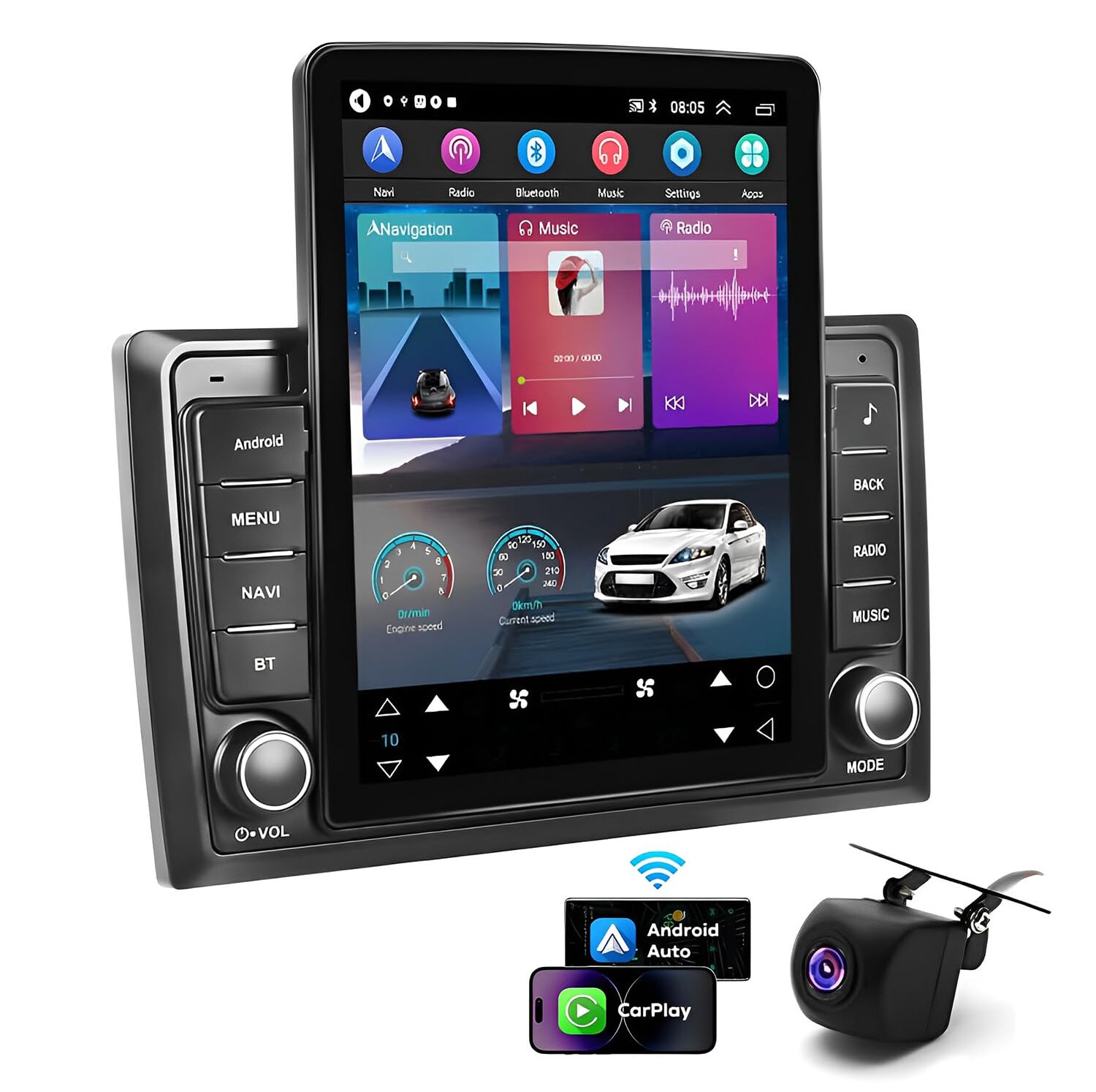
Image: ikasus 9.7-inch Android 13 Car Stereo main unit display with various app icons.
2. Package Contents
Verify that all items are present in the package before installation:
- 1 x Car MP5 Player (Main Unit)
- 1 x Power Cable
- 1 x GPS Antenna
- 1 x Camera Input Cable
- 1 x RCA Input and Output Cable
- 2 x USB Cables
- 2 x Metal Frames
- 4 x Screws
- 1 x Instruction Manual

Image: Overview of all included components, including the main unit, wiring harnesses, GPS antenna, backup camera, and other accessories.
3. Specifications
| Feature | Specification |
|---|---|
| System | Android 13.0 |
| Chipset | 8227L-DEMO |
| Screen Size | 9.7 inches |
| Memory | 2GB RAM + 32GB ROM |
| Screen Resolution | 1280*720 |
| Mirror Link | Android/iOS |
| Radio Chip | MTK |
| Power Output | 4*45W |
| Work Temperature | -40℃ to 80℃ |
| Steering Wheel Control | Supported |
| Bluetooth Version | 4.0 |
| Power Amplifier Chip | AC7388 |
| Radio Band | FM/RDS |
| Video Output | Supported |
| Reversing Input | AHD/CVBS |
| External Microphone | Supported |
| Maps | Built-in offline maps (North America) |
| WIFI | Supported |
| USB Interface | Double USB |
| Audio Formats | APE/FLAC/WAV/MP3/WMA etc. |
| Video Formats | MKV/RMVB/AVI/MP4/MDV etc. |
| Picture Formats | PNG/JPEG/JPG/GIF/WBMP/BNP etc. |
| Factory Setting Keyword | 8888 |
| Languages | Chinese/English/French/Italian/Korean/Japanese/Arabic/Spanish/Portuguese/Russian/Turkish/Vietnamese/Hebrew/Polish/German |
4. Setup and Installation
4.1 Vehicle Compatibility
This car stereo is specifically designed for Nissan Frontier (2009-2014) and Nissan Xterra (2009-2014) models. Ensure your vehicle matches these specifications for proper fit and function.

Image: Comparison showing the original Nissan Frontier/Xterra dashboard and the dashboard after installing the ikasus car stereo.
4.2 Wiring Connections
Refer to the included wiring diagram for detailed connection instructions. Ensure all cables are securely connected to their respective ports. Incorrect wiring can cause damage to the unit or vehicle.
- Power Cable: Connect to the vehicle's power supply.
- GPS Antenna: Connect and position in an area with clear sky view for optimal signal reception.
- Camera Input: Connect the backup camera cable for reversing video functionality.
- RCA Input/Output: For external audio/video devices.
- USB Cables: For connecting USB devices or charging.
4.3 Physical Installation
Use the provided metal frames and screws to secure the car stereo into your vehicle's dashboard. Follow the vehicle's specific instructions for removing the old stereo and installing a new double din unit.
5. Operating Instructions
5.1 Initial Power-On and System Setup
Upon first power-on, the system will boot to the Android 13 interface. You may need to configure basic settings such as language, time, and date. Access the 'Settings' menu for these adjustments.
5.2 Wireless CarPlay and Android Auto (ZLINK)
The unit supports wireless Apple CarPlay and Android Auto via the ZLINK application. This allows for seamless integration of your smartphone's features, including navigation, calls, messages, and music, directly on the car stereo display.
Connection Steps:
- Bluetooth Connection: First, pair your smartphone with the car stereo via Bluetooth. Go to 'Settings' > 'Bluetooth' on the car stereo and enable Bluetooth. On your phone, search for 'CarBT' and pair. The default PIN is '0000'. Once connected, 'phone audio, music audio' will be displayed.
- ZLINK Activation: Open the 'ZLINK' app on the car stereo. Ensure your phone's Wi-Fi is on. The ZLINK app will attempt to connect to your phone.
- Manual Wi-Fi Connection (if needed): If ZLINK connection is unsuccessful, manually connect the car stereo to your phone's Wi-Fi hotspot. Go to 'Settings' > 'Android Settings' > 'Network & Internet' > 'Hotspot & tethering' > 'Wi-Fi hotspot' on the car stereo. Turn on the hotspot on your phone and connect the car stereo to it. After connecting, delete the history record in ZLINK and try connecting again.
For a visual guide on connecting your smartphone for CarPlay/Android Auto, please refer to the video below:
Video: Detailed steps for connecting your smartphone to the ikasus car stereo via Bluetooth and ZLINK for CarPlay/Android Auto functionality.
5.3 GPS Navigation
The unit comes with built-in North America offline maps. You can also use online navigation apps by connecting to Wi-Fi. Access the 'Navi' or 'Maps' application from the main screen.

Image: The car stereo display showing the GPS navigation interface with a map and search bar.
5.4 FM/RDS Radio
Tune into your favorite radio stations using the 'Radio' application. The RDS (Radio Data System) feature provides additional information like station name and song titles where available.

Image: The car stereo display showing the FM radio interface with frequency display and station presets.
5.5 Steering Wheel Control
The unit supports steering wheel control functions. This allows you to operate basic functions like volume, track changes, and call answering directly from your steering wheel buttons. Configuration may be required in the 'Car Settings' menu.

Image: The car stereo display showing the 'Steering Learn' menu within settings, alongside an image of a hand on a steering wheel with control buttons.
5.6 Backup Camera (AHD Reversing Input)
When the vehicle is shifted into reverse gear, the car stereo screen will automatically display the feed from the connected AHD/CVBS backup camera, enhancing safety during parking and reversing maneuvers.

Image: The car stereo display showing a wide-angle view from a backup camera with parking guidelines, indicating the AHD reversing input feature.
6. Maintenance
- Cleaning: Use a soft, dry cloth to clean the screen and unit. Avoid abrasive cleaners or solvents.
- Software Updates: Periodically check for software updates to ensure optimal performance and access to new features. Updates can usually be found on the manufacturer's website or through the system's settings.
- Temperature: Avoid exposing the unit to extreme temperatures for prolonged periods.
7. Troubleshooting
7.1 Common Issues and Solutions
- No Power: Check all power connections and fuses. Ensure the vehicle's ignition is on.
- No Sound: Verify speaker connections, volume levels, and audio output settings.
- Bluetooth/ZLINK Connection Failure: Ensure Bluetooth is enabled on both devices. For ZLINK, confirm Wi-Fi hotspot is active on your phone and the car stereo is connected to it. Try restarting both devices.
- GPS Signal Loss: Ensure the GPS antenna has a clear view of the sky. Check antenna connection.
- Backup Camera Not Displaying: Check camera input cable connection. Ensure the vehicle is in reverse gear.
- System Freezes/Unresponsive: Perform a soft reset by pressing the reset button (if available) or by turning off the vehicle's ignition and restarting.
7.2 Factory Reset
If persistent issues occur, a factory reset may resolve them. Navigate to 'Settings' > 'Android Settings' > 'System' > 'Reset options' > 'Erase all data (factory reset)'. Note that this will erase all user data and settings. The factory setting keyword is 8888.
8. Warranty and Support
For warranty information, technical support, or service inquiries, please refer to the documentation provided at the time of purchase or contact ikasus customer service directly. Specific warranty terms and conditions may vary.