
1. Introduction
This manual provides detailed instructions for the proper use and maintenance of your Inkbird Mini Bluetooth Temperature and Humidity Monitor. This device is designed to accurately measure and record ambient temperature and humidity, providing real-time data and historical trends via a connected mobile application. Please read this manual thoroughly before operating the device.
Key Features:
- High-precision Swiss-made Sensirion sensors for accurate readings.
- Bluetooth 5.0 technology for extended connection range and stable data transmission.
- Up to 300 days of offline data storage and 2 years of historical data export via app.
- Long battery life of up to 8 months with included AAA batteries.
- Compact design with a clear digital display.
- Multiple installation options: tabletop or wall hanging.
2. Package Contents
- Inkbird Mini Bluetooth Temperature and Humidity Monitor (2 units)
- AAA Batteries (4 units, 2 per device)
- User Manual
3. Product Overview
The Inkbird Mini Bluetooth Temperature and Humidity Monitor features a clear LCD display showing current temperature and humidity, along with maximum/minimum values over a 24-hour period. It also includes a comfort level indicator. The device is designed for easy setup and monitoring.

Figure 3.1: Inkbird Mini Bluetooth Temperature and Humidity Monitors with the companion app.

Figure 3.2: Internal components highlighting the precision sensors.
4. Setup
4.1 Battery Installation
- Gently slide open the battery compartment cover located on the back of the device.
- Insert two AAA batteries, ensuring correct polarity (+/-).
- If present, remove any plastic insulation tab from the battery compartment before closing.
- Close the battery compartment cover securely. The display should activate.
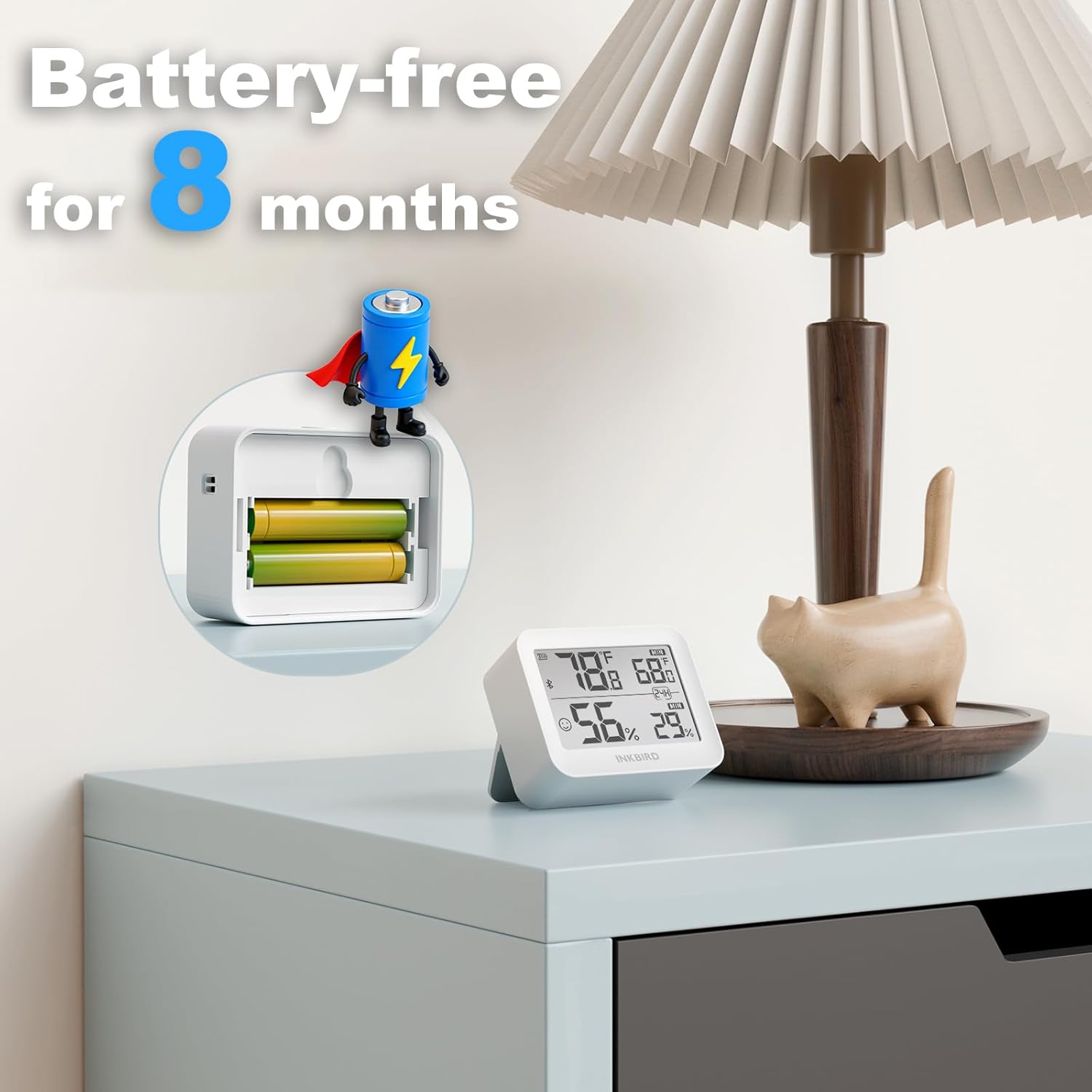
Figure 4.1: Battery installation in the monitor.
4.2 App Download and Pairing
- Download the 'Inkbird' app from the App Store (iOS) or Google Play Store (Android).
- Enable Bluetooth on your smartphone.
- Open the Inkbird app and follow the on-screen instructions to add a new device. The app will automatically detect nearby Inkbird monitors.
- Select your device from the list to pair. Once paired, real-time data will be displayed in the app.

Figure 4.2: Inkbird app displaying multiple connected devices.
4.3 Device Placement
The monitor can be placed on a flat surface (tabletop) or mounted on a wall. Choose a location that provides accurate readings of the desired environment, away from direct sunlight, heat sources, or drafts.

Figure 4.3: Monitor placed on a wall.
5. Operation
5.1 Display Information
The LCD screen displays the following information:
- Current Temperature: Large digits in Celsius or Fahrenheit.
- Current Humidity: Large digits as a percentage.
- MAX/MIN (24H): Maximum and minimum temperature and humidity recorded over the last 24 hours.
- Bluetooth Icon: Indicates active Bluetooth connection.
- Comfort Level Indicator: An icon (dry, comfort, wet) indicating the current air quality based on humidity and temperature.
5.2 Switching Temperature Units (℃/℉)
To switch between Celsius (℃) and Fahrenheit (℉), press the button located on the top of the monitor. The display will update immediately.
5.3 App Functions
The Inkbird app provides enhanced monitoring and control features:
- Real-time Monitoring: View live temperature and humidity data from all connected devices.
- Historical Data: Access and review temperature and humidity trends over hours, days, weeks, months, or years in graphical format.

Figure 5.1: Historical data view in the Inkbird app.
- Data Export: Export up to 2 years of historical data in a CSV format for detailed analysis.
- Alert Notifications: Set custom temperature and humidity ranges. Receive real-time notifications on your smartphone if readings fall outside these ranges.
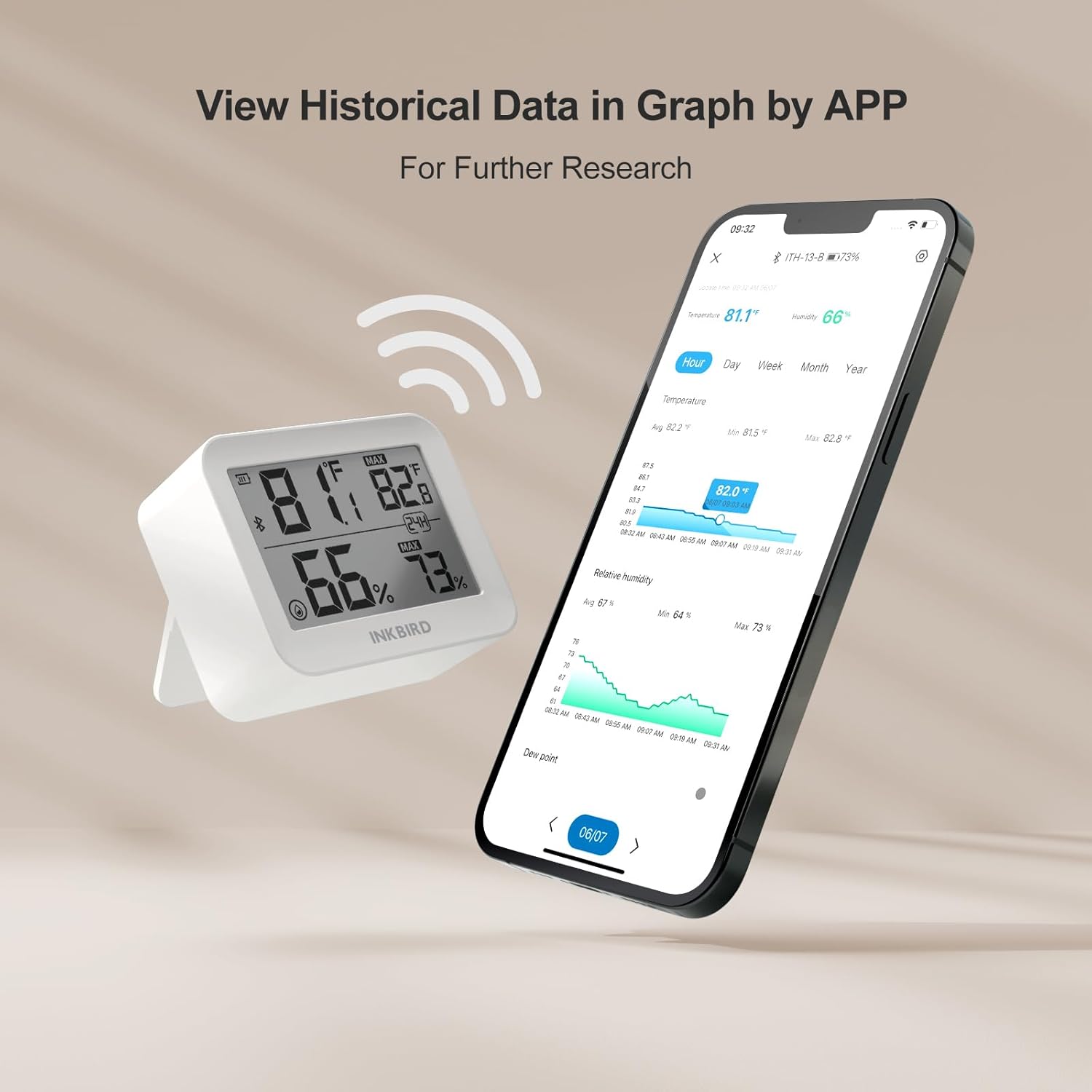
Figure 5.2: Example of an alarm notification.
- Comfort Level Customization: Adjust the parameters for 'Dry', 'Comfort', and 'Wet' indicators within the app to suit your specific needs.

Figure 5.3: Customizing comfort levels in the app.
5.4 Bluetooth 5.0 Connectivity
The device utilizes Bluetooth 5.0, offering an extended connection range of up to 230 feet (70 meters) in open areas. This ensures a stable connection and fast data transmission between the monitor and your smartphone.

Figure 5.4: Bluetooth 5.0 remote monitoring capabilities.
6. Maintenance
6.1 Battery Replacement
When the battery indicator on the display or in the app shows low power, replace the two AAA batteries. Refer to section 4.1 for battery installation instructions.
6.2 Cleaning
Wipe the device with a soft, dry cloth. Do not use abrasive cleaners or immerse the device in water.
6.3 Storage
If storing the device for an extended period, remove the batteries to prevent leakage. Store in a cool, dry place.
7. Troubleshooting
- No display or device not turning on:
Check if the batteries are inserted correctly with the right polarity. Ensure the plastic insulation tab (if any) has been removed. Replace with new AAA batteries if necessary. - App cannot connect to the device:
Ensure Bluetooth is enabled on your smartphone. Make sure the device is within the Bluetooth range (up to 230 feet in open areas). Try restarting the app or your phone. Re-pair the device through the app if needed. - Inaccurate readings:
Ensure the device is not placed near heat sources, direct sunlight, or strong drafts. Allow the device to stabilize for a few minutes after placement. The app may offer calibration options for fine-tuning readings if necessary. - Data not updating in app:
Verify that the device is connected via Bluetooth. Ensure the app has the necessary permissions on your phone.
8. Specifications
| Feature | Specification |
|---|---|
| Model | ITH-13-B |
| Temperature Accuracy | ±0.2℃ (±0.36℉) |
| Humidity Accuracy | ±2% (non-condensing) |
| Temperature Range | -20℃ to 60℃ (-4℉ to 140℉) |
| Humidity Range | 0% RH to 99% RH |
| Bluetooth Version | 5.0 |
| Bluetooth Range | Up to 230 feet (70 meters) in open areas |
| Battery Life | Up to 8 months (with 2 AAA batteries) |
| Data Storage | Up to 300 days offline, 2 years historical in app |
| Dimensions | 3.19 x 2.17 x 2.05 inches (approx.) |
| Mounting Type | Tabletop, Wall Mount |
| Batteries Required | 2 x AAA (included) |
9. Warranty and Support
This Inkbird product is manufactured by Inkbird. For warranty information, technical support, or further inquiries, please visit the official Inkbird website or contact their customer service directly. Keep your purchase receipt for warranty claims.