
Dghrti TAB30
Dghrti TAB30 Android 14 Tablet User Manual
Model: TAB30
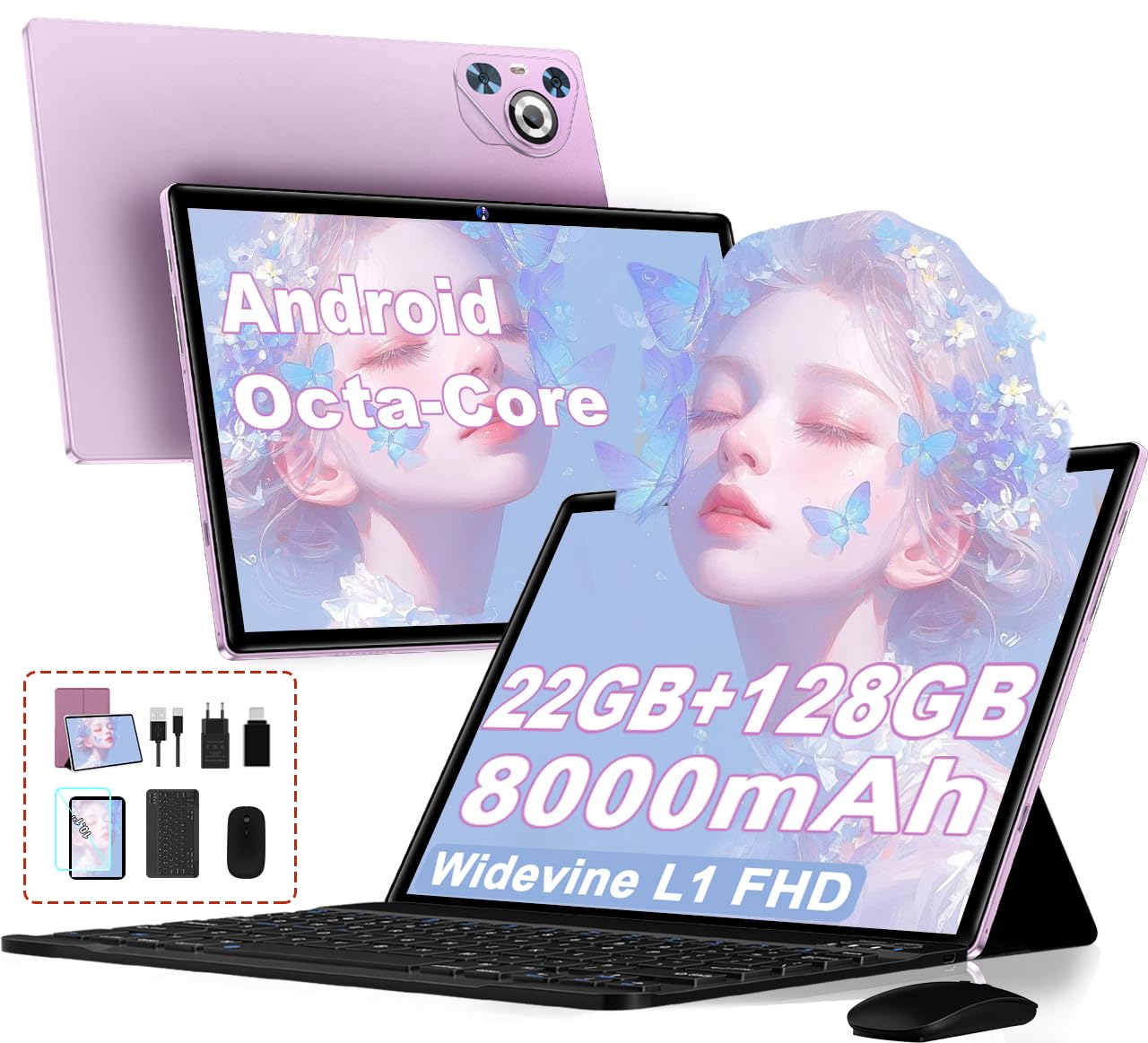
Image: Dghrti TAB30 Android 14 Tablet, showcasing its sleek design and screen.
Introduction
This manual provides essential information for the safe and efficient use of your Dghrti TAB30 Android 14 Tablet. Please read this manual thoroughly before operating the device and retain it for future reference. The Dghrti TAB30 is a versatile tablet designed for various tasks, from entertainment to productivity, featuring a powerful Octa-Core CPU, ample memory, and a vibrant 10.1-inch display.
1. Initial Setup
1.1 Package Contents
Verify that all items are present in your package:
- Dghrti TAB30 Tablet
- Tablet Case
- Bluetooth Keyboard
- Wireless Mouse
- USB Type-C to USB Adapter
- USB Type-C Data Cable
- EU Charger
- Screen Protector
- SD Card Pin (Stylus)
1.2 Charging the Tablet
Before first use, fully charge the tablet. Connect the USB Type-C data cable to the tablet's USB-C port and the other end to the provided EU charger. Plug the charger into a power outlet. The charging indicator will show the charging status. A full charge typically takes several hours.
1.3 Powering On/Off
- To Power On: Press and hold the Power button until the Dghrti logo appears on the screen.
- To Power Off: Press and hold the Power button until the power options appear. Select "Power Off" and confirm.
- To Restart: Press and hold the Power button until the power options appear. Select "Restart" and confirm.
1.4 Initial Configuration
Upon first power-on, follow the on-screen prompts to set up your tablet:
- Select your preferred language.
- Connect to a Wi-Fi network.
- Sign in with your Google account or create a new one.
- Set up screen lock (PIN, pattern, password, or Face ID).
- Review and accept terms and conditions.
1.5 Connecting Accessories
The Dghrti TAB30 comes with a Bluetooth keyboard and a wireless mouse for enhanced productivity.
- Bluetooth Keyboard: Turn on the keyboard. On your tablet, go to Settings > Connected devices > Bluetooth. Enable Bluetooth and search for available devices. Select the keyboard from the list and follow any pairing instructions.
- Wireless Mouse: Insert the USB receiver of the wireless mouse into the USB Type-C to USB adapter, then plug the adapter into the tablet's USB-C port. The mouse should connect automatically.
2. Operating the Tablet
2.1 Android 14 Operating System
Your tablet runs on Android 14, offering enhanced privacy controls, smarter notifications, and improved performance. You can manage app permissions, customize your interface, and enjoy a smoother user experience.

Image: Illustrates Android 14 features like privacy protection, parallel view, and 1TB expandable memory.
2.2 Display and Navigation
- Touchscreen: The 10.1-inch IPS display supports multi-touch gestures. Tap to select, swipe to scroll, pinch to zoom.
- Home Screen: Access your apps, widgets, and notifications.
- Notifications: Swipe down from the top of the screen to view notifications and quick settings.
- Navigation Bar: Use the on-screen buttons (Back, Home, Recent Apps) or gesture navigation for system control.
2.3 Connectivity
- Wi-Fi: Supports 2.4GHz and 5GHz bands for fast internet access. Go to Settings > Network & internet > Wi-Fi to connect.
- Bluetooth 5.0: For connecting wireless headphones, speakers, and other Bluetooth devices. Go to Settings > Connected devices > Bluetooth.
- GPS: Integrated GPS for location services and navigation.
- FM Radio: The tablet supports FM radio functionality.

Image: Highlights Widevine L1 support for streaming, 5G WiFi, Bluetooth 5.0, and eye protection features.
2.4 Camera Usage
The tablet features an 8 MP rear camera and a 5 MP front camera.
- Open the Camera app from the home screen or app drawer.
- Switch between front and rear cameras using the camera icon.
- Tap the shutter button to take photos or start/stop video recording.

Image: Shows the 8MP rear and 5MP front cameras, with examples of video calls and photos.
2.5 Multimedia and Entertainment
- Widevine L1 Support: Enjoy high-definition streaming content from platforms like Netflix, Amazon Prime Video, and YouTube.
- Stereo Speakers: The tablet is equipped with stereo dual speakers for an immersive audio experience.
- 3.5mm Headphone Jack: Connect wired headphones for private listening.

Image: Depicts the stereo dual speakers and a music playback interface.
2.6 Storage Expansion
The tablet's 128 GB internal storage can be expanded up to 1 TB using a Micro SD card (not included). Insert the Micro SD card into the dedicated slot using the provided SD card pin.
3. Maintenance and Care
3.1 Cleaning
- Use a soft, lint-free cloth to clean the screen and body of the tablet.
- Do not use liquid cleaners, aerosols, or abrasive materials.
- Ensure the tablet is powered off before cleaning.
3.2 Battery Care
- Avoid exposing the tablet to extreme temperatures (below 0°C or above 35°C).
- Do not leave the tablet fully discharged for extended periods.
- Use only the original charger and cable provided.
3.3 Software Updates
Regularly check for and install system updates to ensure optimal performance and security. Go to Settings > System > System update.
3.4 Storage Management
Periodically clear unnecessary files and apps to maintain sufficient storage space and tablet speed. Go to Settings > Storage to manage your files.
4. Troubleshooting
| Issue | Possible Cause | Solution |
|---|---|---|
| Tablet does not power on | Low battery; System crash | Charge the tablet for at least 30 minutes. Press and hold the Power button for 10-15 seconds to force restart. |
| Screen is unresponsive | Temporary software glitch | Restart the tablet. If issue persists, perform a factory reset (data will be lost). |
| Cannot connect to Wi-Fi | Incorrect password; Router issue; Wi-Fi disabled | Ensure Wi-Fi is enabled and password is correct. Restart your router. Try connecting to another network. |
| Apps are crashing or slow | Insufficient RAM; Outdated app; Too many apps running | Close background apps. Update apps from Google Play Store. Clear app cache. Restart tablet. |
| Battery drains quickly | High screen brightness; Background apps; Excessive usage | Reduce screen brightness. Close unused apps. Limit background data usage. Check battery usage in settings. |
If you encounter issues not listed here or if the suggested solutions do not resolve the problem, please contact customer support.
5. Technical Specifications

Image: Details the Unisoc T606 Octa-Core processor and the 8000mAh battery with Type-C charging.
- Model: TAB30
- Brand: Dghrti
- Operating System: Android 14
- Processor: Unisoc T606 Octa-Core (2.0 GHz A75 performance cores, A55 efficient cores)
- RAM: 22 GB (6GB physical + 16GB extended)
- Internal Storage (ROM): 128 GB (UFS high-speed flash memory)
- Expandable Storage: Up to 1 TB via Micro SD card (not included)
- Display: 10.1-inch IPS Touchscreen, 1920 x 1200 pixels (FHD)
- Graphics Processor (GPU): ARM Mali-G57 Integrated
- Rear Camera: 8 MP
- Front Camera: 5 MP
- Battery: 8000 mAh
- Charging: 5V/2A, USB Type-C
- Wi-Fi: 2.4 GHz + 5 GHz (802.11ax)
- Bluetooth: 5.0
- Interfaces: USB Type-C, 3.5mm Headphone Jack, Micro SD Card Slot
- Special Features: Face ID, Widevine L1, GPS, FM Radio, Microphone
- Dimensions (L x W x H): 24.21 x 16.1 x 0.79 cm
- Weight: 1.34 kg
6. Warranty and Support
6.1 Customer Service
Dghrti maintains a professional technical support team dedicated to providing comprehensive after-sales service. If you have any questions, require technical assistance, or need support, please do not hesitate to contact us. We aim to respond to all inquiries within 24 hours.
For support, please refer to the contact information provided with your purchase or visit the official Dghrti website.
6.2 Warranty Information
Specific warranty details are typically provided at the time of purchase or within the product packaging. Please retain your proof of purchase for warranty claims. The warranty covers manufacturing defects under normal use conditions.
Related documentsTAB30


Ask a question about this manual
Ask about setup, troubleshooting, compatibility, parts, safety, or missing instructions. Manuals+ will review the question and use this page’s manual context to help answer it.