1. Introduction
Thank you for choosing the VHXSIN X96Q Android TV Box. This device transforms your television into a smart entertainment hub, offering access to a wide range of applications, streaming services, and multimedia content. This manual provides essential information for setting up, operating, and maintaining your device to ensure optimal performance and an enjoyable user experience. Please read this manual carefully before using the product.
2. Product Overview
Key Features
- Operating System: Android 10.0 for broad app compatibility and improved performance.
- Processor: Allwinner H313 Quad-Core ARM A53 CPU (2.4 GHz) and G31 OpenGL3.2 GPU for smooth operation.
- Memory & Storage: 2GB DDR3 RAM and 16GB eMMC ROM for efficient multitasking and ample storage.
- Video Output: Supports 4K Ultra HD and 3D video playback with H.265 hardware decoding.
- Connectivity: 2.4G Wi-Fi (IEEE 802.11 b/g/n) and 10/100M Ethernet.
- Ports: Multiple USB 2.0 ports for connecting peripherals like mice and keyboards.
- Multimedia Support: Compatible with various video, audio, and image formats.
What's in the Box
Upon unpacking, please ensure all the following items are present:
- 1 x VHXSIN X96Q Android TV Box
- 1 x Power Adapter (DC 5V/2A)
- 1 x Remote Control (batteries not included)
- 1 x HD Cable
- 1 x User Manual
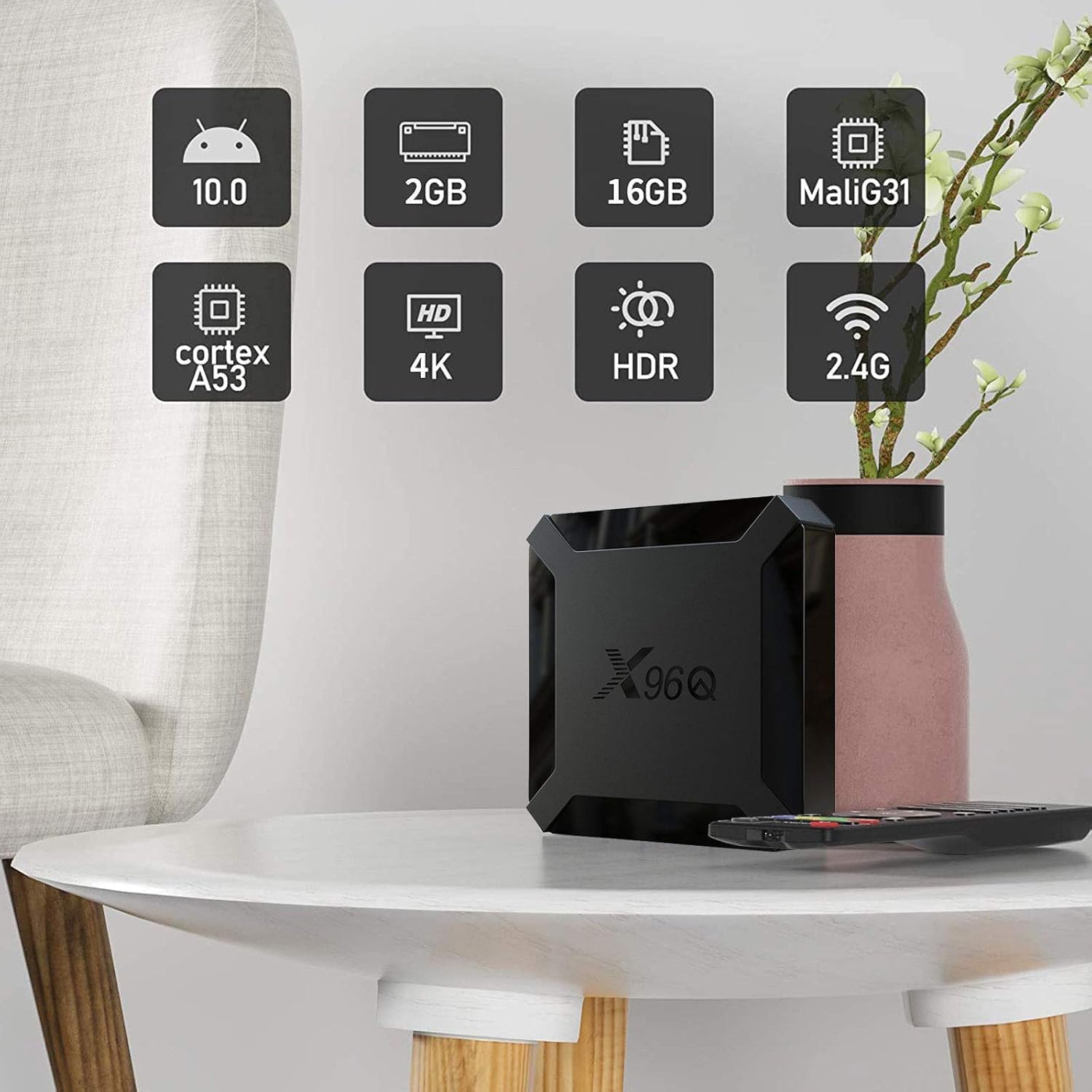
Image: Overview of the VHXSIN X96Q Android TV Box highlighting its core features.

Image: All components included in the VHXSIN X96Q Android TV Box package.
3. Setup Guide
3.1 Connecting the Device
- Connect to TV: Use the provided HD cable to connect the HDMI port on the TV Box to an HDMI input port on your television.
- Connect Power: Plug the power adapter into the DC 5V port on the TV Box, then plug the adapter into a wall outlet.
- Connect to Network (Optional): For a wired internet connection, connect an Ethernet cable from your router to the Ethernet port on the TV Box. For Wi-Fi, proceed to section 3.2.
- Insert Remote Batteries: Open the battery compartment of the remote control and insert two AAA batteries (not included), ensuring correct polarity.

Image: Detailed view of the VHXSIN X96Q Android TV Box interfaces and connection points.
3.2 Initial Setup and Wi-Fi Connection
- Power On: Turn on your television and select the correct HDMI input source. The TV Box should automatically power on and display the boot-up screen.
- Language Selection: Follow the on-screen prompts to select your preferred language.
- Wi-Fi Configuration: If you are not using a wired Ethernet connection, navigate to the Wi-Fi settings. Select your Wi-Fi network from the list, enter the password, and connect.
- Google Account: Sign in with your Google account to access the Google Play Store and other Google services. If you don't have one, you can create one.
4. Operating Instructions
4.1 Navigating the Interface
The VHXSIN X96Q runs on Android 10.0, providing a user-friendly interface. Use the remote control's directional buttons to navigate through menus and select items. The 'OK' button confirms selections, and the 'Back' button returns to the previous screen.

Image: Android 10.0 operating system interface on a TV screen, showcasing dynamic partitioning and app compatibility.
4.2 Installing Applications
Access the Google Play Store from the home screen to download and install a wide variety of applications, including streaming services, games, and utility apps. Ensure you are logged in with your Google account.
4.3 Multimedia Playback
- 4K and 3D Content: The TV Box supports 4K Ultra HD and 3D video playback. Ensure your television is 4K and/or 3D compatible to experience these features.
- Local Media: Connect USB drives or external hard drives to the USB 2.0 ports to play local video, audio, and image files.
- Screen Mirroring: The device supports DLNA, Miracast, and Airplay, allowing you to cast content from compatible smartphones, tablets, or computers to your TV screen.
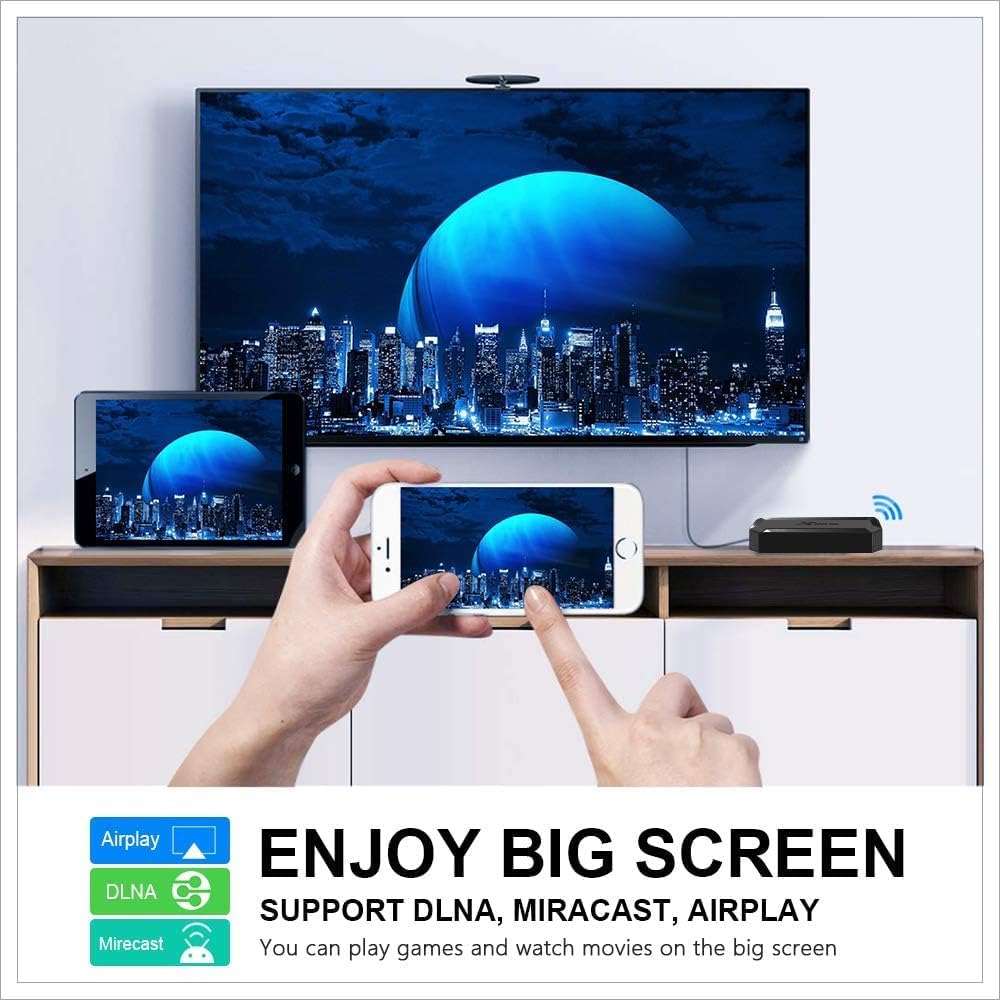
Image: Demonstrating screen mirroring capabilities (DLNA, Miracast, Airplay) from a mobile device to the TV.

Image: Visual representation of 4K Ultra HD and HDR content display on a compatible television.
4.4 Connecting Peripherals
You can connect a USB mouse and keyboard to the TV Box's USB 2.0 ports for easier navigation and text input, especially when browsing or using productivity apps.
5. Maintenance
- Cleaning: Use a soft, dry cloth to clean the device. Do not use liquid cleaners or abrasive materials.
- Ventilation: Ensure the TV Box is placed in a well-ventilated area to prevent overheating. Do not cover ventilation openings.
- Software Updates: The Android 10.0 system may receive periodic updates. Check for system updates in the settings menu to ensure your device has the latest features and security patches.
- Power Cycle: If the device becomes unresponsive, disconnect the power adapter for 10 seconds, then reconnect it to restart the device.
6. Troubleshooting
No Power / Device Not Turning On
- Ensure the power adapter is securely connected to the device and a working power outlet.
- Verify the power outlet is functional by plugging in another device.
No Signal / Blank Screen on TV
- Check if the HDMI cable is securely connected to both the TV Box and the TV.
- Ensure your TV is set to the correct HDMI input source.
- Try a different HDMI cable or HDMI port on your TV.
Wi-Fi Connection Issues
- Verify your Wi-Fi password is correct.
- Ensure the TV Box is within range of your Wi-Fi router.
- Restart your Wi-Fi router and the TV Box.
- If possible, try a wired Ethernet connection to rule out Wi-Fi issues.
Remote Control Not Responding
- Check if the batteries are inserted correctly and are not depleted. Replace batteries if necessary.
- Ensure there are no obstructions between the remote control and the TV Box.
Applications Crashing or Freezing
- Close and restart the application.
- Clear the cache of the problematic application in the device settings.
- Ensure the device has sufficient free storage space.
- Perform a system restart.
7. Specifications
| Operating System | Android 10.0 |
| CPU | Allwinner H313 Quad-Core ARM Cortex-A53 |
| GPU | Penta-Core Mali-450 (G31 OpenGL3.2) |
| RAM | 2GB DDR3 |
| ROM | 16GB eMMC |
| Wi-Fi | 2.4G (IEEE 802.11 b/g/n) |
| Ethernet | Standard 10/100M, Gigabit RJ-45 |
| Video Output | SD/HD max. 1920x1080 pixels, Supports 4K, 3D |
| Supported Video Formats | Avi / Rm / Rmvb / TS / Vob / Mkv / Mov / ISO / wmv / asf / flv / dat / mpg / mpeg |
| Supported Audio Formats | MP3 / WMA / AAC / WAV / OGG / AC3 / DDP / TrueHD / DTS / HD / FLAC / APE |
| Supported Image Formats | HD JPEG / BMP / GIF / PNG / TIFF |
| Power Supply | DC 5V/2A |
| Dimensions (L x W x H) | 18L x 12W x 6H centimeters |
| Model Number | X96Q |
| UPC / GTIN | 729604196246 |
8. Warranty and Support
The VHXSIN X96Q Android TV Box is manufactured by VHXSIN. For warranty information, technical support, or service inquiries, please refer to the contact information provided by your retailer or the manufacturer's official website. Please retain your proof of purchase for warranty claims.