
Club 3D CSV-1583
Club 3D CSV-1583 Thunderbolt 4 Certified 16-in-1 Docking Station User Manual
Model: CSV-1583 | Brand: Club 3D
1. Introduction
This user manual provides detailed instructions for the installation, operation, and maintenance of your Club 3D CSV-1583 Thunderbolt 4 Certified 16-in-1 Docking Station. Please read this manual thoroughly before using the product to ensure optimal performance and safety.
2. Product Overview
The Club 3D CSV-1583 is a versatile Thunderbolt 4 docking station designed to expand the connectivity of your laptop or computer. It offers a wide array of ports for data transfer, video output, networking, and charging, enhancing your productivity and simplifying your workspace.
2.1. Package Contents
- Club 3D CSV-1583 Thunderbolt 4 Docking Station
- Power Adapter
- Thunderbolt 4 Cable
- User Manual (this document)
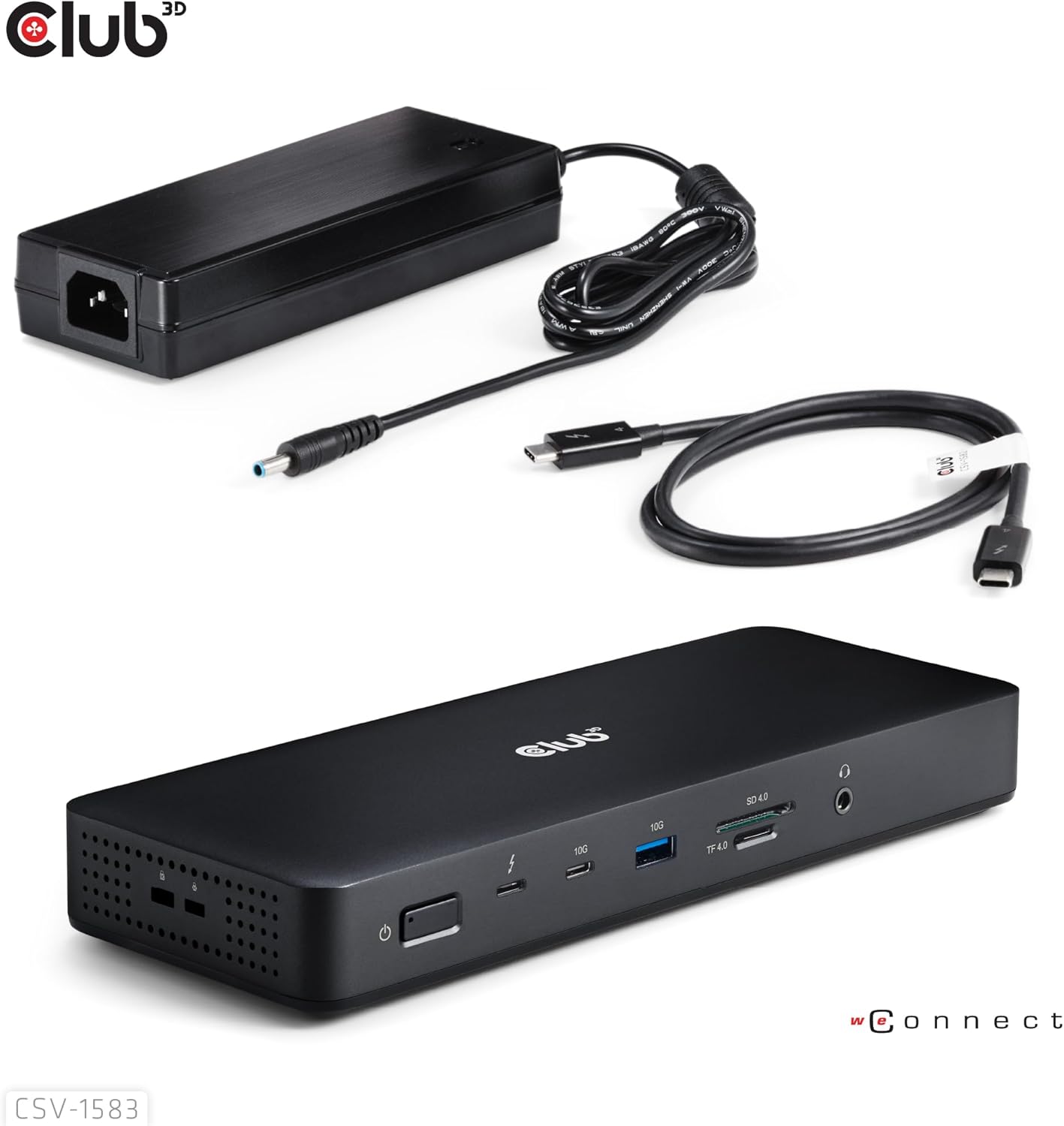
Figure 2.1: Club 3D CSV-1583 Docking Station, power adapter, and Thunderbolt 4 cable.
2.2. Product Features
- Thunderbolt 4 connectivity with 40Gbps data transfer.
- Support for up to four displays (Quadra Displays) with extended desktop.
- Multiple video outputs: HDMI 2.0 (x2), DisplayPort 1.4 (x3), Thunderbolt 4 (x2).
- 2.5Gbps Ethernet port for high-speed wired network connection.
- Various USB ports for peripherals.
- Smart power distribution for efficient charging.
- Compact and robust design.
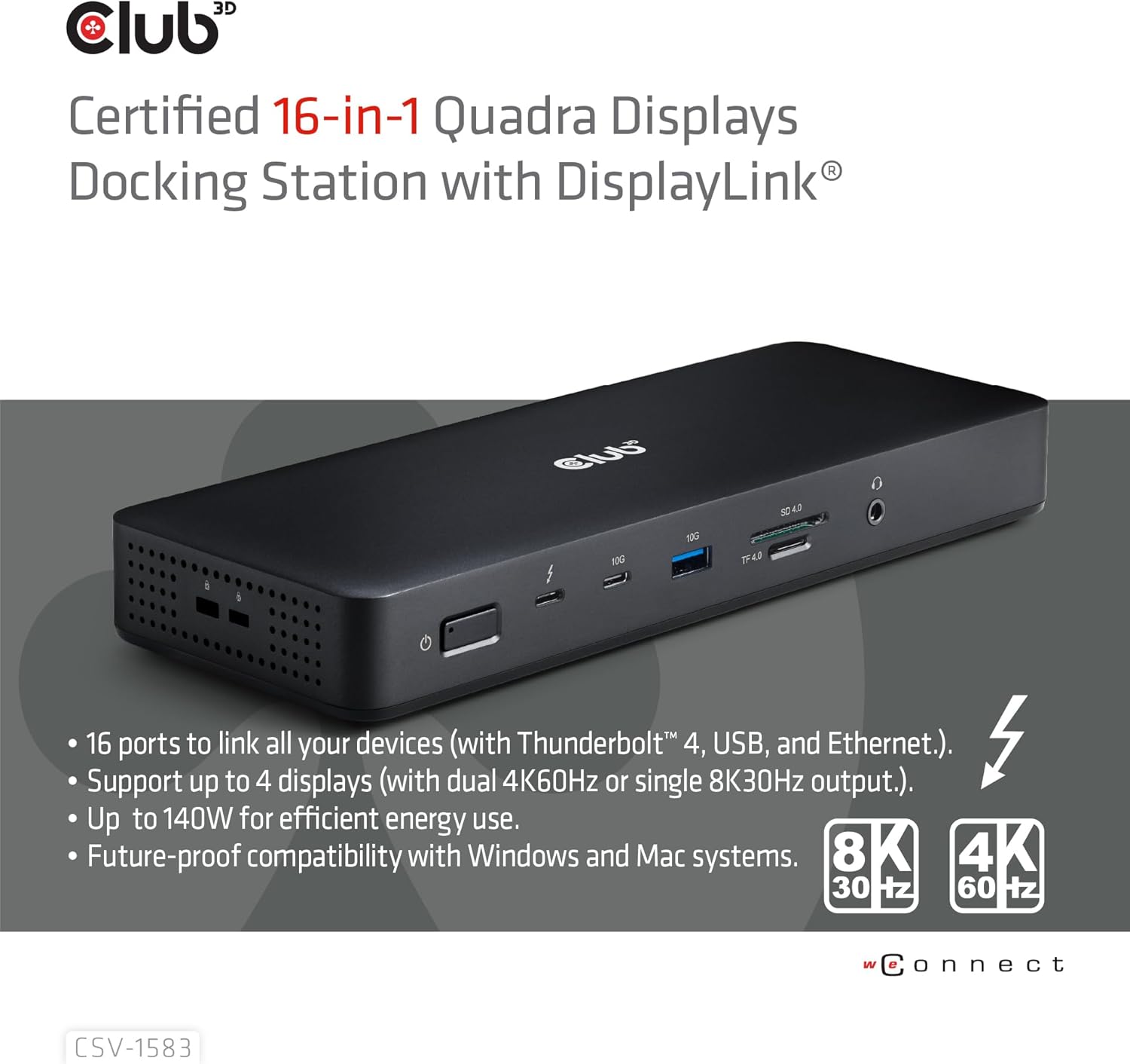
Figure 2.2: Overview of the Club 3D CSV-1583's key features, including 16 ports, up to 4 displays, 140W power, and compatibility.
2.3. Port Layout

Figure 2.3: Front view of the Club 3D CSV-1583 Docking Station, showing the Ethernet port, USB-A ports, HDMI ports, DisplayPort ports, and Thunderbolt 4 ports.

Figure 2.4: Rear view of the Club 3D CSV-1583 Docking Station, showing the power button, Thunderbolt 4 upstream port, USB-A ports, SD card slot, TF card slot, and audio jack.
3. Setup Guide
Follow these steps to set up your Club 3D CSV-1583 Docking Station:
- Connect Power: Connect the provided power adapter to the DC 150W input port on the docking station and plug it into a power outlet.
- Connect to Host Device: Use the included Thunderbolt 4 cable to connect the docking station's upstream Thunderbolt 4 port (labeled with a computer icon) to a Thunderbolt 4 or Thunderbolt 3/USB4 port on your laptop or computer.
- Connect Displays: Connect your monitors to the available HDMI 2.0, DisplayPort 1.4, or Thunderbolt 4 video output ports on the docking station. The docking station supports various display configurations, including single 8K@30Hz, dual 4K@60Hz, or quad 4K@60Hz (on Windows systems). Refer to section 4.2 for display configurations.
- Connect Peripherals: Connect your USB devices (keyboard, mouse, external drives, etc.) to the USB-A ports. Connect your Ethernet cable to the 2.5Gbps RJ45 port for wired network access.
- Power On: Press the power button on the docking station to turn it on. Your operating system should automatically detect and configure the docking station.
4. Operating Instructions
4.1. General Operation
- Ensure the docking station is always connected to its power adapter during use.
- Connect your host device via the Thunderbolt 4 cable for full functionality.
- The docking station provides power delivery to your connected laptop through the Thunderbolt 4 upstream port.
4.2. Display Configurations
The CSV-1583 supports various display configurations depending on your host system's capabilities:

Figure 4.1: Illustration of multi-display setup with the Club 3D CSV-1583, supporting up to four displays.
- Windows Systems:
- Single Display: Up to 8K@30Hz via DisplayPort or HDMI.
- Dual Displays: Up to 4K@60Hz per display.
- Quad Displays: Up to 4K@60Hz per display (requires specific GPU support and DisplayLink drivers for some configurations).
- macOS Systems (M1, M2, M3):
- Supports up to 3 video streams.
- macOS Systems (M1 Pro/Max, M2 Pro/Max, M3 Pro/Max and other Mac series):
- Supports up to 4 video streams.
Important Note:
2 stream output is only possible on Thunderbolt 4 or USB4 compatible devices. USB-C Devices with Alt mode only support 1 stream. Except for the USB Mode from DisplayLink.
4.3. Data Transfer and Charging
- The Thunderbolt 4 ports support up to 40Gbps data transfer speeds.
- USB-A ports provide high-speed data transfer for connected peripherals.
- The docking station intelligently distributes power to your connected laptop and devices.
5. Maintenance
- Keep the docking station in a dry, well-ventilated area, away from direct sunlight and heat sources.
- Do not expose the device to water or excessive moisture.
- Clean the surface of the docking station with a soft, dry cloth. Do not use liquid cleaners or aerosols.
- Avoid dropping or subjecting the device to strong impacts.
- Ensure proper cable management to prevent damage to ports and cables.
6. Troubleshooting
| Problem | Possible Cause | Solution |
|---|---|---|
| No power to the docking station. | Power adapter not connected or faulty. | Ensure the power adapter is securely connected to the docking station and a working power outlet. Check the power button. |
| Displays are not detected or flickering. | Incorrect cable connection, incompatible display settings, or driver issues. |
|
| USB devices are not recognized. | Loose connection, insufficient power, or driver issues. |
|
| Ethernet connection is not working. | Loose cable, network configuration issues, or driver issues. |
|
7. Specifications
| Feature | Detail |
|---|---|
| Model Number | CSV-1583 |
| Product Dimensions | 8.86 x 3.35 x 1.14 inches (22.5 x 8.5 x 2.9 cm) |
| Item Weight | 2.71 pounds (1.23 kg) |
| Hardware Interface | Thunderbolt 4 |
| Video Output Ports | 2x HDMI 2.0, 3x DisplayPort 1.4, 2x Thunderbolt 4 |
| Ethernet Port | 1x RJ45 2.5Gbps |
| USB Ports | Total 4 USB ports (specific types not fully detailed in input, assuming standard USB-A and possibly USB-C data ports) |
| Card Reader | SD 4.0, TF 4.0 |
| Audio Port | 3.5mm Headphone/Microphone Combo Jack |
| Power Delivery | Up to 140W (Smart Power) |
| Compatible Devices | Thunderbolt 4/USB4 PCs, Thunderbolt 3/DP-Alt-mode PCs and Macs (macOS 11 and later) |
| Color | Black |
| Manufacturer | Club3D |
| Country of Origin | Vietnam |
8. Warranty and Support
For warranty information and technical support, please refer to the official Club 3D website or contact their customer service directly. Keep your purchase receipt as proof of purchase for warranty claims.
Club 3D Official Website: www.club-3d.com
For further assistance, you may also contact the retailer where you purchased the product.
Related Documents - CSV-1583
 |
Club 3D CSV-1595 USB-C Gen1 7-in-1 Hub Quick Installation Guide User guide for the Club 3D CSV-1595 USB-C Gen1 7-in-1 hub, providing detailed specifications and setup instructions for its 2x HDMI, 2x USB-A, RJ45, audio, and 100W PD ports. |
 |
Club 3D CSV-1564/CSV-1564W65/CSV-1564W100 Quick Installation Guide Quick installation guide for the Club 3D CSV-1564, CSV-1564W65, and CSV-1564W100 USB-C docking stations. Learn how to connect your devices and get started with setup and charging. |
 |
Club 3D CSV-7330 DisplayPort to Triple HDMI 8K60Hz Adapter - Quick Installation Guide Quick installation guide for the Club 3D CSV-7330 adapter, enabling triple HDMI displays with support for up to 8K/60Hz resolution via DisplayPort 2.1 Alt mode. |
 |
Club 3D CSV-1577 Thunderbolt 3 to Dual DisplayPort 1.2 Video Splitter Connect two 4K 60Hz or one 5K 60Hz display to your Thunderbolt 3 enabled laptop with the Club 3D CSV-1577 USB Type-C Video Splitter. Features Plug and Play functionality and supports resolutions up to 5K. |
 |
Club 3D CSV-1596 6-in-1 USB-C Hub: 8K HDMI, 100W PD, Ethernet, Data Ports Detailed guide for the Club 3D CSV-1596 6-in-1 USB Type-C Hub, covering its features, port specifications, 8K HDMI output, 100W Power Delivery, Gigabit Ethernet, and USB connectivity for laptops and mobile devices. |
 |
Club 3D CSV-1585 KVM Switch Dock: Quick Installation Guide for USB-C Devices Get started quickly with the Club 3D CSV-1585 USB Type-C KVM Switch and Dock. This guide provides setup instructions, interface specifications, and features for connecting multiple USB-C devices, displays, and peripherals. |