
1. Introduction
This manual provides essential information for setting up, operating, and maintaining your DOOGEE T40PRO 12-inch Android 14 Tablet. Please read it thoroughly to ensure proper usage and to maximize your device's capabilities.
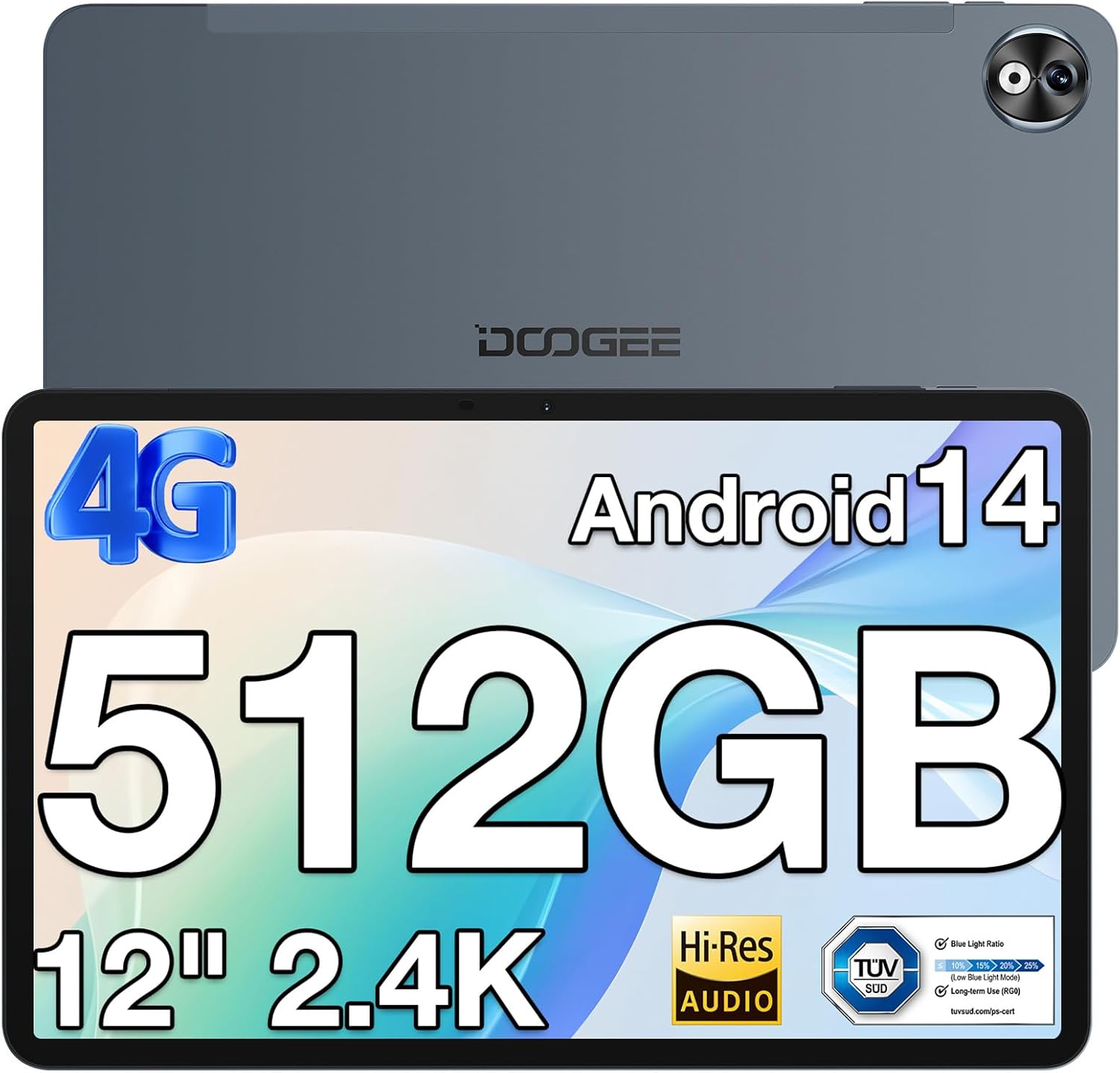
Image 1: Front and back view of the DOOGEE T40PRO Tablet.
2. Setup
2.1 Package Contents
Verify that all items are present in the box:
- DOOGEE T40PRO Tablet Android 14 (x1)
- Charger (x1)
- Type-C USB Cable (x1)
- Tool for taking card (SIM ejector tool) (x1)
- User Manual (x1)
- Tempered Glass Protective Film (x1)

Image 2: Illustration of the DOOGEE T40PRO Tablet package contents.
2.2 Initial Charging
Before first use, fully charge your tablet using the provided 18W Type-C fast charger and cable. The tablet features a 10,800mAh battery.
Video 1: Demonstrates the charging process of the DOOGEE T40PRO Tablet.
2.3 SIM Card and Micro SD Card Installation
The T40PRO Tablet supports dual SIM/Micro SD slots. Use the provided ejector tool to open the tray. Insert your SIM cards (GSM, WCDMA, FDD, TDD networks supported) and/or a Micro SD card (up to 2TB expandable storage) into the designated slots.

Image 3: Shows the dual SIM/Micro SD card slots and the tablet's navigation capabilities.
2.4 Power On/Off
To power on, press and hold the power button until the DOOGEE logo appears. To power off, press and hold the power button, then select 'Power off' from the options.
3. Operating Instructions
3.1 Display and Visuals
The tablet features a 12-inch 2.4K FHD In-Cell Touchscreen with a 1200x2000 resolution and a 16:10 aspect ratio for clear and vibrant visuals.

Image 4: Comparison highlighting the 12-inch 2.4K Fullview Display of the T40PRO.
3.2 Performance
Powered by the Helio G99 octa-core processor (2x ARM Cortex-A76 2.2GHz + 6x ARM Cortex-A55 2.0GHz) and 20GB RAM (8GB physical + 12GB virtual), the tablet offers smooth performance for gaming and applications.

Image 5: Detailed view of the Helio G99 Octa-core Processor specifications.
Video 2: Shows the tablet's performance during gaming, highlighting its capabilities.
3.3 Storage
The tablet comes with 512GB of internal storage, expandable up to 2TB via a TF card, providing ample space for media and applications.

Image 6: Visual representation of the tablet's massive storage capacity.
3.4 Connectivity
Enjoy fast and stable connections with 5G/2.4G dual-band Wi-Fi, Bluetooth 5.0, and 4G Dual SIM support. Integrated GPS, Galileo, Beidou, and Glonass systems ensure accurate navigation.
3.5 Camera
Capture moments with the 16MP rear camera and 8MP front camera.
3.6 Audio
Experience immersive sound with quad speakers. A 3.5mm headphone jack and FM radio are also included for your convenience.
Video 3: Demonstrates media playback and volume control on the tablet.
3.7 Software and Features
The tablet runs on the latest Android 14 operating system, offering enhanced privacy and multitasking capabilities. It is GMS certified, allowing access to Google Play Store apps. WPS Office is pre-installed for document editing.

Image 7: Overview of the Android 14 system features on the tablet.

Image 8: Demonstrates the use of WPS Office for productivity on the tablet.
3.7.1 Multitasking and Split Screen
Utilize the split-screen feature for enhanced productivity, allowing two applications to run side-by-side.
Video 4: Shows the tablet's split-screen functionality, ideal for multitasking.
3.7.2 Face Unlock
Securely unlock your device using the face unlock feature for instant access.

Image 9: Demonstrates the Face Unlock feature for quick and secure access.
3.7.3 Reading Modes
The tablet offers various reading modes, including Dark Mode, Eye-protection Mode, and Power-saving Mode, to optimize your viewing experience.

Image 10: Illustrates the different reading modes available on the tablet.
4. Maintenance
4.1 Battery Care
To prolong battery life, avoid extreme temperatures and fully discharge and recharge the battery periodically. Use only the provided charger and cable.
4.2 Cleaning
Use a soft, lint-free cloth to clean the screen and body of the tablet. Avoid abrasive materials or harsh chemicals.
4.3 Software Updates
Regularly check for and install system updates to ensure optimal performance, security, and access to the latest features of Android 14.
4.4 Storage Management
Periodically review and manage your stored files and applications to maintain sufficient free space for smooth operation. Utilize the expandable storage option for large files.
5. Troubleshooting
If you encounter issues with your DOOGEE T40PRO Tablet, consider the following common solutions:
- Device Freezing: If the tablet freezes, press and hold the power button for approximately 10-15 seconds to force a restart.
- Charging Issues: Ensure the Type-C cable and charger are securely connected and undamaged. Try a different power outlet.
- Connectivity Problems: For Wi-Fi, restart your router and the tablet. For 4G, ensure your SIM card is correctly inserted and your plan is active.
- App Malfunctions: Clear the cache and data for the problematic app in Settings > Apps. If the issue persists, uninstall and reinstall the app.
- Slow Performance: Close unnecessary background apps, clear cache, and ensure sufficient storage space.
For persistent issues, refer to the official DOOGEE support website or contact customer service.
6. Specifications
| Feature | Specification |
|---|---|
| Model Name | T40PRO |
| Operating System | Android 14 |
| Screen Size | 12 Inches |
| Screen Resolution | 2000x1200 (2.4K) |
| Processor | Helio G99 Octa-core (2.2 GHz) |
| RAM | 20GB (8GB physical + 12GB virtual) |
| Internal Storage | 512GB |
| Expandable Storage | Up to 2TB (via TF card) |
| Battery Capacity | 10,800mAh |
| Charging | 18W Type-C Fast Charging |
| Rear Camera | 16MP |
| Front Camera | 8MP |
| Wireless Connectivity | 2.4G & 5G Wi-Fi, Bluetooth 5.0 |
| Cellular Connectivity | 4G Dual SIM (GSM, WCDMA, FDD, TDD) |
| Navigation | GPS, Galileo, Beidou, Glonass |
| Dimensions | 10.9 x 6.8 x 0.29 inches (7.66mm thickness) |
| Weight | 2.64 pounds (578g) |
7. Warranty and Support
The DOOGEE T40PRO Tablet comes with a 1-year warranty. For any issues or support inquiries, please contact DOOGEE customer service. Contact details can typically be found on the official DOOGEE website or through the retailer where the product was purchased.


