
WOPET B0D981F84K
WOPET Automatic Pet Feeder with Camera
Model: HV10DP
Setup Guide
1. Unboxing & Initial Assembly
Carefully unpack all components from the box. Ensure all parts are present before proceeding with assembly.
- Hopper
- Feeder Base
- Lid
- Shunt
- Food Bowls (2)
- Bowl Rack
- Desiccant
- Adapter
- USB Cable

Image: All components included in the WOPET Automatic Pet Feeder package.
Assemble the two bowl racks together, then attach the shunt. Tilt the feeder base and securely attach the assembled bowl rack. Place the stainless steel food bowls into the rack.

Image: Detailed view of the feeder's base assembly with the dual food bowls.
2. Powering On & Battery Installation
The feeder can be powered by the included power adapter or 3 D-size batteries (not included) for backup. It is recommended to use both for uninterrupted operation.
- Open the battery cover at the bottom of the feeder.
- Insert 3 D-size batteries, ensuring correct polarity.
- Close the battery cover.
- Connect the Type-C USB cable to the feeder and plug the adapter into a wall outlet.
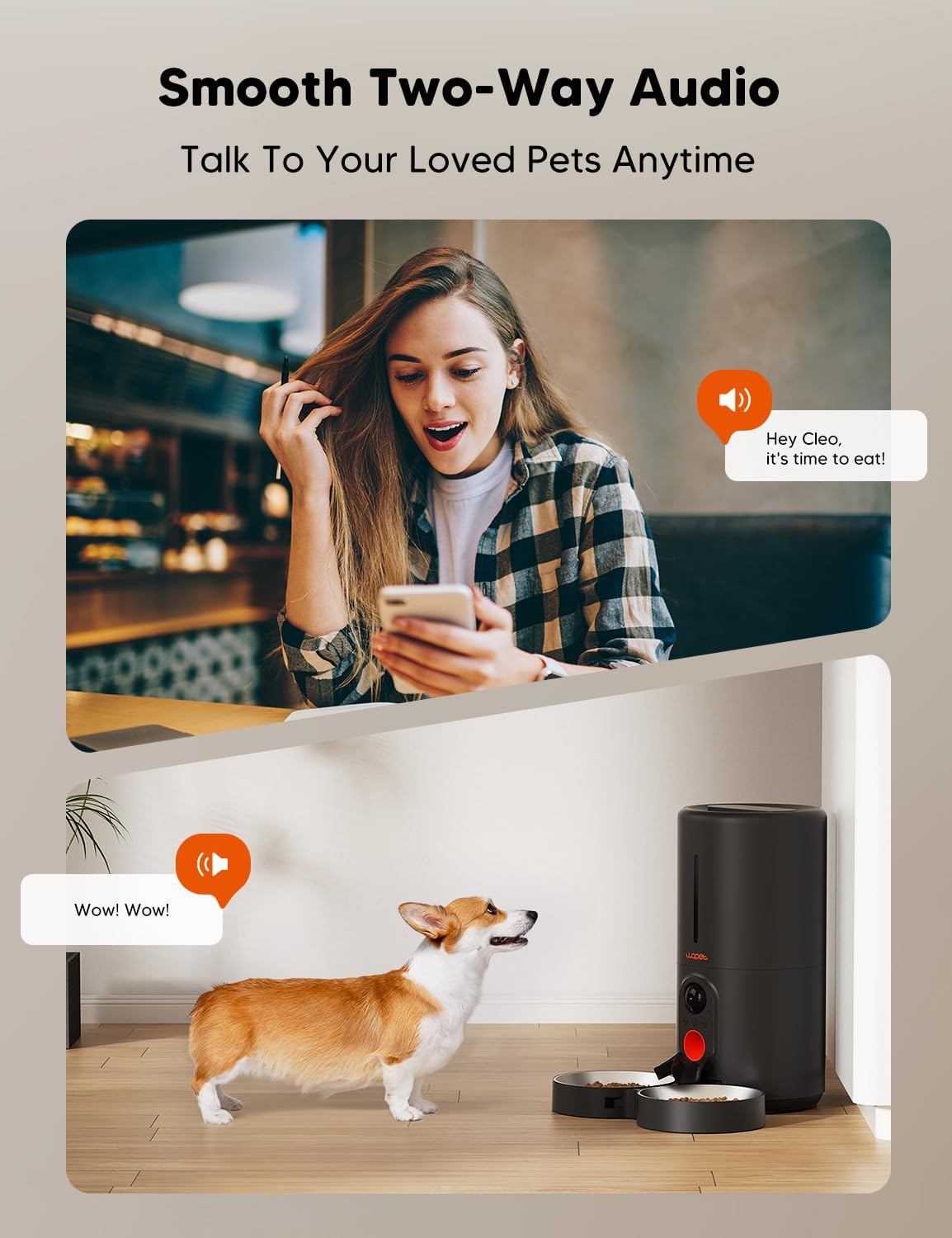
Image: Installation of backup batteries in the feeder's base.
3. App Download & Account Setup
Download the 'WOPET Life' app from your device's app store (App Store for iOS or Google Play for Android).

Image: Visual guide for downloading and signing up on the WOPET Life app.
Open the app and follow the prompts to create a new account or log in. You will need to provide an email address and set a password.
4. Connecting to Wi-Fi
Ensure your phone's Bluetooth is enabled and your device is close to your Wi-Fi router.
- Open the WOPET Life app.
- Press and hold the setting button on the feeder until you hear a 'Beep' sound, then release.
- In the app, tap 'Set Up Device' or the '+' icon to add a new feeder.
- Select the 'Heritage View' feeder from the discovered devices and tap 'Pair'.
- Enter your home Wi-Fi credentials (supports 5GHz and 2.4GHz).
- Follow the on-screen instructions to complete the pairing process. You can customize the feeder's name.

Image: App interface guiding through the device pairing and Wi-Fi setup.
5. Filling the Food Hopper
Turn the lid counter-clockwise to unlock and remove it. Pour dry pet food into the hopper. The feeder holds up to 6L of food. Ensure kibble size is between 2-12mm to prevent jamming.

Image: Demonstrating how to fill the food hopper with dry pet food.
6. Pet Profile Creation
In the WOPET Life app, navigate to the 'My Pets' section. Tap 'Add Pet' and follow the prompts to create a profile for your pet(s), including breed, gender, nickname, age, and weight. This helps the app recommend feeding plans.
Operating Instructions
1. Setting Up Meal Schedules
The app allows you to set a feeding plan for up to 10 meals per day with 1-20 portions per meal. You can choose to automatically create a plan based on your pet's profile or manually add meals.
- Tap on your feeder in the app to access its control panel.
- Navigate to 'Meal Schedule'.
- Choose 'Automatically Create for Pets' for a recommended plan or 'Manually Add a Meal' to customize time, label, and food quantity.

Image: App interface for setting up automatic or manual meal schedules.
2. Manual Feeding (Extra Snack)
To dispense an immediate snack, go to the feeder's control panel in the app, tap 'Interact', then 'Extra Snack'. Select the desired portion size and confirm.
3. Pace Feed Feature
The Pace Feed feature enhances your pet's dining experience with a leisurely pace, preventing overeating. You can enable it and set the interval time in the app's settings.
4. Camera Features
1080P HD Camera & Night Vision
The built-in 1080P HD camera offers a 160° wide viewing angle and 4X digital zoom. Enhanced night vision allows monitoring up to 33 ft in low light. Videos can be saved on a micro SD card (4G included, supports up to 256G).

Image: The WOPET feeder with its integrated 1080P HD camera and dual bowls.

Image: The app's night vision capability, providing clear monitoring in low light.
Two-Way Audio & Personalized Meal Call
Use the built-in microphone and speaker to communicate with your pet remotely via the WOPET Life app. You can also record a personalized meal call.

Image: Illustrates the two-way audio feature, allowing remote interaction with pets.
Privacy Mode
You can enable or disable the camera at any time through the app's privacy settings to ensure your privacy.

Image: App settings demonstrating how to activate or deactivate the camera for privacy.
Live View & Playback
Access 24/7 live view of your pet and playback recorded footage through the app. You can also capture photos and record videos of special moments.

Image: The app's live view and playback features, allowing continuous monitoring of pets.
5. Multi-User Sharing
The app supports multiple users, allowing you to share camera access with family and friends so they can also view and interact with your pets.
Maintenance & Cleaning
Regular cleaning ensures optimal performance and hygiene for your pet. The stainless steel bowls are dishwasher safe.
- Disassemble the food bowls, bowl rack, and shunt from the feeder base.
- Wash the removable accessories (bowls, rack, shunt) with water and mild soap.
- DO NOT wash the feeder base with water. Wipe the feeder base with a wet wipe or damp cloth.
- Ensure all parts are completely dry before reassembling.

Image: Visual guide for disassembling and cleaning the feeder's removable parts.
Troubleshooting
Feeder Not Powering On
- Check if the power adapter is securely plugged into both the feeder and the wall outlet.
- Ensure the wall outlet is functional.
- Verify that D-size batteries are correctly installed with proper polarity and are not depleted.
Food Not Dispensing
- Check the food hopper for sufficient kibble. The low food sensor will alert you when it's time to refill.
- Ensure kibble size is within the recommended 2-12mm range to prevent jamming.
- Verify that the meal schedule is correctly set in the app.
App Connectivity Issues
- Ensure your Wi-Fi network is stable and the feeder is within range.
- Confirm that your Wi-Fi password entered in the app is correct.
- Restart the feeder by unplugging and re-plugging it, then try pairing again.
- Check if your phone's Bluetooth is enabled during the pairing process.
Camera Not Working
- Check the app's privacy settings to ensure the camera is not intentionally turned off.
- Verify network connectivity as camera streaming requires a stable Wi-Fi connection.
Product Specifications
- Brand: WOPET
- Model: HV10DP (implied from video title)
- Item Weight: 4.31 pounds
- Product Dimensions: 7.87 x 7.48 x 15.74 inches
- Material: BPA free
- Color: Black/Black
- Camera: 1080P HD, 160° wide angle, 4X digital zoom, Night Vision (up to 33 ft)
- Connectivity: 5GHz and 2.4GHz Wi-Fi enabled
- Storage: Micro SD card up to 256G (4G SD card included)
- Power: Power adapter and 3 D-size batteries (not included)
- Target Species: Dog, Cat, Small Animals
- Special Feature: Remote feeding, Two-way audio, Personalized meal call, Pace feed
Warranty & Support
WOPET is committed to providing high-quality products and customer satisfaction. For any inquiries or support needs, please contact WOPET customer service.
- 24/7 Customer Service: Assistance is available around the clock for any product-related questions or issues.
- Official Store: Visit the WOPET Store for more products and information.

Image: WOPET's commitment to 24-hour customer service.
Official Product Videos
WOPET Pet Feeder with Camera for Dog and Cat-HV10DP
Description: This video provides a comprehensive overview of the WOPET Automatic Pet Feeder with Camera (HV10DP), demonstrating its features, installation, and app functionalities for both dogs and cats. It covers aspects like assembly, app setup, feeding schedules, and camera usage.
Ask a question about this manual
Ask about setup, troubleshooting, compatibility, parts, safety, or missing instructions. Manuals+ will review the question and use this page’s manual context to help answer it.