
1. Introduction
Thank you for choosing the YGiTK 3.5mm Bi-Directional Audio Switcher. This device allows you to seamlessly switch between multiple audio sources or outputs, enhancing your audio experience. It is designed for ease of use, requiring no external power, and features a convenient mute button. This manual will guide you through the setup, operation, and maintenance of your audio switcher.
2. Product Features
- Bi-directional Functionality: Supports 2-in-1 (two audio sources to one output) or 1-in-2 (one audio source to two outputs) configurations.
- Instant Mute Button: Quickly silence audio with a dedicated mute control.
- One-Click Channel Selection: Easily switch between connected devices using the 1/2 toggle button.
- Plug & Play: No drivers, software, or external power supply required for operation.
- Compact Metal Casing: Durable and space-saving design with a robust metal construction.
- Low-Impedance Audio Quality: Delivers high-fidelity sound with minimal signal loss and noise.
- Wide Compatibility: Works with PCs, laptops, phones, speakers, and headphones that use standard three-segment 3.5mm audio interfaces (not for microphones).
3. Package Contents
Please check the package for the following items:
- YGiTK 3.5mm Audio Switcher (Model MAT400)
- 1-meter 3.5mm Audio Cable
- User Manual

Image: Package contents including the audio switcher, 3.5mm audio cable, and user manual.
4. Product Overview
The YGiTK 3.5mm Audio Switcher features a compact design with clearly labeled ports and buttons for intuitive operation.

Image: Front view of the audio switcher with labels for 3.5mm audio interfaces, mute button, and 1/2 input selector.
Dimensions
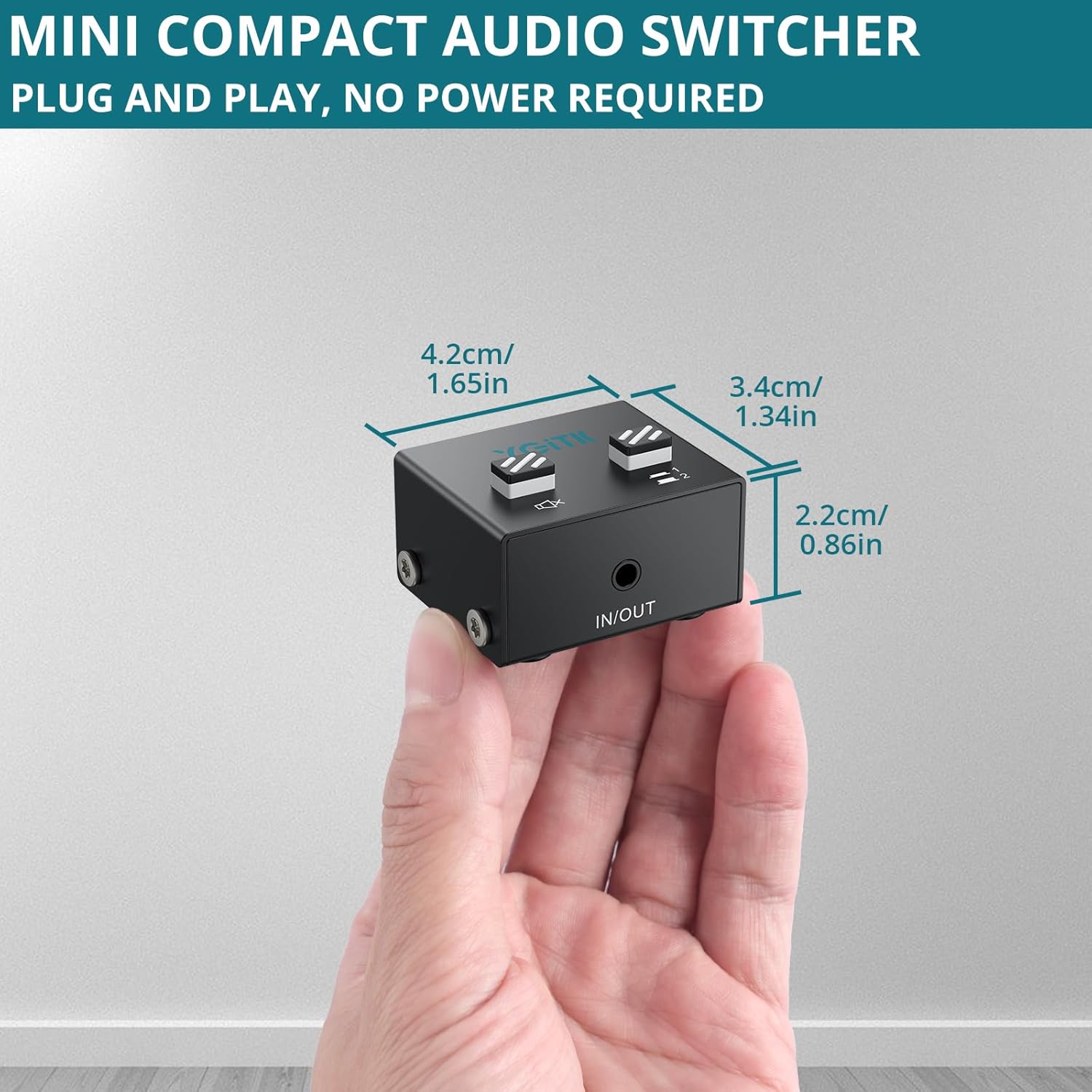
Image: The audio switcher held in a hand, illustrating its compact size and dimensions.
5. Setup & Installation
The YGiTK 3.5mm Audio Switcher supports two main connection modes:
5.1. Connection 1: Two Inputs to One Output (2-in-1)
This mode allows you to connect two audio sources (e.g., a PC and a phone) to a single audio output device (e.g., speakers or headphones).
- Connect the audio output of your first source (e.g., PC) to one of the 'IN/OUT' ports on the switcher using a 3.5mm audio cable.
- Connect the audio output of your second source (e.g., phone) to the other 'IN/OUT' port on the switcher using a 3.5mm audio cable.
- Connect your audio output device (e.g., speakers) to the remaining 'IN/OUT' port on the switcher.

Image: Setup diagram for connecting two audio sources (laptop, TV) to one output (speaker).
5.2. Connection 2: One Input to Two Outputs (1-in-2)
This mode allows you to connect a single audio source (e.g., a PC) to two different audio output devices (e.g., headphones and speakers), and switch between them.
- Connect the audio output of your source device (e.g., PC) to one of the 'IN/OUT' ports on the switcher using a 3.5mm audio cable.
- Connect your first audio output device (e.g., headphones) to another 'IN/OUT' port on the switcher.
- Connect your second audio output device (e.g., speakers) to the remaining 'IN/OUT' port on the switcher.

Image: Setup diagram for connecting one audio source (laptop) to two outputs (headphones, speaker).
6. Operating Instructions
Once your devices are connected, operating the YGiTK Audio Switcher is straightforward.
6.1. Switching Between Devices
Use the '1/2' toggle button to select the desired audio path. Pressing this button will switch between the two connected channels.

Video: Demonstrates connecting a laptop and phone to the switcher and switching between their audio outputs to a speaker, then connecting a laptop to headphones and a speaker and switching between them. This video illustrates both 2-in-1 and 1-in-2 modes of operation.
6.2. Mute Function
Press the 'Mute' button to instantly silence the audio output. Press it again to unmute.
7. Troubleshooting
| Problem | Possible Cause | Solution |
|---|---|---|
| No audio output. | Incorrect cable connection. Mute button activated. Incorrect channel selected. | Ensure all 3.5mm cables are securely connected. Press the mute button to deactivate. Press the 1/2 selector button to switch channels. Verify source device volume. |
| Audio quality is poor or distorted. | Loose cable connections. Damaged audio cable. Source device issue. | Check all cable connections. Try using a different 3.5mm audio cable. Test the audio source directly without the switcher. |
| Switching does not work. | Button malfunction. | Ensure the button is fully pressed. If the issue persists, contact customer support. |
8. Specifications
- Model Number: MAT400
- Product Dimensions: 5.51 x 1.3 x 4.33 inches
- Item Weight: 4.2 ounces
- Color: Black
- Connector Type: 3.5mm Jack
- Cable Type: 3.5mm
- Compatibility: PCs, Laptops, Phones, Speakers, Headphones (standard three-segment 3.5mm audio interfaces)
- Power Requirement: No external power required (passive device)
9. Safety Information
- Do not expose the device to water or excessive moisture.
- Avoid dropping or subjecting the device to strong impacts.
- Do not attempt to disassemble or modify the device.
- Keep out of reach of children.
- Use only with compatible 3.5mm audio devices.
10. Warranty and Support
YGiTK products are designed for reliability and performance. For warranty information or technical support, please refer to the contact details provided on the product packaging or visit the official YGiTK website. Please retain your proof of purchase for warranty claims.