
AUTOUTLET EFU126
AUTOUTLET OBD2 Code Reader EFU126 User Manual
Model: EFU126
1. Introduction
The AUTOUTLET OBD2 Code Reader EFU126 is a professional diagnostic tool designed to assist in vehicle maintenance by providing quick and accurate access to your vehicle's On-Board Diagnostics (OBD-II) system. This device allows you to read and clear Diagnostic Trouble Codes (DTCs), view live data, perform various system tests, and monitor vehicle information. It is compatible with most OBDII-compliant vehicles manufactured after 1996 (US), 2003 (EU), and 2009 (Asia).
This manual provides detailed instructions on how to set up, operate, and maintain your OBD2 Code Reader, ensuring you can effectively diagnose and resolve common vehicle issues.
2. Product Overview
2.1 Key Features
- Read and Clear DTCs: Quickly identifies and clears diagnostic trouble codes, turning off the Check Engine Light.
- DTC Definition Library: Features an extensive library of over 5,000 DTC definitions, available in 13 languages, eliminating the need for external lookups.
- 2.4-inch IPS Color Display: Provides clear and readable information from all viewing angles with a resolution of 320x240 pixels.
- Cloud Printing Function: Test results can be saved as QR codes, which can be scanned by a mobile phone for viewing and sharing. The display automatically matches 24 languages based on your mobile device settings.
- Vehicle Information Display: Retrieves freeze frame data, vehicle identification number (VIN), calibration ID, and other detailed vehicle parameters.
- Battery Test Function: Evaluates the vehicle's battery life and voltage (for lead-acid batteries only).
- I/M Readiness Status: Checks the readiness of emission-related monitors to ensure the vehicle is ready for inspection.
- Wide Compatibility: Supports 9 full OBD protocols, compatible with 99% of OBDII-compliant vehicles.
2.2 Device Layout and Components
The AUTOUTLET EFU126 comes with the main diagnostic unit and a user manual. The device features a 2.4-inch color display and several control buttons for navigation and function selection.
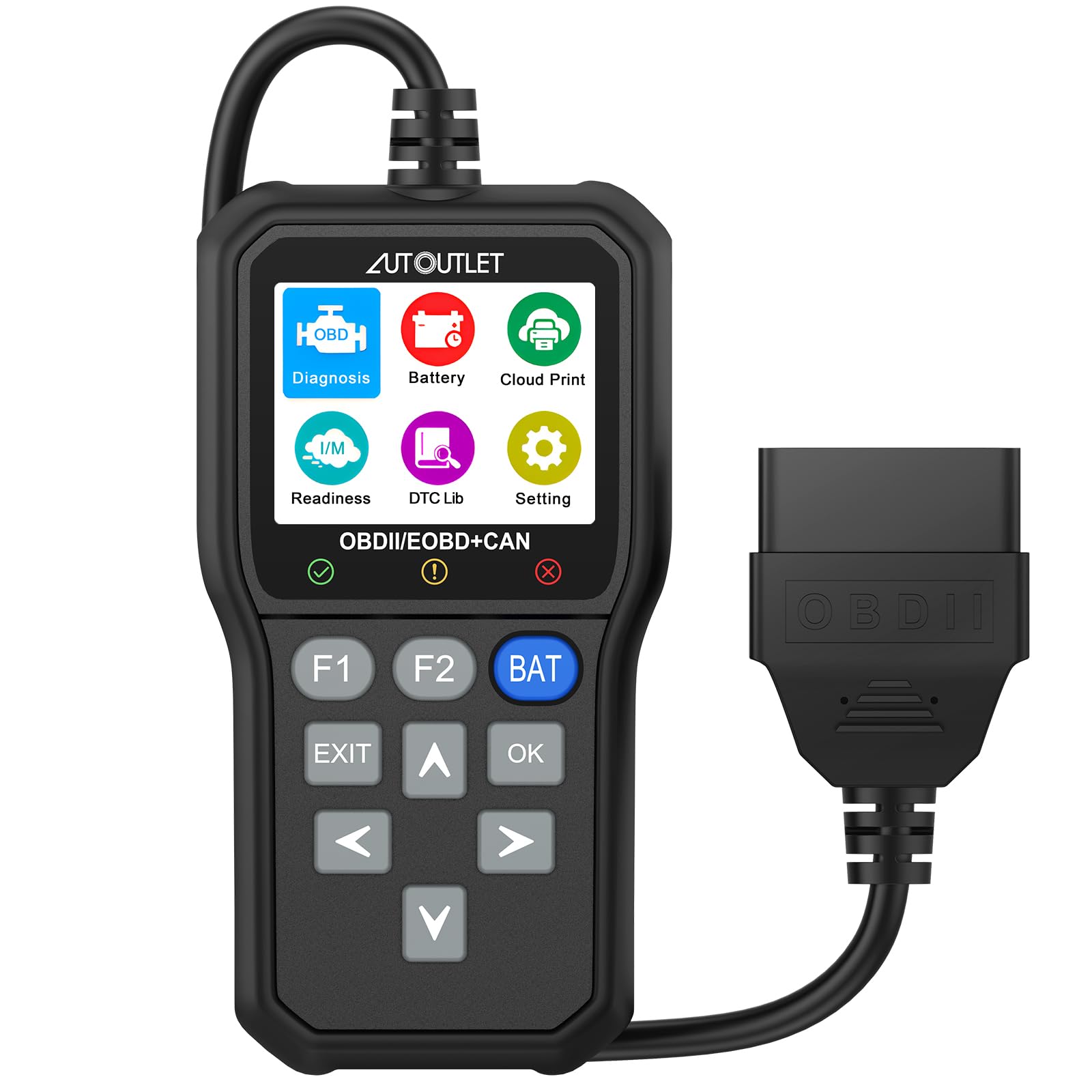
Image 1: The AUTOUTLET OBD2 Code Reader EFU126 displaying its main diagnostic menu and button layout. Key functions like Read Codes, Erase Codes, View Freeze Frame, I/M Readiness, Vehicle Information, Live PCM Data, Battery Test, O2 Sensor Test, and Component Test are visible on the screen.
The device includes the following buttons:
- F1, F2: Function buttons, context-dependent.
- EXIT: Returns to the previous menu or exits a function.
- UP/DOWN Arrows: Navigate through menu options.
- LEFT/RIGHT Arrows: Navigate through data or select options.
- OK: Confirms a selection or action.
- BAT: Dedicated button for battery test function.

Image 2: The AUTOUTLET OBD2 Code Reader EFU126 shown alongside its user manual, illustrating the device's physical dimensions and the attached OBD-II cable.
3. Safety Information
Please read and understand all safety instructions before using the device to prevent injury or damage to the vehicle or the tool.
- Always perform automotive testing in a safe environment.
- Do not operate the tool while driving.
- Wear eye protection that meets ANSI standards.
- Keep clothing, hair, hands, tools, test equipment, etc., away from all moving or hot engine parts.
- Ensure the vehicle is in PARK (P) or NEUTRAL (N) and the parking brake is engaged.
- Turn off the ignition before connecting or disconnecting the diagnostic tool.
- Do not expose the device to moisture or extreme temperatures.
4. Setup
4.1 Connecting the Device
- Locate the vehicle's 16-pin Data Link Connector (DLC). This is usually located under the dashboard on the driver's side.
- Ensure the vehicle's ignition is OFF.
- Firmly plug the OBD2 connector of the diagnostic tool into the vehicle's DLC.
- Turn the vehicle's ignition to the ON position (engine can be off or running, depending on the test). The device will power on automatically.
4.2 Language Selection
Upon first use or after a reset, you may need to select your preferred language. Navigate to the 'Settings' menu using the arrow buttons and press 'OK'. Select 'Language' and choose from the 13 available languages. Press 'OK' to confirm your selection.
5. Operating Instructions
5.1 Reading Diagnostic Trouble Codes (DTCs)
This function allows you to retrieve stored, pending, and permanent diagnostic trouble codes from the vehicle's control modules.
- From the main menu, select 'Read Codes' and press 'OK'.
- The scanner will communicate with the vehicle and display any detected DTCs.
- Use the UP/DOWN arrows to scroll through the codes. The device will provide a clear definition for each code.
5.2 Clearing Diagnostic Trouble Codes (DTCs)
This function clears all diagnostic trouble codes and turns off the Check Engine Light (MIL). It also resets all monitor status information.
- After reading codes, navigate to 'Erase Codes' from the diagnostic menu and press 'OK'.
- A confirmation message will appear. Select 'Yes' and press 'OK' to proceed.
- The device will confirm if the codes have been successfully cleared. The Check Engine Light should turn off.

Image 3: Illustration of the vehicle's dashboard before and after clearing auto errors using the AUTOUTLET OBD2 Code Reader EFU126, showing the Check Engine Light turning off.
5.3 Viewing Freeze Frame Data
Freeze Frame Data is a snapshot of the vehicle's operating conditions at the moment a DTC was set. This data can help identify the cause of the fault.
- From the diagnostic menu, select 'View Freeze Frame' and press 'OK'.
- The device will display various parameters recorded when the fault occurred.
5.4 I/M Readiness Status
This function checks the readiness of the vehicle's emission monitoring systems. It is crucial for passing emissions tests.
- Select 'I/M Readiness' from the diagnostic menu and press 'OK'.
- The screen will show the status of various monitors (e.g., Catalyst Monitor, O2 Sensor Monitor) as 'OK' (complete) or 'INC' (incomplete).
5.5 Vehicle Information
This function allows you to retrieve the Vehicle Identification Number (VIN), Calibration ID (CALID), and Calibration Verification Number (CVN).
- Select 'Vehicle Information' from the diagnostic menu and press 'OK'.
- The requested information will be displayed on the screen.
5.6 Live PCM Data
View real-time operating parameters of the vehicle's engine control module (PCM), such as engine RPM, vehicle speed, coolant temperature, and more.
- Select 'Live PCM Data' from the diagnostic menu and press 'OK'.
- Use the UP/DOWN arrows to scroll through the various data parameters.
5.7 Battery Test Function
The device can quickly read battery voltage and evaluate the battery's life. This function is only available for lead-acid batteries.
- Press the 'BAT' button on the device or select 'Battery Test' from the menu.
- The screen will display the current battery voltage and an evaluation of its condition (e.g., Poor, Medium, Good).

Image 4: The AUTOUTLET OBD2 Code Reader EFU126 displaying battery test results, showing voltage and battery condition (Poor, Medium, Good) with a graphical representation.
5.8 O2 Sensor Test
This function allows retrieval and viewing of O2 sensor monitor test results for the most recently completed tests from the vehicle's on-board computer.
- Select 'O2 Sensor Test' from the diagnostic menu and press 'OK'.
- Review the displayed O2 sensor test results.
5.9 Component Test
The Component Test function allows you to initiate a leak test for the vehicle's EVAP system and other component tests.
- Select 'Component Test' from the diagnostic menu and press 'OK'.
- Follow the on-screen prompts to perform the desired component test.
5.10 Cloud Printing (QR Code Function)
The device supports saving test results as QR codes for easy sharing and review on mobile devices.
- After completing a diagnostic test, navigate to the 'Cloud Print' option in the menu.
- Select the data you wish to save and generate a QR code.
- Use your mobile phone's camera or a QR code scanner app to scan the displayed QR code.
- The test results will open on your mobile device, automatically translated into one of 24 supported languages based on your phone's settings.

Image 5: The AUTOUTLET OBD2 Code Reader EFU126 demonstrating its cloud printing feature, where test results are converted into a QR code for scanning and viewing on a mobile device.
6. Maintenance
6.1 Cleaning the Device
To ensure optimal performance and longevity, keep the device clean.
- Use a soft, damp cloth with mild detergent to clean the exterior of the tool.
- Do not use abrasive cleaners or solvents.
- Avoid getting moisture into the connectors or display.
6.2 Storage
Store the device in a dry, clean environment when not in use, away from direct sunlight and extreme temperatures.
6.3 Software Updates
Periodically check the manufacturer's website for any available software updates to ensure your device has the latest features and vehicle compatibility. Instructions for updating will be provided on the website if applicable.
7. Troubleshooting
7.1 Device Does Not Power On
- Ensure the OBD2 connector is securely plugged into the vehicle's DLC.
- Verify the vehicle's ignition is in the ON position.
- Check the vehicle's fuse for the OBD2 port (usually labeled 'Cigar', 'Accessory', or 'OBD').
7.2 Link Error / Communication Failure
- Confirm the vehicle is OBDII compliant (most vehicles from 1996 onwards).
- Ensure the ignition is ON and the engine is off or running as required by the test.
- Check for any loose connections at the DLC.
- Try connecting the tool to a different OBDII-compliant vehicle to rule out a tool issue.
7.3 Codes Cannot Be Cleared
- Ensure the ignition is ON with the engine OFF when attempting to clear codes.
- If the underlying fault that triggered the code is still present, the code may reappear immediately after clearing. Address the root cause of the DTC.
8. Specifications
| Model Number | EFU126 |
| Display | 2.4-inch IPS Color Screen |
| Resolution | 320x240 pixels |
| Operating Temperature | 0℃ to 60℃ (32℉ to 140℉) |
| Storage Temperature | -20℃ to 70℃ (-4℉ to 158℉) |
| Power Input | 5V to 20V (via vehicle OBD-II port) |
| Dimensions (L x W x H) | 13.2 x 7.6 x 2.8 cm (5.2 x 2.99 x 1.1 inches) |
| Weight | 255 grams (0.56 lbs) |
| Supported Protocols | 9 OBD protocols (Full Protocol) |
9. Warranty and Support
9.1 Warranty Information
Please refer to your purchase documentation or contact your retailer for specific warranty details regarding the AUTOUTLET OBD2 Code Reader EFU126.
9.2 Technical Support
For technical assistance, troubleshooting, or any product-related inquiries, please contact AUTOUTLET customer service through the contact information provided with your purchase or on the official AUTOUTLET website.
Ask a question about this manual
Ask about setup, troubleshooting, compatibility, parts, safety, or missing instructions. Manuals+ will review the question and use this page’s manual context to help answer it.