
JOYACCESS B0D978CJ8X
JOYACCESS Wireless Backlit Keyboard and Mouse Combo User Manual
1. Introduction
This manual provides detailed instructions for setting up, operating, and maintaining your JOYACCESS Wireless Backlit Keyboard and Mouse Combo. Please read this guide thoroughly to ensure optimal performance and longevity of your device. This combo is designed for use with Windows and macOS operating systems, offering a comfortable and efficient user experience.
2. Package Contents
Please verify that all items are present in the package:
- Wireless Keyboard
- Wireless Mouse
- USB Receiver (stored inside the mouse)
- Type-C Charging Cable
- User Manual
3. Setup Instructions
3.1 Initial Charging
Before first use, fully charge both the keyboard and mouse using the provided Type-C charging cable. The charging port for the keyboard is located on its top edge, and for the mouse, it is typically on the front.

Image: Keyboard and mouse connected to a Type-C charging cable, illustrating the rechargeable battery feature and smart sleep mode for extended battery life.
3.2 Connecting the USB Receiver
Locate the nano USB receiver, which is conveniently stored in the battery compartment on the underside of the mouse. Insert this receiver into an available USB port on your computer (PC or Mac).

Image: The USB receiver being removed from its storage slot on the mouse's underside and then plugged into a laptop's USB port, demonstrating the plug-and-play setup.
3.3 Powering On
Turn on the keyboard and mouse using their respective power switches. The power switch for the keyboard is typically located on its top edge or bottom, and for the mouse, it is on the bottom. The devices should connect automatically to your computer.
4. Operating Instructions
4.1 Backlight Control
The keyboard features 7 switchable backlight colors and 3 adjustable brightness levels to suit your preference.
- To change backlight color: Press Fn + Spacebar.
- To adjust brightness: Press Fn + Up Arrow or Fn + Down Arrow.

Image: Visual representation of the keyboard's 7 backlight colors and the key combinations (Fn+Space for color, Fn+Up/Down for brightness) used to control them.
4.2 Ergonomic Design
The keyboard is designed with an integrated ergonomic wrist rest and foldable support to reduce wrist strain and promote a comfortable typing posture during extended use.
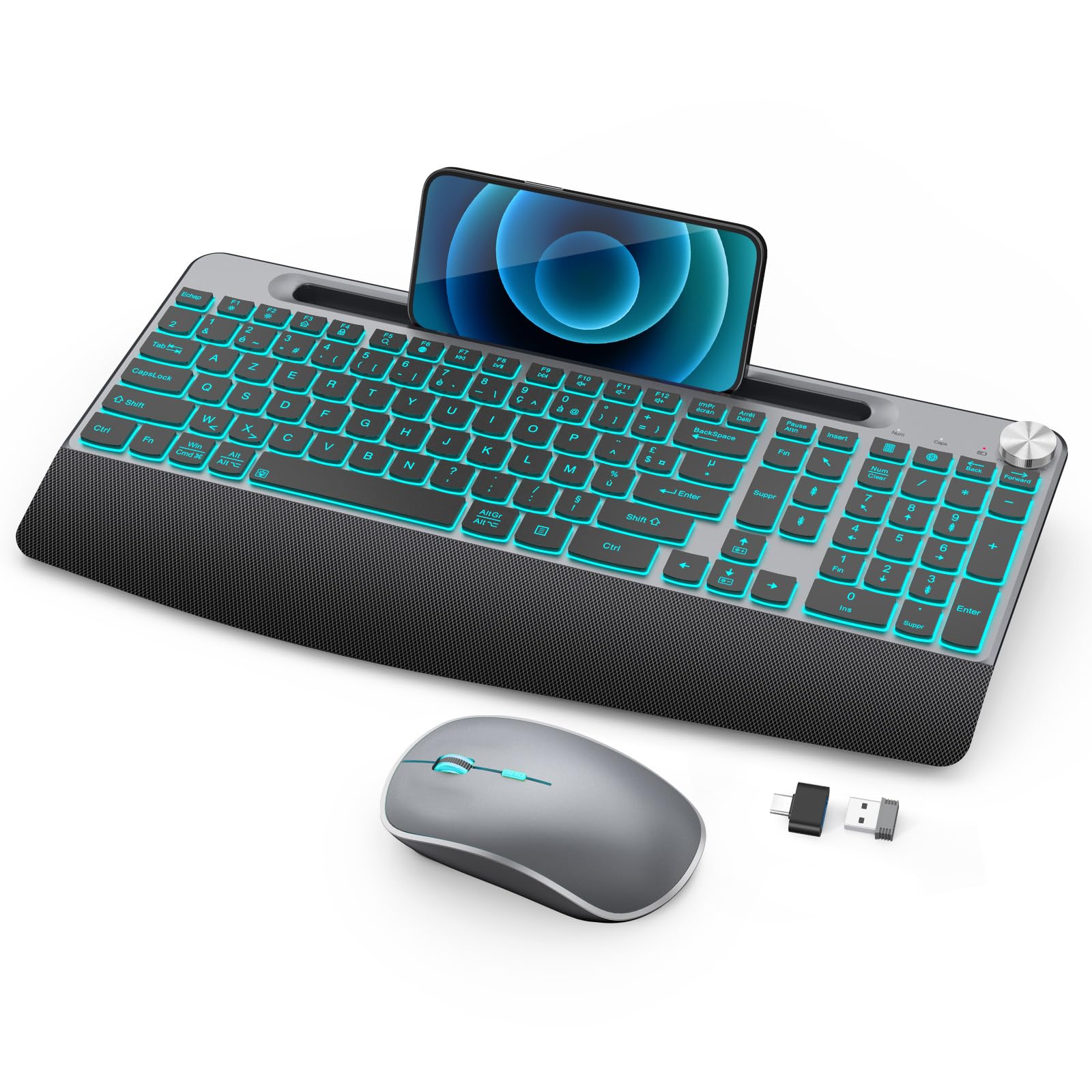
Image: Comparison showing the ergonomic design of the keyboard with its generous palm rest, illustrating how it reduces wrist fatigue compared to a flat keyboard.
4.3 Multi-functional Device Stand
A built-in stand on the keyboard accommodates various phones and tablets (compatible with devices from 5.8 to 12.9 inches), allowing for convenient multitasking and easy viewing of your secondary devices.
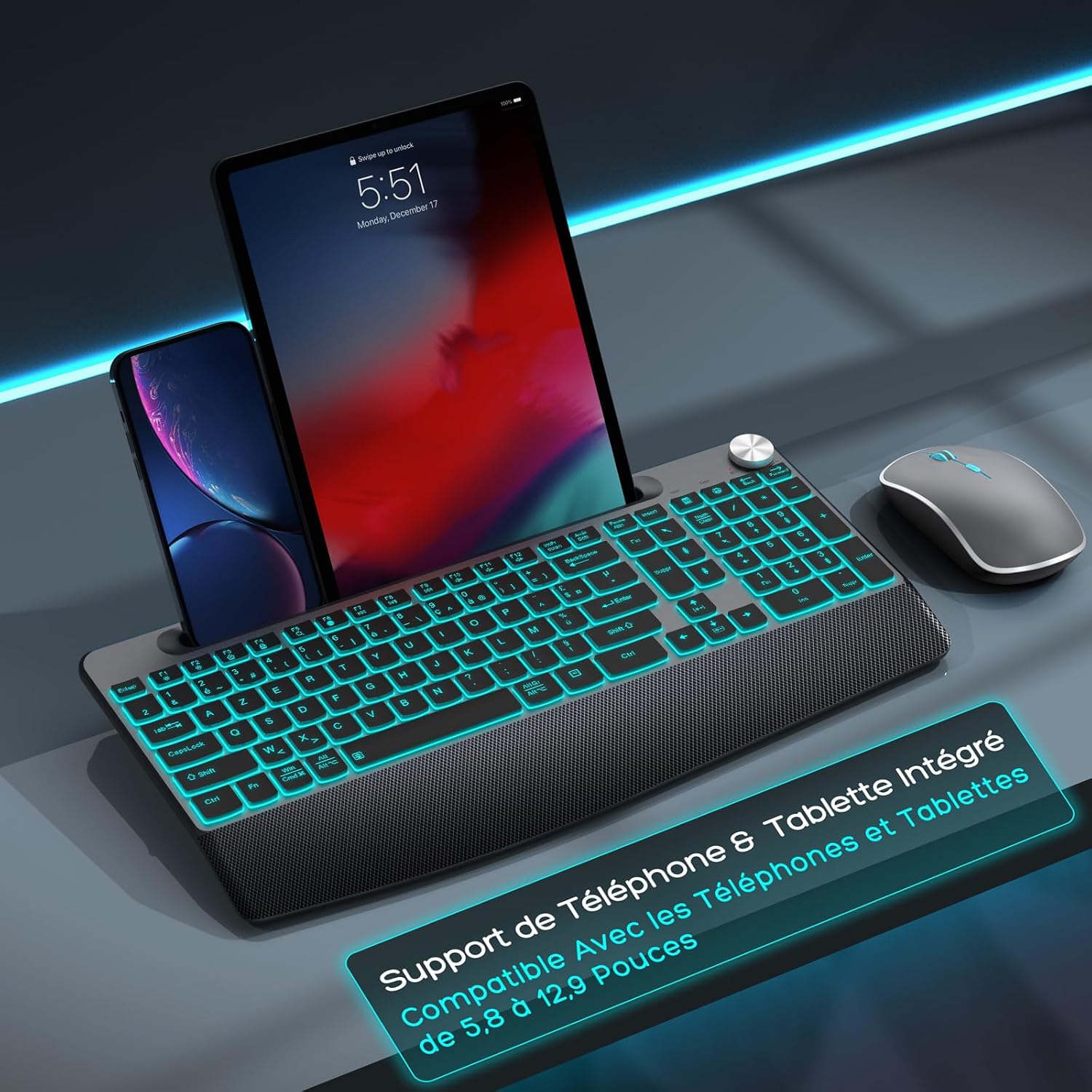
Image: The keyboard featuring an integrated stand, holding both a smartphone and a tablet simultaneously, with the wireless mouse positioned nearby.
4.4 Volume Control Knob and Shortcut Keys
Adjust system volume quickly and precisely using the dedicated rotary knob located on the keyboard. Additionally, the keyboard includes quick-access shortcut keys and versatile function keys (F1-F12) to enhance your productivity.

Image: A hand operating the volume control knob on the keyboard, with the wireless mouse and a Type-C charging cable also visible.

Image: Detailed diagram of the keyboard layout, pointing out key combinations, quick access keys, the volume knob, and the numeric keypad, along with instructions for backlight color and brightness adjustment.
4.5 Mouse DPI Adjustment
The wireless mouse offers 5 adjustable DPI (Dots Per Inch) levels, allowing you to customize cursor sensitivity for precise control. Press the DPI button on the mouse to cycle through the available settings.

Image: A composite image illustrating the mouse's features, including its 5 adjustable DPI levels, ergonomic design for comfortable grip, and the convenient storage location for the USB receiver.
5. Maintenance
- Cleaning: Keep the keyboard and mouse clean by regularly wiping them with a soft, dry cloth. Avoid using harsh chemicals, abrasive materials, or excessive moisture, as these can damage the devices.
- Battery Care: Ensure the devices are charged regularly to maintain optimal battery health and performance. Avoid prolonged exposure to extreme temperatures, which can affect battery life.
- Storage: When not in use for an extended period, turn off the devices to conserve battery. Store the USB receiver inside the mouse to prevent loss.
6. Troubleshooting
6.1 No Connection / Unresponsive Devices
- Ensure the USB receiver is securely plugged into a working USB port on your computer.
- Verify that both the keyboard and mouse are powered on.
- Recharge both devices to ensure they have sufficient battery power.
- Try plugging the USB receiver into a different USB port on your computer.
- Restart your computer.
6.2 Backlight Not Working or Dim
- Adjust the brightness using the Fn + Up Arrow keys.
- Ensure the keyboard is sufficiently charged. Low battery can affect backlight performance.
6.3 Lagging or Intermittent Connection
- Move the keyboard and mouse closer to the USB receiver.
- Avoid using the devices on metallic surfaces, as these can interfere with the wireless signal.
- Ensure there are no other strong wireless interference sources nearby.
- Recharge the devices.
7. Specifications
| Feature | Detail |
|---|---|
| Brand | JOYACCESS |
| Color | Gray |
| Connectivity Technology | Wireless (with USB receiver) |
| Operating System | Windows, macOS |
| Special Features | Rechargeable, RGB Backlight, Ergonomic, Multi-functional Stand |
| Compatible Devices | Personal Computer (PC), Personal Computer (Mac) |
| Keyboard Description | Wireless |
| Recommended Use | General use |
| Keyboard Backlight Color Management | RGB |
| Power Source | Battery Powered |
8. Warranty and Support
This JOYACCESS product comes with a 1-year manufacturer's warranty. For any support inquiries, troubleshooting assistance, or to make a warranty claim, please contact JOYACCESS customer service directly. You can typically find contact information on the official JOYACCESS website or through your purchase platform.
Related documentsB0D978CJ8X

Ask a question about this manual
Ask about setup, troubleshooting, compatibility, parts, safety, or missing instructions. Manuals+ will review the question and use this page’s manual context to help answer it.