
1. Introduction
This manual provides essential instructions for the safe and efficient use of your Maxcom MM334 4G mobile phone. The Maxcom MM334 is a user-friendly classic mobile phone featuring a large 3.2-inch screen, 4G network connectivity, and a modern USB-C connector for convenient charging. It is designed for straightforward communication and includes a 2MP camera with LED flash.

Image 1.1: The Maxcom MM334 4G mobile phone displayed on a desk setup.
2. Package Contents
Please check the box for the following items:
- Maxcom MM334 4G Mobile Phone
- Battery (Lithium-ion)
- USB-C Charging Cable
- User Manual (this document)
3. Device Overview
Familiarize yourself with the physical components of your Maxcom MM334 phone.

Image 3.1: Front view of the Maxcom MM334, showing the 3.2-inch screen, keypad, and navigation buttons.
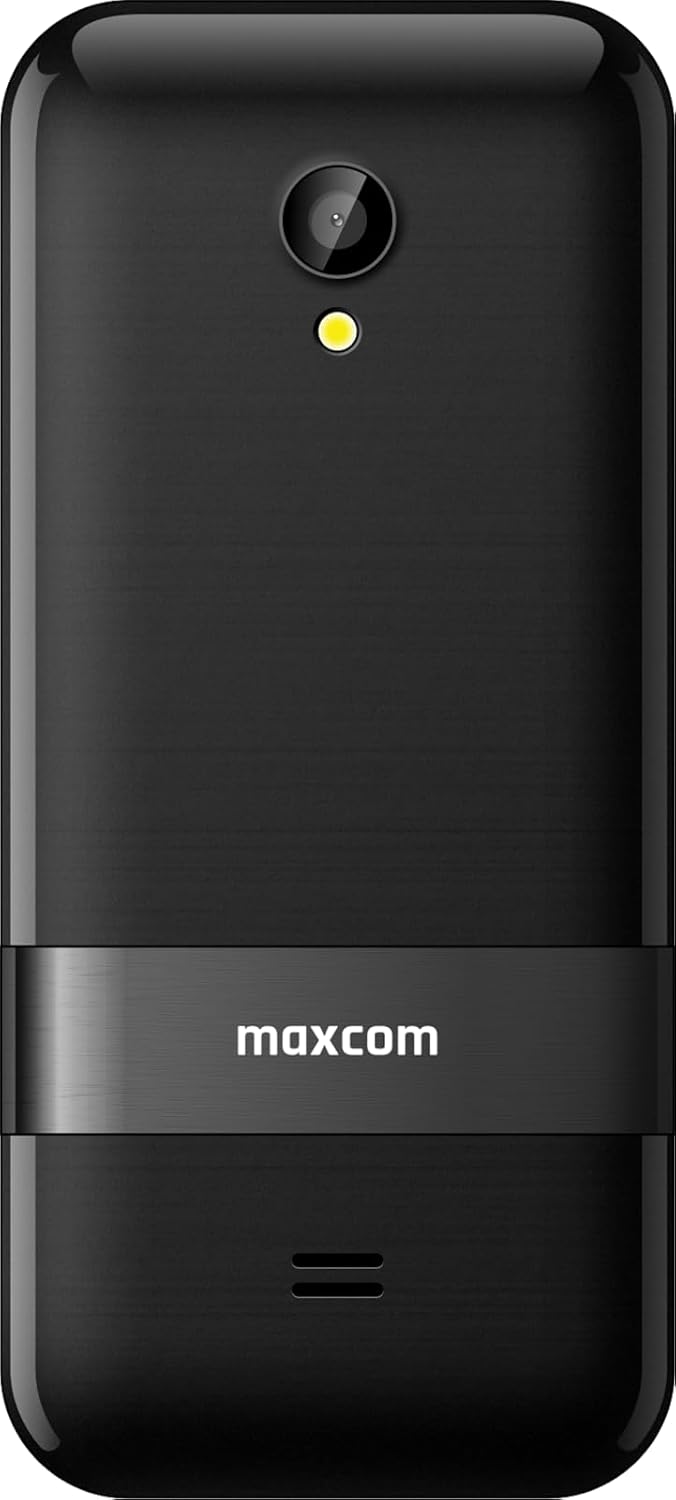
Image 3.2: Back view of the Maxcom MM334, highlighting the 2MP camera with LED flash and the Maxcom branding.

Image 3.3: Side profile of the Maxcom MM334 phone.
Key Components:
- Screen: 3.2-inch display for viewing information.
- Keypad: Alphanumeric keys for dialing and text input, navigation keys, call/end buttons.
- Camera: 2 Megapixel camera with LED flash on the rear.
- USB-C Port: Located at the bottom for charging and data transfer.
- Speaker/Microphone: For audio input and output.
4. Setup
4.1. Inserting SIM Card and Battery
- Carefully remove the back cover of the phone.
- Locate the SIM card slot(s). Insert your SIM card(s) into the designated slot(s) with the gold contacts facing down, ensuring it clicks into place.
- Insert the Lithium-ion battery into its compartment, aligning the contacts.
- Replace the back cover, pressing gently until it snaps securely.
4.2. Charging the Battery
- Connect the USB-C charging cable to the USB-C port at the bottom of the phone.
- Plug the other end of the cable into a compatible USB power adapter and then into a wall outlet.
- The battery indicator on the screen will show charging status. For first use, charge the phone fully.
4.3. Powering On/Off
- To Power On: Press and hold the red End Call/Power button until the screen lights up.
- To Power Off: Press and hold the red End Call/Power button until the power-off options appear, then select 'Power Off'.
5. Operating Instructions
5.1. Basic Navigation
- Use the Navigation Keys (up, down, left, right) to scroll through menus and options.
- Press the Center Key to select an option or confirm an action.
- The Left Soft Key typically accesses the 'Menu' or context-sensitive options.
- The Right Soft Key typically accesses 'Contacts' or a back function.
5.2. Making and Receiving Calls
- To Make a Call: Enter the phone number using the keypad and press the green Call button.
- To Answer a Call: When the phone rings, press the green Call button.
- To End a Call: Press the red End Call button.
5.3. Contacts
- Access 'Contacts' from the main menu or by pressing the Right Soft Key.
- Select 'Add New Contact' to save a new number with a name.
- Scroll through your saved contacts to find and call a person.
5.4. Messaging (SMS)
- Go to 'Messages' from the main menu.
- Select 'New Message' to compose an SMS. Enter the recipient's number and your message.
- Press 'Send' to transmit the message.
5.5. Camera
The Maxcom MM334 features a 2 Megapixel camera with an LED flash.
- Access the 'Camera' application from the main menu.
- Frame your shot using the screen as a viewfinder.
- Press the Center Key or a designated camera button to take a photo.
- Photos are saved to the phone's memory or an inserted memory card (if applicable).
5.6. Settings
The 'Settings' menu allows you to customize various phone functions.
- Sound Profiles: Adjust ringtones, volume, and alert types.
- Display: Configure wallpaper, backlight, and screen brightness.
- Network Settings: Manage 4G connectivity and other network preferences.
- Security: Set PIN codes, phone lock, etc.
5.7. Other Features
- Bluetooth: Connect to compatible Bluetooth devices like headsets.
- Memory: The phone supports expandable memory for additional storage.
6. Maintenance
- Cleaning: Use a soft, dry cloth to clean the phone's screen and body. Avoid liquid cleaners.
- Battery Care: Avoid extreme temperatures. Do not puncture or damage the battery. If the battery appears swollen or damaged, discontinue use and replace it.
- Storage: Store the phone in a cool, dry place when not in use for extended periods.
7. Troubleshooting
If you encounter issues with your Maxcom MM334, refer to the following common problems and solutions:
| Problem | Possible Solution |
|---|---|
| Phone does not turn on | Ensure the battery is correctly inserted and charged. Connect the charger and try again. |
| No network signal | Check if the SIM card is properly inserted. Verify network settings. Move to an area with better signal coverage. |
| Cannot make or receive calls | Check network signal. Ensure your SIM card is active and has sufficient credit/plan. |
| Battery not charging | Ensure the USB-C cable and charger are properly connected and functional. Try a different charger or cable. |
| Keypad unresponsive | Restart the phone. If the issue persists, contact support. |
8. Specifications
| Feature | Detail |
|---|---|
| Brand | Maxcom |
| Model Number | MM334 |
| Screen Size | 3.2 Inches |
| Operating System | Symbian 9.3 |
| Cellular Technology | 4G |
| Connectivity | Bluetooth, USB Type C |
| Camera Resolution | 2 Megapixels |
| Special Features | Expandable Memory, Always On Display, Basic Phone Functionality |
| Battery Composition | Lithium-ion |
| Memory Storage Capacity | 2 GB |
| Resolution | 320 x 240 |
9. Warranty and Support
Your Maxcom MM334 mobile phone is covered by a manufacturer's warranty. Please refer to the warranty card included in your package for specific terms and conditions. For technical support, service, or further inquiries, please contact your retailer or the Maxcom customer service department.


