1. Introduction
Thank you for choosing the GAOMON 88-Key Semi-Weighted Digital Piano Keyboard. This instrument is designed to provide a realistic piano playing experience for both beginners and experienced musicians. Its portable design, versatile features, and connectivity options make it suitable for various musical applications. Please read this manual thoroughly to understand the functions and ensure proper use and maintenance of your digital piano.

Image: The semi-weighted keys offer a realistic piano feel.
2. What's Included
Your GAOMON 88-Key Semi-Weighted Digital Piano Keyboard package includes the following components:
- 88-Key Digital Piano Keyboard
- Headphones
- Sustain Pedal
- Carrying Bag
- Book Clip (Music Rest)
- Power Adapter
- Note Stickers

Image: All included accessories for your digital piano.
3. Setup
3.1 Initial Setup
- Unpack all components from the box.
- Place the keyboard on a stable, flat surface or a compatible keyboard stand (if purchased separately).
- Connect the power adapter to the DC 5V power jack on the rear of the keyboard and then to a power outlet.
- Press the power button to turn on the keyboard. The LCD display will illuminate.
3.2 Keyboard Stand Assembly (for models with stand)
If your package includes a keyboard stand, follow these instructions for assembly. This video demonstrates the assembly process for the X-style keyboard stand.
Video: Assembly instructions for the X-style keyboard stand. Ensure all parts are securely fastened for stability.
3.3 Connecting Accessories
Refer to the diagram below for the location of various ports and controls on your keyboard:
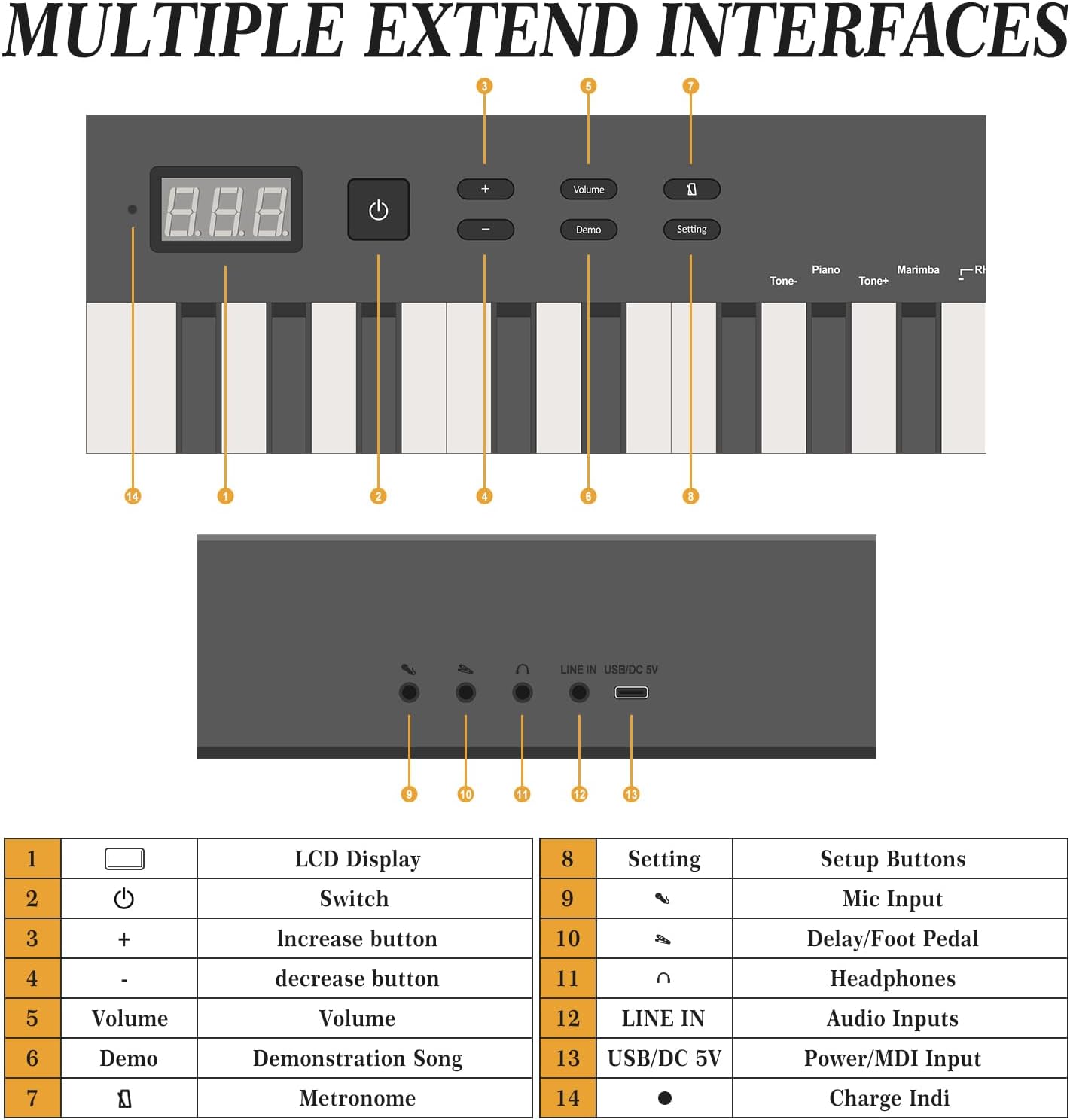
Image: Overview of the keyboard's control panel and rear ports.
- Headphones: Connect the included headphones to the 3.5mm headphone jack for private practice.
- Sustain Pedal: Connect the sustain pedal to the dedicated pedal input for expressive playing.
- Microphone: Use the microphone input for vocal accompaniment.
- Audio Input (LINE IN): Connect external audio sources using the LINE IN port.
- USB/MIDI: Use the USB MIDI port for connecting to computers or other MIDI devices.
4. Operating Instructions
The GAOMON digital piano offers a variety of functions accessible via the control panel and LCD display.

Image: Key functions and features of the digital piano.
4.1 Basic Controls
- Power (Switch): Press to turn the keyboard on or off.
- Volume (+/-): Adjust the master volume level.
- LCD Display: Shows current settings, tone numbers, rhythm numbers, and other operational information.
4.2 Tones and Rhythms
- The keyboard features 129 different tones. Use the 'Tone+' and 'Tone-' buttons to cycle through available instrument sounds.
- Explore 128 rhythms by using the dedicated rhythm selection controls.
4.3 Demo Tracks
- The keyboard includes 30 demo tracks. Press the 'Demo' button to start playback. Use the '+' and '-' buttons to select different demo songs.
4.4 Metronome
- Activate the metronome function to assist with timing and rhythm practice. Adjust the tempo as needed.
4.5 Recording Function
- The recording function allows you to capture your performances. Refer to the specific instructions in the full manual for detailed steps on how to record and playback your music.
4.6 Dual Keyboard Mode
Engage the dual keyboard mode to split the keyboard into two identical sections, allowing two players to play simultaneously, ideal for teaching or duets.

Image: Dual keyboard mode for collaborative playing.
5. Connectivity
The GAOMON digital piano offers versatile connectivity options for enhanced functionality.

Image: Bluetooth and MIDI functions for connecting to external devices.
5.1 Bluetooth Pairing
- Ensure the keyboard is powered on.
- Activate Bluetooth on your mobile phone, computer, or tablet.
- Search for available Bluetooth devices and select the GAOMON keyboard.
- Confirm pairing on your device. Once connected, you can use the keyboard with interactive piano learning apps or other music software.
5.2 USB MIDI
Connect the keyboard to a computer using a USB cable for MIDI functionality. This allows you to use the keyboard as a MIDI controller for digital audio workstations (DAWs) or other music production software. Ensure appropriate drivers are installed on your computer if necessary.
6. Maintenance
Proper care will extend the life and performance of your digital piano.
- Cleaning: Use a soft, dry cloth to wipe the surface of the keyboard. For stubborn dirt, slightly dampen the cloth with water and a mild soap solution, then wipe dry immediately. Avoid abrasive cleaners or solvents.
- Storage: When not in use, store the keyboard in its carrying bag to protect it from dust and moisture. Avoid placing heavy objects on the keyboard.
- Environment: Keep the keyboard away from direct sunlight, extreme temperatures, and high humidity. Do not place it near heat sources or in areas with excessive vibration.
7. Troubleshooting
If you encounter issues with your GAOMON digital piano, refer to the following common solutions:
| Problem | Possible Cause | Solution |
|---|---|---|
| No sound | Volume too low; headphones connected; power issue. | Increase volume; disconnect headphones; ensure power adapter is securely connected. |
| Keys not responding | Keyboard not powered on; specific mode activated. | Turn on power; check if a specific mode (e.g., dual keyboard) is affecting key response. |
| Bluetooth connection issues | Device not in pairing mode; interference; incorrect device selected. | Ensure keyboard and device are in pairing mode; move closer to the keyboard; select the correct device. |
| MIDI not working | Incorrect cable; driver issues; software settings. | Use a proper USB MIDI cable; check computer device manager for drivers; verify MIDI input settings in your software. |
If the problem persists after attempting these solutions, please contact GAOMON customer support for further assistance.
8. Specifications
Detailed technical specifications for the GAOMON 88-Key Semi-Weighted Digital Piano Keyboard:
- Number of Keys: 88
- Key Type: Semi-Weighted, Touch Sensitive, Full-Size
- Tones: 129
- Rhythms: 128
- Demo Tracks: 30
- Connectivity: Bluetooth, USB MIDI, Audio Input (LINE IN), Headphone Jack (3.5mm), Microphone Input, Pedal Jack, DC 5V Power Jack
- Power Source: Corded Electric
- Product Dimensions: 50.67"D x 5"W x 10.43"H (128.7 cm D x 12.7 cm W x 26.5 cm H)
- Item Weight: 15.67 pounds (7.11 kg)
- Color: Black
- Model Number: ZPPEL_0S8UWZHTNf7
- Manufacturer: GAOMON
9. Warranty and Support
For warranty information, product registration, or technical support, please refer to the warranty card included in your package or visit the official GAOMON website. Keep your purchase receipt as proof of purchase for any warranty claims.


