
BOXPUT Lemon TV L2
Lemon TV L2 Android 12.0 Smart TV Box User Manual
Model: Lemon TV L2 | Brand: BOXPUT
1. Introduction
The BOXPUT Lemon TV L2 is a compact and powerful Android 12.0 Smart TV Box designed to transform your television into a comprehensive home entertainment hub. Featuring the Allwinner H618 Quad-core chip, 2GB RAM, and 16GB storage, it delivers smooth 4K HD streaming and supports a wide range of applications. With dual-band WiFi, BT 5.4, and a voice remote, the Lemon TV L2 offers advanced connectivity and user-friendly control for an immersive media experience.
2. What's in the Box
Upon opening your Lemon TV L2 package, please verify that all the following items are included:
- 1x Lemon TV L2 TV Box
- 1x BT Voice Remote Control
- 1x HD Cable (HDMI Cable)
- 1x Power Adapter
- 1x User Manual
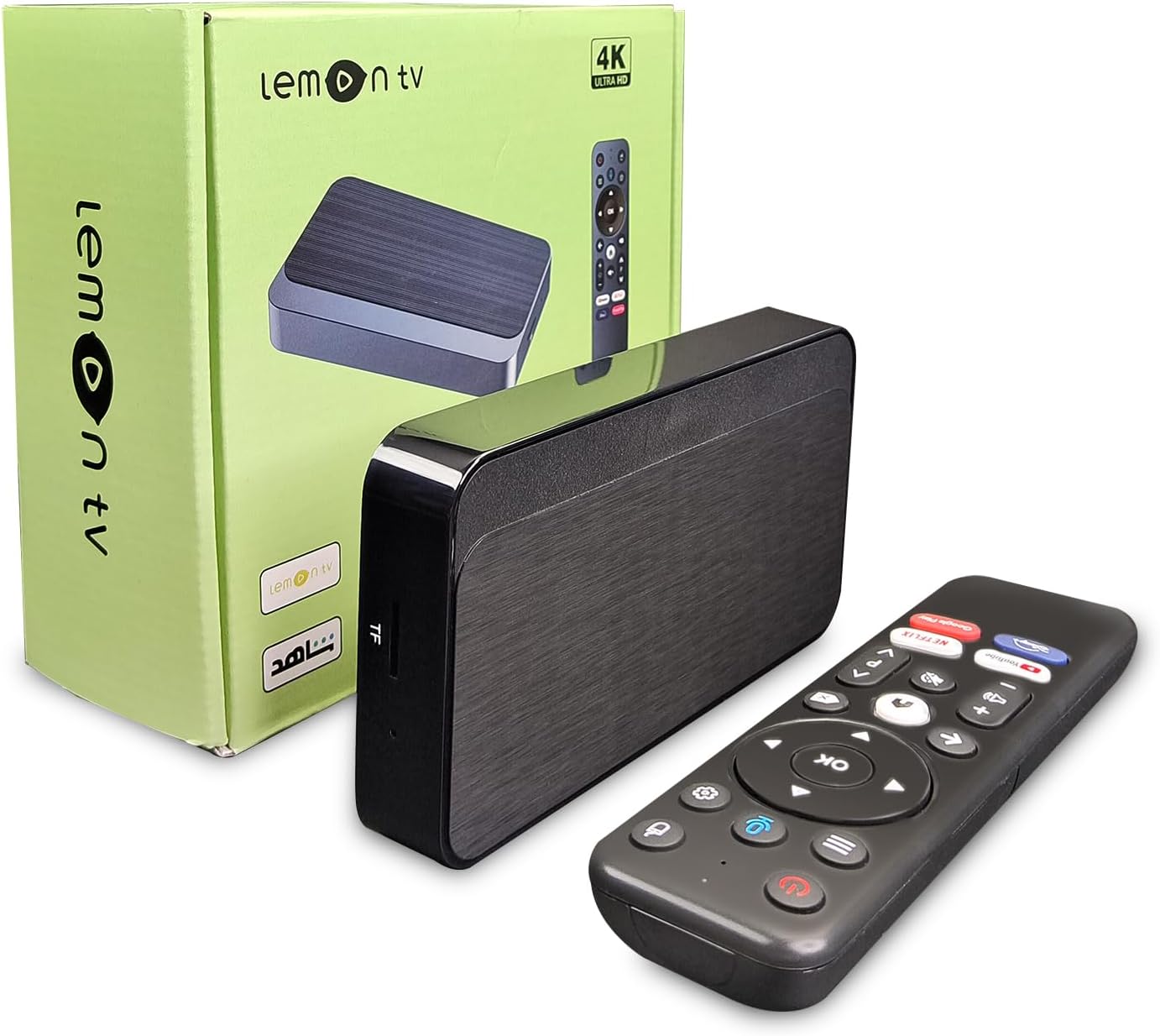
Image: The Lemon TV L2 package contents, showing the TV box, voice remote, HDMI cable, power adapter, and user manual laid out.
Video: An unboxing demonstration of the Lemon TV L2 Android TV Box, showcasing each item included in the package.
3. Setup Guide
- Connect Power: Plug the provided power adapter into the "DC IN" port on the back of the Lemon TV L2 box, then plug the adapter into a wall outlet.
- Connect to TV: Use the included HD Cable (HDMI cable) to connect the "HD" port on the TV box to an available HDMI input on your television. Note the HDMI input number (e.g., HDMI 1, HDMI 2).
- Connect to Network (Optional):
- Wired Connection: For a stable connection, connect an Ethernet cable from your router to the "LAN" port on the TV box.
- Wireless Connection: If using Wi-Fi, you will configure this during the initial on-screen setup. The device supports 2.4G/5G dual-band Wi-Fi.
- Power On: The device should power on automatically once connected. If not, press the power button on the remote control.
- Initial Setup: Follow the on-screen prompts to complete the initial setup, which typically includes selecting your language, connecting to a Wi-Fi network (if not using Ethernet), and signing in with your Google account.
- Pair Voice Remote: During the initial setup, you will be prompted to pair the BT Voice Remote. Follow the on-screen instructions, usually involving holding down specific buttons on the remote near the TV box until pairing is complete.
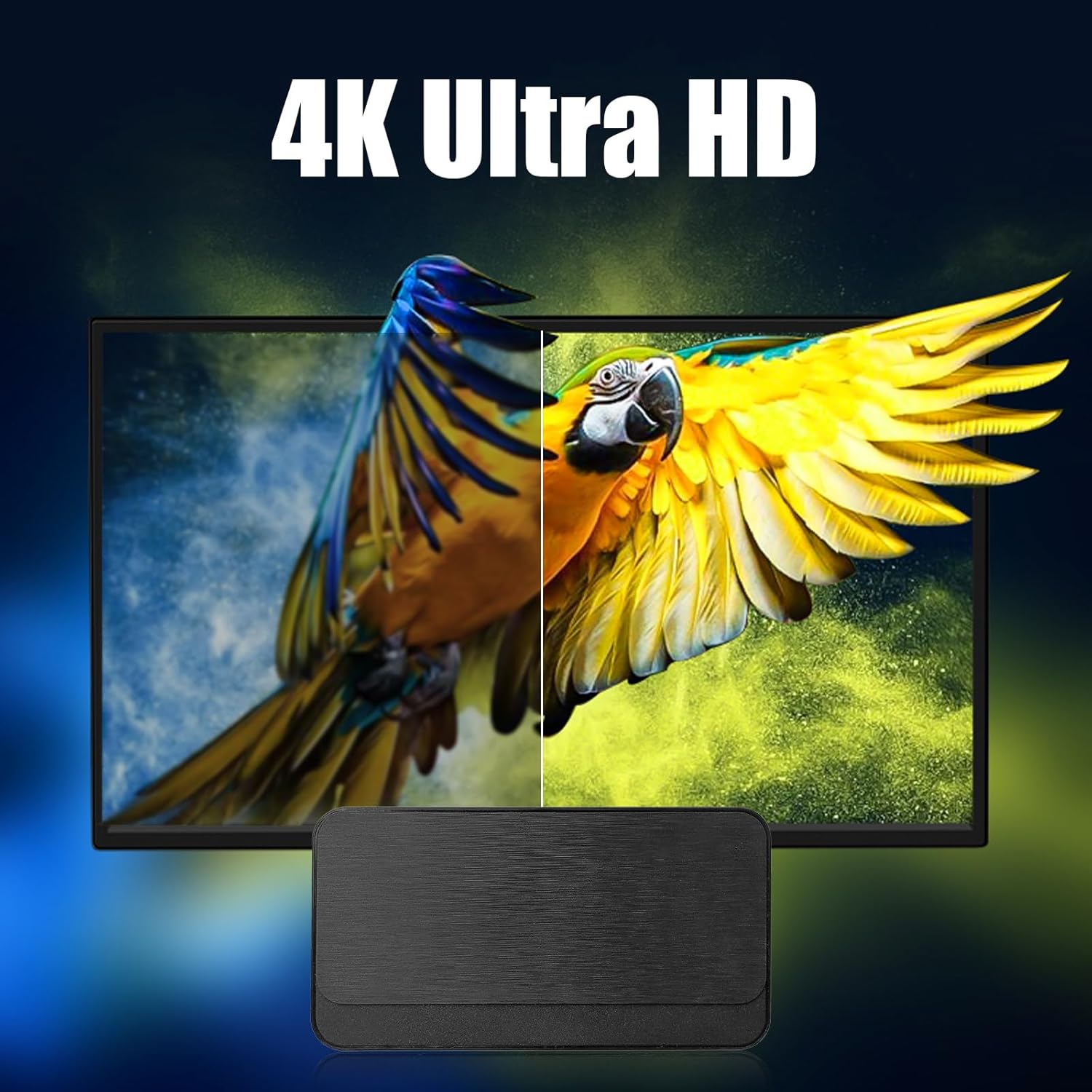
Image: Rear view of the Lemon TV L2 box illustrating its various connection ports: Ethernet (LAN), AV, HDMI (HD), two USB ports, and DC power input.
4. Operating Instructions
4.1 Remote Control Functions
The included BT Voice Remote Control allows for intuitive navigation and voice commands. Familiarize yourself with the key buttons:
- Power Button: Turns the device on or off.
- Navigation Pad (Directional Buttons & OK): Used to move through menus and select items.
- Back Button: Returns to the previous screen.
- Home Button: Returns to the main Android TV home screen.
- Volume Buttons (+/-): Adjusts the volume.
- Voice Assistant Button (Microphone Icon): Activates voice search and commands.
- App Shortcut Buttons: Dedicated buttons for popular streaming services like Netflix, YouTube, Disney+, etc.
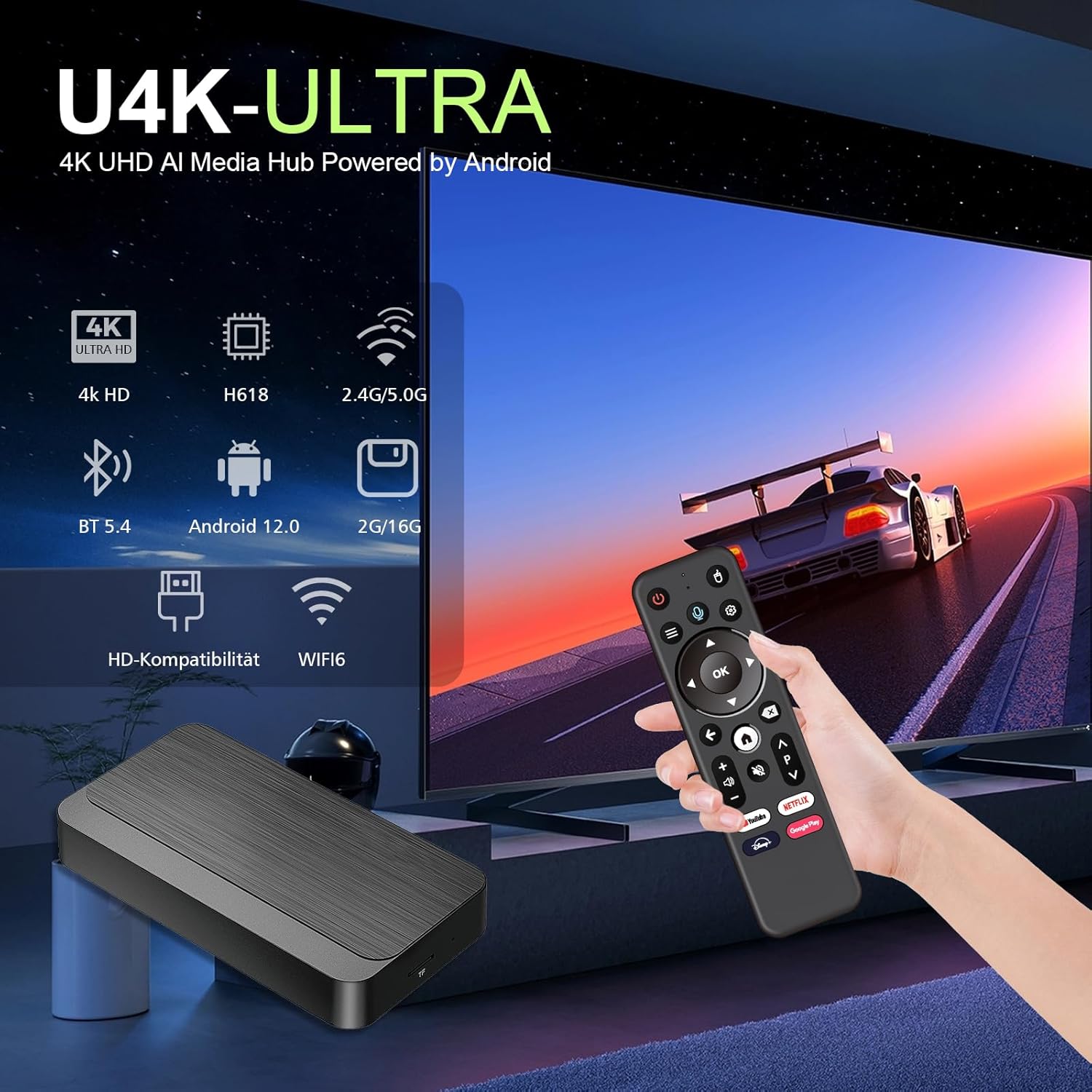
Image: Close-up of the BT Voice Remote Control for the Lemon TV L2, showing its layout and dedicated app buttons.
4.2 Basic Navigation
Once powered on, the Lemon TV L2 will display the Android TV home screen. You can:
- Browse recommended content and installed apps.
- Access the Google Play Store to download new applications.
- Use the voice assistant for quick searches or to control smart home devices.
5. Connectivity
The Lemon TV L2 offers versatile connectivity options:
- Wi-Fi (2.4G/5G Dual-Band):
To connect to Wi-Fi, navigate to Settings > Network & Internet. Select your Wi-Fi network from the list, enter the password, and connect. The dual-band support ensures stable streaming.
- Bluetooth (BT 5.4):
Pair Bluetooth devices like gamepads, headphones, or speakers by going to Settings > Remotes & Accessories > Add accessory. Put your Bluetooth device into pairing mode and select it from the list.
- Ethernet (100M):
For the most reliable internet connection, plug an Ethernet cable into the "LAN" port on the TV box and your router. The device will automatically detect the wired connection.
- USB Ports:
Two USB ports are available for connecting external storage devices (USB drives, external hard drives) to play local media files, or for connecting USB peripherals like keyboards or mice.
- HDMI Output:
The HDMI port is used to connect the TV box to your television or display for video and audio output.
- Screen Casting (Miracast):
The Lemon TV L2 supports Miracast and other cast-ready apps, allowing you to mirror content from your Android or iOS smartphone/tablet directly to your TV. Look for the casting icon within compatible apps on your mobile device.
6. Media Playback & Features
- 4K HD Streaming:
Enjoy stunning 4K resolution content. Ensure your television supports 4K and that you are using a high-speed HDMI cable for optimal performance. The device supports 4K video decoding and output.
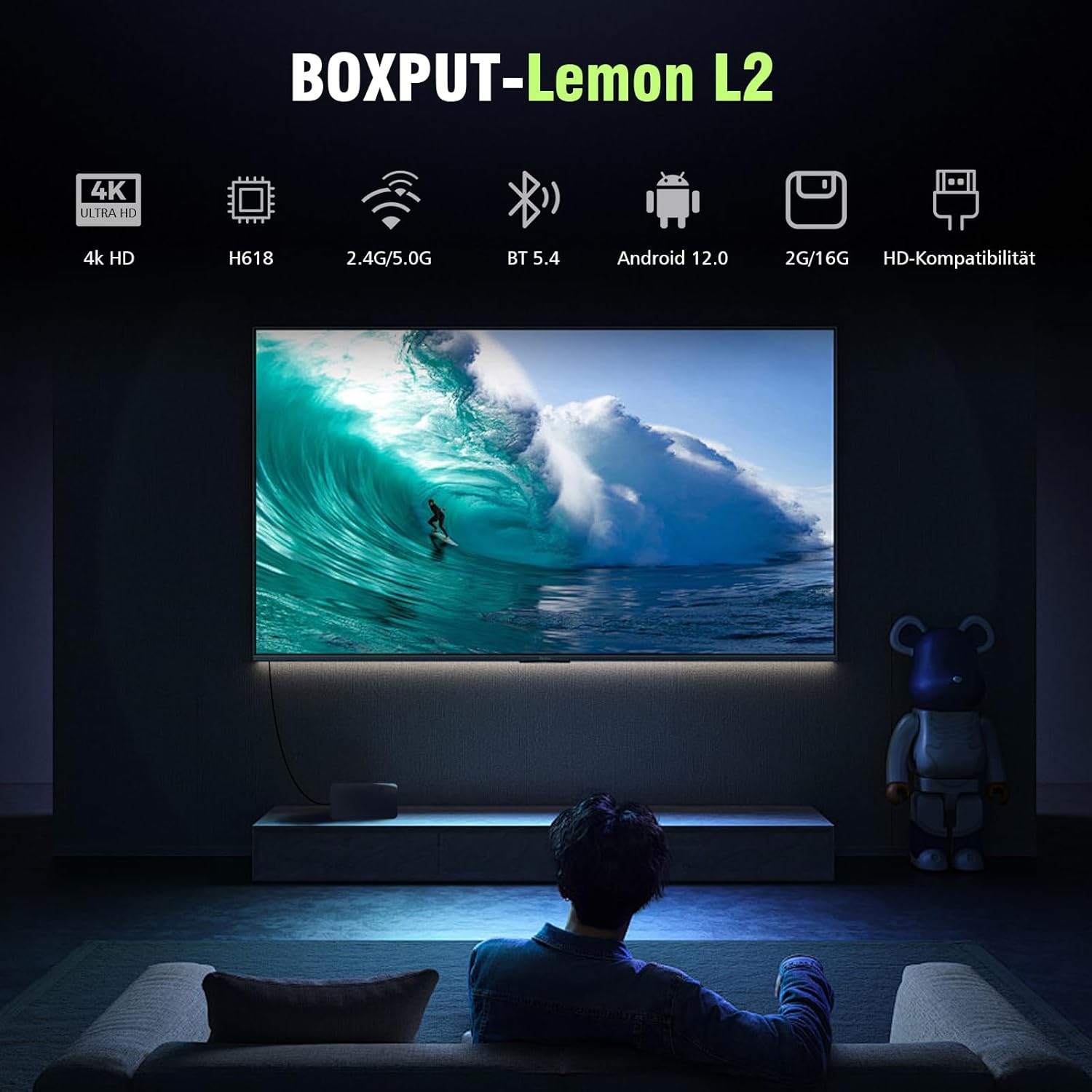
Image: A visual representation of the 4K Ultra HD capability of the Lemon TV L2, showing a high-resolution image on a television screen.
- Voice Control:
Utilize the BT Voice Remote for hands-free navigation and quick content search. Press the microphone button on the remote and speak your command or search query.
- Supported Internet Services:
The Lemon TV L2 comes with pre-installed apps and supports a wide range of streaming services available through the Google Play Store, including Netflix, SHAHID, HBO Max, Prime Video, AMC+, Disney+, ESPN, and YouTube.
7. Maintenance & Care
- Cleaning:
Wipe the device with a soft, dry cloth. Do not use liquid cleaners or abrasive materials, as they may damage the surface.
- Ventilation:
Ensure the TV box is placed in a well-ventilated area to prevent overheating. Do not cover ventilation openings.
- Software Updates:
Periodically check for system updates via Settings > Device Preferences > About > System update to ensure optimal performance and access to the latest features.
- Storage Management:
To maintain performance, regularly clear cache from apps and uninstall unused applications. Go to Settings > Apps to manage your installed applications.
8. Troubleshooting
| Problem | Possible Cause / Solution |
|---|---|
| Device does not power on. |
|
| No signal on TV. |
|
| Remote control not responding. |
|
| Wi-Fi connection issues. |
|
| Applications are slow or crashing. |
|
9. Specifications
| Feature | Detail |
|---|---|
| Model Name | Lemon TV L2 |
| Operating System | Android 12.0 |
| Processor | Allwinner H618 Quad-core |
| RAM | 2GB |
| Storage | 16GB eMMC |
| Resolution | 4K Ultra HD (Supports 4K video decoding and output) |
| Wi-Fi | Dual-Band (2.4G/5G) |
| Bluetooth | BT 5.4 |
| Ethernet | 100M LAN Port |
| Ports | HDMI, 2x USB, LAN, AV, DC IN, TF Card Slot |
| Special Features | DLNA, Miracast, Voice Remote Control |
| Dimensions | 5.97 x 5.27 x 2.34 inches |
| Item Weight | 13.8 ounces |

Image: Physical dimensions of the Lemon TV L2 device and its remote control, indicating length, width, and height.

Image: Detailed view of the Allwinner H618 processor, illustrating its core components like Cortex A35 CPU, Mali-G31 GPU, 2GB DDR3 RAM, and 16GB eMMC ROM.
10. Warranty and Support
For warranty information, technical support, or further assistance with your BOXPUT Lemon TV L2, please refer to the official BOXPUT website or contact their customer service directly. The user manual included in the box may also contain specific warranty details and contact information.
You can visit the official BOXPUT store for more information: BOXPUT Amazon Store.
Ask a question about this manual
Ask about setup, troubleshooting, compatibility, parts, safety, or missing instructions. Manuals+ will review the question and use this page’s manual context to help answer it.