
Wielio Native 1080P Projector
Contents
Wielio Native 1080P Projector User Manual
Brand: Wielio
Model: Native 1080P Projector
1. Introduction
Thank you for purchasing the Wielio Native 1080P Projector. This projector is designed to provide a high-quality visual experience with its native 1080P resolution, 15000 lumens brightness, and versatile connectivity options including 2.4G/5G Wi-Fi and Bluetooth 5.2. This manual will guide you through the setup, operation, maintenance, and troubleshooting of your new projector to ensure optimal performance and longevity.

Image: The Wielio projector set up in a living room, ready to create a home theater experience.
2. Key Features
- Native 1080P Resolution: Delivers crisp, clear images with a true 1920x1080 resolution.
- High Brightness: 15000 Lumens for vibrant and bright projections.
- Dual-Band Wi-Fi (2.4G+5G): Supports fast and stable wireless screen mirroring from iOS, Android, and Windows devices.
- Bluetooth 5.2: Seamlessly connect to external Bluetooth speakers or headphones for enhanced audio.
- Large Projection Size: Capable of projecting images from 35 inches up to 300 inches.
- Multiple Connectivity Options: Includes HDMI, VGA, AV, USB, AUX, and Micro SD ports for wide compatibility.
- Built-in Speakers: Integrated speakers provide a complete audio-visual experience.
3. Package Contents
Please check the package contents upon unboxing to ensure all items are present:
- Wielio Native 1080P Projector Unit
- Remote Control
- Power Cable
- HDMI Cable
- AV Cable
- User Manual
4. Product Overview
Familiarize yourself with the projector's components and interfaces:

Image: Front view of the Wielio Projector, showcasing its lens, control panel, and connectivity ports.
Front Panel
- Projection Lens: Emits the image.
- Focus Ring: Adjusts image clarity.
Rear Panel
- Power Port: Connects the power cable.
- HDMI Ports: Connects to HDMI-enabled devices (laptops, game consoles, TV sticks).
- USB Ports: Connects USB flash drives for media playback.
- VGA Port: Connects to computers with VGA output.
- AV Port: Connects to older devices using an AV cable.
- AUX (Audio Out) Port: Connects to external audio systems.
- Micro SD Card Slot: For media playback from Micro SD cards.
Top Panel
- Control Buttons: Power, Menu, Navigation, OK, Back.
5. Setup
5.1 Placement
Choose a flat, stable surface for the projector. Ensure there is adequate ventilation around the unit. The projection distance will determine the screen size. For optimal viewing, a dark environment is recommended.
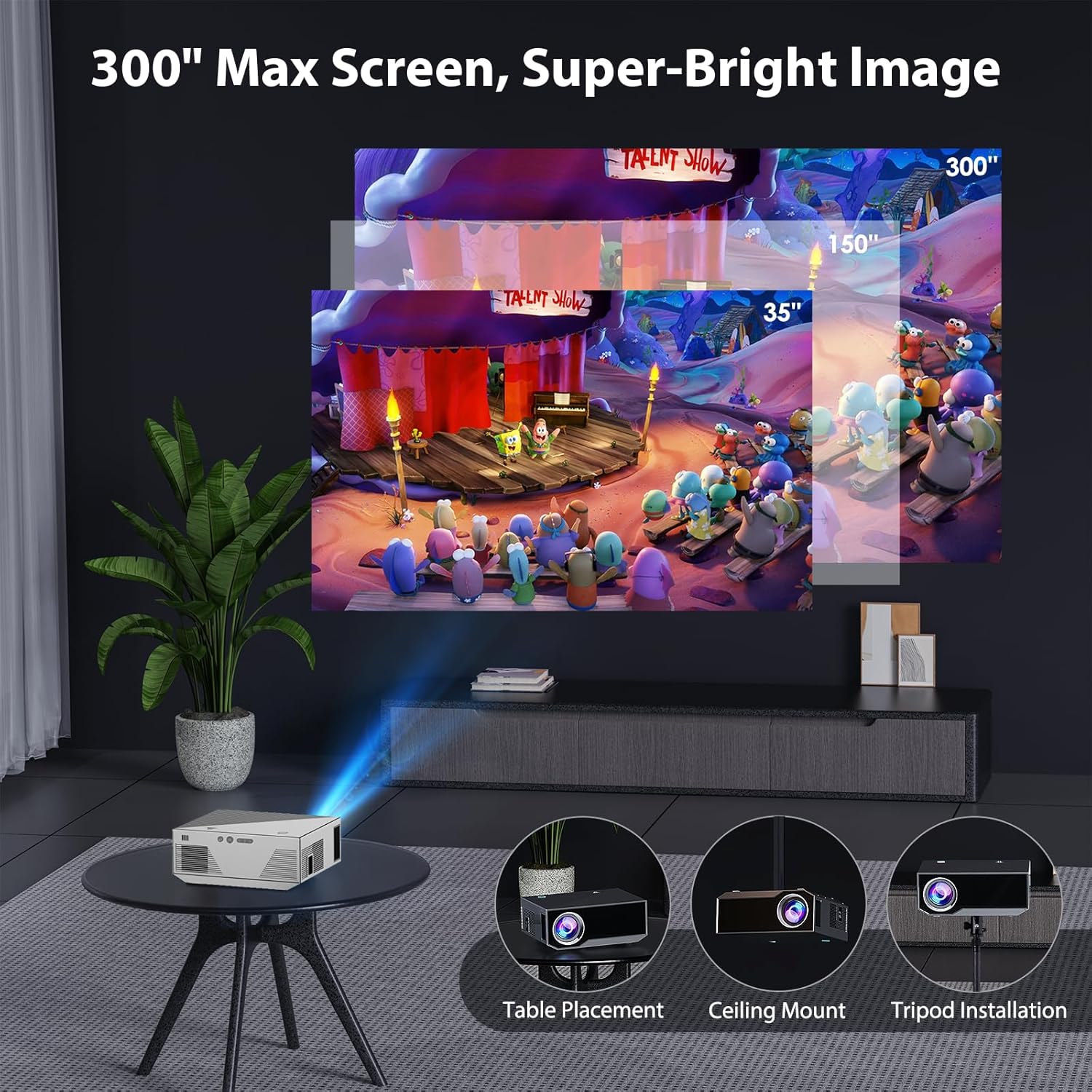
Image: Illustration of projection sizes ranging from 35 to 300 inches, demonstrating the flexibility of display size based on distance.

Image: Various installation options for the projector, including table placement, ceiling mount, and tripod installation.
5.2 Power Connection
- Connect the power cable to the projector's power port.
- Plug the other end of the power cable into a power outlet.
- The power indicator light on the projector will illuminate.
5.3 Initial Focus and Keystone Adjustment
- Power on the projector.
- Adjust the focus ring on the lens until the projected image is clear and sharp.
- If the image appears trapezoidal, use the keystone correction feature (usually found in the projector's menu or via a dedicated button on the remote) to adjust it to a rectangular shape.
6. Operating Instructions
6.1 Power On/Off
- Power On: Press the power button on the projector or the remote control.
- Power Off: Press the power button again. Confirm shutdown if prompted.
6.2 Input Source Selection
Use the 'Source' button on the remote or the projector's control panel to select the desired input (HDMI1, HDMI2, USB, AV, VGA, Screen Mirroring).

Image: A multimedia home theater setup with the projector displaying content, demonstrating its use for entertainment.
6.3 Wi-Fi Connection and Screen Mirroring
The projector supports wireless screen mirroring for iOS, Android, and Windows devices.
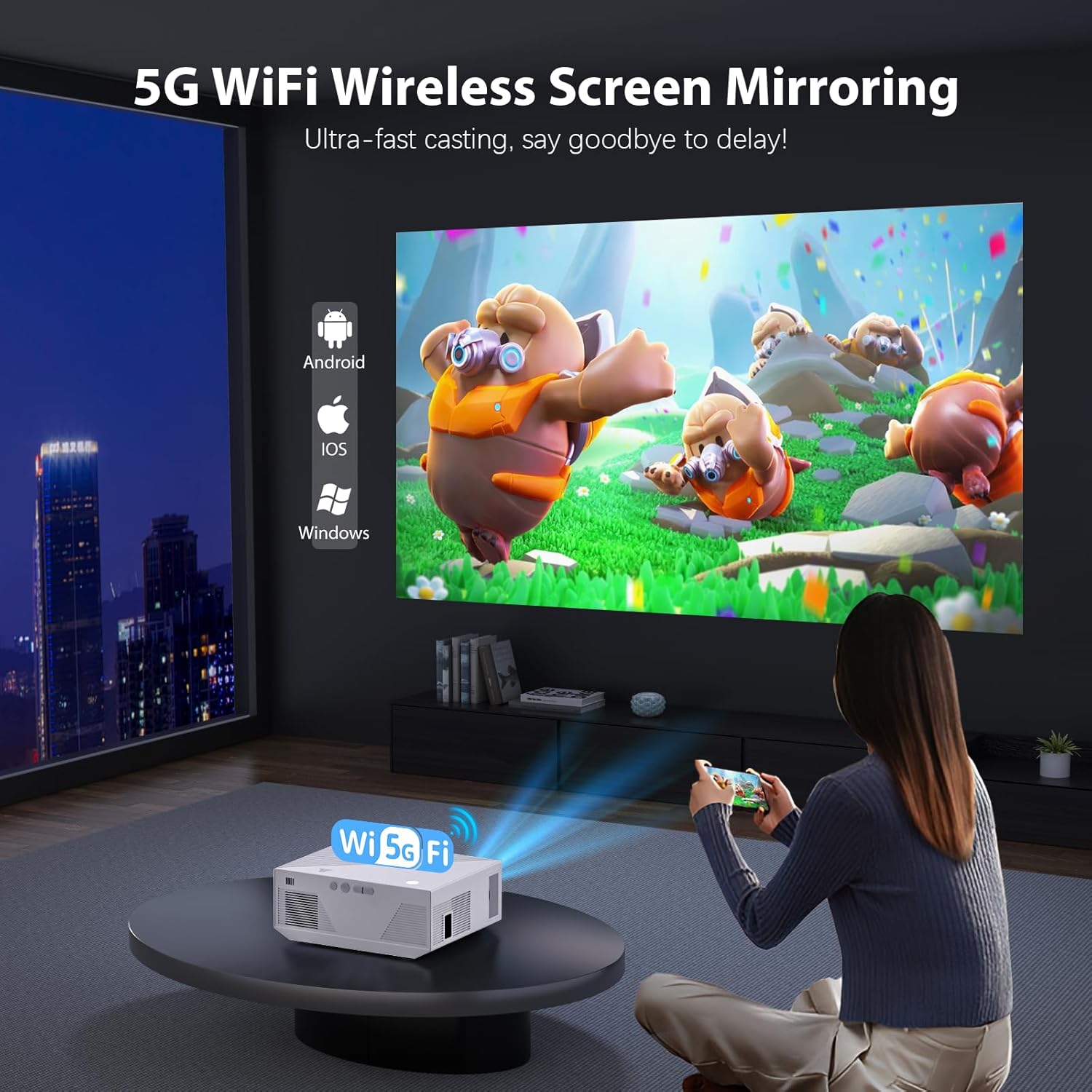
Image: Visual representation of 5G Wi-Fi wireless screen mirroring capability, compatible with Android, iOS, and Windows devices.
- Select 'Screen Mirroring' or 'Wireless Display' from the input source menu.
- Follow the on-screen instructions to connect your device to the projector's Wi-Fi network.
- On your mobile device, enable screen mirroring (e.g., 'Screen Mirroring' for iOS, 'Smart View'/'Cast' for Android, 'Project' for Windows).
- Select the projector from the list of available devices.
6.4 Bluetooth Audio Connection
Connect the projector to external Bluetooth speakers or headphones for a more immersive audio experience.
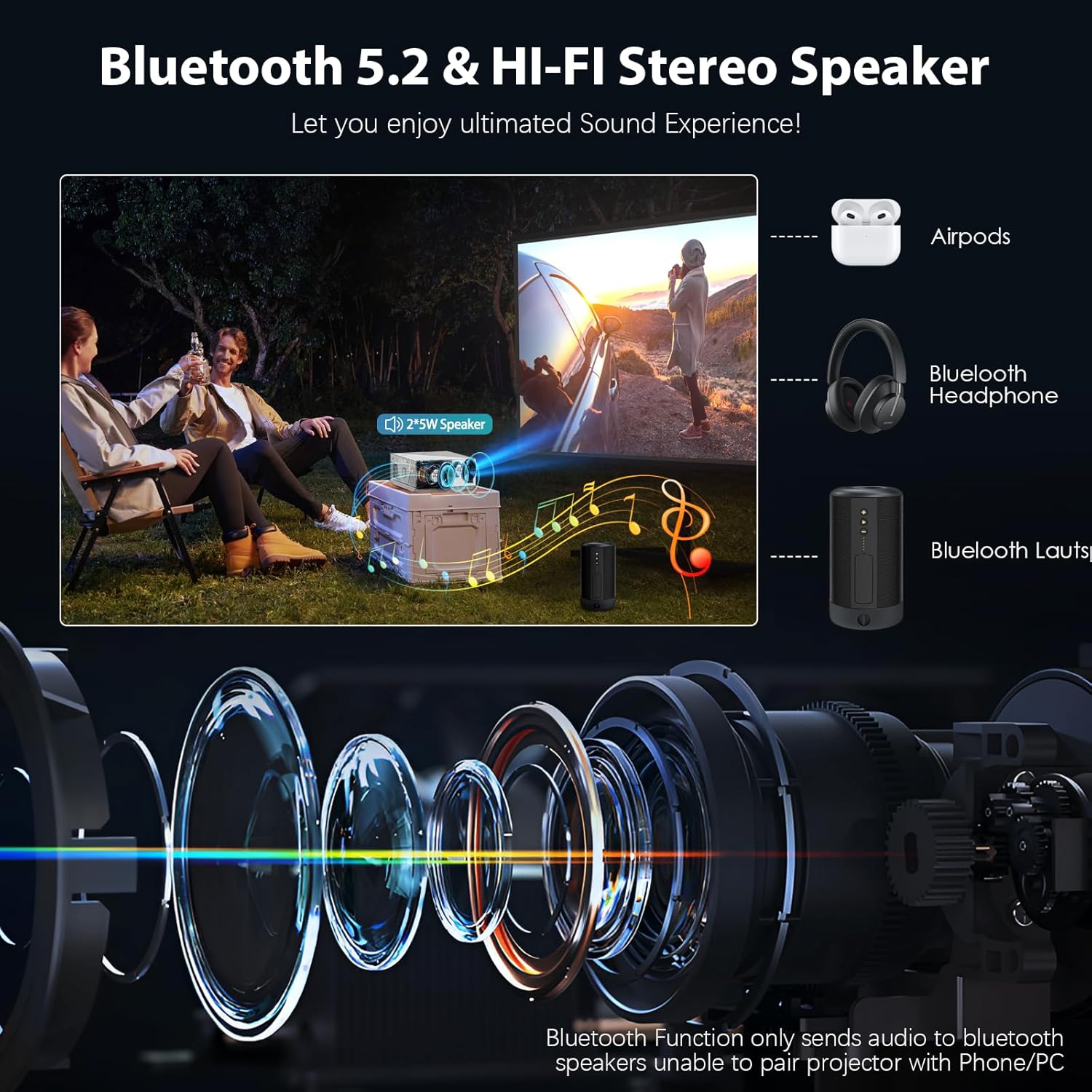
Image: Illustration of Bluetooth 5.2 connectivity, showing the projector pairing with various audio devices like AirPods, headphones, and external speakers.
- Go to the projector's 'Settings' menu and navigate to 'Bluetooth'.
- Enable Bluetooth and scan for devices.
- Select your Bluetooth audio device from the list to pair.
6.5 Connecting External Devices
The projector supports a wide range of external devices.
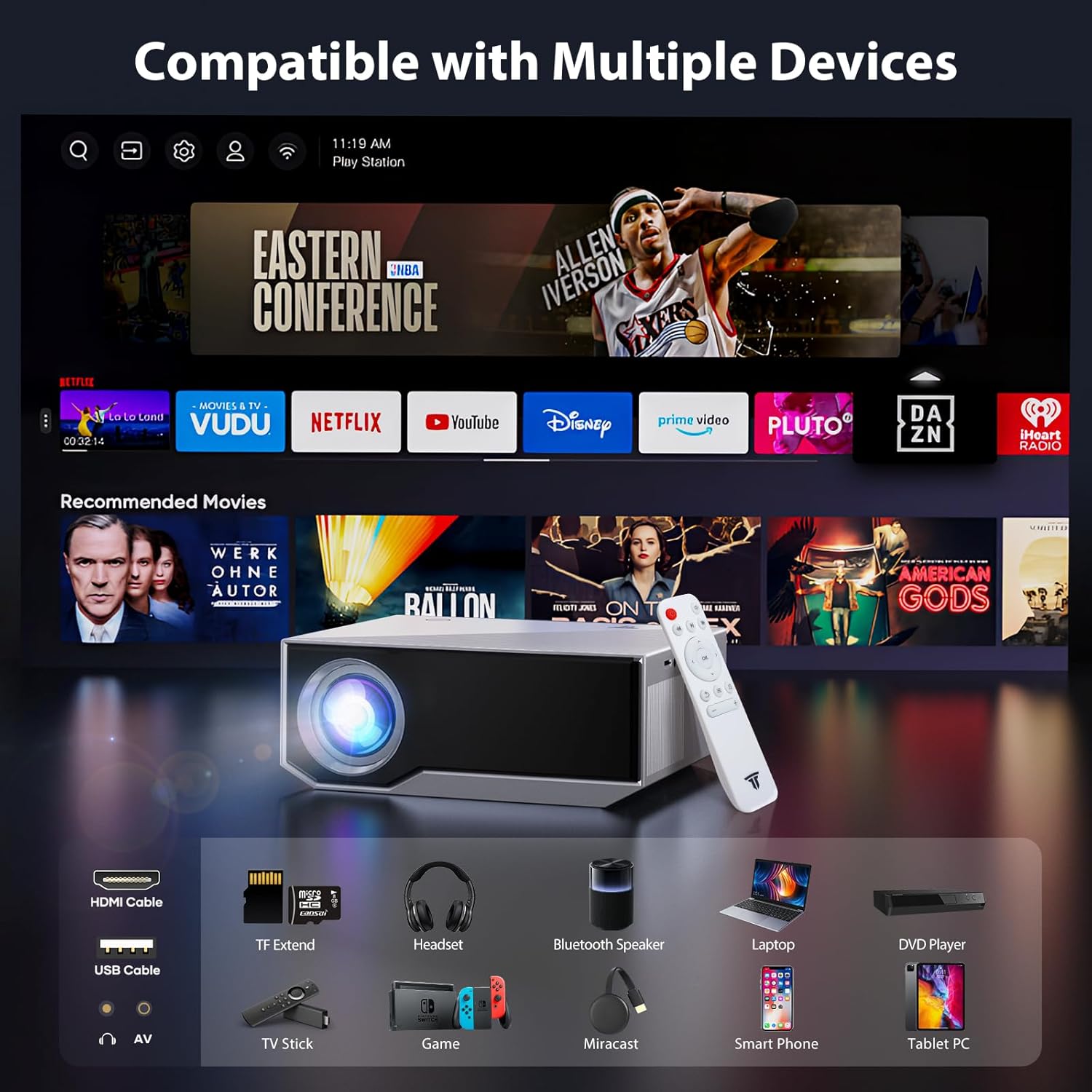
Image: A comprehensive display of devices compatible with the projector, such as laptops, game consoles, smartphones, and various media inputs.

Image: The projector displaying a screen with popular streaming service logos, indicating its compatibility with various entertainment platforms via connected devices.
- HDMI: Connect TV sticks, laptops, game consoles (PS4, Xbox), Blu-ray players.
- USB: Insert USB flash drives to play videos, photos, or music directly.
- VGA: Connect older desktop computers or laptops.
- AV: Connect DVD players or other devices with AV output using the provided AV cable.
7. Maintenance
Proper maintenance ensures the longevity and optimal performance of your projector.
7.1 Cleaning the Lens
- Use a soft, lint-free cloth specifically designed for optical lenses.
- Gently wipe the lens in a circular motion. Do not use abrasive cleaners or excessive force.
7.2 Cleaning the Air Vents
- Regularly check and clean the air vents to prevent dust buildup, which can affect cooling and performance.
- Use a soft brush or a can of compressed air to remove dust from the vents.
7.3 Storage
- When not in use, store the projector in a cool, dry, and dust-free environment.
- Use the original packaging or a protective bag to prevent dust accumulation.
8. Troubleshooting
If you encounter issues with your projector, refer to the following common problems and solutions:
8.1 No Image or Poor Image Quality
- Check Power: Ensure the projector is properly connected to power and turned on.
- Input Source: Verify that the correct input source (HDMI, USB, etc.) is selected.
- Focus/Keystone: Adjust the focus ring and keystone correction for a clear, rectangular image.
- Cables: Ensure all cables are securely connected. Try a different cable if possible.
- Environment: For optimal brightness and clarity, use the projector in a dark room. High ambient light can significantly reduce perceived image quality.
8.2 No Sound
- Volume: Check the projector's volume settings and the volume on the connected device.
- Mute: Ensure the projector or connected device is not muted.
- Audio Output: If using external speakers, ensure they are properly connected via AUX or Bluetooth and are powered on.
- Source Audio: Verify the audio format of the media being played is supported.
8.3 Remote Control Issues
- Batteries: Replace the batteries in the remote control.
- Line of Sight: Ensure there are no obstructions between the remote and the projector's IR receiver.
8.4 Connectivity Issues (Wi-Fi/Bluetooth)
- Restart: Restart both the projector and the device you are trying to connect.
- Distance: Ensure devices are within the effective range for Wi-Fi or Bluetooth.
- Interference: Minimize interference from other wireless devices.
8.5 USB/Thumb Drive Issues
- Format: Ensure the USB drive is formatted to a compatible file system (e.g., FAT32, NTFS).
- File Types: Verify that the media files on the drive are supported by the projector.
- Power: Some high-power USB drives may require external power or may not be fully supported.
9. Specifications
| Feature | Specification |
|---|---|
| Brand | Wielio |
| Native Resolution | 1920 x 1080 (Full HD) |
| Brightness | 15000 Lumens |
| Connectivity Technology | USB, HDMI, VGA, AV, AUX, Micro SD |
| Wireless Connectivity | 2.4G & 5G Wi-Fi, Bluetooth 5.2 |
| Maximum Projection Size | 300 inches |
| Product Dimensions | 7 x 2 x 3 inches |
| Item Weight | 3.9 pounds |
| Color | White |
10. Warranty and Support
Wielio products are designed for reliability and performance. For specific warranty details, please refer to the warranty card included in your package or visit the official Wielio support website. If you encounter any issues that cannot be resolved using this manual, please contact Wielio customer support for assistance.
Wielio Customer Support: Please refer to your product packaging or the official Wielio website for contact information.
Ask a question about this manual
Ask about setup, troubleshooting, compatibility, parts, safety, or missing instructions. Manuals+ will review the question and use this page’s manual context to help answer it.