
1. Introduction and Overview
Thank you for choosing the FOXIONO S22U Unlocked Cell Phone. This device is designed to provide essential smartphone functionalities with the flexibility of an unlocked network. It features a 6.52-inch display, dual SIM card support, and runs on the Android operating system. Please read this manual carefully to understand the proper use, setup, and maintenance of your new phone.
Important Note: This phone primarily supports the 3G WCDMA frequency bands (850/2100MHZ). Please verify compatibility with your SIM card and network provider before use to ensure optimal service.
2. Safety Information
To ensure safe and proper operation of your device, please observe the following guidelines:
- Battery Safety: The phone uses a Lithium-Ion battery. Do not attempt to replace the battery yourself. Avoid exposing the battery to extreme temperatures, direct sunlight, or fire. Do not puncture, crush, or disassemble the battery. Dispose of batteries responsibly according to local regulations.
- Water Resistance: This device is rated as Water Resistant. While it can withstand splashes, do not submerge the phone in water or expose it to high-pressure water jets. Water damage is not covered under warranty.
- Network Compatibility: As noted, this phone supports 3G WCDMA: 850/2100MHZ. Ensure your SIM card and carrier support these frequencies for proper network connectivity.
- Operating Environment: Use the phone within an ambient temperature range of 0°C to 35°C (32°F to 95°F). Avoid dusty or humid environments.
- Cleaning: Use a soft, dry cloth to clean the phone. Do not use liquid cleaners or aerosols.
- Hearing Protection: Avoid prolonged listening at high volume levels to prevent possible hearing damage.
3. Package Contents
Please check the box for the following items:
- FOXIONO S22U Unlocked Cell Phone
- Charging Cable (USB)
- Power Adapter
- User Manual (this document)
If any items are missing or damaged, please contact your retailer or customer support immediately.
4. Product Features and Components
4.1 Overall Device View

This image displays the FOXIONO S22U smartphone from both the front and rear perspectives, highlighting its sleek design, large display, and the arrangement of its rear cameras.
4.2 Dual SIM Card Support

The FOXIONO S22U supports two SIM cards simultaneously, allowing for flexible network usage. It also features a dedicated slot for a TF (microSD) card, enabling memory expansion up to 64GB.
4.3 Network Frequency Reminder

A crucial reminder that this unlocked mobile phone specifically supports 3G WCDMA frequency bands: 850/2100MHZ. Users must confirm their SIM card's compatibility with these frequencies by contacting their telecom operator.
4.4 Front and Rear Cameras

The S22U is equipped with both a front and a rear camera, allowing users to capture photos, take selfies, and record videos. The cameras are designed for everyday photography needs.
4.5 6.52-inch Display
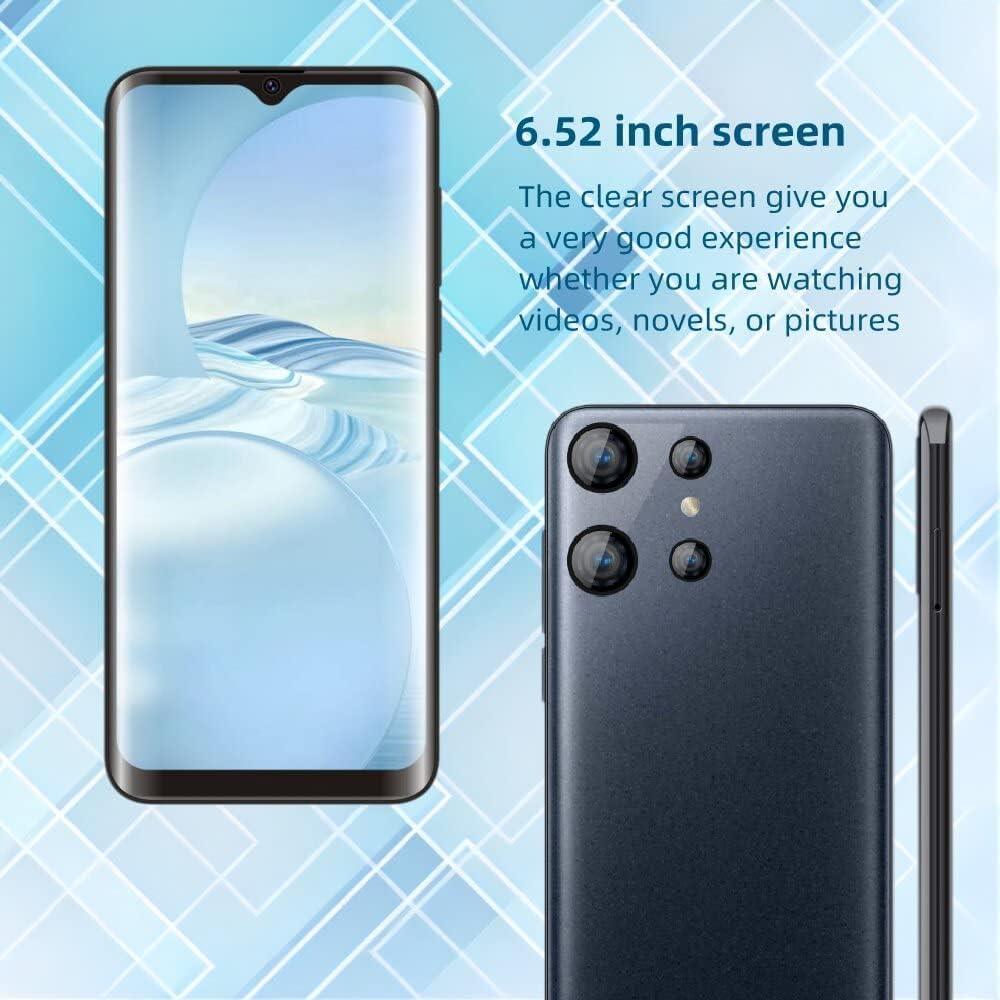
Experience clear visuals on the 6.52-inch display. This screen size is ideal for watching videos, reading, and browsing, providing a good viewing experience.
4.6 Labeled Components Overview

This diagram provides a visual guide to the main components of the FOXIONO S22U, including the rear camera, dual SIM card slots, plastic back cover, front camera, 6.52-inch screen, and indicates its Android operating system.
5. Setup
5.1 Inserting SIM Cards and TF Card
- Locate the SIM/TF card tray on the side of the phone.
- Use the provided SIM ejector tool (if included) to open the tray.
- Carefully place your SIM cards (up to two) and the TF card into their respective slots on the tray, ensuring correct orientation.
- Gently push the tray back into the phone until it is flush with the device body.
5.2 Initial Charging and Power On
- Connect the charging cable to the phone's charging port and the power adapter.
- Plug the power adapter into a wall outlet. Allow the phone to charge for at least 30 minutes before first use, or until the battery indicator shows sufficient charge.
- Press and hold the Power button (usually on the side) until the FOXIONO logo appears on the screen.
- Follow the on-screen prompts to complete the initial setup, including language selection, Wi-Fi connection, and Google account setup.
6. Operating Instructions
6.1 Basic Navigation
- Touch Screen: The phone features a capacitive touch screen. Tap to select, swipe to scroll, pinch to zoom.
- Home Screen: The main screen where you can access apps and widgets.
- Notification Panel: Swipe down from the top of the screen to access notifications and quick settings.
- Navigation Bar: Typically at the bottom of the screen, with Back, Home, and Recent Apps buttons.
6.2 Making Calls and Sending Messages
- Calls: Open the "Phone" app, dial the number, and tap the call icon.
- Messages: Open the "Messages" app, tap the new message icon, enter the recipient's number or select from contacts, and type your message.
6.3 Using the Camera
- Open the "Camera" app.
- Tap the shutter button to take a photo.
- Tap the camera switch icon to toggle between the front and rear cameras.
- Select video mode to record videos.
6.4 Face Recognition
- To set up Face Recognition, go to Settings > Security & location > Face Unlock.
- Follow the on-screen instructions to register your face.
- Once set up, you can unlock your phone by looking at the front camera.
7. Maintenance
- Cleaning: Regularly wipe the screen and back cover with a soft, lint-free cloth. Avoid abrasive materials or harsh chemicals.
- Battery Care: To prolong battery life, avoid fully discharging the battery frequently. Charge the phone using the original charger and cable.
- Software Updates: Keep your phone's software updated to ensure optimal performance and security. Check for updates in Settings > System > System update.
- Storage Management: Periodically clear unnecessary files and apps to free up storage space and maintain performance.
8. Troubleshooting
| Problem | Possible Solution |
|---|---|
| Phone does not turn on. | Ensure the battery is charged. Connect to charger and wait a few minutes before attempting to power on again. |
| No network signal / Cannot make calls. | Verify that your SIM card is correctly inserted. Check if your carrier supports 3G WCDMA 850/2100MHZ. Try restarting the phone. |
| Apps are slow or crashing. | Close background apps. Clear app cache (Settings > Apps > [App Name] > Storage > Clear cache). Restart the phone. |
| Screen is unresponsive. | Perform a forced restart (usually by holding the Power button for 10-15 seconds). If the issue persists, contact support. |
| Cannot connect to Wi-Fi. | Ensure Wi-Fi is enabled. Restart your router. Forget the network and reconnect. |
9. Specifications
| Feature | Detail |
|---|---|
| Model Number | S221 |
| Display Type | LCD, 6.52-inch, Capacitive Screen |
| Operating System | Android |
| RAM | 1GB |
| Internal Storage (ROM) | 8GB |
| Expandable Memory | TF card up to 64GB |
| CPU Speed | 1.2 GHz Cortex A8 |
| SIM Card Support | Dual SIM (1* SIM, 1* SIM, 1* TF card independent slots) |
| Supported Frequency Bands | 3G WCDMA: 850/2100MHZ |
| Cameras | Front Camera, Rear Camera |
| Biometric Security | Face Recognition |
| Battery Type | Lithium-Ion |
| Water Resistance Level | Water Resistant |
| Manufacturer | Shenzhen Ai Di Er Technology Co., Ltd. |
| UPC | 704090419000 |
10. Warranty and Support
This FOXIONO S22U Unlocked Cell Phone is manufactured by Shenzhen Ai Di Er Technology Co., Ltd. For specific warranty terms and conditions, please refer to the warranty card included with your product or contact your point of purchase.
For technical support, troubleshooting assistance beyond this manual, or warranty claims, please contact the retailer from whom you purchased the device. You may also reach out to the manufacturer's customer service channels if provided by the retailer.
Please have your model number (S221) and proof of purchase ready when contacting support.