
ShanWan Q36-XPS-PINK
Contents
ShanWan Bluetooth Gamepad Keychain Sized Mini Controller User Manual
Model: Q36-XPS-PINK
Product Overview
The ShanWan Bluetooth Gamepad is a compact, keychain-sized mini controller designed for versatile gaming across multiple platforms. Its small form factor makes it highly portable, while its robust features ensure a responsive and enjoyable gaming experience.

Image: Front view of the pink ShanWan Bluetooth Gamepad, showcasing its compact size and button layout.
Key Features
- Universal Compatibility: Supports Android phones and tablets, PS4/Slim/Pro, iPhone, iPad, and Nintendo Switch.
- Extended Battery Life: Equipped with a 180mAh battery, providing up to 5 hours of continuous play on a single 1-hour charge.
- Stable Bluetooth Connection: Features an advanced chip for faster response and a stronger, more reliable Bluetooth connection, minimizing disconnections.
- Wireless Range: Offers a high-performance wireless range of up to 10 meters with strong anti-interference capabilities.
- Compact and Portable Design: Weighs only 30 grams and features 17 buttons. Its small size allows it to be easily hung on a backpack or keychain for convenient transport.
- Motion Sensing: Equipped with gyroscope motion sensing effect for an immersive gaming experience.
- One-Button Wake-Up: Conveniently wakes up connected devices with a single button press.

Image: Illustration highlighting the gamepad's built-in 180mAh battery for 6 hours of play and gyroscope motion sensing capabilities.
Setup and Pairing
Initial Setup
Before first use, ensure the controller is fully charged. Connect the controller to a USB power source using the provided cable. The charging indicator will show progress and turn off when fully charged.
Pairing with Nintendo Switch
- On your Nintendo Switch, navigate to the HOME Menu.
- Select "Controllers" from the menu.
- Choose "Change Grip/Order".
- On the ShanWan controller, press and hold the "Pair" button (usually a small button on the side or back) until the indicator lights begin to flash rapidly.
- Once the controller appears on the Switch screen and the LED indicator on the controller remains solid, pairing is successful.

Image: Step-by-step guide for connecting the ShanWan controller to a Nintendo Switch via Bluetooth.
Pairing with Android/iOS Devices
- Ensure Bluetooth is enabled on your Android phone, tablet, iPhone, or iPad.
- Go to your device's Bluetooth settings.
- On the ShanWan controller, press and hold the "Pair" button until the indicator lights flash.
- Select "ShanWan Gamepad" or similar from the list of available devices to connect.
- Once connected, the indicator light on the controller will become solid.
Pairing with Windows PC
- On your Windows PC, go to Settings > Devices > Bluetooth & other devices.
- Turn on Bluetooth and click "Add Bluetooth or other device".
- Select "Bluetooth".
- On the ShanWan controller, press and hold the "Pair" button until the indicator lights flash.
- Select "ShanWan Gamepad" or similar from the list of devices.
- Follow any on-screen prompts to complete the pairing process.
Operating Instructions
Power On/Off
- To power on, press the Home button (usually indicated by a house icon).
- To power off, press and hold the Home button for a few seconds until the indicator lights turn off. The controller will also automatically power off after a period of inactivity to conserve battery.

Image: Close-up of the ShanWan Gamepad showing the Home button, which also functions as a one-button wake-up feature.
Button Functions
The ShanWan Gamepad features 17 buttons, including a D-Pad, A/B/X/Y buttons, shoulder buttons (L1, L2, R1, R2), and function buttons (Start, Select, Home, etc.). Specific button mapping may vary depending on the game and platform. Refer to your game's settings for custom button assignments.
Motion Control
For games that support motion control, the built-in gyroscope provides an immersive experience. Ensure your game and device settings are configured to utilize motion input from external controllers.
Charging the Controller
- Connect the controller to a USB power source (e.g., computer USB port, USB wall adapter) using the included charging cable.
- The charging indicator light will illuminate during charging and turn off when the battery is full.
- A full charge typically takes approximately 1 hour.
Maintenance and Care
- Keep the controller dry. Moisture can damage internal circuits.
- Avoid extreme temperatures. High temperatures can shorten the life of electronic devices.
- Do not drop, knock, or shake the controller. Rough handling can break internal circuit boards.
- Clean the controller with a soft, dry cloth. Do not use harsh chemicals or cleaning solvents.
- Store the controller in a clean, dust-free environment when not in use.
Troubleshooting
Controller Not Connecting/Pairing
- Ensure the controller is fully charged.
- Verify Bluetooth is enabled on your device.
- Make sure the controller is in pairing mode (indicator lights flashing).
- Try restarting both the controller and your device.
- If previously paired, try "forgetting" or "unpairing" the controller from your device's Bluetooth settings and then re-pairing.
- Ensure no other Bluetooth devices are interfering with the connection.
Input Lag or Disconnections
- Ensure the controller is within the 10-meter wireless range of your device.
- Minimize obstacles between the controller and your device.
- Check for other wireless interference (e.g., Wi-Fi routers, other Bluetooth devices).
- Ensure the controller's battery is not low.
Buttons Not Responding
- Check if the controller is properly connected to your device.
- Test the controller with another game or application to determine if the issue is game-specific.
- Ensure the controller's firmware is up to date (if applicable, check the manufacturer's website).
Specifications
| Model Number | Q36-XPS-PINK |
| Dimensions | 2.83 x 1.57 x 0.55 inches (7.19 x 3.99 x 1.40 cm) |
| Weight | 1.13 ounces (32 grams) |
| Battery | 180mAh Lithium Polymer (included) |
| Charging Time | Approx. 1 hour |
| Play Time | Up to 5 hours |
| Connectivity | Bluetooth |
| Wireless Range | Up to 10 meters (33 feet) |
| Compatibility | Android, iOS, Nintendo Switch, Windows, PS4/Slim/Pro |
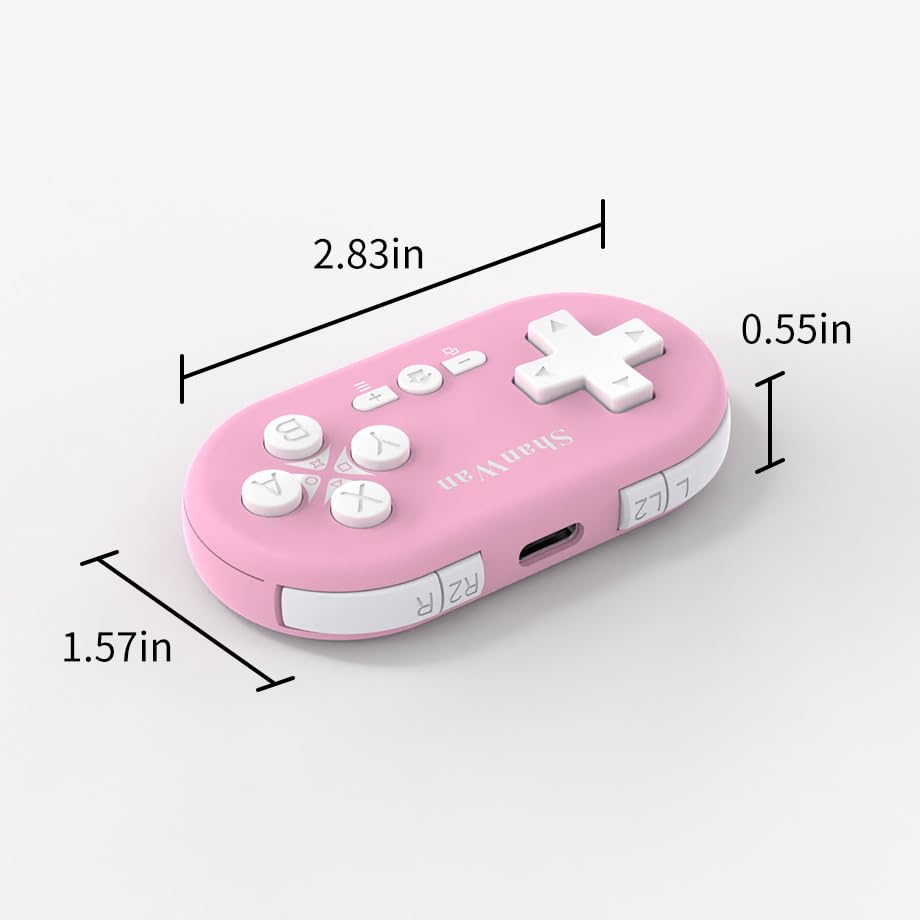
Image: The ShanWan Gamepad with its dimensions (2.83in, 1.57in, 0.55in) clearly indicated.
Official Product Video
Video: An official product video from the seller, "Brisk game controller," demonstrating the ShanWan Bluetooth Gamepad's features and compatibility with various devices like the Nintendo Switch.
Warranty and Support
For warranty information and customer support, please refer to the contact details provided on the product packaging or visit the official ShanWan website. Keep your proof of purchase for any warranty claims.
For additional assistance, you may also refer to the seller's information:
- Seller Name: Brisk game controller
- Seller Link: View Seller Profile
Ask a question about this manual
Ask about setup, troubleshooting, compatibility, parts, safety, or missing instructions. Manuals+ will review the question and use this page’s manual context to help answer it.