
NETGEAR GS108E
Contents
NETGEAR GS108E 8-Port Gigabit Easy Smart Managed Switch User Manual
1. Introduction
This manual provides detailed instructions for the installation, operation, and maintenance of your NETGEAR GS108E 8-Port Gigabit Easy Smart Managed Switch. Please read this manual thoroughly before using the device to ensure proper setup and functionality. The GS108E is designed to provide reliable and high-performance network connectivity for small and medium-sized businesses or advanced home networks.
2. Package Contents
Verify that your package contains all the items listed below:
- NETGEAR GS108E 8-Port Gigabit Ethernet Plus Switch
- 2V, 0.5A Power Adapter
- Installation Guide
- Wallmount Kit
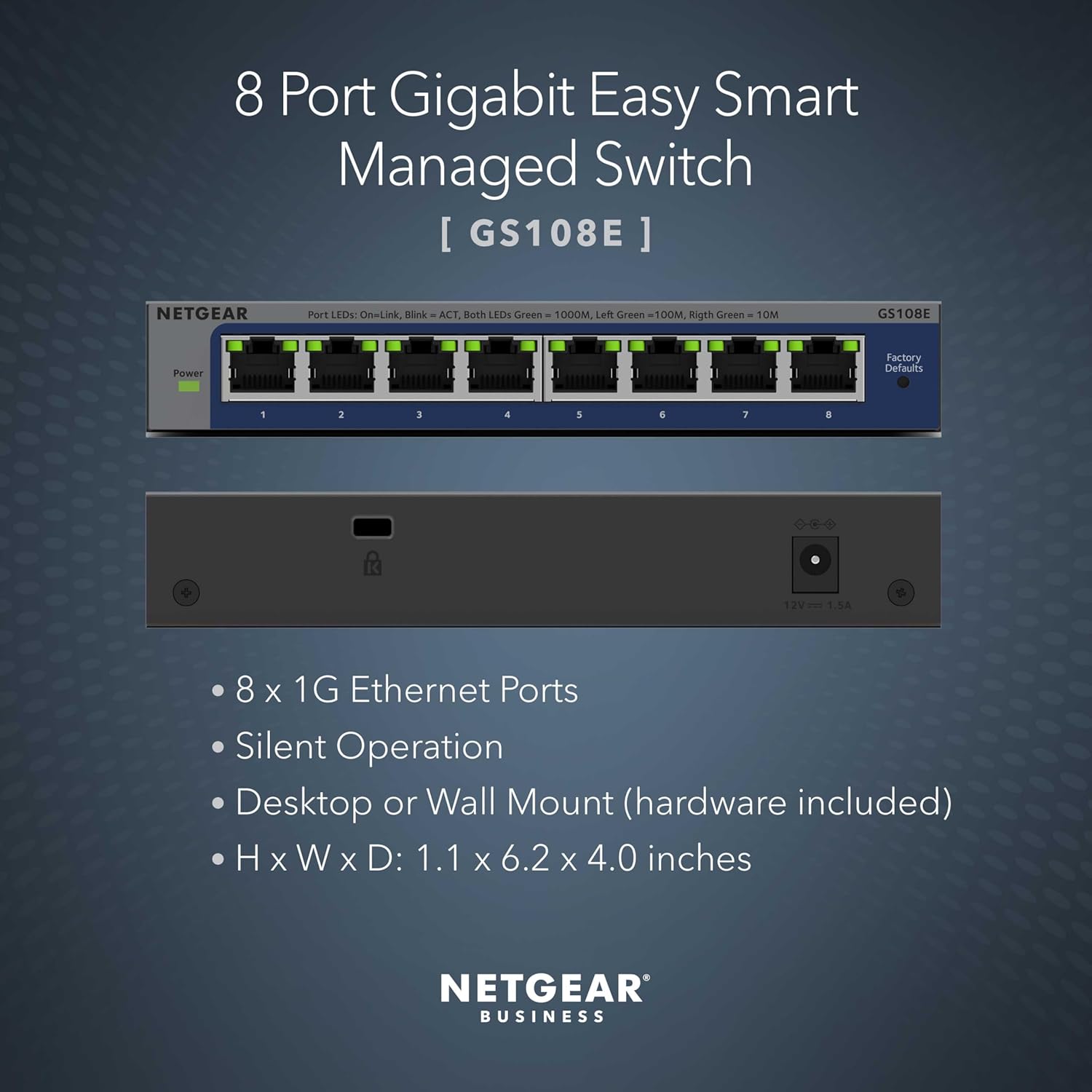
Image 2.1: The NETGEAR GS108E switch highlighting its 8 Gigabit Ethernet ports, silent operation, desktop or wall mount capability, and dimensions (1.1 x 6.2 x 4.0 inches).
3. Setup Instructions
Follow these steps to set up your NETGEAR GS108E switch:
- Unpack the Switch: Carefully remove the switch and all accessories from the packaging.
- Choose a Location: Place the switch on a flat, stable surface or mount it to a wall using the included wallmount kit. Ensure adequate ventilation around the device.
- Connect Network Devices: Connect your network devices (computers, servers, network printers, etc.) to the 8 Gigabit Ethernet ports on the front panel of the switch using standard Ethernet cables.
- Connect Power: Connect the provided power adapter to the switch's power input and then plug the adapter into an electrical outlet. The Power LED on the switch will illuminate.
- Verify Connections: Check the port LEDs for each connected device. A solid green LED indicates a successful Gigabit connection, while a solid amber LED indicates a 10/100 Mbps connection. A blinking LED indicates network activity.
- Access Management Interface (Optional): For advanced configuration, connect a computer to any port on the switch. The switch will obtain an IP address from your DHCP server. Use the NETGEAR Smart Control Center utility (available for download from the NETGEAR support website) to discover the switch and access its web-based management interface.

Image 3.1: Front view of the NETGEAR GS108E 8-Port Gigabit Easy Smart Managed Switch, showing the power input, 8 Ethernet ports, and LED indicators for link/activity and speed.
4. Operating the Switch
The NETGEAR GS108E is an Easy Smart Managed Switch, offering basic management capabilities through a web-based interface. Once connected, the switch operates automatically for basic network connectivity. For advanced features, access the management interface.
4.1. Key Features and Management
- VLAN Control: Configure Virtual Local Area Networks to segment your network, enhance security, and improve performance.
- Quality of Service (QoS): Prioritize network traffic for applications like VoIP and video streaming to ensure smooth operation.
- Link Aggregation: Combine multiple ports to increase bandwidth and provide redundancy.
- Port Mirroring: Monitor network traffic by sending a copy of packets from one port to another.
- Energy Efficient Ethernet (IEEE 802.3az): Reduces power consumption during periods of low network activity.

Image 4.1: Screenshot of the NETGEAR Easy Smart Managed Switches software interface, showing options for VLAN configuration, QoS, and Link Aggregation.
4.2. Management Levels Overview
The GS108E falls under the 'Easy Smart Managed' category, offering a balance of features and ease of use.

Image 4.2: A comparison table illustrating key features across NETGEAR's 'Easy Smart Managed' and 'Smart + Insight Remote Managed' switch categories, highlighting the L2 management layer and network control capabilities of the GS108E.
5. Maintenance
To ensure optimal performance and longevity of your NETGEAR GS108E switch, consider the following maintenance guidelines:
- Cleaning: Periodically clean the exterior of the switch with a soft, dry cloth. Do not use liquid or aerosol cleaners.
- Ventilation: Ensure that the ventilation openings are not blocked. Proper airflow prevents overheating.
- Firmware Updates: Check the NETGEAR support website regularly for firmware updates. Keeping the firmware updated can improve performance, add new features, and fix security vulnerabilities.
- Power Cycle: If the switch experiences issues, a simple power cycle (unplugging and replugging the power adapter) can often resolve minor problems.
6. Troubleshooting
This section addresses common issues you might encounter with your GS108E switch.
- No Power:
Symptom: The Power LED is off.
Solution: Ensure the power adapter is securely connected to the switch and a working electrical outlet. Verify the outlet has power. - No Link on a Port:
Symptom: A port LED is off when a device is connected.
Solution: Check the Ethernet cable connection at both ends. Try a different cable. Ensure the connected device is powered on and functioning correctly. - Slow Network Speed:
Symptom: Network performance is slower than expected.
Solution: Ensure all connected devices and cables support Gigabit Ethernet for optimal speed. Check for network congestion or faulty cables. Verify the port LED indicates a Gigabit connection (solid green). - Cannot Access Management Interface:
Symptom: Unable to log in to the web-based management interface.
Solution: Ensure your computer is on the same network segment as the switch. Use the NETGEAR Smart Control Center utility to discover the switch's IP address. Reset the switch to factory defaults if you have forgotten the password (refer to the installation guide for reset procedure).
7. Specifications
| Feature | Description |
|---|---|
| Model | GS108E |
| Number of Ports | 8 Gigabit Ethernet Ports |
| Data Transfer Rate | 1 Gigabits Per Second |
| Interface Type | RJ45 |
| Management | Easy Smart Managed (Web-based GUI) |
| Energy Efficiency | IEEE 802.3az (Energy Efficient Ethernet) |
| Mounting Options | Desktop or Wall Mount |
| Item Weight | 1.81 pounds |
| Package Dimensions | 8.11 x 6.54 x 3.43 inches |
| Manufacturer | NETGEAR |
| UPC | 606449169942 |
8. Warranty and Support
8.1. Limited Lifetime Hardware Warranty
The NETGEAR GS108E switch comes with a Limited Lifetime Hardware Warranty. This warranty covers defects in materials and workmanship under normal use. For specific terms and conditions, please refer to the warranty documentation included with your product or visit the official NETGEAR website.
8.2. Technical Support
NETGEAR offers various support options for its products:
- Online Support: Visit the official NETGEAR support website for FAQs, troubleshooting guides, firmware downloads, and community forums. www.netgear.com/support
- Chat Support: 24/7 chat support with a NETGEAR expert is available for assistance.
- Next Business Day Replacement: This service is available in regions where applicable, as part of the product's support package.
For the most up-to-date support information and contact details, always refer to the NETGEAR official website.
Ask a question about this manual
Ask about setup, troubleshooting, compatibility, parts, safety, or missing instructions. Manuals+ will review the question and use this page’s manual context to help answer it.