
Satechi ST-H3C25EM
Contents
Satechi USB C Ethernet Adapter 2.5 Gigabit, 4-in-1 Network Adapter Instruction Manual
Model: ST-H3C25EM
Brand: Satechi
Introduction
Thank you for choosing the Satechi USB C Ethernet Adapter 2.5 Gigabit. This 4-in-1 adapter is designed to expand the connectivity of your USB-C enabled devices, providing a stable 2.5 Gigabit Ethernet connection and three high-speed USB-C 3.2 ports for data transfer. This manual provides detailed instructions for setup, operation, maintenance, and troubleshooting to ensure optimal performance and longevity of your device.

Image: The Satechi USB C Ethernet Adapter, showcasing its compact design and braided USB-C cable. The adapter features an Ethernet port and three USB-C data ports.
Package Contents
Please ensure all items are present in your package:
- Satechi USB C Ethernet Adapter 2.5 Gigabit
- User Manual (this document)
Key Features
- Fast and Stable Network: Provides 2.5 Gigabit enhanced network speeds, ensuring reliable connectivity for demanding tasks like streaming, gaming, and large file transfers. Downward compatible with 100Mbps/10Mbps networks.
- Lightning-Fast Data Transfers: Equipped with three USB-C Gen 2 ports, offering data transfer speeds up to 10Gbps, twice the speed of standard USB 3.0.
- Efficient & Durably Designed: Features a compact, travel-friendly design with chamfered edges, a braided cable for enhanced durability, a reinforced neck to prevent fraying, and an aluminum enclosure for drop protection and efficient heat dissipation.
- Plug and Play: No driver installation is needed for most compatible operating systems.

Image: Diagram illustrating the 4-in-1 expansion ports of the Satechi adapter, highlighting the Ethernet Port (2.5 Gigabit) and three USB-C 3.2 (10Gbps) ports, connected via a USB-C host connector.
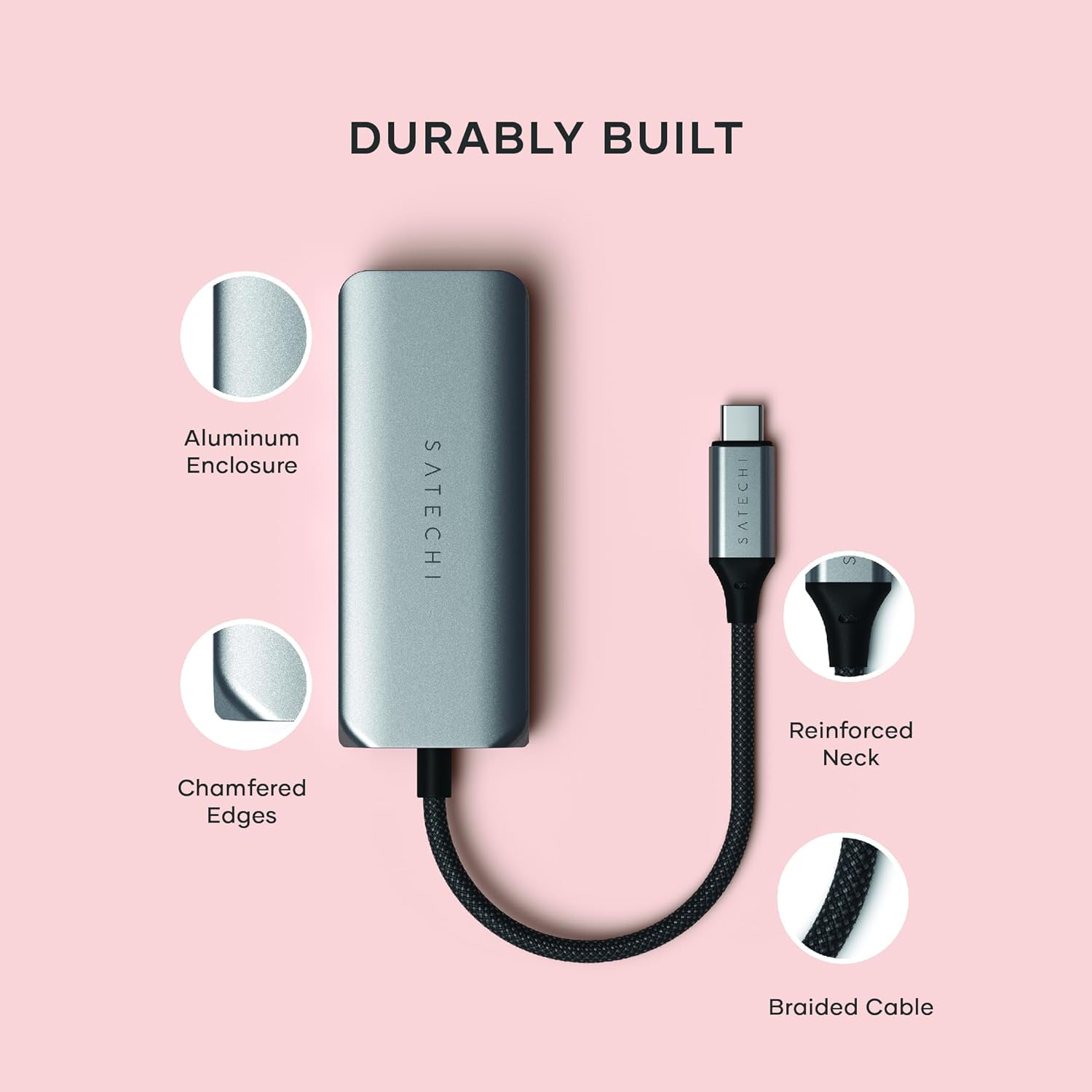
Image: Visual representation of the Satechi adapter's durable construction, including its aluminum enclosure, chamfered edges, reinforced neck, and braided cable.
Specifications
| Model Number | ST-H3C25EM |
| Dimensions (L x W x H) | 3.35 x 1.34 x 0.59 inches (85 x 34 x 15 mm) |
| Weight | 1.76 ounces (50 grams) |
| Color | Space Gray |
| Hardware Interface | USB 3.0 Type C |
| Ethernet Speed | 2.5 Gigabit (2.5Gbps), backward compatible with 100Mbps/10Mbps |
| USB-C Data Ports | 3 x USB-C 3.2 Gen 2 (up to 10Gbps data transfer) |
| Data Link Protocol | IEEE 802.3 |
| UPC | 810086361342 |
Setup Guide
The Satechi USB C Ethernet Adapter is designed for plug-and-play functionality, requiring no additional drivers for most compatible operating systems.
- Connect to Host Device: Insert the USB-C connector of the Satechi adapter into an available USB-C port on your computer, tablet, or smartphone.
- Connect Ethernet Cable (Optional): For a wired network connection, plug a standard Ethernet cable (RJ45) from your router or modem into the Ethernet port on the Satechi adapter.
- Connect USB-C Peripherals (Optional): Connect your USB-C devices (e.g., external hard drives, flash drives, or other peripherals) to the three USB-C data ports on the Satechi adapter.
Your device should automatically recognize the adapter and its connected peripherals. For Ethernet, ensure your network settings are configured correctly on your operating system if you encounter any issues.

Image: The Satechi adapter connected to a laptop, demonstrating its use with an Ethernet cable and other USB-C peripherals on a desk setup.
Operating Instructions
Using the Ethernet Port
Once connected, the 2.5 Gigabit Ethernet port provides a stable and high-speed wired internet connection. This is ideal for activities requiring high bandwidth and low latency, such as online gaming, video conferencing, and large file downloads.
- Ensure your Ethernet cable is securely connected to both the adapter and your network source.
- Verify network connectivity through your device's operating system settings.

Image: A laptop screen demonstrating a stable and fast network connection, facilitated by the Satechi adapter, ideal for video calls and online activities.
Using the USB-C Data Ports
The three USB-C 3.2 Gen 2 ports allow for rapid data transfer between your host device and connected USB-C peripherals. These ports support data transfer only and are not designed for charging your host device.
- Simply plug your USB-C compatible devices into any of the three available USB-C ports on the adapter.
- Your operating system should automatically detect the connected device.
- For optimal performance, ensure your connected devices also support USB 3.2 Gen 2 speeds.
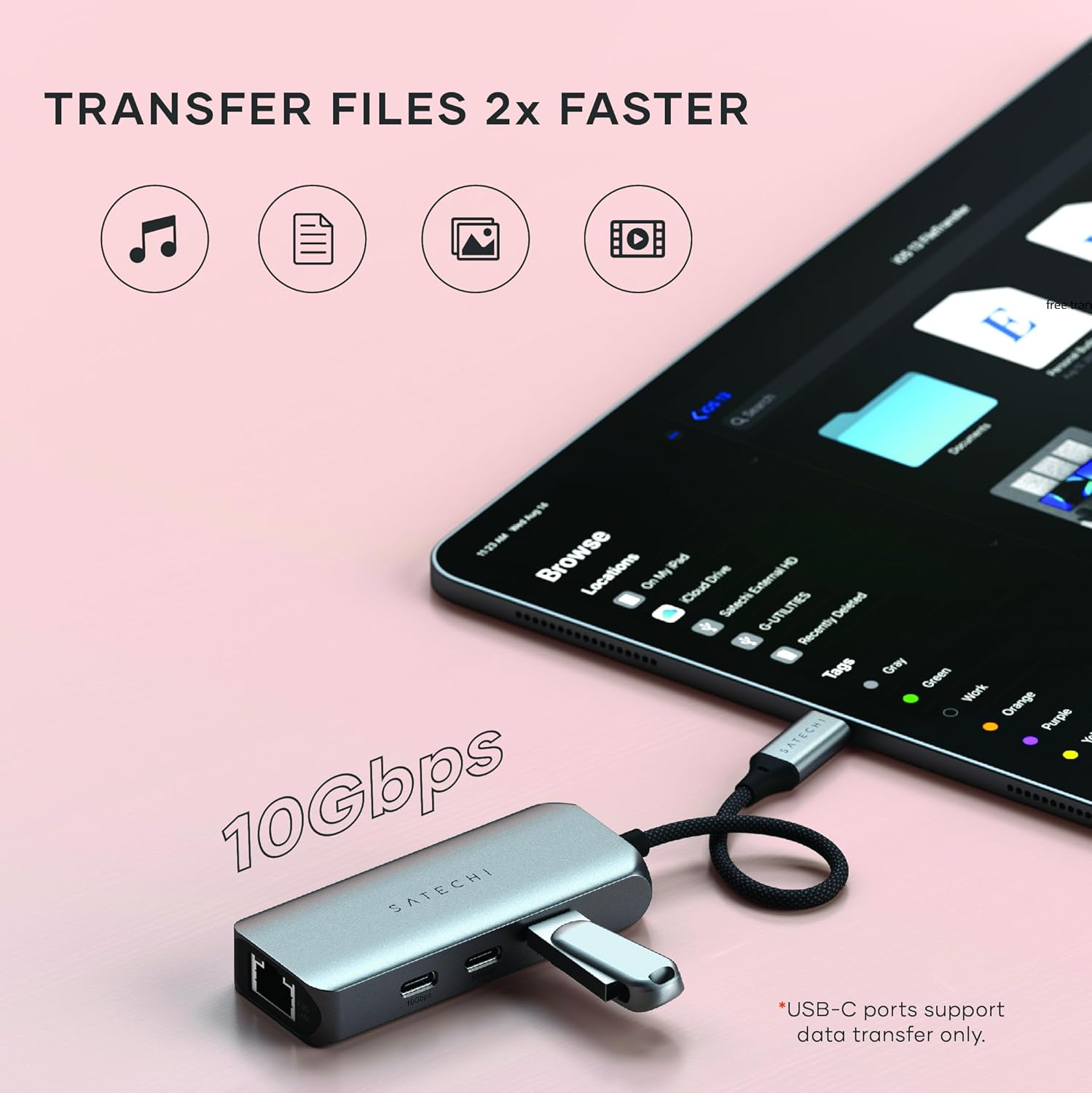
Image: An iPad connected to the Satechi adapter, illustrating fast file transfers of various media types (music, documents, photos, videos) via the USB-C ports.
Compatibility
The Satechi USB C Ethernet Adapter offers broad compatibility with a wide range of USB-C enabled devices and operating systems, designed for plug-and-play use without the need for driver installation.
Compatible Devices & Operating Systems:
- Mac: MacBook Pro/Air M1, M2, M3, MacBook Pro 2016/2017/2018/2019, iMac Pro 2017, iMac 2017/2019/2020/2021/2023.
- iPad: iPad Pro 1/2/3/4/5/6 gen, iPad Air 4/5 gen, iPad Mini 6 gen.
- iPhone: iPhone 16 Pro Max/16 Pro/16/16 Plus, iPhone 15 Pro Max/15 Pro/15/15 Plus.
- Windows: Microsoft Surface 4/5/6/7/8/9, Dell XPS, HP Spectre, Lenovo ThinkPad, Lenovo Yoga, and other USB-C devices.
- Other OS: Android, ChromeOS, Linux.
Note: Product designed for USB-C Gen 2 host devices. Performance may vary depending on host device capabilities.

Image: Icons representing wide compatibility with various operating systems including MacOS, WindowsOS, ChromeOS, iPadOS, LinuxOS, and AndroidOS, demonstrating the adapter's versatility.
Care and Maintenance
To ensure the longevity and optimal performance of your Satechi USB C Ethernet Adapter, follow these care guidelines:
- Cleaning: Use a soft, dry, lint-free cloth to clean the adapter. Avoid using harsh chemicals, cleaning solvents, or strong detergents.
- Storage: Store the adapter in a cool, dry place away from direct sunlight and extreme temperatures.
- Handling: Avoid dropping the adapter or subjecting it to strong impacts. Do not bend or pull the cable excessively, especially near the reinforced neck, to prevent damage.
- Moisture: Keep the adapter away from water and other liquids.
Troubleshooting
If you experience issues with your Satechi USB C Ethernet Adapter, please refer to the following common solutions:
No Ethernet Connection:
- Check Cable: Ensure the Ethernet cable is securely plugged into both the adapter and your router/modem.
- Verify Network Settings: On your computer, check network settings to ensure the Ethernet connection is enabled and configured for DHCP (automatic IP address assignment).
- Restart Devices: Try restarting your computer and your router/modem.
- Test Another Port/Cable: If possible, test the adapter with a different USB-C port on your device or try a different Ethernet cable.
USB-C Ports Not Functioning:
- Reconnect: Disconnect and reconnect the USB-C peripheral to the adapter.
- Test Another Port: Try connecting the peripheral to a different USB-C port on the adapter.
- Power Requirements: Ensure the connected peripheral does not require more power than the adapter can provide. The USB-C ports are for data transfer only and do not provide power delivery to the host device.
- Host Device Compatibility: Confirm your host device's USB-C port supports data transfer.
Adapter Not Recognized by Device:
- Reseat Adapter: Unplug the Satechi adapter from your host device and plug it back in firmly.
- Try Different Port: If your device has multiple USB-C ports, try connecting the adapter to a different one.
- Restart Host Device: A simple restart of your computer or tablet can often resolve recognition issues.
- Update OS: Ensure your operating system is up to date, as updates often include improved driver support.
Warranty Information
Satechi products are covered by a 2-year limited warranty against defects in materials and workmanship under normal use. This warranty applies from the date of original purchase.
The warranty does not cover:
- Damage caused by accident, abuse, misuse, flood, fire, earthquake, or other external causes.
- Damage caused by operating the product outside the permitted or intended uses described by Satechi.
- Damage caused by service (including upgrades and expansions) performed by anyone who is not a representative of Satechi.
- Products or parts that have been modified to alter functionality or capability without the written permission of Satechi.
For full warranty terms and conditions, please visit the official Satechi website or contact customer support.
Customer Support
For further assistance, technical support, or warranty claims, please contact Satechi customer service:
- Website: satechi.com/pages/contact-us
- Email: Refer to the Satechi website for the most current email contact.
- Phone: Refer to the Satechi website for the most current phone contact.
Please have your product model number (ST-H3C25EM) and proof of purchase ready when contacting support.
Ask a question about this manual
Ask about setup, troubleshooting, compatibility, parts, safety, or missing instructions. Manuals+ will review the question and use this page’s manual context to help answer it.