
1. Introduction
This manual provides essential information for setting up, operating, maintaining, and troubleshooting your Amazon Fire Max 11 tablet and its accompanying Tri-Fold Case. Please read this manual thoroughly to ensure optimal performance and longevity of your device.
2. Product Overview
The Amazon Fire Max 11 is a high-performance tablet designed for entertainment, productivity, and connectivity. It features a vivid 11-inch display, a powerful octa-core processor, and Wi-Fi 6 support. The included Tri-Fold Case provides protection and versatile viewing angles.

Figure 2.1: The Amazon Fire Max 11 tablet securely placed within its black tri-fold case, showcasing its vibrant home screen with a selection of pre-installed and recommended applications.
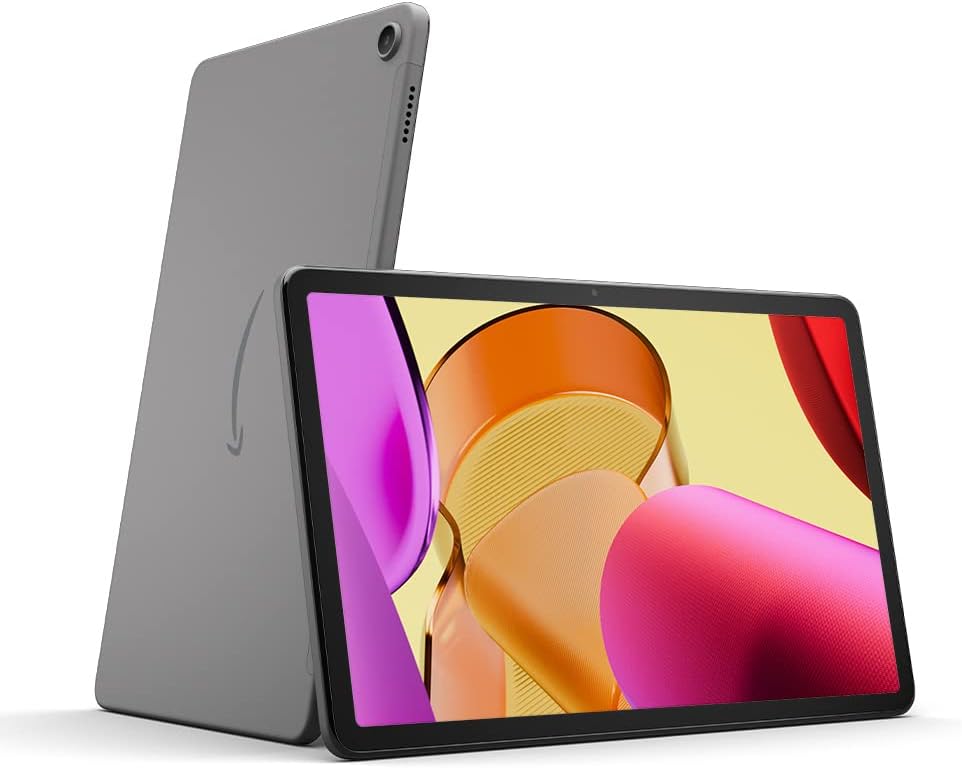
Figure 2.2: A detailed view of the Amazon Fire Max 11 tablet, showing both its front display and the gray aluminum back panel, emphasizing its thin profile and modern aesthetic.

Figure 2.3: The Amazon Fire Max 11 tablet with its screen illuminated, prominently featuring the 'fire max 11' branding and a colorful abstract background, indicating its powerful performance and brilliant display.
3. Setup
3.1 Initial Tablet Setup
- Power On: Press and hold the power button located on the side of the tablet until the Amazon logo appears.
- Language Selection: Follow the on-screen prompts to select your preferred language.
- Wi-Fi Connection: Select your Wi-Fi network from the list and enter the password. A stable internet connection is required for initial setup.
- Amazon Account: Sign in with your existing Amazon account or create a new one. This links your tablet to your Amazon content and services.
- Time Zone and Date: Confirm your time zone and date settings.
- Software Updates: The tablet may automatically check for and install software updates. Allow this process to complete.
3.2 Case Installation
The Tri-Fold Case is designed to fit your Fire Max 11 tablet precisely.
- Align the tablet with the case, ensuring the camera and ports match the cutouts.
- Gently press the tablet into the protective frame of the case until it is securely seated.
- Ensure all edges of the tablet are covered by the case's frame for maximum protection.

Figure 3.1: The Amazon Fire Max 11 tablet nestled within its black tri-fold case, with the cover opened to the side, revealing the tablet's display and the soft interior lining of the case.
4. Operating the Fire Max 11 Tablet
4.1 Basic Navigation
- Touch Gestures: Use taps, swipes, and pinches to interact with the screen.
- Home Screen: Swipe left or right to navigate between different content categories (For You, Home, Library).
- Quick Settings: Swipe down from the top of the screen to access quick settings like Wi-Fi, Bluetooth, and screen brightness.
- Back, Home, Recent Apps: Use the on-screen navigation buttons at the bottom of the display.
4.2 Wi-Fi Connectivity
To connect to a Wi-Fi network:
- Swipe down from the top of the screen to open Quick Settings.
- Tap the Wi-Fi icon.
- Select your desired network and enter the password if prompted.
4.3 Downloading Apps
Apps can be downloaded from the Amazon Appstore:
- Tap the 'Appstore' icon on your home screen.
- Browse or search for apps.
- Tap 'Get' or the price to download and install.
4.4 Battery Management
- The Fire Max 11 offers up to 14 hours of battery life.
- To charge, connect the included USB-C cable to the tablet and a power adapter.
- To optimize battery life, reduce screen brightness, disable Wi-Fi/Bluetooth when not in use, and close unused apps.
4.5 Storage Expansion
The tablet supports storage expansion up to 1 TB using a microSD card (sold separately).
- Locate the microSD card slot on the side of the tablet.
- Insert the microSD card gently until it clicks into place.
- The tablet will prompt you to format the card for use.
5. Using the Tri-Fold Case
The Tri-Fold Case is designed to enhance your tablet experience with protection and versatility.
- Protection: The plastic protective case safeguards your Fire Max 11 from scratches and accidental drops.
- Stand Functionality: The tri-fold cover can be folded into a stand for hands-free viewing in both landscape and portrait orientations. The cover opens right to left.
- Auto Wake/Sleep: Opening the case automatically wakes your tablet, and closing it puts the tablet to sleep, conserving battery life.

Figure 5.1: The Amazon Fire Max 11 tablet positioned in its black tri-fold case, which has been folded to create a stable stand, ideal for hands-free viewing of content.
6. Maintenance
6.1 Cleaning
- Tablet Screen: Use a soft, lint-free cloth, slightly dampened with water or a screen cleaner, to gently wipe the screen. Avoid harsh chemicals.
- Tablet Body: Wipe with a soft, dry cloth.
- Case: Wipe with a damp cloth and mild soap if necessary. Ensure it is completely dry before reattaching the tablet.
6.2 Software Updates
Regular software updates provide new features, security enhancements, and bug fixes. Your tablet will typically notify you when an update is available. Ensure your tablet is charged and connected to Wi-Fi before initiating an update.
7. Troubleshooting
If you encounter issues with your Fire Max 11 tablet, try the following steps:
- Device Not Turning On: Ensure the tablet is charged. Connect it to a power source and wait a few minutes before attempting to power it on again.
- Wi-Fi Connection Issues: Restart your tablet and your Wi-Fi router. Verify your Wi-Fi password.
- Apps Crashing or Freezing: Close the app and reopen it. If the issue persists, try uninstalling and reinstalling the app.
- Slow Performance: Close unused apps, clear cache, or restart the tablet. Consider freeing up storage space.
- Factory Reset: As a last resort, you can perform a factory reset. This will erase all data on your tablet. Navigate to Settings > Device Options > Reset to Factory Defaults. Backup important data before proceeding.
8. Specifications
| Feature | Specification |
|---|---|
| Display | 11-inch, 2.4 million pixels (2000 x 1200 resolution), Certified for low blue light |
| Processor | Powerful Octa-core processor |
| Memory (RAM) | 4 GB |
| Internal Storage | 64 GB (also available in 128 GB) |
| Expandable Storage | Up to 1 TB via microSD card (sold separately) |
| Connectivity | Wi-Fi 6 |
| Battery Life | Up to 14 hours |
| Durability | Strengthened glass, 3 times as durable as iPad 10.9-inch (10th generation) in tumble tests |
| Case Features | Form-fitted, plastic protective, built-in stand, auto wake/sleep, cover opens right to left |
9. Warranty and Support
Your Amazon Fire Max 11 tablet is covered by a limited warranty. For specific warranty details, please refer to the warranty information provided with your product packaging or visit the official Amazon support website.
For further assistance, technical support, or to view frequently asked questions, please visit the Amazon Device Support page:


