
ULTIMEA Aura A30
Contents
ULTIMEA Aura A30 5.1 Soundbar System User Manual
Model: Aura A30 (U2501)
1. Introduction
Thank you for choosing the ULTIMEA Aura A30 5.1 Soundbar System. This manual provides detailed instructions for setting up, operating, and maintaining your new audio system to ensure an optimal home cinema experience. The Aura A30 features a 5.1 virtual surround sound system with a wired subwoofer and two wired surround speakers, enhanced by BassMX and SurroundX technologies for immersive audio.
Key Features:
- 5.1 Virtual Surround Sound System with SurroundX Technology
- Wired 4-inch Subwoofer with BassMX Technology for enhanced bass
- Two Wired Surround Speakers for immersive audio
- ULTIMEA Smart App Control for intuitive settings
- 121 Pre-set EQ Matrices and 10-Band Equalizer Adjustments
- Bluetooth 5.3 for stable wireless connectivity
2. What's in the Box
Please check the contents of your package to ensure all items are present:
- 1 × Soundbar
- 1 × Subwoofer
- 2 × Surround Speakers
- 1 × Soundbar Power Adapter
- 1 × Surround Speakers Power Adapter
- 1 × Surround Cable (6m)
- 1 × Optical Digital Cable
- 1 × Remote Control (Battery not included)
- 1 × User Manual
- 8 × Wall Mount Kit
- 4 × Wall Mount Bracket
- 4 × Mounting Screws for Speakers

Image: All components included in the ULTIMEA Aura A30 package.
3. Product Overview
3.1 Soundbar
The main soundbar unit houses three full-range speakers designed to deliver clear dialogues and a wide soundstage.

Image: Internal view of the soundbar's full-range speakers.
3.2 Subwoofer
The 4-inch wired subwoofer utilizes Ultimea BassMX technology to provide deep, resonant bass, enhancing action scenes and music with powerful low frequencies.

Image: The dedicated wired subwoofer.
3.3 Surround Speakers
Two compact surround speakers connect via a wired cable to the soundbar and wirelessly pair to create a virtual surround sound field, immersing you in your entertainment. Ensure the right speaker is powered for wireless pairing.

Image: One of the two surround speakers.
3.4 Input Ports
The soundbar features various input ports for connecting to your TV and other devices. Note: This system does not support HDMI connection.

Image: Rear panel of the soundbar with labeled input ports.
4. Setup Guide
4.1 Speaker Placement
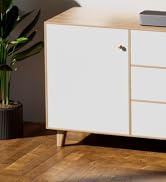
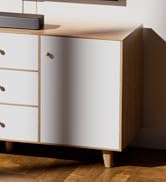
For optimal virtual surround sound, place the soundbar in front of your TV and position the surround speakers behind your listening area. The system is recommended for spaces between 10 to 20 square meters (107 to 215 sq ft).

Image: Recommended living room setup for the Aura A30 system.
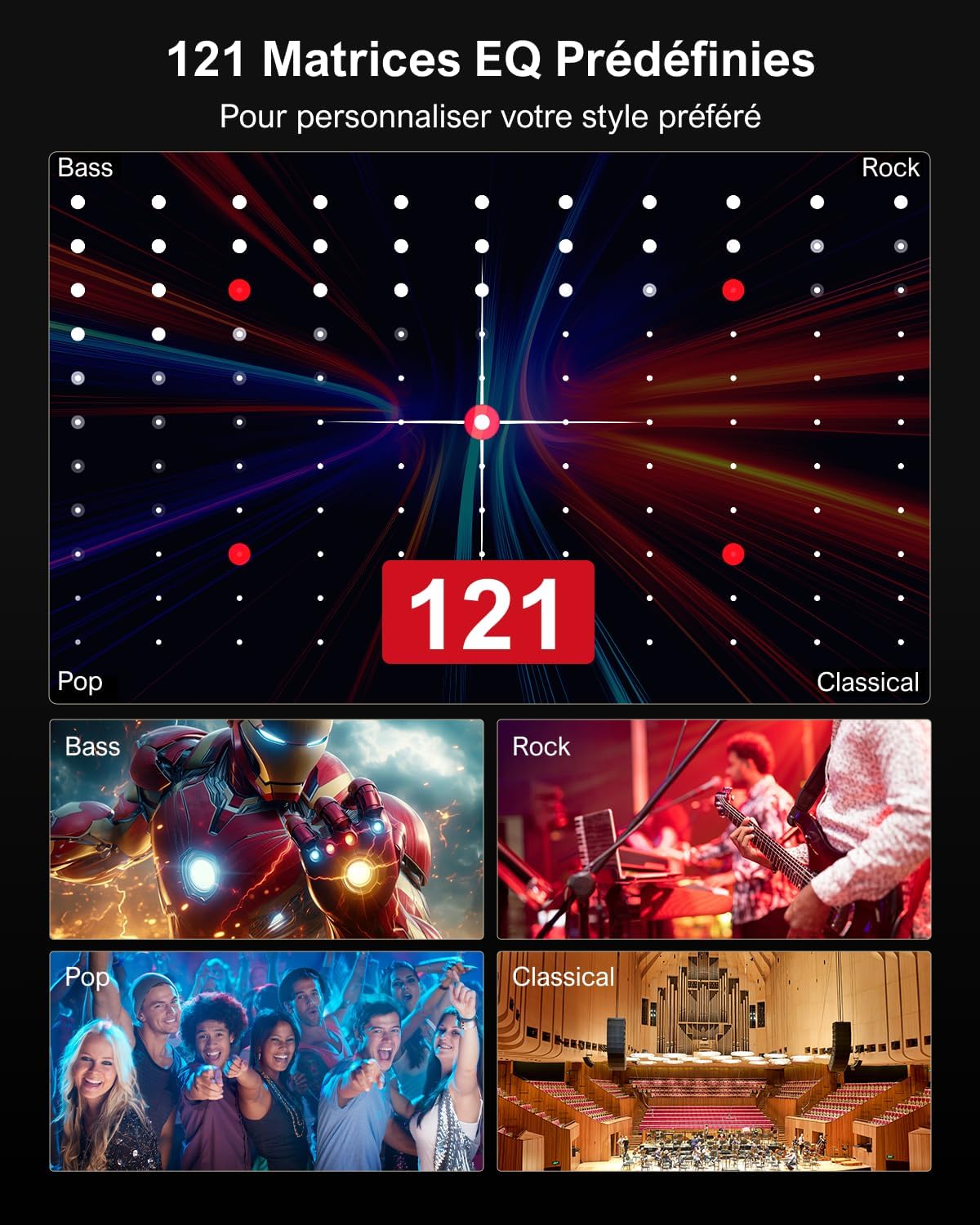
Image: Recommended bedroom setup for the Aura A30 system.
4.2 Connecting Your System
Follow these steps to connect your ULTIMEA Aura A30 system:
- Connect Surround Speakers: Connect the two surround speakers using the provided 6m surround cable. Power the right speaker, which will then wirelessly pair with the soundbar. If pairing fails, move the speakers and soundbar closer (within 0.5m), press the SURROUND button on the remote for 5 seconds until "SUR" flashes, then press the PAIR button on the right speaker for 5 seconds until its indicator light flashes. Once paired, the light will remain solid.
- Connect Subwoofer: Connect the wired subwoofer to the SUB OUT port on the soundbar.
- Connect to TV (Optical):

Step 1: Insert optical cable into TV's OPT port.
Step 2: Insert other end of optical cable into soundbar's OPTICAL port.
Step 3: Press OPT button on remote control.
- Connect to TV (AUX):

Step 1: Insert AUX cable into TV's AUX port.

Step 2: Insert other end of AUX cable into soundbar's AUX port.
Step 3: Press AUX button on remote control.
- Power On: Connect the power adapters to the soundbar and surround speakers, then plug them into a power outlet.

Image: Surround speaker connection diagram.
5. Operating Instructions
5.1 Remote Control
The included remote control allows you to manage various functions of your soundbar system, including power, volume, input selection, and EQ modes. Refer to the remote control diagram in the quick start guide for specific button functions.
5.2 ULTIMEA Smart App Control
Enhance your audio experience with the ULTIMEA Smart App, available for download on your smartphone. The app provides intuitive control over your soundbar system.

Image: ULTIMEA Smart App interface.
App Features:
- EQ Presets: Access 121 pre-set EQ matrices tailored for different sound preferences (Bass, Pop, Classical, Rock).
- 10-Band Equalizer: Fine-tune your audio with a 10-band equalizer to adjust frequencies precisely.
- Sound Modes: Switch between 6 customized EQ modes: Movie, Music, Voice, Sport, Game, and Night.
- OTA Updates: Receive regular over-the-air (OTA) updates to ensure your system has the latest features and performance enhancements.

Image: Visual representation of the 121 EQ matrices.
5.3 Bluetooth Connectivity
To connect your mobile device via Bluetooth 5.3:
- Press the Bluetooth button on the remote control or select Bluetooth input via the app.
- On your device, search for "ULTIMEA Aura A30" in the Bluetooth settings and pair.
- Once connected, the soundbar will indicate successful pairing.

Image: Soundbar connected to a smartphone via Bluetooth.
6. Care and Maintenance
To ensure the longevity and optimal performance of your ULTIMEA Aura A30 system, follow these care guidelines:
- Cleaning: Use a soft, dry cloth to clean the surfaces of the soundbar, subwoofer, and surround speakers. Do not use liquid cleaners or abrasive materials.
- Placement: Avoid placing the system in direct sunlight, near heat sources, or in areas with high humidity. Ensure adequate ventilation around all components.
- Handling: Handle all components with care. Avoid dropping or subjecting them to strong impacts.
- Storage: If storing the system for an extended period, disconnect it from power and store it in a cool, dry place.
7. Troubleshooting
If you encounter issues with your ULTIMEA Aura A30 system, refer to the following common problems and solutions:
| Problem | Possible Cause | Solution |
|---|---|---|
| No sound from the system. | Incorrect input selected, cables loose, volume too low, TV audio output settings. | Ensure correct input is selected (OPT, AUX, BT). Check all cable connections. Increase volume on soundbar and TV. Set TV audio output to PCM if using Optical. |
| Surround speakers not pairing or no sound. | Incorrect pairing procedure, speakers too far from soundbar, right speaker not powered. | Ensure the right surround speaker is powered. Move speakers closer to the soundbar (within 0.5m). Re-initiate pairing: Press SURROUND on remote (5s until "SUR" flashes), then PAIR on right speaker (5s until light flashes). |
| Sound distortion or poor quality. | Incorrect EQ settings, source audio quality, interference. | Adjust EQ settings via the app or remote. Try different sound modes. Ensure source audio quality is good. Minimize interference from other electronic devices. |
| Remote control not working. | Battery depleted, obstruction, remote not pointed at sensor. | Replace remote control battery. Ensure no obstructions between remote and soundbar. Point remote directly at the soundbar's sensor. |
| Bluetooth connection unstable. | Device too far, interference, multiple devices trying to connect. | Move Bluetooth device closer to the soundbar. Disconnect other Bluetooth devices. Try re-pairing. |
8. Technical Specifications
| Model Name | Aura A30 |
| Model Number | U2501 |
| Brand | ULTIMEA |
| Surround Sound Channel Configuration | 5.1 (Virtual) |
| Speaker Maximum Output Power | 250 Watts |
| Subwoofer Diameter | 4 Inches |
| Connectivity Technology | Wired, Bluetooth |
| Controller Type | App, Remote Control |
| Color | Black |
| Product Dimensions | 40P x 7l x 9H centimeters |
| Item Weight | 4.3 Kilograms |
| Mounting Type | Table Mount, Wall Mount |
| Compatible Devices | Personal computer, smartphone, laptop, tablet, television, projector |
9. Warranty and Support
Your ULTIMEA Aura A30 Soundbar System comes with a limited manufacturer's warranty. Please refer to the warranty card included in your package for specific terms and conditions.
For technical support, troubleshooting assistance, or warranty claims, please contact ULTIMEA customer service. You can find contact information on the official ULTIMEA website or through your purchase platform.
Visit the official ULTIMEA store for more information and products: ULTIMEA Brand Store
Ask a question about this manual
Ask about setup, troubleshooting, compatibility, parts, safety, or missing instructions. Manuals+ will review the question and use this page’s manual context to help answer it.