
SCULPFUN xxl-S30 5W
SCULPFUN S30 Laser Engraver User Manual
Model: xxl-S30 5W | Brand: SCULPFUN
Introduction
This manual provides essential information for the safe and effective operation of your SCULPFUN S30 Laser Engraver. Please read it thoroughly before setup and use to ensure optimal performance and safety.

Figure 1: SCULPFUN S30 Laser Engraver with various engraved samples including a wallet, business cards, and a wooden insect model.
Safety Information
Operating a laser engraver involves potential hazards. Adhere strictly to the following safety guidelines:
- Eye Protection: Always wear appropriate laser safety goggles (Laser Class IV) when the laser is active. Never look directly at the laser beam.
- Ventilation: Operate the engraver in a well-ventilated area to dissipate fumes and smoke produced during engraving and cutting.
- Fire Hazard: Laser engraving can ignite flammable materials. Keep a fire extinguisher nearby and never leave the machine unattended during operation. The S30 includes an emergency power switch for quick shutdown.
- Material Compatibility: Only engrave or cut materials safe for laser processing. Avoid PVC, vinyl, and other materials that produce toxic fumes.
- Work Surface Protection: Use the provided A4 size steel mat or a similar fire-resistant surface to protect your workbench from laser damage.
- Children and Pets: Keep children and pets away from the operating area.
- Electrical Safety: Ensure the power supply is correctly connected and grounded. Do not operate with wet hands or in damp conditions.
Product Features
The SCULPFUN S30 Laser Engraver incorporates advanced features for precision and efficiency:
- Automatic Air Assist: Equipped with an automatically controlled air pump. This feature intelligently manages air-assist via the M8 button in LightBurn software, directing high-pressure airflow through the metal nozzle. This significantly increases cutting speed (over 5 times faster) and improves cutting performance by clearing debris and reducing charring.
- Ultra-fine Laser Modeling Technology: Features a precise 0.005mm industrial linear guide and a laser focus of 0.06x0.06mm. This results in higher energy density, stronger cutting penetration, and enhanced engraving accuracy, eliminating wave lines in engravings.
- Safe and Stable Design: Constructed from high-strength aluminum alloy, capable of supporting up to 50kg. Includes an emergency power switch for immediate shutdown and an A4 size steel mat to protect surfaces.
- Expandable Engraving Area: The original working area is approximately 400x400mm. It can be expanded to 935x400mm with a Y-axis extension kit, or further to 935x905mm with an XY-axis extension kit (sold separately), accommodating larger projects.
- Wide Compatibility: The latest 32-bit motherboard supports automatic Air-Assist control. Features Bluetooth and SD card offline printing. Compatible with LightBurn (with M8 air support), LaserGRBL, Benbox, GrblController, and LiteFire. Supports Windows and MAC systems. File formats include NC, BMP, JPG, PNG, DXF, and other image formats.
- Laser Output: Class IV laser with 5000mW output power.

Figure 2: Illustration of the S30's high-density, sharp laser beam and 5W powerful laser beam shaping technology.
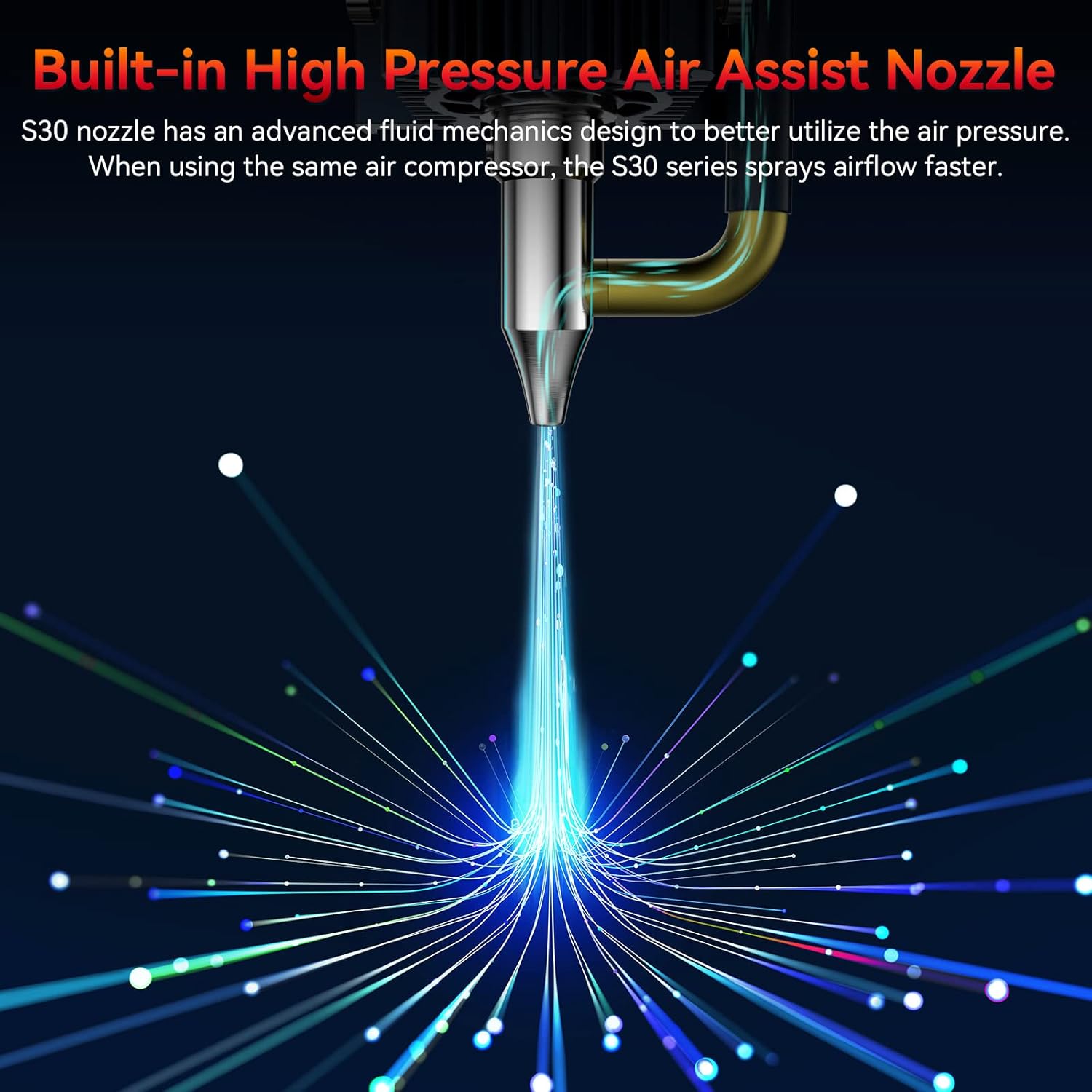
Figure 3: Close-up of the S30's built-in high-pressure air assist nozzle, demonstrating airflow.

Figure 4: Diagram showing the automatic controlled air assist feature and its integration with LightBurn software (M8 Air Assist Switch).

Figure 5: Comparison illustrating the benefits of automatic air assist over traditional manual air pumps for clean edges and efficient cutting.

Figure 6: Visual representation of the high precision 0.005mm industrial grade linear rail, highlighting the improved engraving accuracy without wavy lines.
Setup Guide
Follow these steps to set up your SCULPFUN S30 Laser Engraver:
- Unpacking: Carefully remove all components from the packaging. Verify all parts are present against the packing list.
- Assembly: Assemble the frame according to the included assembly instructions. Ensure all screws are tightened securely.
- Laser Module Installation: Mount the laser module onto the gantry. Connect the laser module cable to the main control board.
- Air Pump Connection: Connect the air pump to the designated port on the laser module and the main control board.
- Power and USB Connection: Connect the power adapter to the engraver and a power outlet. Connect the engraver to your computer via the provided USB cable.
- Software Installation: Install the recommended software (e.g., LightBurn, LaserGRBL) on your computer. Drivers may be required.
- Initial Calibration: Follow the software's instructions for initial calibration, including setting the working area and focusing the laser.
Figure 7: Overview of the SCULPFUN S30 components, including the laser module, air pump, and frame parts.
Operating Instructions
This section outlines the basic steps for operating your laser engraver:
- Prepare Material: Place the material to be engraved or cut on the work surface, ensuring it is flat and secure. Use the steel mat underneath.
- Software Setup: Open your chosen laser control software (e.g., LightBurn). Import or create your design.
- Parameter Settings: Adjust laser power, speed, and passes based on the material and desired effect. Refer to material test guides for optimal settings.
- Focus the Laser: Manually or automatically adjust the laser focus for optimal performance. The S30 features a fixed-focus laser, simplifying this step.
- Enable Air Assist: For cutting operations, ensure the automatic air assist is enabled in the software (M8 command in LightBurn). For engraving, it may be turned off for finer details.
- Start Operation: Initiate the engraving or cutting process from the software. Monitor the process closely.
- Completion: Once the process is complete, wait for the laser to stop and fumes to clear before removing the material.
Video 1: Demonstration of the SCULPFUN S30 Laser Engraver in operation, showcasing its cutting and engraving capabilities on various materials. This video highlights the precision and speed of the machine.
Video 2: A detailed overview of the SCULPFUN S30/S30 Pro/S30 Pro Max laser engraver, illustrating key features and performance aspects across the series.
Maintenance
Regular maintenance ensures the longevity and performance of your engraver:
- Clean the Lens: Periodically clean the laser lens with a soft, lint-free cloth and lens cleaning solution to maintain optimal laser focus and power. The S30 features a replaceable lens for easy maintenance.
- Clean the Work Area: Remove debris and dust from the honeycomb workbed and surrounding areas after each use.
- Lubricate Rails: Apply a small amount of lubricant to the linear guide rails periodically to ensure smooth movement of the laser module.
- Check Connections: Regularly inspect all cable connections for looseness or damage.
Troubleshooting
Common issues and their solutions:
| Problem | Possible Cause | Solution |
|---|---|---|
| Laser not firing | Power cable loose, emergency stop engaged, software error, laser module fault. | Check power connections, release emergency stop button, restart software/computer, contact support if issue persists. |
| Poor engraving/cutting quality | Incorrect focus, wrong power/speed settings, dirty lens, material issues. | Re-focus laser, adjust power/speed settings, clean laser lens, ensure material is suitable and flat. |
| Machine not moving | Loose belt, motor cable disconnected, software communication error. | Check and tighten belts, verify motor cable connections, restart software/computer, check USB connection. |
| Air assist not working | Air pump not connected, M8 command not enabled in software, air hose kinked. | Ensure air pump is connected and powered, enable M8 command in LightBurn, check air hose for obstructions. |
Specifications
- Model: xxl-S30 5W
- Laser Output Power: 5W
- Engraving Area: 400mm x 400mm (Expandable to 935mm x 400mm or 935mm x 905mm with extension kits)
- Laser Focus: 0.06mm x 0.06mm
- Linear Guide Accuracy: 0.005mm
- Motherboard: Latest 32-bit with Air-Assist automatic control
- Connectivity: USB, Bluetooth, SD Card (offline printing)
- Supported Software: LightBurn, LaserGRBL, Benbox, GrblController, LiteFire
- Supported Operating Systems: Windows, MAC
- Supported File Formats: NC, BMP, JPG, PNG, DXF, etc.
- Product Dimensions: 18.11 x 18.11 x 6.69 inches
- Item Weight: 14.17 pounds
- Manufacturer: SCULPFUN
- Country of Origin: China
- Date First Available: July 9, 2024
Warranty and Support
For warranty information and technical support, please refer to the official SCULPFUN website or contact your retailer. Keep your purchase receipt as proof of purchase for warranty claims.
SCULPFUN Official Store: Visit the SCULPFUN Store on Amazon
Related documentsxxl-S30 5W


Ask a question about this manual
Ask about setup, troubleshooting, compatibility, parts, safety, or missing instructions. Manuals+ will review the question and use this page’s manual context to help answer it.