
GIDEALED C04RF
GIDEALED C04RF RGBW LED Controller and 2.4GHz Wireless Remote Control User Manual
Model: C04RF
Introduction
This manual provides detailed instructions for the installation, operation, and maintenance of your GIDEALED C04RF RGBW LED Controller and 2.4GHz Wireless Remote Control. This system is designed to control FCOB, COB, RGB, and RGBW LED strip lights operating at DC5V, DC12V, or DC24V. It features 4-zone group control, allowing independent management of LED strips in different areas, and offers comprehensive color changing and dimming capabilities via a sensitive RF wireless remote.
Package Contents
Please verify that all items are present in your package:
- 1x GIDEALED RGBW LED Controller (Model: C04RF)
- 1x GIDEALED 2.4GHz RF Wireless Remote Control
- 1x Mounting Bracket for Remote Control
- Note: LED strip lights and power supply are not included. The remote control requires 2x AAA batteries (not included).

Image: GIDEALED RGBW LED Controller and 2.4GHz Wireless Remote Control Kit, showing the controller, remote, and packaging.
Setup Instructions
1. Remote Control Battery Installation
The remote control requires two AAA batteries. Open the battery compartment on the back of the remote and insert the batteries, ensuring correct polarity. Close the compartment securely.
2. Wiring the LED Controller
The GIDEALED C04RF controller is compatible with DC5V, DC12V, and DC24V RGBW LED strip lights. Ensure your power supply matches the voltage requirements of your LED strip.
- Connect Power Supply: Connect your DC5V-24V power adapter to the "INPUT" terminal of the RGBW LED Controller. The controller supports both DC plug (5.5x2.1mm) and screw terminal connections for power input.
- Connect LED Strip: Connect the RGBW LED strip to the "OUTPUT" terminals of the controller. Match the wires: V+ to V+, R to R, G to G, B to B, and W to W. Use a small screwdriver to secure the wires in the screw terminals.
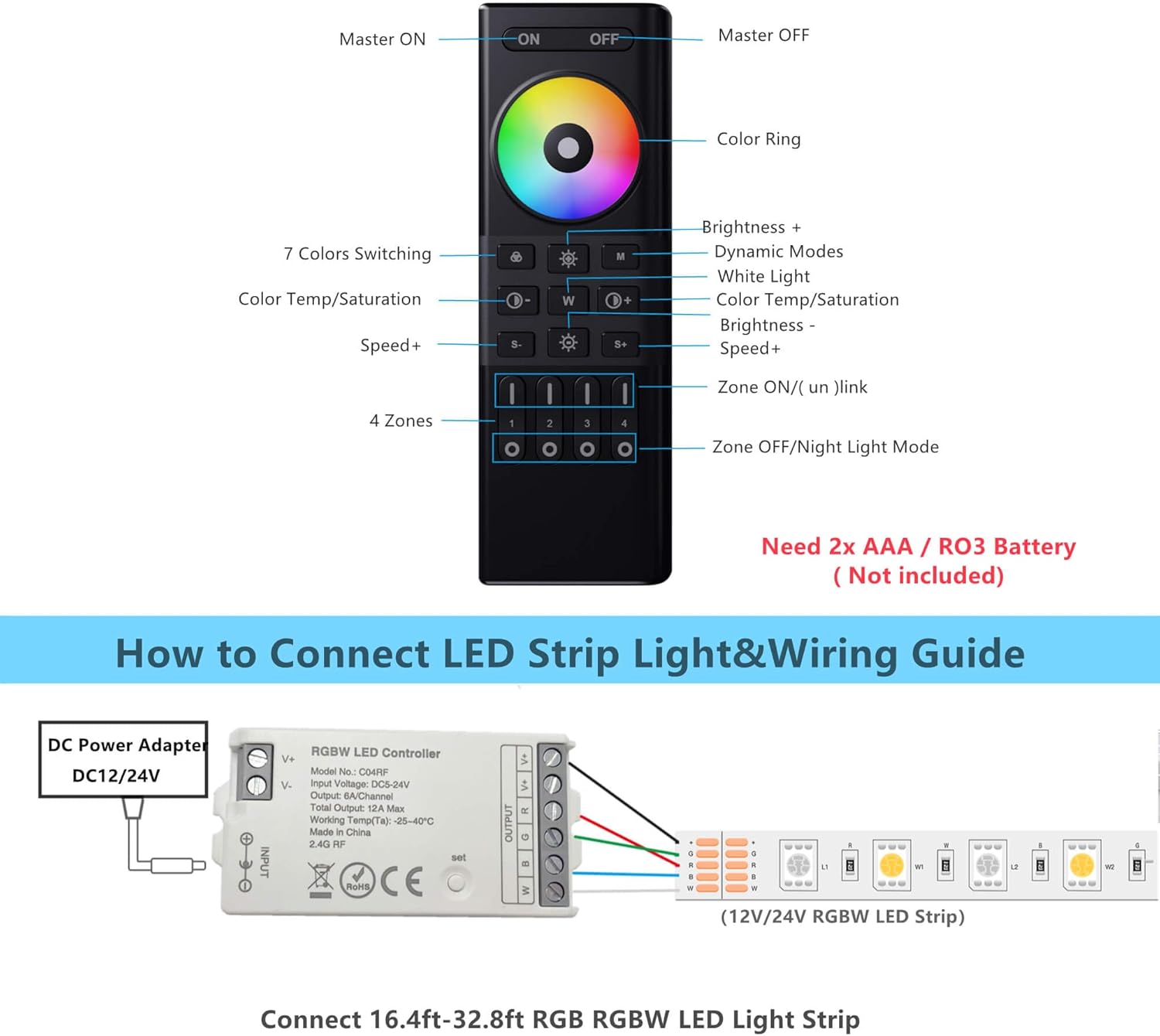
Image: Detailed wiring guide for connecting a DC power adapter and an RGBW LED strip to the GIDEALED C04RF controller.

Image: Close-up view of the GIDEALED C04RF controller's DC power input and RGBW output screw terminals.
3. Linking Controller to Remote (Pairing)
The remote control can be linked to one or more controllers, allowing for individual or group control across up to 4 zones.
- Power Cycle: Disconnect the power supply from the LED controller. Wait for at least 10 seconds, then reconnect the power.
- Initiate Linking: Within 3 seconds of reconnecting power to the controller, short press one of the Zone ON buttons (1, 2, 3, or 4) on the remote control three times.
- Confirmation: If the linking is successful, the connected LED strip light will blink three times slowly. This indicates the controller is now paired to the selected zone on the remote.
- Repeat for Multiple Zones: To control multiple LED strips independently, repeat this process for each controller, linking each to a different zone button (1-4) on the remote.
Video: Official GIDEALED demonstration of linking the 4-channel LED controller with the RF remote control for individual and group control.
Operating Instructions
The 2.4GHz RF Wireless Remote Control offers comprehensive control over your GIDEALED RGBW LED Controller. Below are the functions of the remote:
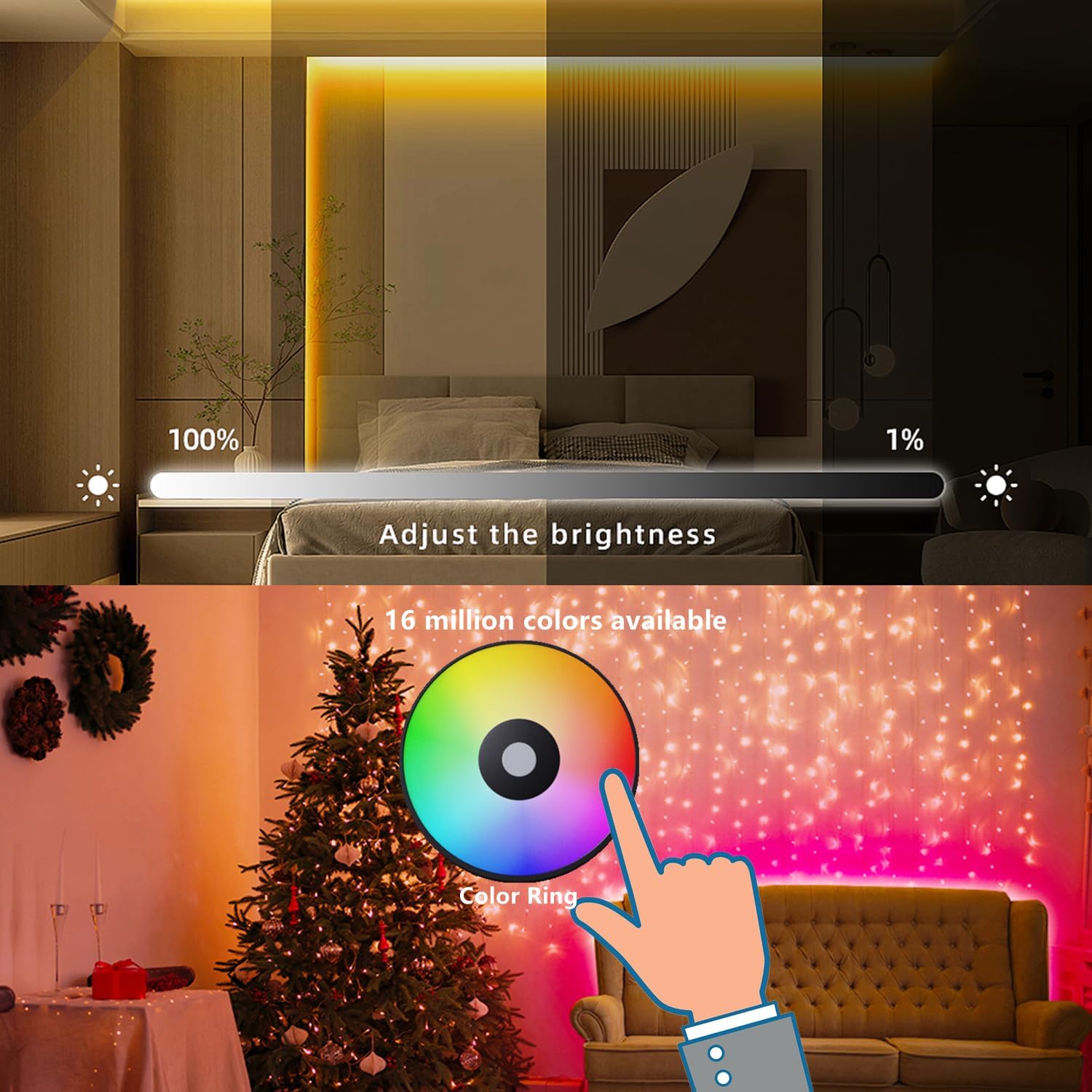
Image: GIDEALED remote control highlighting the color ring, brightness, mode, and zone selection buttons.
- ON/OFF Buttons: Located at the top of the remote. Press "ON" to turn on the lights for the selected zone(s), and "OFF" to turn them off. To control all linked lights simultaneously, press the "ON" button without selecting a specific zone.
- Color Ring: The central touch-sensitive color wheel allows you to select from 16 million colors. Simply touch the desired color on the ring.
- Brightness Adjustment: Use the W+ and W- buttons to increase or decrease the brightness of the selected color or white light (1% to 100%).
- White Light Control: The W button activates pure white light. Use W+ and W- to adjust its brightness.
- Dynamic Modes: The M button cycles through various pre-programmed dynamic lighting modes (e.g., color chase, breathing effects).
- Speed Adjustment: Use the S+ and S- buttons to increase or decrease the speed of dynamic modes.
- Zone Selection (1-4): The four numbered buttons at the bottom allow you to select specific zones. Press a zone button to control only the lights linked to that zone. Pressing the same zone button again will turn off that zone.
Multi-Zone Control Example
After linking multiple controllers to different zones (e.g., Zone 1 for living room, Zone 2 for kitchen, Zone 3 for bedroom), you can control each area independently. Select Zone 1 and choose a color, then select Zone 2 and choose a different color, and so on.
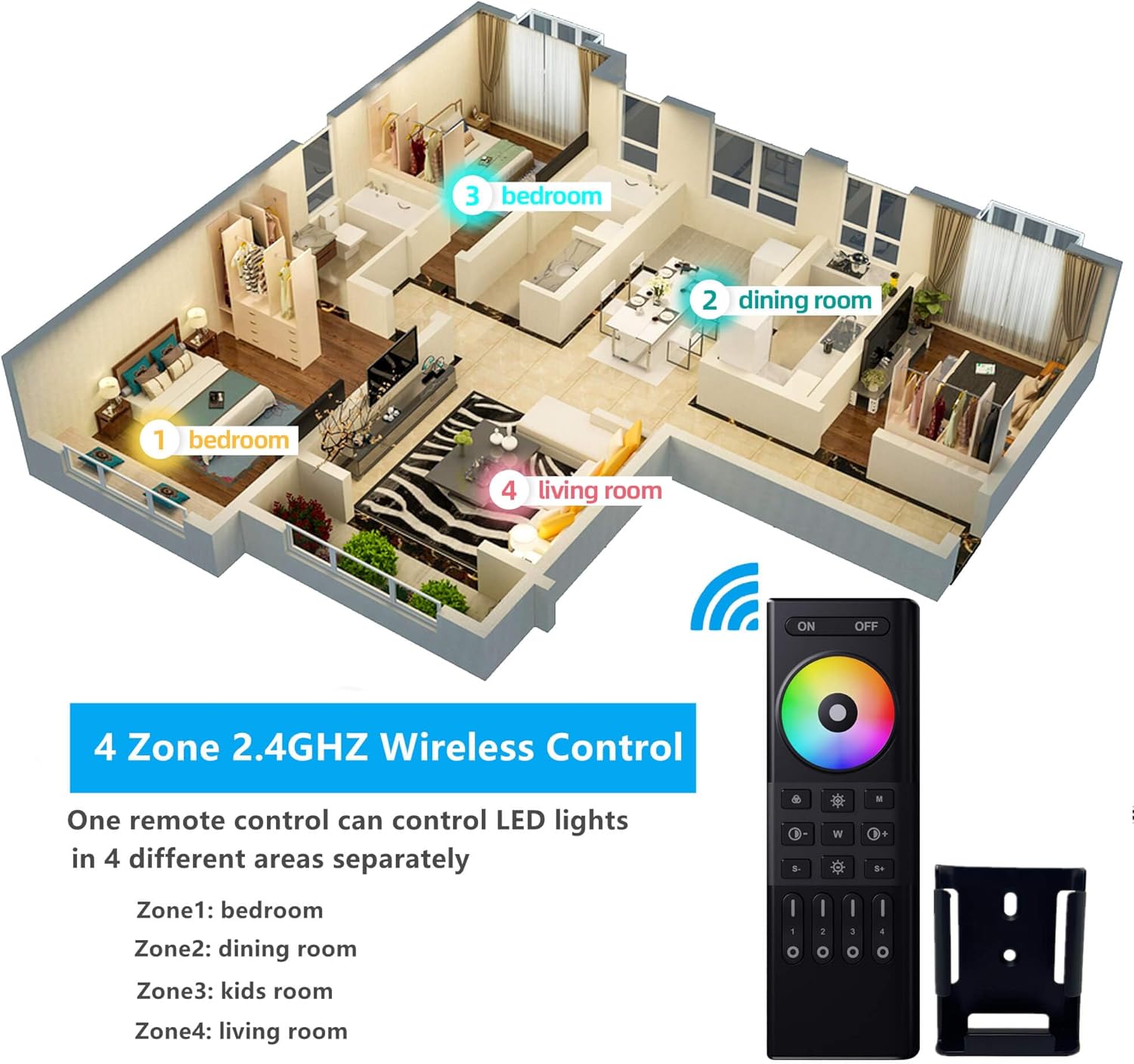
Image: Illustration of the 4-zone wireless control feature, demonstrating how one remote can control LED lights in different rooms (bedroom, dining room, living room) independently.

Image: Diagram illustrating the auto-transmitting feature, where multiple GIDEALED controllers can receive signals from a single remote within a 30-meter range.
Maintenance
- Keep the controller and remote clean and dry. Avoid exposure to moisture or extreme temperatures.
- Regularly check wiring connections to ensure they are secure.
- Replace remote control batteries when performance degrades.
Troubleshooting
| Problem | Possible Cause | Solution |
|---|---|---|
| LED strip not lighting up. |
|
|
| Remote not responding. |
|
|
| Colors are incorrect or inconsistent. |
|
|
Specifications
| Feature | Detail |
|---|---|
| Brand | GIDEALED |
| Model Number | C04RF |
| Input Voltage | DC5V~24V |
| Output Channels | 4 Channels (RGBW) |
| Max Output Current | 6A/Channel, 12A Max Total |
| Control Method | RF 2.4GHz Wireless |
| Wireless Range | Up to 30 meters (98 feet) |
| Remote Control Batteries | 2x AAA (not included) |
| Dimensions (Controller) | 2.95 x 1.3 x 0.6 inches |
| Material | Plastic |
| Special Features | Color Changing, Dimmable, Remote Controlled, 4-Zone Group Control |
Warranty and Support
GIDEALED products are manufactured with high-quality standards. For warranty information, technical support, or any questions regarding your product, please refer to the contact information provided with your purchase or visit the official GIDEALED website. Please retain your proof of purchase for warranty claims.
For further assistance, you may visit the GIDEALED Store: GIDEALED Store on Amazon
Related documentsC04RF


Ask a question about this manual
Ask about setup, troubleshooting, compatibility, parts, safety, or missing instructions. Manuals+ will review the question and use this page’s manual context to help answer it.