
1. Product Overview
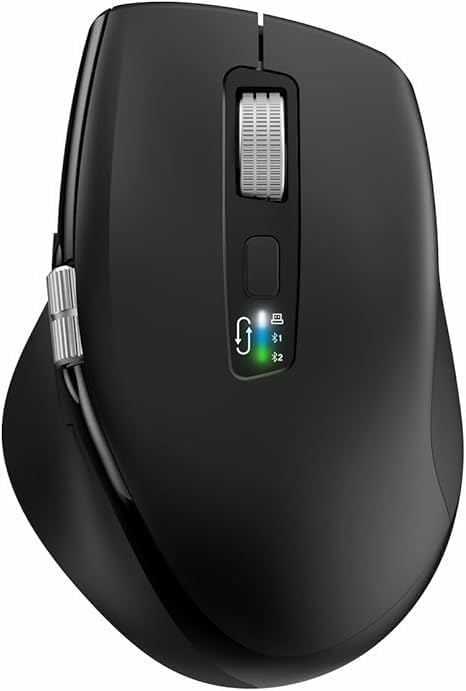
The INFINMIND L910 is a versatile wireless mouse designed for comfort and efficiency across multiple devices. It features both 2.4G wireless and Bluetooth connectivity, adjustable DPI settings, and specialized scrolling functions.
2. Package Contents
- INFINMIND L910 Wireless Bluetooth Mouse
- USB Receiver (typically stored in the mouse battery compartment)
- 2 x AA Batteries
- User Manual (this document)
3. Setup Instructions
3.1. Battery Installation
- Locate the battery compartment on the underside of the mouse.
- Open the battery compartment cover.
- Insert one or two AA batteries, ensuring correct polarity (+/-). The mouse can operate with either one or two batteries, allowing for weight preference.
- Close the battery compartment cover securely.
3.2. Connectivity Modes
The mouse supports three connection channels: one 2.4G wireless channel and two Bluetooth channels (BT1 and BT2). You can switch between these channels using the dedicated mode switch button on the mouse.
3.3. 2.4G Wireless Connection
- Remove the USB receiver from its storage slot, usually located in the battery compartment.
- Plug the USB receiver into an available USB port on your computer.
- Switch the mouse to the 2.4G wireless mode (indicated by a specific LED light, refer to mouse markings).
- The computer should automatically detect and install the necessary drivers. The mouse is ready for use.
3.4. Bluetooth Connection (BT1 / BT2)
- Switch the mouse to either BT1 or BT2 mode using the mode switch button.
- Press and hold the mode switch button for 3-5 seconds until the corresponding Bluetooth LED indicator starts blinking rapidly. This indicates the mouse is in pairing mode.
- On your device (computer, smartphone, tablet), navigate to the Bluetooth settings.
- Search for new devices. The mouse should appear as "INFINMIND L910" or similar.
- Select the mouse to pair. Once paired, the LED indicator will stop blinking and remain solid for a few seconds before turning off.
- Repeat these steps for the second Bluetooth channel (BT2) if you wish to connect to another device.
4. Operating Instructions
4.1. Power Management
The mouse features an automatic sleep mode to conserve battery life. To wake the mouse from sleep, simply move it. There is no manual on/off switch; power is managed by battery insertion and activity.
4.2. DPI Adjustment
The mouse offers four adjustable DPI (Dots Per Inch) settings to suit various tasks and preferences. Press the DPI button, located near the main scroll wheel, to cycle through the available settings: 1000, 1600, 2400, and 3000 DPI.

4.3. Smart Flying Scroll Wheel
The main scroll wheel features a 'Smart Flying Scroll' function, allowing for rapid vertical scrolling. This is particularly useful for navigating long documents or web pages quickly and silently.
4.4. Side Scroll Wheel (Thumb Scroll)
A dedicated side scroll wheel, operated by the thumb, provides horizontal page scrolling. This feature enhances productivity, especially when working with wide spreadsheets or timelines.

4.5. Multi-Device Switching
To switch between connected devices (2.4G, BT1, BT2), simply press the mode switch button. The corresponding LED indicator will light up to confirm the active connection.
4.6. System Compatibility Switch
The mouse includes a one-touch switch specifically designed for seamless transitions between Windows and Mac operating systems, ensuring optimal performance on both platforms.
4.7. Ergonomic Design and Quiet Click
The contoured shape and soft rubber grips of the mouse are designed to reduce hand fatigue during extended use. The quiet click feature allows for multi-scene use without disturbing others.

5. Maintenance
5.1. Battery Replacement
When the mouse performance degrades or the LED indicator suggests low power, replace the AA batteries. Battery life can extend up to 20 months with one battery or 40 months with two batteries, depending on usage environment.
5.2. Cleaning
To clean the mouse, use a soft, dry cloth. For stubborn dirt, a slightly damp cloth with mild soap can be used, ensuring no liquid enters the internal components. Avoid abrasive cleaners or solvents.
5.3. Storage
Store the mouse in a cool, dry place away from direct sunlight and extreme temperatures. If storing for an extended period, it is recommended to remove the batteries to prevent leakage.
6. Troubleshooting
6.1. Mouse Not Responding
- Check if the batteries are correctly inserted and have sufficient charge. Replace if necessary.
- Ensure the mouse is switched to the correct connection mode (2.4G, BT1, or BT2) for your device.
- For 2.4G connection, ensure the USB receiver is securely plugged into the computer. Try a different USB port.
- For Bluetooth connection, ensure Bluetooth is enabled on your device and the mouse is paired. Try re-pairing the mouse.
6.2. Connectivity Issues / Lag
- Reduce the distance between the mouse and the receiver/device.
- Remove any potential sources of interference (e.g., other wireless devices, large metal objects).
- Try connecting to a different USB port or re-pairing the Bluetooth connection.
6.3. DPI Not Changing
- Ensure you are pressing the DPI button firmly.
- If the issue persists, try restarting the mouse by removing and reinserting the batteries.
7. Specifications
| Feature | Detail |
|---|---|
| Brand | INFINMIND |
| Model Number | L910 |
| Color | Black |
| Connectivity Technology | Bluetooth, USB (2.4G Wireless) |
| Special Features | Ergonomic Design, Thumb Scroll, Smart Flying Scroll |
| Compatible Devices | Personal Computer, Smartphone, Tablet |
| Battery Composition | Alkaline |
| Movement Detection Technology | Optical |
| Number of Buttons | 8 |
| Hand Orientation | Right |
| Recommended Uses for Product | Office |
| Battery Life | Up to 40 months (with 2 AA batteries) |
| DPI Settings | 1000/1600/2400/3000 |
8. Warranty and Support
Information regarding product warranty and specific customer support contact details is not available in this document. Please refer to the product packaging or the retailer's website for warranty terms and support options.