

1. Introduction
The DAREU A980PROMAX is a high-performance wireless gaming mouse designed for precision and versatility. It features advanced 4K/8K polling rates, a 30,000 DPI optical sensor, and a unique 0.85-inch TFT color display for real-time information and customization. With tri-mode connectivity, magnesium alloy buttons, and a long-lasting battery, this mouse is engineered to enhance your gaming and productivity across various devices and operating systems.

Figure 1: DAREU A980PROMAX Wireless Gaming Mouse (Black)
2. Package Contents
Please verify that all items are present in your package:
- DAREU A980PROMAX Wireless Gaming Mouse
- USB-C Charging Cable
- Nano Receiver (2.4Ghz)
- USB Type-C Conversion Adapter
- Grip Tape Set
- PTFE Mouse Feet (Replacement Set)
- User Manual
- Storage Bag
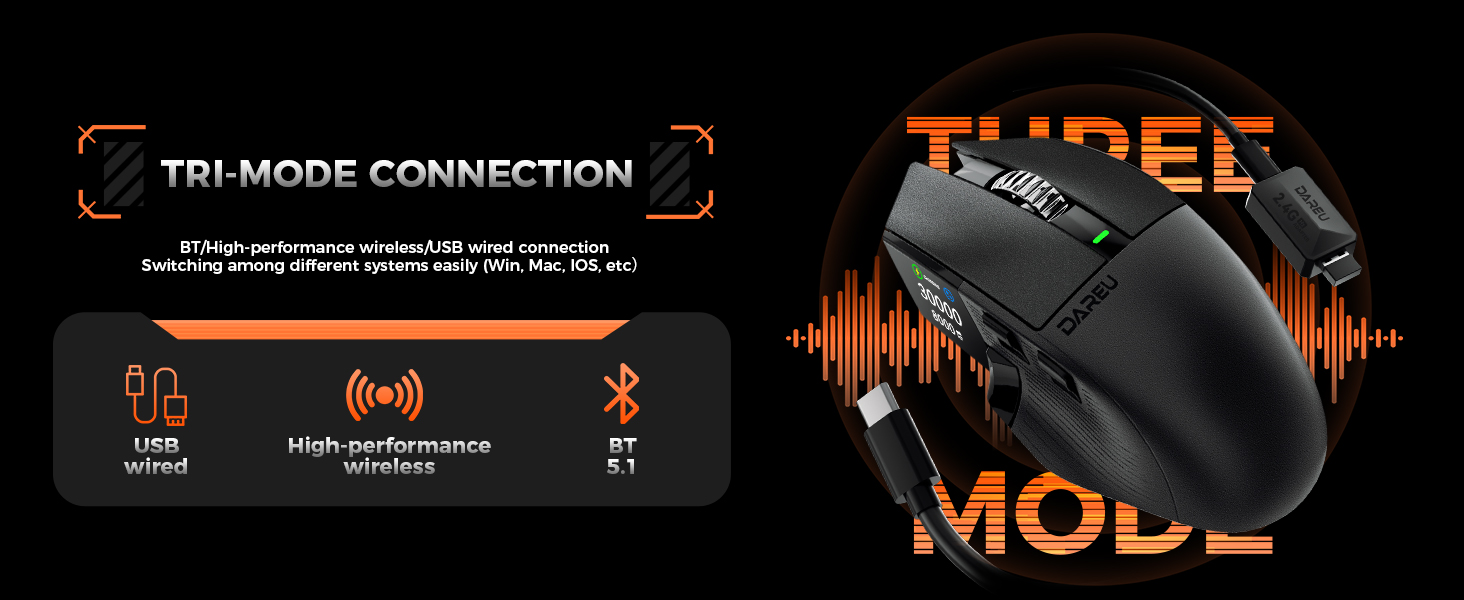
Figure 2: Visual representation of the package contents.
3. Setup
3.1 Tri-Mode Connectivity
The DAREU A980PROMAX mouse supports three connection modes: Wired (USB-C), 2.4Ghz Wireless, and Bluetooth 5.1. This allows for seamless switching between various devices such as PCs, laptops, Macs, and tablets running Windows or macOS.

Figure 3: Overview of USB Wired, High-performance Wireless (2.4Ghz), and Bluetooth 5.1 connectivity options.
3.2 Connecting Your Mouse
- 2.4Ghz Wireless Connection: Insert the Nano Receiver into an available USB port on your device. The mouse will automatically connect. For optimal performance, use the included USB Type-C conversion adapter and cable to position the receiver closer to the mouse, especially in environments with potential interference.
- Bluetooth Connection: Turn on the mouse and switch to Bluetooth mode. On your device, navigate to Bluetooth settings and select 'DAREU A980PROMAX' from the list of available devices to pair.
- Wired USB-C Connection: Connect the mouse directly to your device using the provided USB-C cable. This mode also enables 8K polling rate for maximum performance and charges the mouse battery.
3.3 Driver Installation (Optional but Recommended)
For full customization and access to advanced features, download and install the DAREU A980PROMAX software driver from the official DAREU website. The software allows you to set macros, adjust key functions, modify DPI and polling rates, and customize the TFT display.

Figure 4: The All-in-One Driver interface for comprehensive mouse customization.
4. Operating Instructions
4.1 DPI and Polling Rate Adjustment
The mouse features an AIM-750U 30K optical sensor, offering up to 30,000 programmable DPI. You can adjust DPI settings on the fly using the dedicated DPI switch button or through the software. The polling rate can be set to 4KHz wirelessly and 8KHz in wired mode for ultra-responsive tracking.

Figure 5: Comparison of polling rates and their corresponding transmission times.
4.2 TFT Color Display Functions
The 0.85-inch TFT color display provides quick access to various mouse settings and information:
- Connection Mode: Displays current connection type (Wired, 2.4G, BT).
- Battery Status: Shows remaining battery percentage.
- DPI: Indicates the current DPI setting.
- Polling Rate: Shows the active polling rate.
- Custom GIF Patterns: Displays personalized GIF animations.
Key Combinations for TFT Control:
- FN + Wheel Button: Enter the function page on the TFT display.
- FN + Wheel Up/Down: Switch or adjust functions within the TFT menu.
- Backward + Right Button (hold for 5s): Turn the TFT display on/off.

Figure 6: Customizable 0.85" TFT display showing various settings and GIF customization options.
4.3 Customizing GIFs on the TFT Display
You can personalize your mouse by uploading custom GIF images to the TFT display via the DAREU software. This allows for unique visual expressions directly on your mouse.
Video 1: Demonstrates how to customize GIFs on the A980 Pro Max mouse using the software.
5. Maintenance
5.1 Cleaning Your Mouse
Regular cleaning helps maintain the performance and appearance of your mouse. Use a soft, dry cloth to wipe down the surface. For stubborn dirt, a slightly damp cloth with mild soap can be used, ensuring no liquid enters the mouse. Avoid abrasive cleaners or solvents.
5.2 Battery Information
The mouse is equipped with a 930mAh in-built Lithium battery. For optimal battery life, avoid fully discharging the mouse frequently. Charge the mouse using the provided USB-C cable when the battery indicator on the TFT display shows low power.

Figure 7: Diagram illustrating the 930mAh high-capacity lithium battery and estimated battery life.
5.3 Replacing Mouse Feet
The mouse comes with a set of replacement PTFE mouse feet. If the original feet show significant wear, carefully peel them off and apply the new ones, ensuring the surface is clean and dry for proper adhesion.
6. Troubleshooting
6.1 Connectivity Issues
- Mouse not responding (Wireless): Ensure the Nano Receiver is securely plugged into a USB port. Try a different USB port. Verify the mouse is switched to 2.4Ghz wireless mode. Recharge the mouse if the battery is low.
- Bluetooth connection unstable: Ensure the mouse is in Bluetooth pairing mode. Remove the mouse from your device's Bluetooth list and re-pair. Move the mouse closer to your device to reduce interference.
- Lag or stuttering: For 2.4Ghz wireless, try using the included USB Type-C conversion adapter and cable to bring the receiver closer to the mouse. Ensure there are no strong interfering signals (e.g., other wireless devices) nearby.
6.2 TFT Display Not Working
- Display is blank: Press and hold the Backward + Right buttons for 5 seconds to toggle the TFT display on/off. Ensure the mouse has sufficient battery charge.
- Display is dim: Adjust the brightness setting through the DAREU software.
6.3 Inconsistent Sensor Performance
- Tracking issues: Ensure your mouse pad or surface is clean and free of debris. The AIM-750U sensor has auto-adaptive technology, but extreme surfaces may still affect performance. Try a different surface.
- Unexpected movements: Update the mouse firmware via the DAREU software if available.
7. Specifications
| Feature | Specification |
|---|---|
| Product Dimensions | 5 x 2.88 x 0.04 inches |
| Item Weight | 2.57 ounces |
| Model Number | A980 |
| Batteries | 1 Lithium Ion battery (included) |
| Connectivity Technology | USB / 2.4Ghz Wireless / Bluetooth 5.1 |
| Movement Detection Technology | Optical (AIM-750U Sensor) |
| DPI | Up to 30,000 programmable DPI |
| Polling Rate | 4KHz Wireless / 8KHz Wired |
| Display | 0.85" TFT Color Display |
| Buttons | Magnesium Alloy Buttons, Kailh GM8.0 Black Mamba Switches |
8. Warranty and Support
For warranty information and technical support, please visit the official DAREU website or contact DAREU customer service. Keep your purchase receipt as proof of purchase for warranty claims.
DAREU Official Store: Visit DAREU Store on Amazon