
Flashpoint R2 Nano
Flashpoint R2 Nano Touchscreen TTL Wireless Flash Trigger User Manual
For Panasonic and Olympus Cameras
1. Introduction
The Flashpoint R2 Nano Remote is a compact and advanced wireless flash trigger designed for Panasonic and Olympus camera systems. It offers precise control over your flash settings through an intuitive touchscreen interface and OLED display, enhancing your photography experience with seamless integration and reliable performance.
Key features include:
- Seamless Integration: Full TTL compatibility with Olympus/Panasonic cameras for optimal exposure.
- Ultimate Reliability: Stable 2.4 GHz radio frequency with 32 channels, ensuring consistent triggering up to 328 feet (100 meters).
- High-Speed Sync (HSS): Achieve sync speeds up to 1/8000s for creative effects and motion freezing.
- Intuitive Touchscreen Control: Responsive interface for quick and easy adjustments.
- Versatile Group Control: Manage up to 16 groups (A-F, 0-9) independently for complex lighting setups.
2. What's in the Box
Upon unboxing your Flashpoint R2 Nano, please verify that all components are present:
- Flashpoint R2 Nano Remote
- USB-C Charging Cable
- Storage Bag
- User Manual (this document)
3. Product Overview
Familiarize yourself with the components and controls of your R2 Nano remote.
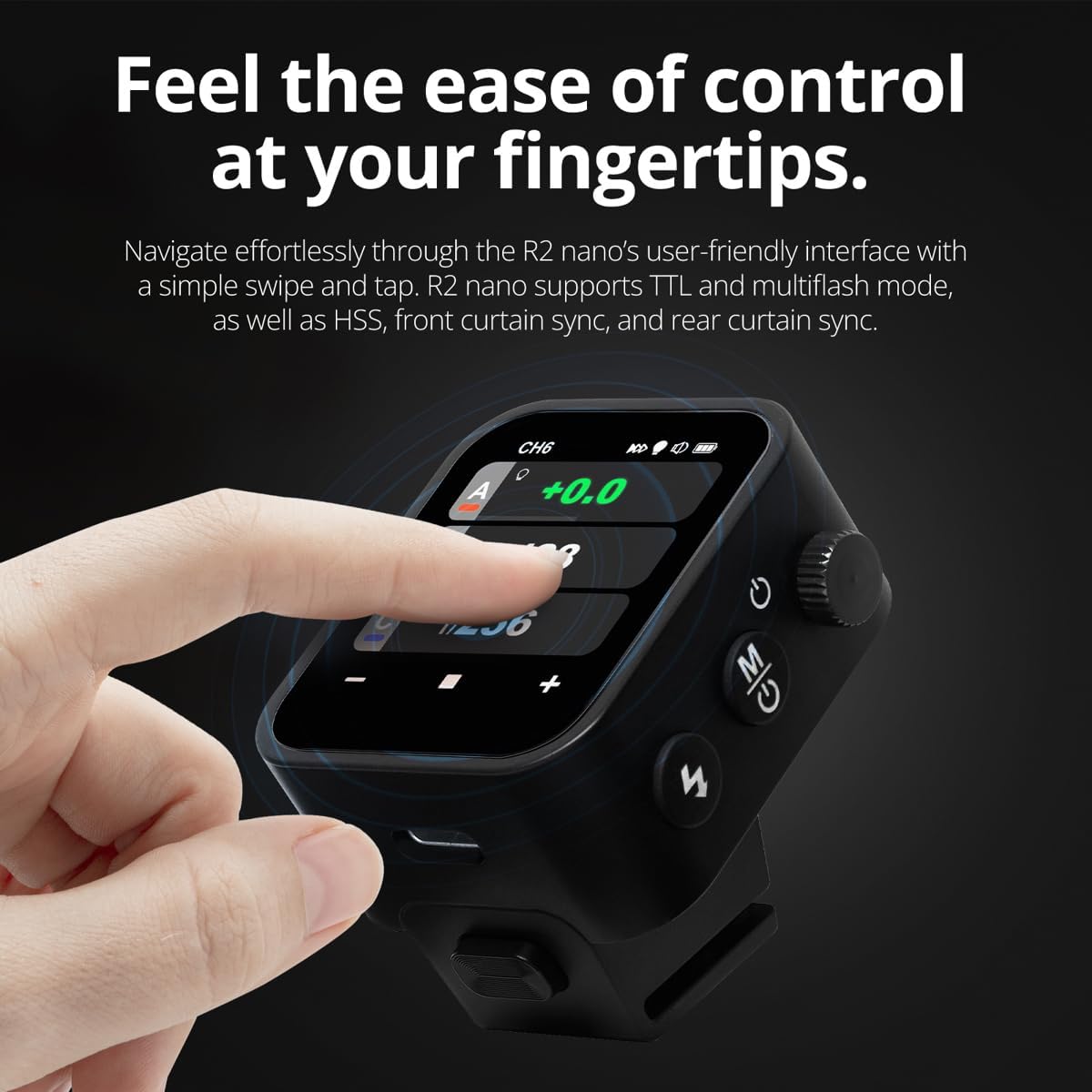
Figure 3.1: Front and Side View of the R2 Nano with Key Components Labeled.
- Touch Screen: Main interface for settings and control.
- Select Dial: For navigating menus and adjusting values.
- Power Switch: Turns the device on/off.
- Test Button: Triggers a test flash.
- Installing/Detaching Button: Releases the remote from the hotshoe.
- Mounting Slot: Connects to the camera's hotshoe.
- USB-C Charging Port: For battery charging.

Figure 3.2: R2 Nano Touchscreen Interface Details.
- Channel (CH): Displays the current wireless channel (e.g., CH6).
- Group (A, B, C, etc.): Indicates the active flash groups.
- Output Power Level: Shows the flash power setting (e.g., +0.0, 1/128).
- Parameters - / +: Touch controls for decreasing/increasing values.
- Sync Modes: Icons indicating sync modes (e.g., HSS, front curtain, rear curtain).
- Modeling Lamp: Icon for modeling lamp status.
- Battery Indicator: Displays current battery level.
4. Setup
4.1 Charging the Battery
The R2 Nano is equipped with a built-in rechargeable lithium battery. Before first use, fully charge the device.
- Locate the USB-C charging port on the side of the R2 Nano.
- Connect the provided USB-C charging cable to the port.
- Connect the other end of the cable to a USB power adapter (not included) or a computer's USB port.
- The battery indicator on the screen will show charging status. A full charge from 0% to 100% typically takes approximately 2 hours.

Figure 4.1: Charging the R2 Nano via USB-C.
4.2 Mounting to Camera
The R2 Nano features an easy-mounting, durable hotshoe design for secure attachment to your camera.
- Ensure your camera is powered off.
- Slide the R2 Nano's mounting slot onto your camera's hotshoe.
- Gently push until it clicks into place, ensuring a secure connection.
- To detach, press the Installing/Detaching Button and slide the remote off.

Figure 4.2: Mounting the R2 Nano on a Camera Hotshoe.
5. Operating Instructions
5.1 Powering On/Off
- To power on, press and hold the Power Switch until the screen illuminates.
- To power off, press and hold the Power Switch until the screen turns off.
5.2 Navigating the Touchscreen Interface
The R2 Nano features a responsive touchscreen and a select dial for intuitive control.

Figure 5.1: High Definition OLED Screen Interface.
- Touch Interaction: Tap on a group (A, B, C, etc.) to select it for adjustment. Tap on parameters like power level to modify them.
- Select Dial: Rotate the dial to scroll through options or adjust values. Press the dial to confirm selections.
- Parameter Adjustment: Use the on-screen '-' and '+' buttons or the Select Dial to change flash power, exposure compensation, or other settings.

Figure 5.2: Touchscreen Interaction for Settings Adjustment.
5.3 Setting Channels and Groups
To avoid interference and control multiple flashes, set appropriate channels and groups.
- Access the channel settings through the touchscreen menu. Select a channel from 1 to 32. Ensure your flash units are set to the same channel.
- Assign flash units to different groups (A-F, 0-9) to control them independently. The R2 Nano allows control of up to 16 groups.
5.4 Flash Modes (TTL, Manual, Multi-flash)
The R2 Nano supports various flash modes to suit different shooting scenarios.
- TTL (Through-The-Lens): Automatically adjusts flash output for correct exposure. Ideal for fast-paced shooting where lighting conditions change frequently.
- Manual (M): Allows precise control over flash power output (e.g., 1/1 to 1/256). Suitable for consistent lighting setups and creative control.
- Multi-flash (Stroboscopic): Fires a series of rapid flashes during a single exposure to capture multiple movements of a subject.
5.5 Sync Modes (HSS, Front Curtain, Rear Curtain)
Select the appropriate sync mode based on your shutter speed and desired effect.
- HSS (High-Speed Sync): Enables flash synchronization at shutter speeds faster than the camera's native sync speed (up to 1/8000s). Useful for overpowering ambient light or using wide apertures in bright conditions.
- Front Curtain Sync: The flash fires at the beginning of the exposure. This is the standard sync mode.
- Rear Curtain Sync: The flash fires just before the second curtain closes. This creates a streaking effect behind moving subjects, giving a sense of motion.
6. Maintenance
Proper maintenance ensures the longevity and optimal performance of your R2 Nano remote.
- Cleaning: Use a soft, dry cloth to clean the exterior of the device. For the touchscreen, use a microfiber cloth specifically designed for electronics. Avoid using harsh chemicals or abrasive materials.
- Storage: When not in use, store the R2 Nano in its provided storage bag to protect it from dust and scratches. Store in a cool, dry place away from direct sunlight and extreme temperatures.
- Battery Care: To maintain battery health, avoid fully discharging the battery frequently. If storing for extended periods, charge the battery to approximately 50% every few months.
- Hotshoe Contacts: Keep the hotshoe contacts clean and free of debris to ensure reliable communication with your camera.
7. Troubleshooting
If you encounter issues with your Flashpoint R2 Nano, refer to the following common problems and solutions.
| Problem | Possible Cause | Solution |
|---|---|---|
| Device does not power on. | Battery is depleted. | Charge the device using the USB-C cable. |
| Flash units not firing. | Incorrect channel or group settings. | Ensure the R2 Nano and flash units are set to the same channel and correct groups. |
| Flash units not firing. | Remote not securely mounted. | Ensure the R2 Nano is fully seated in the camera's hotshoe. |
| Inconsistent flash triggering. | Environmental interference. | Change the wireless channel to one with less interference. Ensure no obstructions between remote and flash. |
| Touchscreen unresponsive. | Temporary software glitch. | Power off the device, wait a few seconds, then power it back on. |
| HSS not working. | Camera or flash not set to HSS mode. | Verify HSS is enabled on both the R2 Nano and your compatible flash unit. Ensure camera shutter speed is above sync speed. |
8. Specifications
| Feature | Detail |
|---|---|
| Model | Flashpoint R2 Nano |
| Compatibility | Panasonic and Olympus Cameras |
| Wireless Frequency | 2.4 GHz |
| Channels | 32 |
| Groups | 16 (A-F, 0-9) |
| Wireless Range | Up to 100 meters (328 feet) |
| Sync Speed | Up to 1/8000s (HSS) |
| Display | Touchscreen OLED |
| Battery | Built-in Rechargeable Lithium Battery |
| Charging Port | USB-C |
| Product Dimensions | 5.25 x 4.25 x 2.5 inches |
| Item Weight | 6.4 ounces |
| Manufacturer | Flashpoint |
| Date First Available | June 19, 2024 |
9. Warranty and Support
Flashpoint products are designed for reliability and performance. For warranty information, technical support, or service inquiries, please refer to the official Flashpoint website or contact your authorized dealer.
Please retain your proof of purchase for any warranty claims.
Related documentsR2 Nano


Ask a question about this manual
Ask about setup, troubleshooting, compatibility, parts, safety, or missing instructions. Manuals+ will review the question and use this page’s manual context to help answer it.