
1. Introduction
This manual provides detailed instructions for the safe and efficient operation of your BORN4SHIP P83 A4 Wireless Thermal Printer. Please read this manual thoroughly before using the device to ensure proper functionality and to prevent damage. This portable thermal printer supports multi-size thermal paper and is compatible with Android, iOS, Windows, and Mac devices, offering 300DPI inkless printing for various applications.

Image 1.1: BORN4SHIP P83 A4 Wireless Thermal Printer in use.
2. What's in the Box
Upon unpacking, please verify that all the following components are included:
- BORN4SHIP P83 A4 Wireless Thermal Printer
- USB Cable
- User Guide (this manual)
- 1 Roll of A4 Thermal Paper (for testing)

Image 2.1: Included components of the BORN4SHIP P83 A4 Wireless Thermal Printer package.
3. Product Features
The BORN4SHIP P83 A4 Wireless Thermal Printer offers a range of features designed for convenience and efficiency:
- High Resolution Printing: Achieves 300x300 DPI for clear and sharp prints.
- Inkless Technology: Utilizes direct thermal printing, eliminating the need for ink, toner, or ribbons.
- Multi-Size Paper Compatibility: Supports A4, B5, Letter, and various label sizes (53-216 mm width).
- Wireless & Wired Connectivity: Connects via Bluetooth for mobile devices (Android/iOS) and USB for computers (Windows/Mac).
- Portable Design: Compact and lightweight (approximately 1.38 pounds), ideal for travel and on-the-go printing.
- Fast Printing Speed: Prints at a speed of 15 mm/s.
- High Capacity Battery: Equipped with a 2550 mAh battery for extended use.
- Automatic Calibration: Features auto label detection for precise printing.

Image 3.1: Key features of the BORN4SHIP P83 A4 Wireless Thermal Printer.

Image 3.2: The printer offers 300 DPI high-quality output.
4. Setup
4.1 Powering On
Before first use, ensure the printer is fully charged using the provided USB cable. Connect the USB cable to the printer's USB Type-C port and a compatible power adapter (not included) or computer USB port. The indicator light will show charging status.
4.2 Loading Thermal Paper
- Open the printer's lid.
- Insert the thermal paper roll into the paper compartment, ensuring the printing side faces upwards.
- Pull a small amount of paper out beyond the cutting edge.
- Close the lid firmly until it clicks into place. The printer will automatically calibrate and detect the paper size.
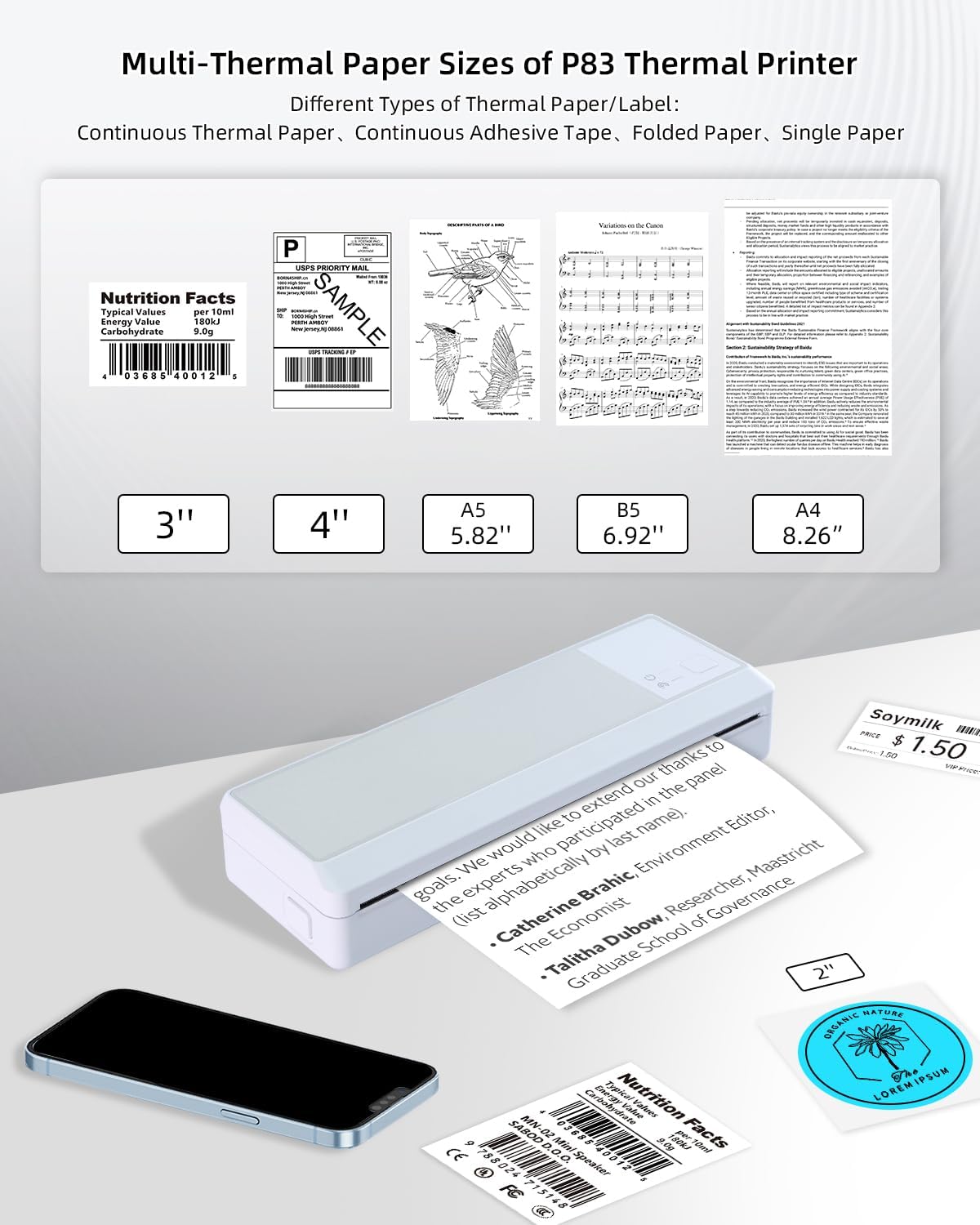
Image 4.1: The P83 printer supports multiple thermal paper sizes.

Image 4.2: Automatic calibration and label detection feature.
4.3 Software Installation and Connection
To operate the printer, you will need to install the appropriate software:
- For Android/iOS: Download the dedicated printing application from your device's app store. Search for the official BORN4SHIP app or the app specified in the quick start guide.
- For Windows/Mac: Drivers are required for USB connection. Please contact BORN4SHIP customer support to receive the download link for the latest drivers.
Once the software is installed, you can connect the printer:
- Bluetooth Connection: Turn on the printer and enable Bluetooth on your mobile device. Open the printing app, search for available devices, and select 'P83' to pair.
- USB Connection: Connect the printer to your computer using the provided USB cable. Ensure the drivers are installed correctly. The printer should be recognized by your system.
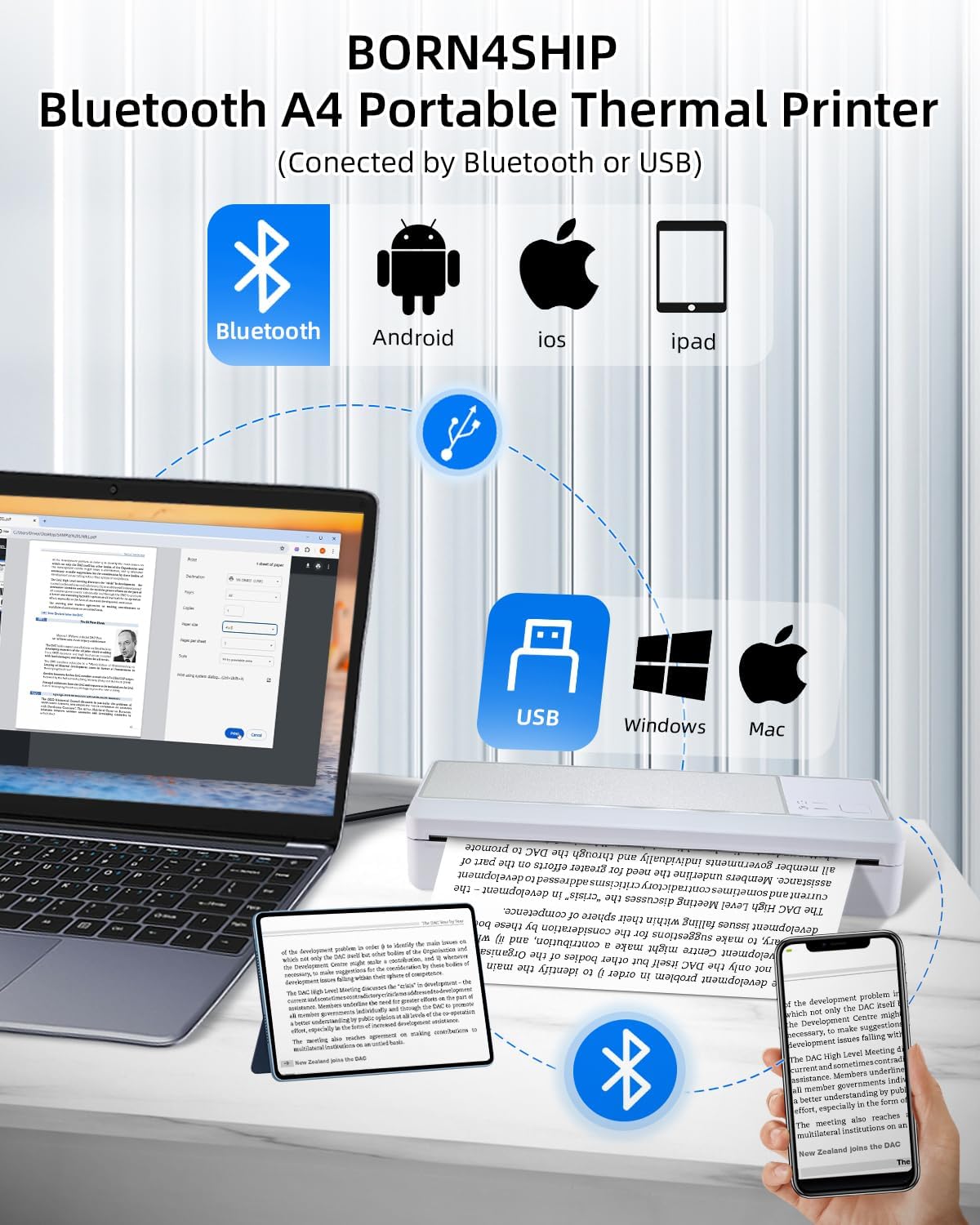
Image 4.3: Connectivity options for the BORN4SHIP P83 A4 Wireless Thermal Printer.

Image 4.4: Printing options: USB cable for computers and Bluetooth for mobile devices.
5. Operating Instructions
5.1 Printing via Bluetooth (Mobile Devices)
- Ensure the printer is powered on and connected via Bluetooth to your smartphone or tablet.
- Open the printing application on your device.
- Select the document or image you wish to print.
- Adjust print settings such as paper size, orientation, and density within the app.
- Initiate the print command from the app. The printer will begin printing.
5.2 Printing via USB (Computers)
- Connect the printer to your computer using the USB cable.
- Ensure the printer drivers are correctly installed.
- Open the document or file you wish to print on your computer.
- Go to 'Print' in your application (e.g., Word, PDF viewer).
- Select the BORN4SHIP P83 printer from the list of available printers.
- Adjust print preferences as needed (e.g., paper size, quality).
- Click 'Print'.
5.3 Supported Paper Types and Sizes
The P83 printer is designed for direct thermal printing and supports continuous thermal paper and black mark thermal paper. It is compatible with various sizes, including:
- A4 (8.26 inches wide)
- B5 (6.92 inches wide)
- A5 (5.82 inches wide)
- Labels with widths ranging from 53mm to 216mm (e.g., 3-inch, 4-inch labels).

Image 5.1: Direct thermal printing supports multiple paper and label sizes.
6. Applications
The versatility of the BORN4SHIP P83 A4 Wireless Thermal Printer makes it suitable for a wide range of uses:
- Office Documents: Printing reports, contracts, and other A4/Letter size documents.
- Shipping Labels: Generating labels for various e-commerce and transportation platforms.
- Barcode Printing: Creating barcodes for inventory management or product identification.
- Food Labels: Producing labels for food items, including nutrition facts.
- Travel & Mobile Use: Its portable nature allows for printing on the go.

Image 6.1: Diverse applications of the BORN4SHIP P83 A4 Wireless Thermal Printer.

Image 6.2: Compatibility with major e-commerce and transportation platforms.
7. Maintenance
Regular maintenance ensures optimal performance and extends the lifespan of your printer:
- Cleaning the Print Head: Use a soft, lint-free cloth lightly dampened with isopropyl alcohol to gently wipe the print head. Ensure the printer is off and cooled down before cleaning.
- Cleaning the Exterior: Wipe the printer's exterior with a soft, dry cloth. Avoid using harsh chemicals or abrasive materials.
- Storage: Store the printer in a cool, dry place away from direct sunlight and extreme temperatures.
- Battery Care: For long-term storage, charge the battery to about 50% and recharge every few months to prevent deep discharge.
8. Troubleshooting
If you encounter issues with your BORN4SHIP P83 printer, refer to the following common solutions:
- Printer Not Turning On: Ensure the battery is charged. Connect the printer to a power source and try again.
- Poor Print Quality: Check if the thermal paper is loaded correctly with the printing side up. Clean the print head if smudges or faint lines appear. Ensure the paper is suitable for thermal printing.
- Cannot Connect via Bluetooth: Make sure Bluetooth is enabled on your device and the printer is within range. Try restarting both the printer and your device. Ensure no other devices are currently paired with the printer.
- Cannot Print via USB: Verify that the USB cable is securely connected to both the printer and the computer. Confirm that the correct printer drivers are installed on your computer. Try restarting your computer and the printer.
- Paper Jam: Turn off the printer, open the lid, and carefully remove any jammed paper. Ensure the paper path is clear before closing the lid and restarting.
If these steps do not resolve the issue, please contact BORN4SHIP customer support for further assistance.
9. Technical Specifications
| Feature | Specification |
|---|---|
| Model Name | P83 Thermal Printer (ZD-P83) |
| Printing Technology | Thermal |
| Print Resolution | 300x300 dpi (Monochrome) |
| Max Print Speed | 15 mm/s |
| Connectivity | Bluetooth, USB Type-C |
| Compatible Devices | Smartphones (Android, iOS), Laptops (Windows, Mac) |
| Maximum Media Size | A4 |
| Paper Roll Width | 53-216 mm |
| Battery Capacity | 2550 mAh Lithium Ion |
| Item Weight | 2.22 pounds (approx. 1.01 kg) |
| Product Dimensions | 10 x 5 x 3 inches (approx. 25.4 x 12.7 x 7.6 cm) |
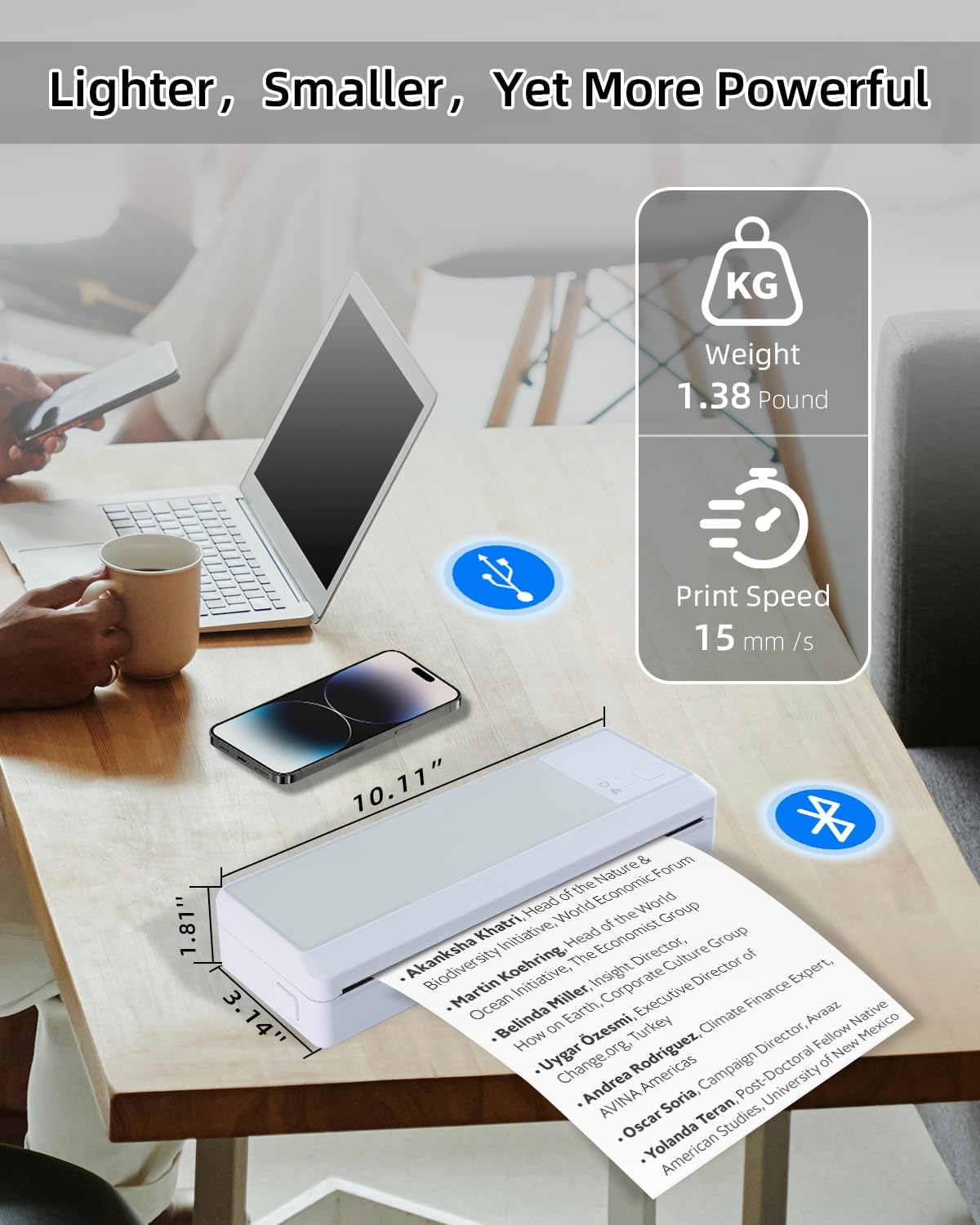
Image 9.1: Physical specifications and performance metrics.
10. Warranty and Support
The BORN4SHIP P83 A4 Wireless Thermal Printer comes with a limited warranty. For specific warranty terms and conditions, please refer to the documentation included with your purchase or contact BORN4SHIP customer support.
For technical assistance, troubleshooting, or any inquiries regarding your product, please reach out to our customer support team. Contact information can typically be found on our official website or in the packaging materials.