
1. Introduction
Welcome to the DOOGEE Blade 10 Max user manual. This guide provides detailed instructions to help you get the most out of your new rugged smartphone. Designed for durability and high performance, the Blade 10 Max features a powerful battery, advanced camera system, and a unique rear display, all running on Android 15.
2. Product Overview
The DOOGEE Blade 10 Max is engineered to withstand challenging environments while providing a rich smartphone experience. Familiarize yourself with its components and design.

Figure 2.1: Front and rear view of the DOOGEE Blade 10 Max smartphone.
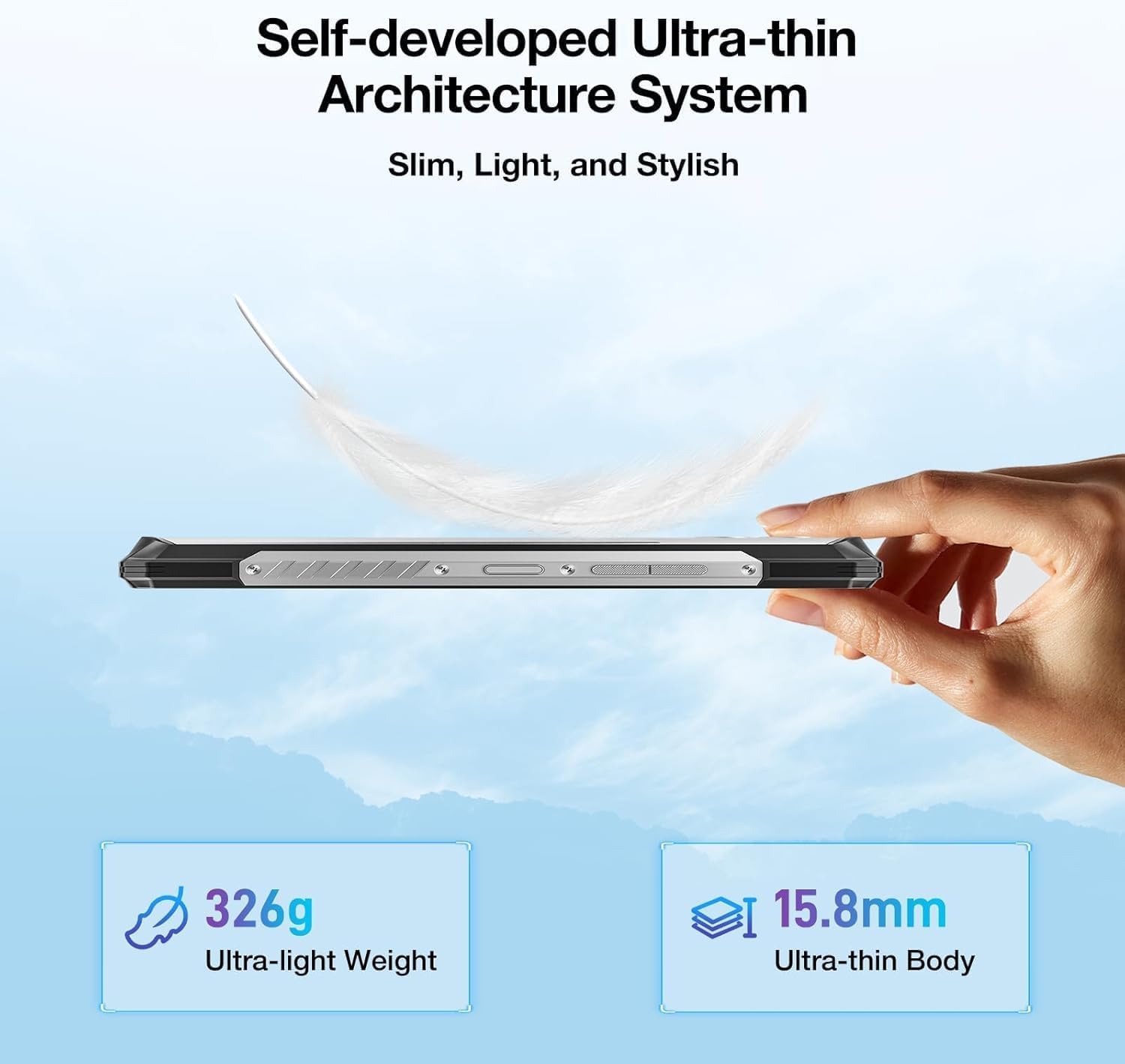
Figure 2.2: Side profile showcasing the ultra-thin design of the Blade 10 Max.
2.1 Key Components
- 6.56-inch HD+ IPS Display: Main screen for all interactions.
- 1.54-inch Customizable Rear Screen: Displays time, date, battery status, and notifications without activating the main display.
- 50MP AI Main Camera: High-resolution camera for detailed photography.
- 8MP Front Camera: For selfies and video calls.
- Side Fingerprint Sensor: Integrated for quick and secure unlocking.
- USB Type-C Port: For charging and data transfer.
- Triple Card Slot: Supports two 4G SIM cards and one microSD card for expandable storage.
- Customizable Button: A programmable physical button for quick access to functions.
3. Setup
3.1 SIM Card and MicroSD Card Installation
The Blade 10 Max supports dual 4G SIM cards and a microSD card for storage expansion up to 2TB. Ensure the device is powered off before inserting or removing cards.
- Locate the card tray on the side of the device.
- Use the provided SIM ejector tool to open the tray.
- Carefully place your Nano-SIM cards and/or microSD card into the designated slots on the tray. Ensure they are correctly oriented.
- Gently push the tray back into the device until it clicks into place.

Figure 3.1: Proper insertion of SIM and TF cards into the device tray.
3.2 Initial Power-On and Charging
To power on your device, press and hold the Power button until the DOOGEE logo appears. For initial charging, connect the provided USB Type-C cable to the phone and a compatible 18W fast charger.
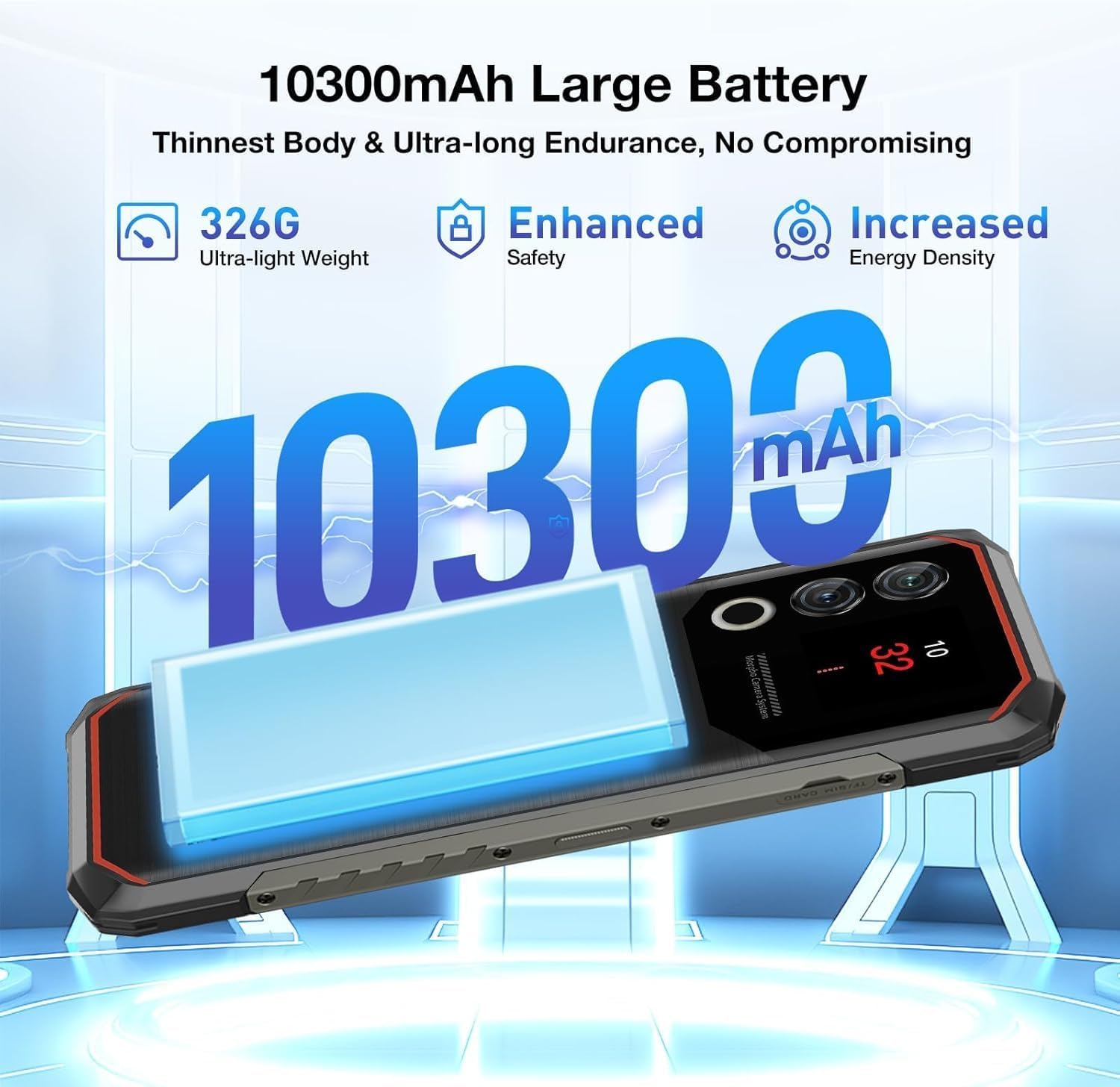
Figure 3.2: The 10300mAh battery provides extended usage.
4. Operating the Device
4.1 Basic Navigation
The Blade 10 Max runs on Android 15, offering intuitive navigation through touch gestures. Swipe up from the bottom for the app drawer, swipe down from the top for notifications and quick settings, and use the navigation bar or gestures for back, home, and recent apps.
4.2 Using the 1.54-inch Rear Screen
The innovative 1.54-inch rear screen provides quick access to essential information without waking the main display. It can show the time, date, battery level, charging status, and more. Customize its display options in the phone's settings under 'Rear Screen'.

Figure 4.1: The customizable 1.54-inch rear screen for quick information access.
4.3 Camera Functions
Capture stunning photos with the 50MP AI main camera and 8MP front camera. The AI camera automatically recognizes 12 different scenes and optimizes settings for best results. Explore various modes like Portrait, Night Scene, and Pro Mode for enhanced creativity.

Figure 4.2: The 50MP AI camera offers various photography modes.
The integrated Google Smart Camera provides additional functionality, allowing you to copy and translate text, identify objects, plants, or animals, and even assist with homework by scanning questions.
4.4 Security Features
Unlock your device securely using the side-mounted fingerprint sensor or Face Unlock. Both methods provide quick and convenient access while ensuring your data remains protected.
4.5 Connectivity
The Blade 10 Max supports 4G LTE connectivity across a wide range of bands. It also features NFC for convenient mobile payments via Google Pay and supports GPS, Glonass, Galileo, and Beidou for accurate navigation.
Video 4.1: Demonstration of the DOOGEE Blade 10 Max's ruggedness and functionality after exposure to various liquids.
Video 4.2: A short demonstration of the DOOGEE Blade 10 Max surviving an impact test.
5. Maintenance
To ensure the longevity and optimal performance of your DOOGEE Blade 10 Max, follow these maintenance guidelines.
5.1 Cleaning the Device
Use a soft, damp cloth to clean the exterior of your phone. Avoid harsh chemicals or abrasive materials that could damage the screen or casing. For ports, use a soft brush to gently remove dust or debris.
5.2 Water and Dust Resistance
The Blade 10 Max is IP68/IP69K and MIL-STD-810H certified, making it resistant to water, dust, and drops. While highly durable, it is not indestructible. Ensure all port covers are securely closed before exposing the device to water or dust. Avoid intentional submersion in deep water or high-pressure water jets. If the device gets wet, dry it thoroughly before charging.

Figure 5.1: The Blade 10 Max is designed for water and dust resistance.
Video 5.1: The DOOGEE Blade 10 Max being used underwater, showcasing its waterproof design.
5.3 Battery Care
The 10300mAh battery is designed for long endurance. To maximize battery life, avoid extreme temperatures, use the original charger, and avoid completely draining the battery frequently.
6. Troubleshooting
If you encounter issues with your device, refer to the following common solutions.
- Device not powering on: Ensure the battery is charged. Connect to a charger and wait a few minutes before attempting to power on again.
- Screen unresponsive: Try restarting the device by holding the Power button for an extended period (usually 10-15 seconds).
- Network connectivity issues: Check if SIM cards are properly inserted. Verify your mobile data settings and ensure you have signal coverage. Try toggling Airplane Mode on and off.
- Camera not working: Ensure no other apps are using the camera. Restart the camera app or the device.
- Apps crashing: Clear the cache of the problematic app or reinstall it. Ensure your device software is up to date.
7. Specifications
Below are the key technical specifications for the DOOGEE Blade 10 Max.
| Feature | Specification |
|---|---|
| Model Name | Blade 10 Max |
| Operating System | Android 15 |
| Display Size | 6.56 Inches |
| Display Resolution | 1280 x 720 (HD+) |
| Refresh Rate | 90 Hz |
| Rear Screen | 1.54 Inches |
| RAM Memory | 32 GB (8GB physical + 24GB virtual) |
| Internal Storage | 256 GB |
| Expandable Storage | Up to 2TB via microSD |
| Main Camera | 50 MP AI Camera |
| Front Camera | 8 MP |
| Battery Capacity | 10300 mAh |
| Charging | 18W Fast Charging, OTG Reverse Charging |
| Processor | UNISOC T7200 Octa-Core (1.6GHz, 12nm) |
| Connectivity | 4G, Wi-Fi, Bluetooth, NFC (Google Pay) |
| Navigation | GPS, Glonass, Galileo, Beidou |
| Durability | IP68, IP69K, MIL-STD-810H Certified |
| Security | Side Fingerprint Recognition, Face Unlock |
| Dimensions (Thinnest Point) | 9mm |
| Weight | 326g (11.5 oz) |
8. Warranty and Support
Your DOOGEE Blade 10 Max comes with a manufacturer's warranty. Please refer to the warranty card included in your product packaging for specific terms and conditions. For technical support, troubleshooting assistance, or warranty claims, please visit the official DOOGEE website or contact their customer service.
DOOGEE offers a 30-day money-back guarantee and a 2-year limited warranty. 24/7 online support is also available.


