
1. Introduction
The Jinvocloud WiFi Smart IR RF Blaster (Model RF-R1) is a universal remote control hub designed to centralize control of your infrared (IR) and radio frequency (RF) enabled devices. This device allows you to manage various home appliances and smart home components through a single application on your smartphone or via voice commands, enhancing convenience and automation in your living space.
Key Features:
- IR + RF Control: Supports both infrared and radio frequency devices, including TVs, set-top boxes, air conditioners, smart curtains, garage doors, and more.
- Wide Compatibility: Compatible with over 50,000 IR-controlled devices and various RF devices operating on 315MHz and 433MHz frequency bands.
- Smart Life/Tuya App Integration: Control your devices remotely from anywhere using the free Smart Life or Tuya app on iOS and Android.
- Voice Control: Seamlessly integrates with Amazon Alexa and Google Home Assistant for hands-free control of paired IR devices.
- DIY Learning Function: Program the device to learn functions from original remote controls for unsupported brands or specific commands.
- Scene Linkage: Create custom scenes to automate multiple devices simultaneously based on your preferences.
What's in the Box:
- 1x Jinvocloud WiFi IR/RF Blaster (Model RF-R1)
- 1x USB Charging Cable
- 1x User Manual
2. Setup Guide
Follow these steps to set up your Jinvocloud WiFi Smart IR RF Blaster:
- Power On: Connect the provided USB charging cable to the IR/RF Blaster and plug it into a 5V DC 1A power adapter (not included). The device will power on.
- Download App: Download the "Smart Life" or "Tuya Smart" app from the App Store (iOS) or Google Play Store (Android).
- Register/Log In: Open the app and register a new account or log in with an existing one.
- Add Device:
- Ensure your smartphone is connected to a 2.4 GHz WiFi network. 5GHz WiFi networks are not supported.
- In the app, tap the "+" icon (usually in the top right corner) to add a new device.
- Select "Universal Remote Control" or search for the device type.
- Follow the on-screen instructions to put the device into pairing mode (e.g., press and hold the power button until the indicator light flashes rapidly).
- Enter your 2.4 GHz WiFi network password when prompted.
- The app will attempt to discover and connect to the device. Once connected, you can rename the device.
- Placement: Place the IR/RF Blaster in a central location within your home, ensuring it has a clear line of sight to the IR-controlled devices you wish to manage. For RF devices, line of sight is not strictly required, but optimal placement can improve signal strength.

Figure 2.1: The Jinvocloud WiFi Smart IR RF Blaster.
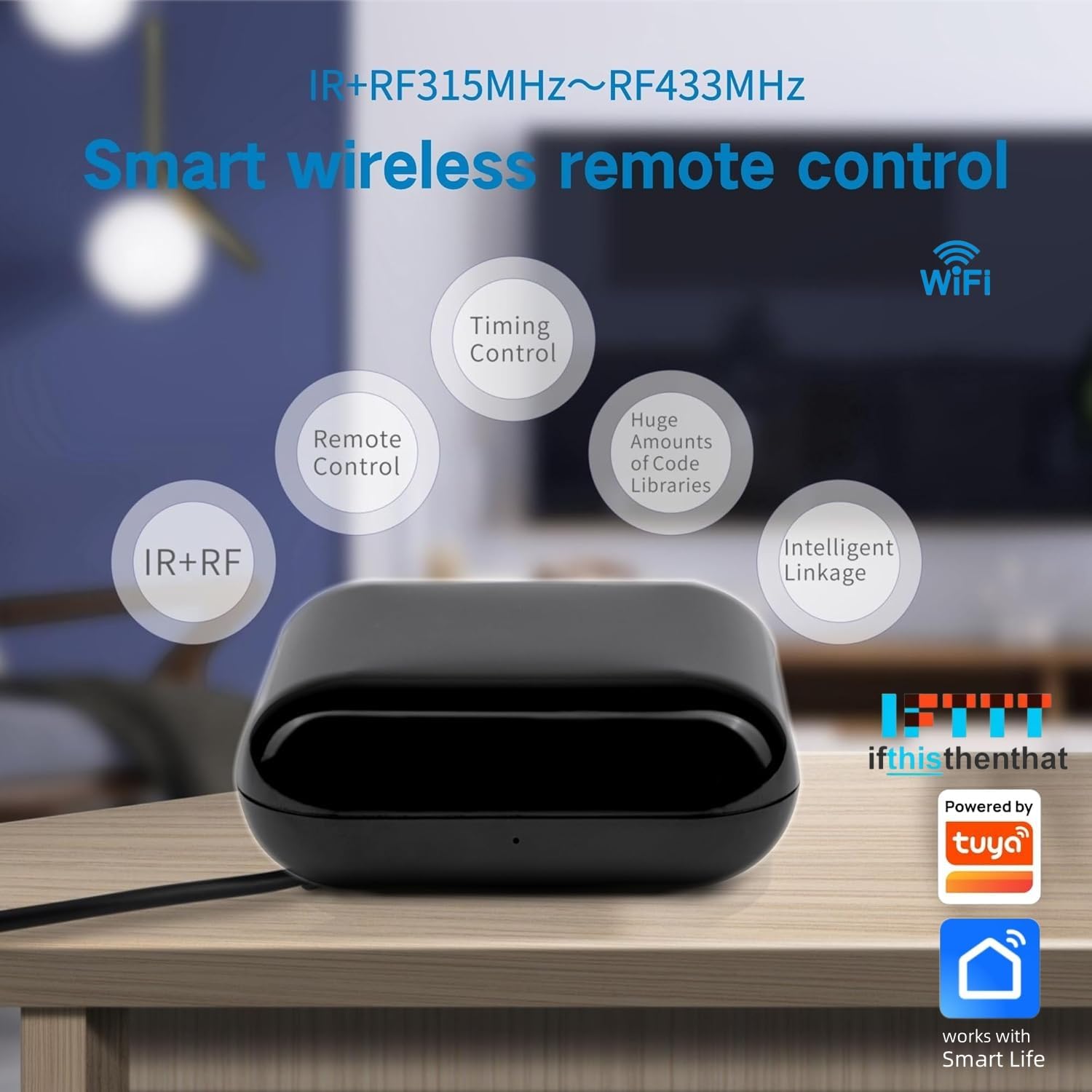
Figure 2.2: Overview of smart wireless remote control features.
3. Operation
3.1 Controlling IR and RF Devices
Once the device is added to the Smart Life/Tuya app, you can begin adding and controlling your appliances:
- Add IR Device:
- In the app, select your IR/RF Blaster.
- Choose to add an IR device (e.g., TV, Air Conditioner, Set-top Box).
- The app will provide a list of brands. Select your device's brand.
- Test the pre-programmed remote codes. If a code works, confirm it.
- If your brand is not listed or the codes don't work, proceed to the DIY Learning Function.
- Add RF Device:
- In the app, select your IR/RF Blaster.
- Choose to add an RF device (e.g., Electric Curtain, Garage Door, RF Switch).
- You will need to input the precise frequency band of your original RF remote control (e.g., 433.92MHz).
- Follow the app's instructions to learn the RF signals from your original remote.
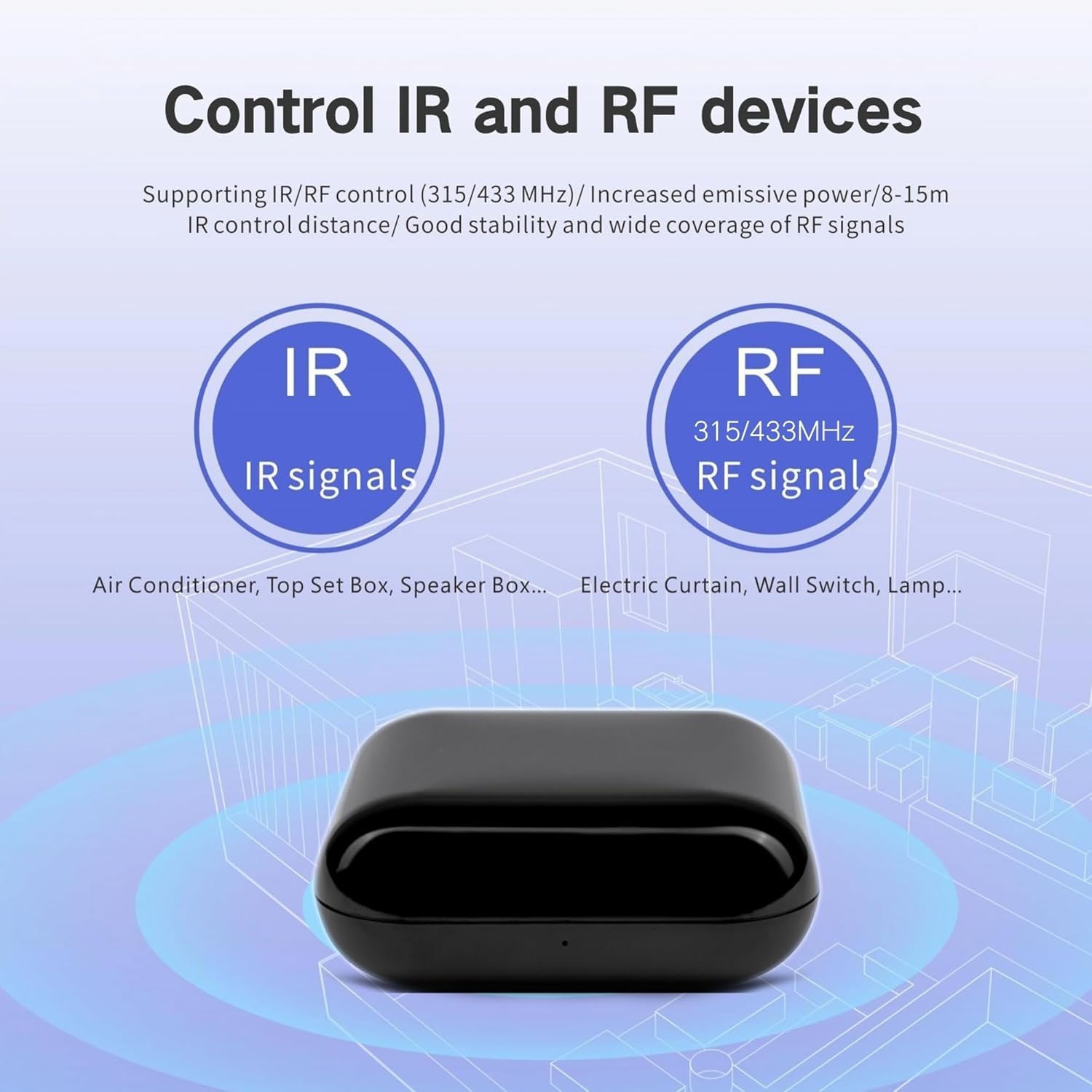
Figure 3.1: The device controls both IR and RF signals.

Figure 3.2: Examples of supported infrared devices.

Figure 3.3: Examples of supported RF devices.
3.2 DIY Learning Function
If the app does not have a pre-existing remote code for your IR device, or if you need to add specific functions, use the DIY learning feature:
- In the app, select the option to add a custom IR remote or use the DIY learning function.
- Point your original remote control at the IR/RF Blaster.
- Press the button on your original remote that you wish to learn. The app will prompt you to do this.
- The IR/RF Blaster will capture the signal. Assign a name to this learned button in the app.
- Repeat for all necessary buttons.
3.3 Remote Control from Anywhere
With the Smart Life/Tuya app, your smartphone becomes a smart remote. As long as your IR/RF Blaster is connected to WiFi and your phone has internet access, you can control your devices from any location.
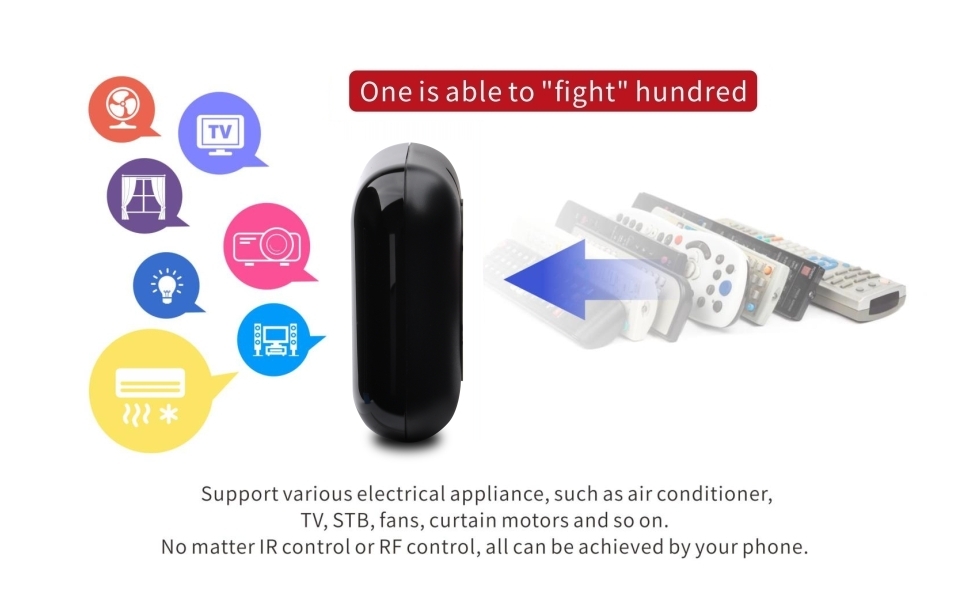
Figure 3.4: Mobile phone control of appliances.
3.4 Scene Linkage
Create automated scenarios by linking multiple smart devices. For example, you can set a scene to turn on your TV and adjust the air conditioner to a specific temperature with a single tap or voice command.
3.5 Voice Control
The IR/RF Blaster is compatible with Amazon Alexa and Google Home Assistant. After linking your Smart Life/Tuya account to your voice assistant, you can use voice commands to control your IR devices. For example, say "Alexa, turn on the TV" or "Hey Google, turn off the lights."
Note: Paired IR devices support voice control, but RF devices do not support voice control directly through this hub.
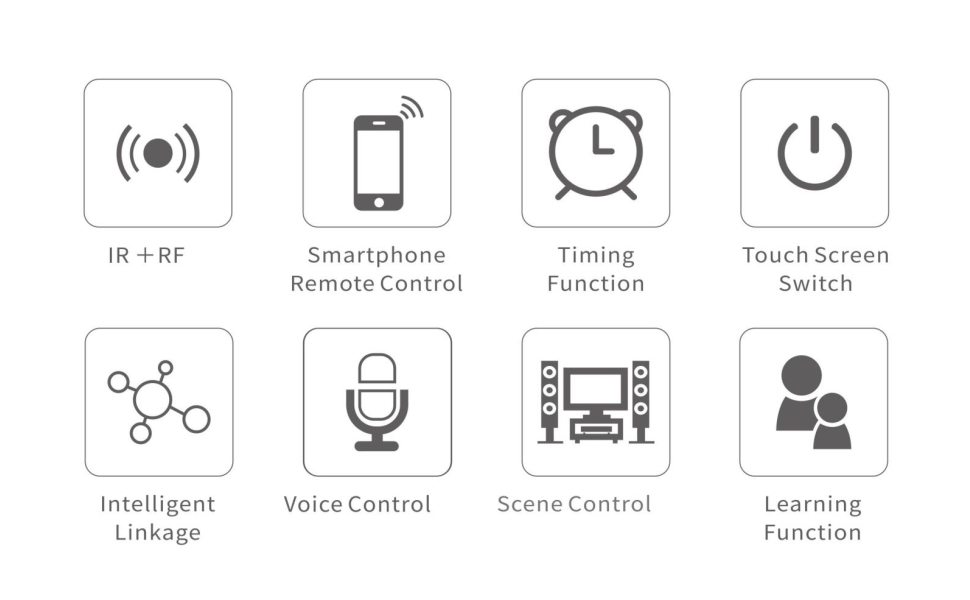
Figure 3.5: Voice control integration with smart speakers.
4. Maintenance
To ensure the longevity and optimal performance of your Jinvocloud WiFi Smart IR RF Blaster, follow these simple maintenance guidelines:
- Cleaning: Use a soft, dry cloth to wipe the device. Do not use liquid cleaners or aerosol sprays, as they may damage the device.
- Placement: Keep the device in a dry environment, away from direct sunlight, high temperatures, and excessive humidity. Avoid placing it near strong electromagnetic fields.
- Power Supply: Always use a stable 5V DC 1A power source. Do not use power adapters with higher voltage or current ratings than specified.
- Avoid Obstructions: Ensure there are no physical obstructions between the IR/RF Blaster and the IR-controlled devices to maintain effective signal transmission.
5. Troubleshooting
If you encounter issues with your Jinvocloud WiFi Smart IR RF Blaster, refer to the following common problems and solutions:
- Device not powering on:
- Ensure the USB cable is securely connected to both the device and the power adapter.
- Verify that the power adapter is working and the power outlet has electricity.
- Try a different USB cable or power adapter (5V DC 1A).
- Unable to connect to WiFi:
- Confirm your WiFi network is 2.4 GHz. The device does not support 5GHz WiFi.
- Ensure your WiFi password is entered correctly in the app.
- Place the device closer to your WiFi router to improve signal strength.
- Restart your WiFi router and the IR/RF Blaster.
- Ensure your phone is also connected to the 2.4 GHz WiFi network during setup.
- IR device not responding:
- Ensure the IR/RF Blaster has a clear line of sight to the IR receiver of your appliance. Obstructions can block IR signals.
- Verify that the correct remote code or DIY learned function is selected in the app.
- Try using the DIY learning function if pre-programmed codes are not working.
- The infrared control distance is approximately 8-15 meters, affected by environment. Ensure the device is within range.
- RF device not responding or failing to learn:
- Ensure the frequency band of your remote control is within the supported range (314-316MHz or 433-435MHz).
- When learning, input the frequency band precisely to two decimal points (e.g., 433.92). Incorrect input can cause learning failure.
- Ensure the original RF remote control is working correctly and has fresh batteries.
- Some RF remotes may use rolling codes or encryption, which might not be compatible with the DIY learning function.
- Voice control not working for RF devices:
- As noted, RF devices do not support voice control through this hub. Voice control is only available for paired IR devices.
6. Specifications
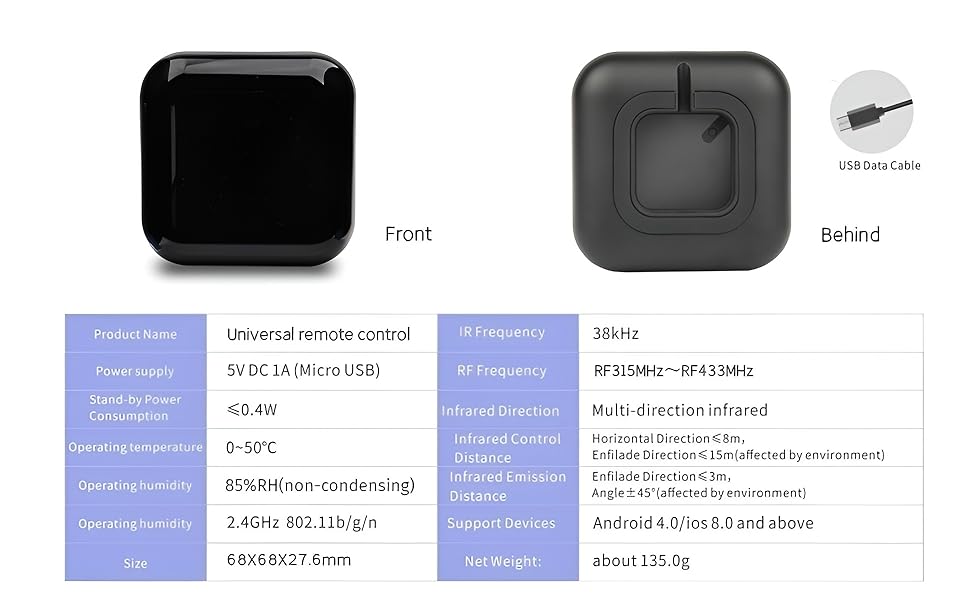
Figure 6.1: Detailed product specifications.
| Feature | Detail |
|---|---|
| Product Name | Universal Remote Control |
| Model Number | RF-R1 |
| Power Supply | 5V DC 1A (Micro USB) |
| Stand-by Power Consumption | ≤0.4W |
| Operating Temperature | 0~50°C |
| Operating Humidity | ≤85%RH (non-condensing) |
| Operating WiFi | 2.4GHz 802.11b/g/n |
| Dimensions | 68 x 68 x 27.6 mm (2.68 x 2.68 x 1.09 inches) |
| Item Weight | 3.2 ounces |
| IR Frequency | 38kHz |
| RF Frequency | RF315MHz ~ RF433MHz |
| Infrared Direction | Multi-direction infrared |
| Infrared Control Distance | Horizontal Direction ≤8m, Enfilade Direction ≤15m (affected by environment) |
| Infrared Emission Distance | Angle ≤45° (affected by environment) |
| Supported Devices | Android 4.0/iOS 8.0 and above |
7. Warranty & Support
Jinvocloud is committed to providing high-quality smart home devices. This product comes with a standard manufacturer's warranty against defects in materials and workmanship under normal use.
Warranty Information:
Please refer to the product packaging or the official Jinvocloud website for specific warranty terms and conditions, including the duration of coverage and what is covered.
Customer Support:
If you have any questions, require technical assistance, or need to report an issue with your device, please contact Jinvocloud customer support through the following channels:
- Online Support: Visit the Jinvocloud official website for FAQs, troubleshooting guides, and contact forms.
- Email Support: Refer to your purchase documentation or the manufacturer's website for the customer service email address.
- Retailer Support: For issues related to purchase or returns, contact the retailer from whom you purchased the product.
Please have your product model number (RF-R1) and purchase date ready when contacting support.


