
ZealSound KD8S-US
ZealSound KD8S-US XLR/USB Dynamic Microphone Instruction Manual
Model: KD8S-US
1. Introduction
This manual provides detailed instructions for the setup, operation, and maintenance of your ZealSound KD8S-US XLR/USB Dynamic Microphone. Please read this manual thoroughly before using the product to ensure optimal performance and longevity.
2. Product Overview
The ZealSound KD8S-US is a versatile dynamic microphone designed for gaming, podcasting, streaming, and music creation. It offers both USB and XLR connectivity, customizable RGB lighting, and intuitive controls for an enhanced audio experience.
2.1 Package Contents
- 1 x KD8S-US Dynamic Microphone
- 1 x Mic Boom Arm
- 1 x Table Clamp
- 1 x 78.74-inch USB Audio Cable (with integrated Type-C Adapter)
- 1 x USB Adapter for iPhone/iPad
- 1 x Microphone Foam Windscreen
- 1 x User Manual

Figure 1: Included Components of the KD8S-US Microphone Kit
2.2 Microphone Features
- USB/XLR Connectivity: Dual output for broad compatibility.
- Vibrant RGB Light: Customizable lighting with multiple modes and colors.
- Dynamic Capsule: Provides superior noise rejection and durability.
- Cardioid Pickup Pattern: Focuses on sound directly in front of the microphone.
- Tap-to-Mute Function: Instant audio muting with visual indicator.
- Two-in-One Volume Knob: Controls both microphone gain and headphone monitoring volume.
- 3.5mm Headphone Jack: For real-time audio monitoring.

Figure 2: ZealSound KD8S-US Dynamic Microphone with Boom Arm
3. Setup Instructions
3.1 Assembling the Boom Arm Stand
- Attach the table clamp to the edge of your desk or table. Ensure it is securely tightened.
- Insert the base of the boom arm into the hole on the table clamp.
- Mount the microphone onto the boom arm's threaded screw.
- Adjust the boom arm to your desired position. The arm provides 30.8 inches of horizontal and vertical reach with 360° rotation.

Figure 3: Boom Arm Stand Adjustability
3.2 Connecting the Microphone
The KD8S-US microphone offers flexible connectivity options:
- USB Connection (for PC, Laptop, PS4/PS5, Smartphones/Tablets):
Connect the USB-C end of the provided audio cable to the microphone. Connect the USB-A end to your computer or gaming console. For iPhone (15/16) or Type-C phones/tablets, use the integrated Type-C adapter. For older iPhones/iPads, use the included USB adapter. - XLR Connection (for Mixers, Audio Interfaces):
Connect a standard XLR cable (not included) from the microphone's XLR output to your mixer or audio interface. Note that RGB lighting and some integrated controls are only active when using a USB connection, as XLR does not provide power.
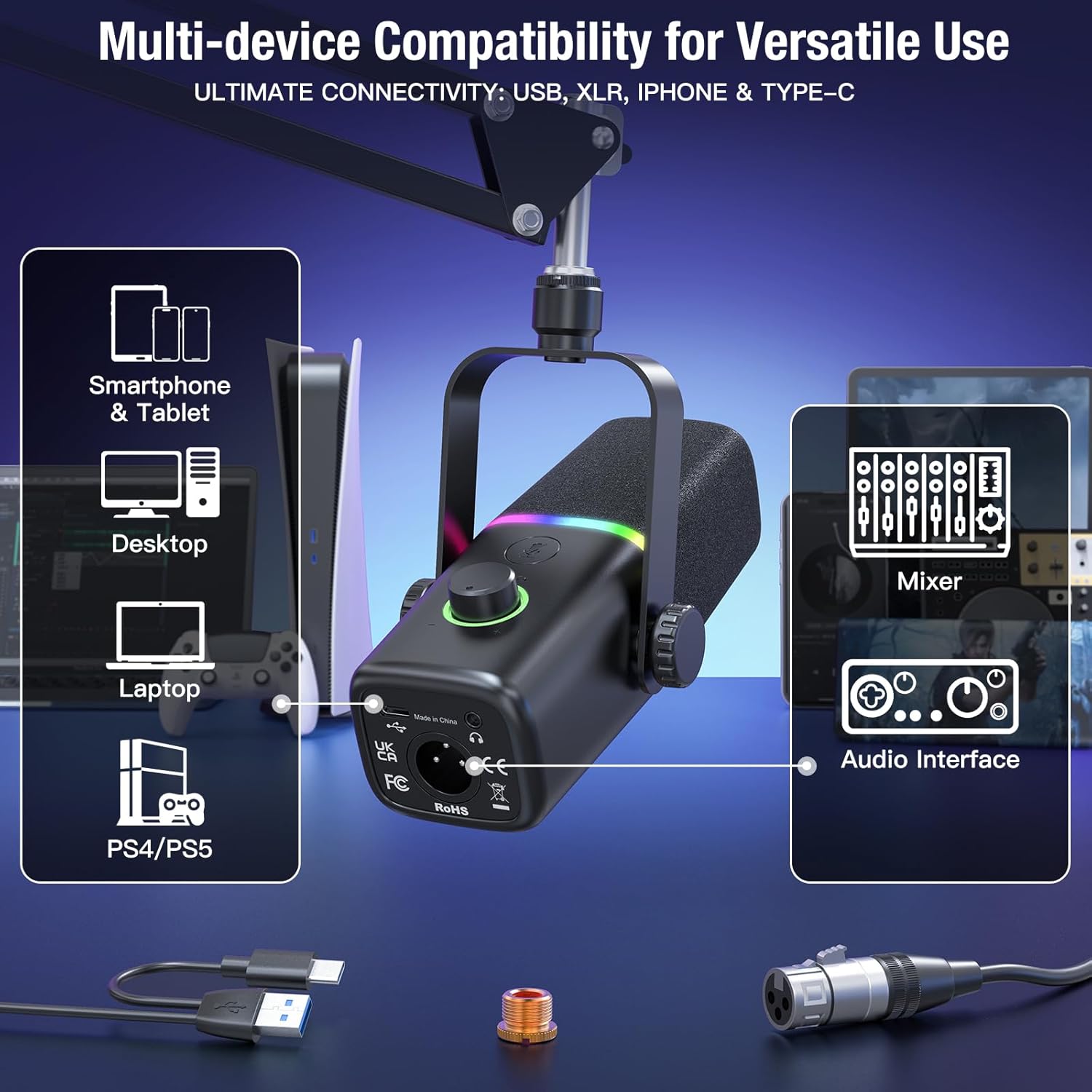
Figure 4: Multi-Device Compatibility
4. Operating Instructions
4.1 Microphone Positioning
For optimal audio capture, position the top of the KD8S-US microphone towards the audio source. A recommended recording distance is 2 to 4 inches from your mouth. The cardioid pickup pattern is most sensitive to sounds directly in front of the microphone, minimizing off-axis noise.

Figure 5: Optimal Microphone Positioning
4.2 RGB Lighting Control
The microphone features an RGB ring with 4 modes and over 20 colors. To adjust the lighting (USB connection only):
- Change Color: Press and hold the RGB button.
- Toggle Effect: Click the RGB button to switch between different lighting effects.
The microphone's memory function will recall your last selected color upon power-up.

Figure 6: RGB Lighting Modes
4.3 Mute Function and Volume Control
The KD8S-US microphone is equipped with a versatile two-in-one volume knob and a tap-to-mute button:
- Tap-to-Mute: A simple tap on the mute button (located on the microphone) will silence your audio. When muted, both the volume knob and RGB circle will turn red, indicating the microphone is off.
- Two-in-One Volume Knob: Touch and hold the mute button to switch between monitor mode and microphone volume adjustment. The volume knob will turn green for microphone volume control and blue for monitor volume control.
- 3.5mm Headphone Jack: Connect headphones to the 3.5mm jack for real-time audio monitoring, allowing you to hear your output as your audience does.
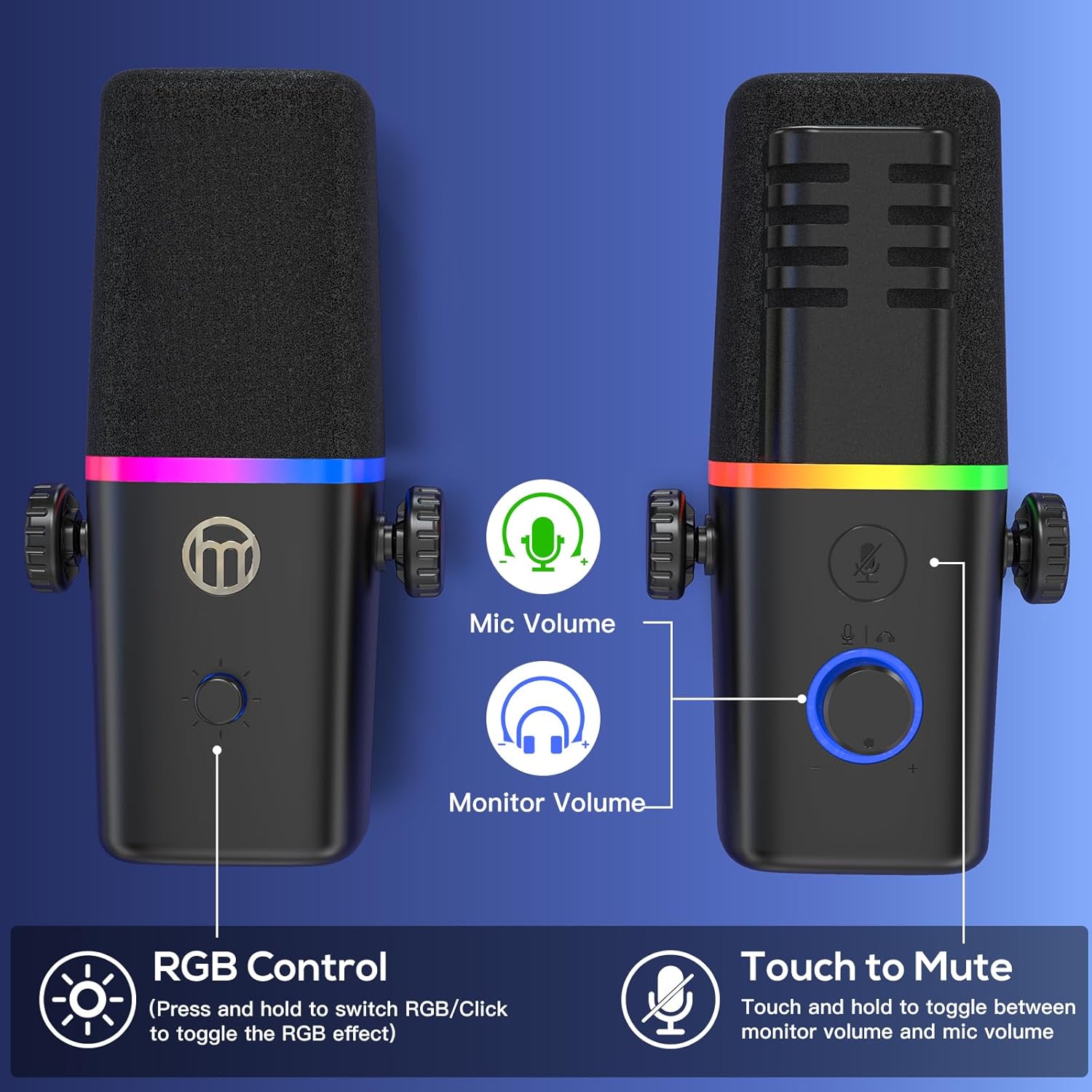
Figure 7: Microphone Controls (RGB, Mute, Volume)
5. Troubleshooting
- No Sound Output:
Ensure the microphone is securely connected via USB or XLR. Check your device's audio input settings to confirm the KD8S-US is selected as the input device. Verify the microphone is not muted (red indicator). Adjust the microphone volume knob. - Audio Too Loud or Too Quiet:
Adjust the microphone gain using the two-in-one volume knob (green indicator). Also, check your computer's or audio interface's input level settings. Maintain the recommended speaking distance of 2-4 inches from the microphone. - Mute Button Unresponsive:
Ensure the microphone is powered via USB. If using XLR, the mute function is controlled by your external audio interface. If the issue persists with USB, try reconnecting the microphone or restarting your device. - RGB Lights Not Working:
RGB lighting is only active when the microphone is connected via USB and receiving power. Ensure a stable USB connection. - Unwanted Background Noise:
The KD8S-US features a cardioid pickup pattern designed to reduce off-axis noise. Ensure the microphone is positioned correctly, facing the sound source. Minimize ambient noise in your recording environment. - Boom Arm Stability Issues:
Ensure the table clamp is tightened securely to a stable surface. Verify that the microphone is properly mounted onto the boom arm's threaded screw.
6. Specifications
| Model Name | KD8S-US Dynamic Microphone |
| Polar Pattern | Unidirectional (Cardioid) |
| Connectivity Technology | USB (Type-C/USB-A), XLR, iPhone Jack |
| Frequency Response | 50Hz - 14KHz |
| Input Sample Rate | 96 KHz |
| Bit Rate | 24-bit |
| Output Impedance | 0.6 Kiloohms |
| Signal-to-Noise Ratio (SNR) | 95 dB |
| Audio Sensitivity | 95 Decibels |
| Item Weight | 1.23 pounds |
| Product Dimensions (L x W x H) | 2.2 x 2.2 x 7.87 inches |
| Material | Acrylonitrile Butadiene Styrene, Aluminum |
| Power Source | Corded Electric |
7. Maintenance
- Cleaning: Use a soft, dry cloth to clean the microphone body. Avoid using harsh chemicals or abrasive materials.
- Storage: When not in use, store the microphone in a clean, dry place away from extreme temperatures and humidity.
- Cable Care: Avoid bending or twisting cables excessively to prevent damage.
8. Warranty and Support
ZealSound provides complimentary technical support for the KD8S-US microphone. For assistance, please refer to the contact information provided with your purchase or visit the official ZealSound website.
Protection plans may be available for extended coverage. Please check with your retailer for details.
Related Documents - KD8S-US
 |
FIFINE K688CT User's Guide: USB/XLR Dynamic Microphone with Boom Arm Comprehensive user guide for the FIFINE K688CT podcast microphone kit, detailing setup, features, and usage for PC and XLR mixers. Includes specifications, connection instructions, and software configuration tips. |
 |
Fifine AmpliGame AM8 USB/XLR Dynamic Microphone User Manual Comprehensive user guide for the Fifine AmpliGame AM8 dynamic microphone, covering setup, features, and troubleshooting for podcasting, streaming, and gaming. |
 |
VeGue Podcast Microphone Manual and Specifications Comprehensive guide to the VeGue podcast microphone, covering features, setup, connection diagrams, technical specifications, and packing list. Learn how to use the microphone with computers and XLR devices for high-quality audio recording. |
 |
ICON DynaMic 7B Professional Broadcast Microphone User Manual Comprehensive user manual for the ICON DynaMic 7B professional broadcast microphone, detailing its features, setup, operation, specifications, and service information for optimal audio performance. |
 |
FDUCE SL40 Podcast Microphone User Manual This document provides instructions and specifications for the FDUCE SL40 Podcast Microphone, covering connection via USB and XLR, indicator light functions, volume control, and computer setup for Windows and macOS. |
 |
PUPGSIS PGM D1 USB/XLR Dynamic Microphone User Manual | Setup, Features, Troubleshooting Detailed user guide for the PUPGSIS PGM D1 dynamic microphone. Learn about installation, button functions, connectivity (USB/XLR), troubleshooting common issues, and technical specifications for optimal recording and streaming. |
Ask a question about this manual
Ask about setup, troubleshooting, compatibility, parts, safety, or missing instructions. Manuals+ will review the question and use this page’s manual context to help answer it.