
AOTULIGHT V162
AOTULIGHT V162 GPS Drone User Manual
Model: V162 | Brand: AOTULIGHT
1. Introduction
This manual provides detailed instructions for the safe operation and maintenance of your AOTULIGHT V162 GPS Drone. Please read this manual thoroughly before operating the drone to ensure proper function and to prevent damage or injury. The V162 drone features a 4K HDR camera, up to 60 minutes of flight time with three batteries, and intelligent flight modes such as Smart Return, Follow Me, Circle Fly, and Tap Fly, with 5GHz WiFi transmission for real-time video.
2. What's in the Box
Carefully unpack your AOTULIGHT V162 GPS Drone and verify that all components are present:
- Aircraft x1
- Remote Control x1
- Battery x1 (Note: Product includes 3 Lithium Ion batteries total)
- Spare Blade x8
- Blade Screws
- Bolt Driver
- Charging Line (Micro-USB Cable)
- Product Manual
- APP Manual
- Storage Bag

Image: All components included in the AOTULIGHT V162 GPS Drone package.
3. Setup Guide
3.1 Unfolding the Drone
- Gently unfold the drone arms until they are fully extended. Ensure they click into place securely.
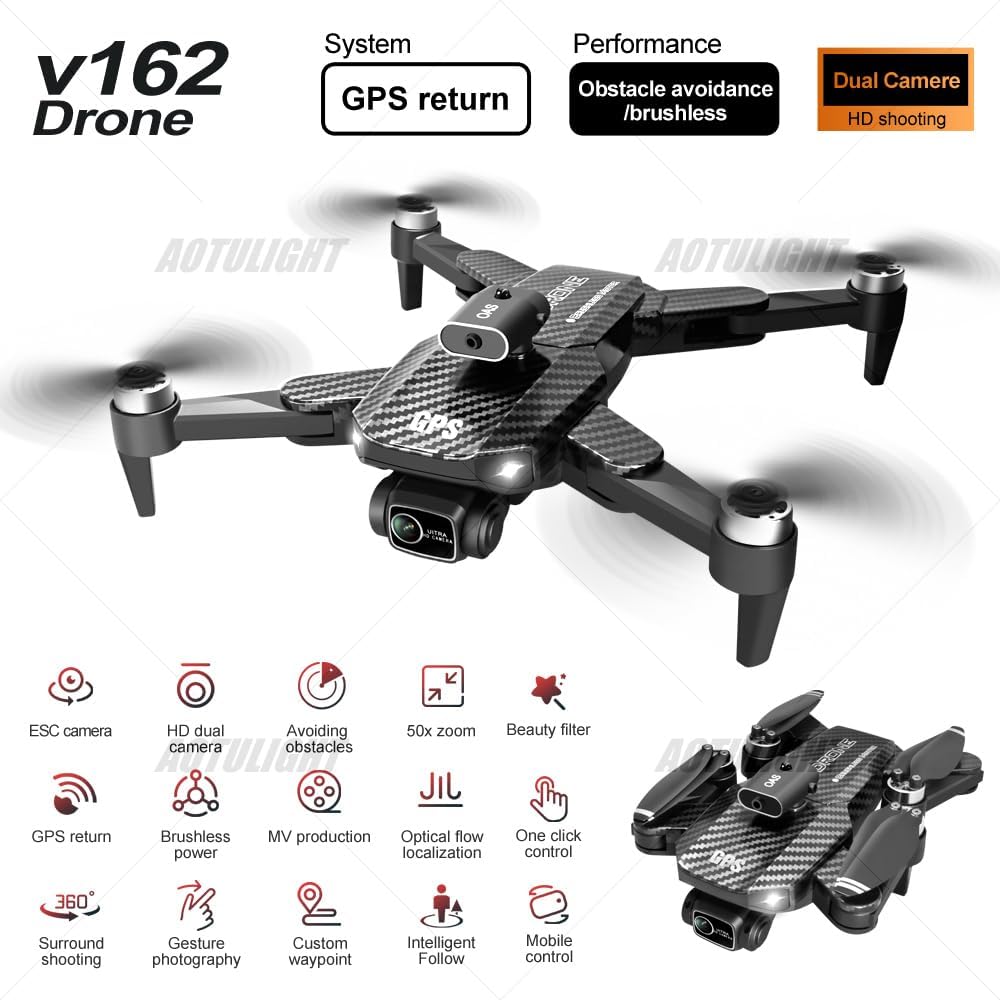
Image: The AOTULIGHT V162 GPS Drone in its folded, compact state.

Image: The AOTULIGHT V162 GPS Drone with arms unfolded, ready for flight.
3.2 Installing Drone Batteries
- Insert the charged drone battery into the designated compartment on the drone until it clicks securely.
3.3 Powering On and Pairing
- Long press the power button on the drone to turn it on. The drone's lights will flash.
- Place the drone on a flat, level surface.
- Turn on the remote control switch.
- Move the left joystick up and down for frequency alignment. The remote will beep to confirm connection.
- Calibrate the gyroscope by simultaneously moving both joysticks towards the bottom-left corner. The drone's lights will flash and then turn on normally, indicating successful calibration.
3.4 APP Download and Connection
- Scan the QR code provided in the APP manual (or product manual) to download the 'WIFI UAV' application.
- After downloading, connect your mobile device to the drone's WiFi network (usually named 'FLOW_8K_XXXXXX').
- Open the APP to view the real-time transmission screen from the drone's camera.
- Clip your phone onto the remote control's phone holder.
Video: AOTULIGHT V162 Drone Operation Video Tutorial. This video demonstrates the unboxing, setup, pairing, calibration, and basic flight controls of the V162 drone.
4. Operating Instructions
4.1 Basic Flight Controls
- One-Click Takeoff/Landing: Press the one-click takeoff button on the remote to launch or land the drone automatically.
- Rise/Decline: Use the left joystick to control the drone's altitude.
- Left/Right Rotation: Use the left joystick to rotate the drone left or right.
- Forward/Backward: Use the right joystick to move the drone forward or backward.
- Left/Right Lateral Flight: Use the right joystick to move the drone sideways (strafe) left or right.
4.2 Speed Adjustment
The drone has multiple speed gears. Press the speed button on the remote control to cycle through the speeds:
- One beep: Low speed gear (suitable for beginners or indoor flight).
- Two beeps: Medium speed gear.
- Three beeps: High speed gear (for experienced pilots and outdoor flight).
4.3 Electric Camera Adjustment
Use the dedicated buttons on the remote control to adjust the camera angle (up/down) during flight. The camera can be remotely adjusted by 90°.
4.4 Obstacle Avoidance Function
The V162 drone is equipped with a four-way detection and perception system. Activate the obstacle avoidance function via the remote control. The drone will automatically brake and emit a warning sound when encountering obstacles, effectively reducing collisions.
4.5 Headless Mode
Press the headless mode button to activate. In headless mode, the drone's orientation is relative to the pilot, making it easier to control without needing to know the drone's front direction.
4.6 360° Roll
To perform a 360° roll, press the roll button and then toggle the right joystick in the desired direction. The drone will execute a full rotation.
4.7 Intelligent Flight Modes
- Smart Return: The drone has multiple intelligent return modes. After takeoff, it records its position. When activated, it can return to its takeoff point.
- Follow Me: Enable this mode via the APP to achieve automatic tracking. The drone will follow the subject (e.g., the remote control or mobile device).
- Circle Fly (Surround Shooting): The drone can perform 360° surround shooting centered on the remote control or a designated point.
- Tap Fly (Trajectory Indication): Draw a desired flight path on the APP interface. The drone will automatically follow this trajectory.
- Gesture Photography/Recording: Make specific gestures to trigger automatic photo capture or video recording.

Image: Visual representation of the GPS intelligent return function.

Image: The drone demonstrating the 'Intelligent Follow' mode.

Image: The drone executing a 'Surround Shooting' maneuver.

Image: The 'Trajectory Indication' feature, allowing users to draw flight paths.
Video: AOTULIGHT V162 UAV Product Display. This video showcases various advanced features including optical flow localization, 90° adjustable lens, omnidirectional obstacle avoidance, gesture photography, and 360° roll.
5. Maintenance
5.1 Replacing Fan Blades
- Use the provided screwdriver to unscrew the fan blade screws.
- Carefully remove the old fan blade.
- Pay attention to the A/B markings on the new fan blades and install the corresponding blade (A-2 or B-2) to the correct motor.
- Tighten the screws to secure the new fan blade.
5.2 Charging the Battery
- Connect the drone battery to the charging cable (Micro-USB).
- Connect the charging cable to a power supply (e.g., USB wall adapter, computer USB port).
- The indicator light on the battery will be constantly on while charging.
- Once fully charged, the light will turn off.
6. Troubleshooting
If you encounter any issues with your AOTULIGHT V162 GPS Drone, please consider the following common solutions:
- Drone not powering on: Ensure the battery is fully charged and correctly inserted.
- Remote not connecting: Verify both the drone and remote are powered on and perform the frequency alignment steps again.
- Unstable flight: Ensure the drone is placed on a level surface for gyroscope calibration before flight. Check for damaged propellers and replace if necessary.
- APP connection issues: Confirm your phone is connected to the drone's WiFi network and that the APP is updated to the latest version.
For persistent issues, please refer to the full APP manual or contact AOTULIGHT customer support.
7. Specifications
| Feature | Specification |
|---|---|
| Brand | AOTULIGHT |
| Model Name | V162 |
| Special Features | Auto Follow, Auto-Landing, Auto-Orientation, Extended Flight Time, Obstacle Avoidance |
| Age Range (Description) | Adult |
| Color | Off-white |
| Video Capture Resolution | 1080p (Output Resolution: 4K (3840x2160)) |
| Connectivity Technology | Wi-Fi (5GHz) |
| Skill Level | Beginner |
| Item Weight | 500 Grams (1.1 pounds) |
| Battery Capacity | 2000 Milliamp Hours (Lithium Ion) |
| Video Capture Format | MP4 |
| Remote Control Technology | IR |
| Control Type | Remote Control |
| Material | Plastic |
| Supported Image Format | JPEG |
| Optical Sensor Technology | Optical Flow, CMOS |
| Product Dimensions | 8.74"L x 2.64"W x 6.88"H |
| Manufacturer Part Number | V88-001 |
8. Warranty and Support
The AOTULIGHT V162 GPS Drone comes with a standard manufacturer's warranty. Please refer to the warranty card included in your package for specific terms and conditions. For technical support, troubleshooting assistance, or to inquire about replacement parts, please contact AOTULIGHT customer service through their official channels or visit the AOTULIGHT Store on Amazon.
Ask a question about this manual
Ask about setup, troubleshooting, compatibility, parts, safety, or missing instructions. Manuals+ will review the question and use this page’s manual context to help answer it.