
Introduction
Thank you for choosing the Apexcam K20 Action Camera. This manual provides essential information for the proper setup, operation, and maintenance of your device. Please read it thoroughly before use to ensure optimal performance and longevity of your camera.

Setup
1. Unboxing and Components
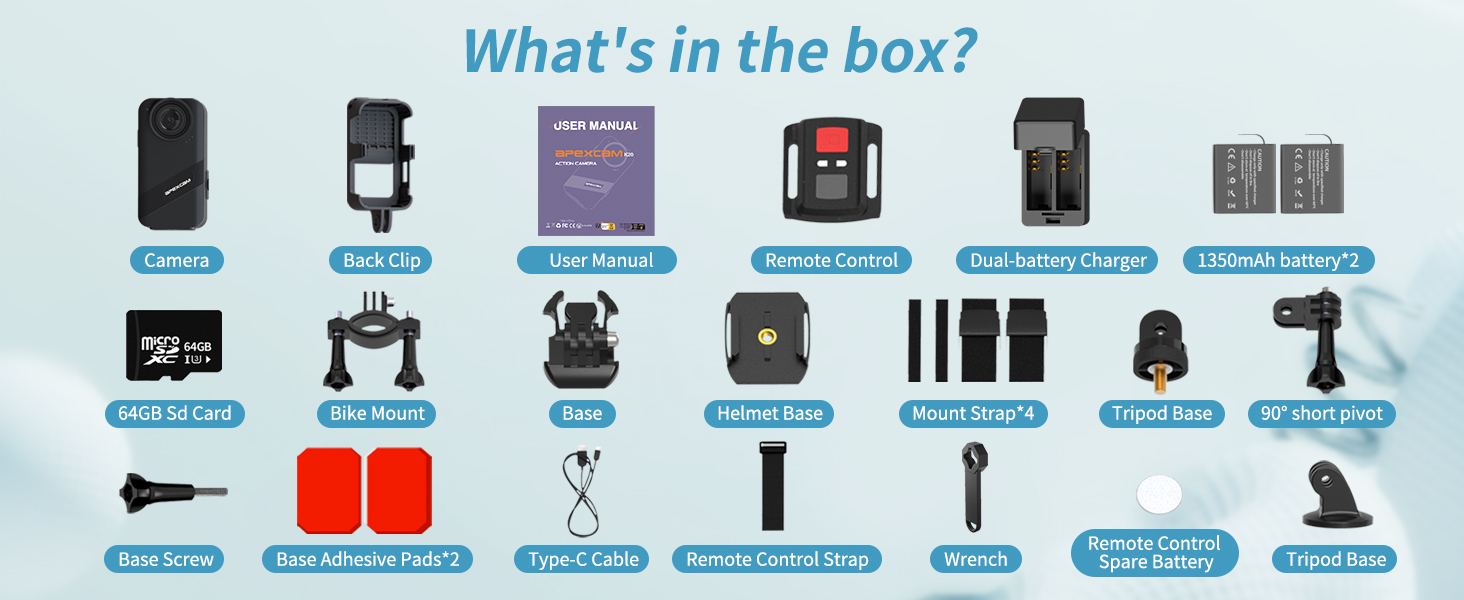
Carefully unpack all items from the box. Ensure all components are present:
- Apexcam K20 Camera Body
- 2 x 1350 mAh Batteries
- Dual-battery Charger
- 64GB Micro SD Card
- Wrist 2.4G Remote Control
- Back Clip
- Bike Mount
- Base Mounts (various)
- Helmet Base
- Mount Straps (4)
- Tripod Base
- 90° Short Pivot
- Base Screw
- Base Adhesive Pads (2)
- Type-C Cable
- Remote Control Strap
- Wrench
- Remote Control Spare Battery
- User Manual
2. Battery Installation and Charging
- Locate the battery cover on the camera.
- Turn down the black folding clasp.
- Pinch the black folding clasp and gently lift it upwards to open the battery compartment.
- Insert a fully charged 1350 mAh battery into the compartment, ensuring correct polarity.
- Close the battery cover securely.
- To charge batteries, use the provided dual-battery charger and Type-C cable. Connect the charger to a USB power source.

3. Micro SD Card Installation
The camera supports Micro SD cards up to 64GB. A 64GB card is included.
- With the battery compartment open, locate the Micro SD card slot.
- Insert the Micro SD card with the gold contacts facing the back of the camera until it clicks into place.
- To remove, gently push the card until it springs out.
4. Mounting the Camera
The Apexcam K20 comes with various mounts for different activities. Refer to the specific mount instructions for secure attachment to helmets, bikes, or other surfaces.
Operating Instructions
1. Power On/Off
- To power on: Press and hold the Power/Mode button until the screen illuminates.
- To power off: Press and hold the Power/Mode button until the screen turns off.
2. Touch Screen Navigation
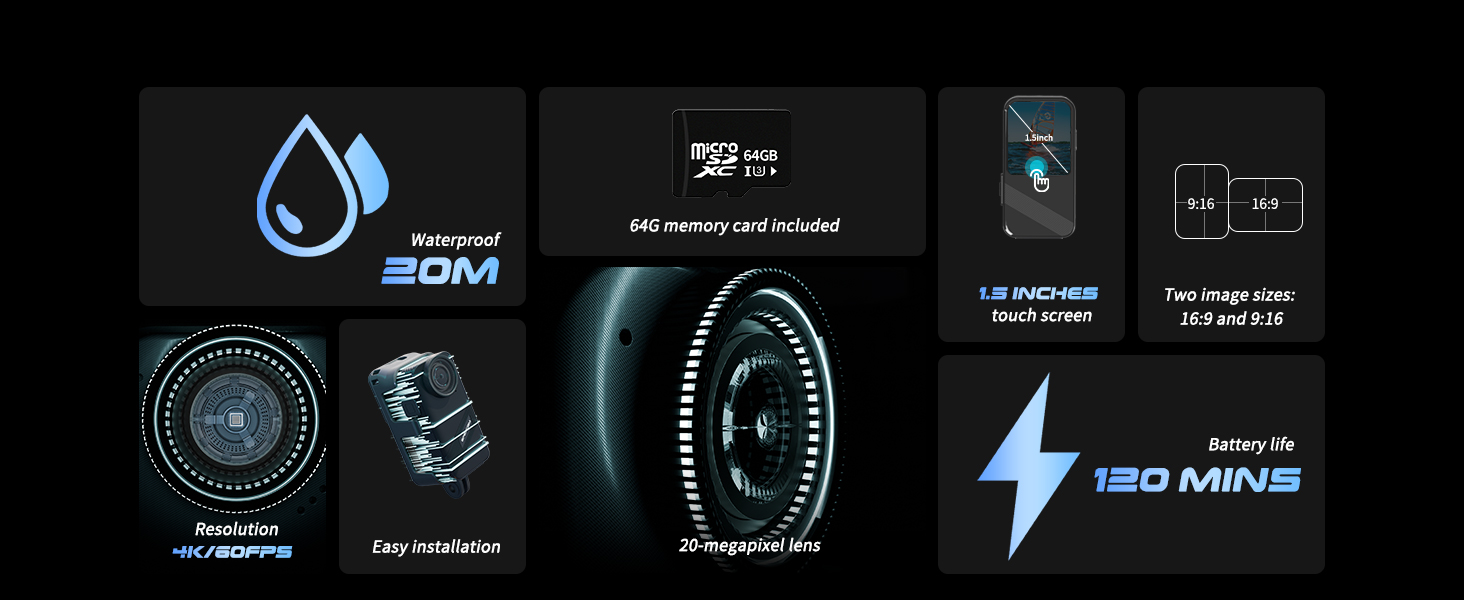
The 1.5-inch touch screen allows for intuitive control. Swipe and tap to navigate menus and settings.

3. Recording Modes
The K20 offers various shooting modes:
- Video Recording: Capture 4K 60FPS video. Press the Shutter button to start/stop recording.
- Photo Capture: Take 48MP photos. Press the Shutter button to take a photo.
- Burst Photo: Captures multiple photos in quick succession. Ideal for fast-moving subjects.
- Slow Motion: Records video at a higher frame rate for slow-motion playback.
- Fast Motion: Accelerates video playback.
- Pre-recording: Records a short segment of video before the Shutter button is pressed, ensuring no moment is missed.
- Loop Recording: Continuously records, overwriting the oldest footage when the memory card is full. Useful as a dash cam.
- Time-Lapse Video/Photo: Captures a series of photos or video frames over time to create a sped-up sequence.
- Vertical Shooting: Optimizes video capture for vertical display, suitable for mobile viewing.
- Drive Mode: Functions as a dash cam.


4. Electronic Image Stabilization (EIS)
The K20 features 6-axis Electronic Image Stabilization (EIS) to reduce blur and stabilize footage, especially during active use. This feature can be toggled on or off in the camera settings.

5. Wi-Fi Connectivity
Connect your K20 camera to your smartphone via Wi-Fi to preview footage, download content, and control settings remotely. Download the official Apexcam app from your device's app store.

6. Remote Control
Use the included 2.4G wrist remote to conveniently start and stop recording or take photos from a distance.
7. Waterproof Operation
The Apexcam K20 is body-waterproof up to 20 meters (66 feet) without an additional waterproof case. This design allows for better audio capture underwater. Ensure all ports and covers are securely closed before submerging the camera.
Maintenance
- Cleaning: Use a soft, dry cloth to clean the camera body. For the lens, use a specialized lens cleaning cloth and solution.
- Water Exposure: After use in saltwater, rinse the camera thoroughly with fresh water and dry completely before opening any compartments.
- Storage: Store the camera in a cool, dry place away from direct sunlight. Remove batteries if storing for extended periods.
- Battery Care: Do not expose batteries to extreme temperatures. Charge fully before first use and periodically during long storage.
- Firmware Updates: Check the Apexcam official website for any available firmware updates to ensure optimal performance and new features.
Troubleshooting
- Camera does not power on:
- Ensure the battery is fully charged and correctly inserted. Try using a different charged battery.
- Cannot record video/take photos:
- Check if the Micro SD card is inserted correctly and has sufficient free space. Format the SD card if necessary (this will erase all data). Ensure the camera is not in a mode that prevents recording (e.g., playback mode).
- Poor video/photo quality:
- Clean the camera lens. Ensure adequate lighting. Check camera settings for resolution and EIS. For underwater use, ensure the lens is clean and free of water droplets.
- Wi-Fi connection issues:
- Ensure Wi-Fi is enabled on the camera and your smartphone. Restart both devices. Make sure you are within range of the camera's Wi-Fi signal. Reinstall the Apexcam app if problems persist.
- Camera freezes or becomes unresponsive:
- Remove and reinsert the battery to perform a hard reset. If the issue persists, try formatting the Micro SD card or performing a factory reset via the camera's settings menu.
Specifications
| Feature | Detail |
|---|---|
| Model | K20 |
| Video Resolution | 4K (60FPS) |
| Photo Resolution | 48MP |
| Waterproof Depth | Up to 20 meters (66 feet) without case |
| Screen Size | 1.5 Inches Touch Screen |
| Image Stabilization | 6-axis EIS (Electronic Image Stabilization) |
| Zoom | 8X Digital Zoom |
| Connectivity | Wi-Fi, USB |
| Storage | Micro SD (up to 64GB, 64GB card included) |
| Battery | 2 x 1350 mAh Lithium Ion (included) |
| Shooting Modes | Burst Photo, Slow Motion, Fast Motion, Pre-recording, Loop Recording, Anti-shake, Time-Lapse, Vertical Shooting, Drive Mode |
| Lens | 170° Wide Angle |
Warranty & Support
Warranty Information
The Apexcam K20 Action Camera comes with a 1-Year Warranty from the date of purchase. This warranty covers manufacturing defects and malfunctions under normal use. It does not cover damage caused by misuse, accidents, unauthorized modifications, or natural disasters.
Please retain your proof of purchase for warranty claims.
Customer Support
For technical assistance, troubleshooting, or warranty inquiries, please contact Apexcam customer support through the official website or the contact information provided in your product packaging. Our support team is available to assist you with any questions or concerns regarding your K20 Action Camera.
You can also visit the Apexcam Store on Amazon for more product information and resources.
Video Demonstrations
Watch this official video for a visual guide on using your Apexcam K20 Action Camera.
APEXCAM K20 Mini Action Cam Overview
This video provides an overview of the Apexcam K20 mini action camera, showcasing its features and design. It highlights key functionalities and its compact form factor.


