1. Setup
1.1 Unboxing and Components
Upon opening the package, you will find the following components:
- Wireless Keyboard (Model KL302)
- Wireless Mouse
- USB-C Charging Cable
- 2.4GHz USB Receiver (for both keyboard and mouse)
- USB-A to USB-C Adapter
- Detachable Magnetic Wrist Rest
- User Manual

Image: All components included in the Trueque Wireless Keyboard and Mouse Combo package.
1.2 Connecting the USB Receiver
The keyboard and mouse utilize a single 2.4GHz USB receiver for wireless connectivity. This receiver is typically stored in the battery compartment of the mouse or within the product packaging.
- Locate the USB receiver. It may be found in the mouse's battery compartment or secured within the product packaging.
- Plug the USB receiver into an available USB-A port on your computer. If your computer only has USB-C ports, use the provided USB-A to USB-C adapter.
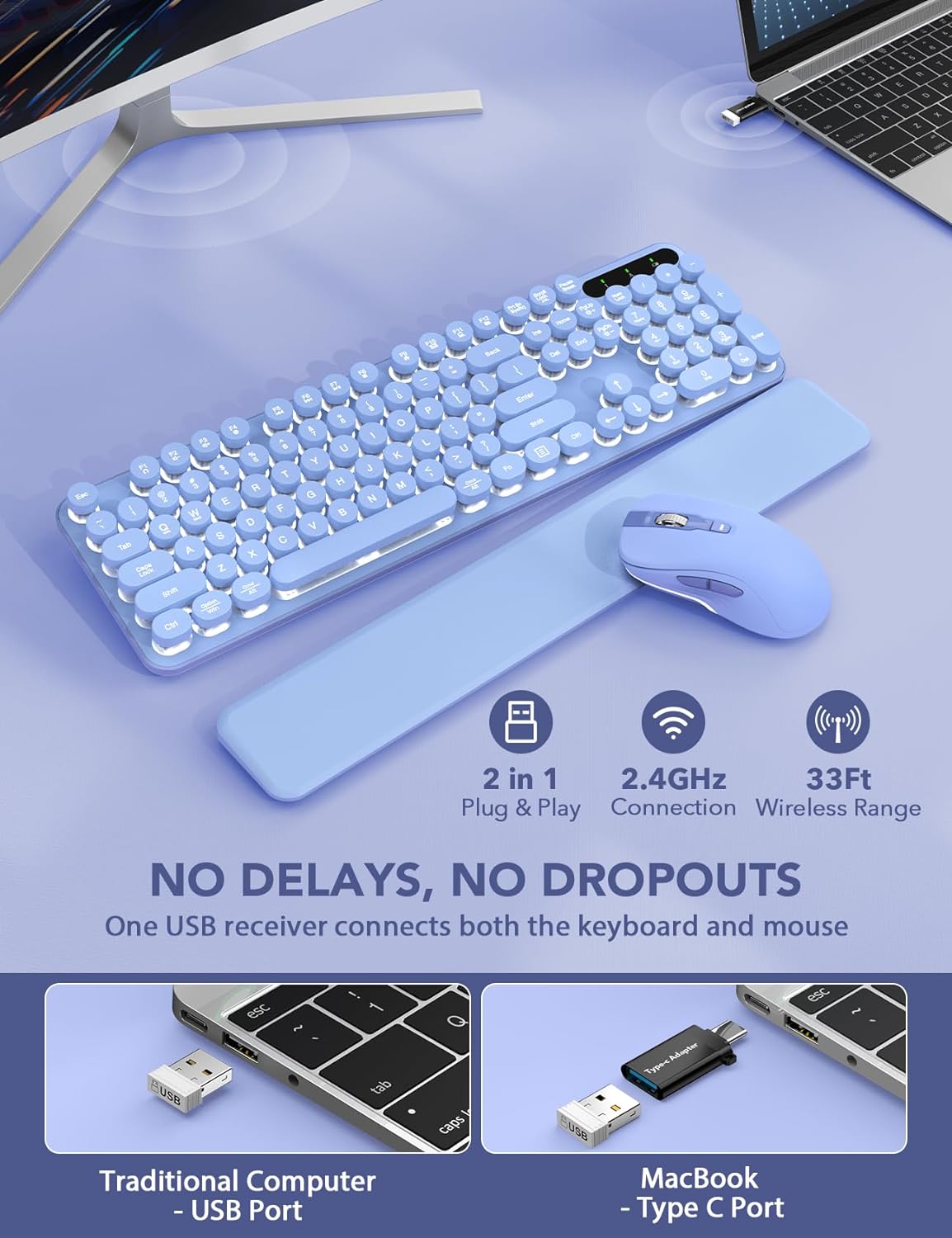
Image: The 2.4GHz USB receiver providing wireless connectivity for the keyboard and mouse.
1.3 Powering On and Pairing
Ensure both the keyboard and mouse are powered on and correctly paired for optimal functionality.
- Keyboard: Locate the ON/OFF switch on the underside of the keyboard. Slide it to the "ON" position. The keyboard should automatically connect to the USB receiver.
- Mouse: Locate the ON/OFF switch on the underside of the mouse. Slide it to the "ON" position. The mouse should automatically connect to the USB receiver.

Image: The power switch and adjustable feet on the bottom of the keyboard.

Image: The power switch and USB receiver compartment on the bottom of the mouse.
2. Operating Instructions
2.1 Keyboard Features
- 7-Color Backlight: The keyboard features 7 switchable backlight colors. To change the backlight color, press Fn + Scroll Lock.
- 3 Brightness Levels: Adjust the backlight brightness by pressing Fn + PgUp (increase) or Fn + PgDn (decrease).
- Dual-System Layout: The keyboard supports both Mac and Windows operating systems. Switch between layouts using Fn + Q (Windows) or Fn + W (Mac).
- Round Keycaps: The retro-style round keycaps offer a unique typing experience and are designed for comfort.
- Quiet Typing: The keys are designed to provide a quiet typing experience, suitable for various environments.
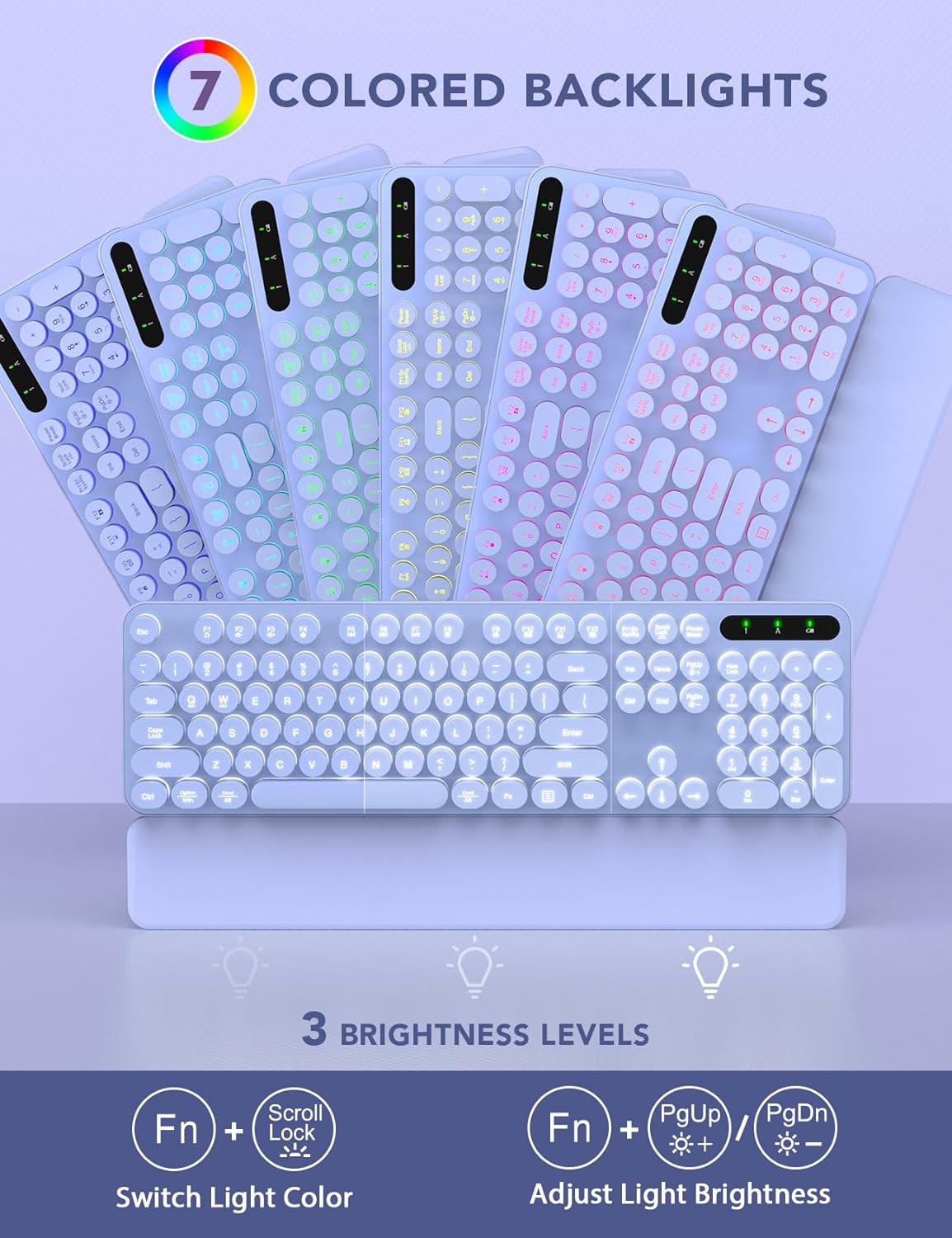
Image: Visual guide to changing backlight colors and adjusting brightness on the keyboard.
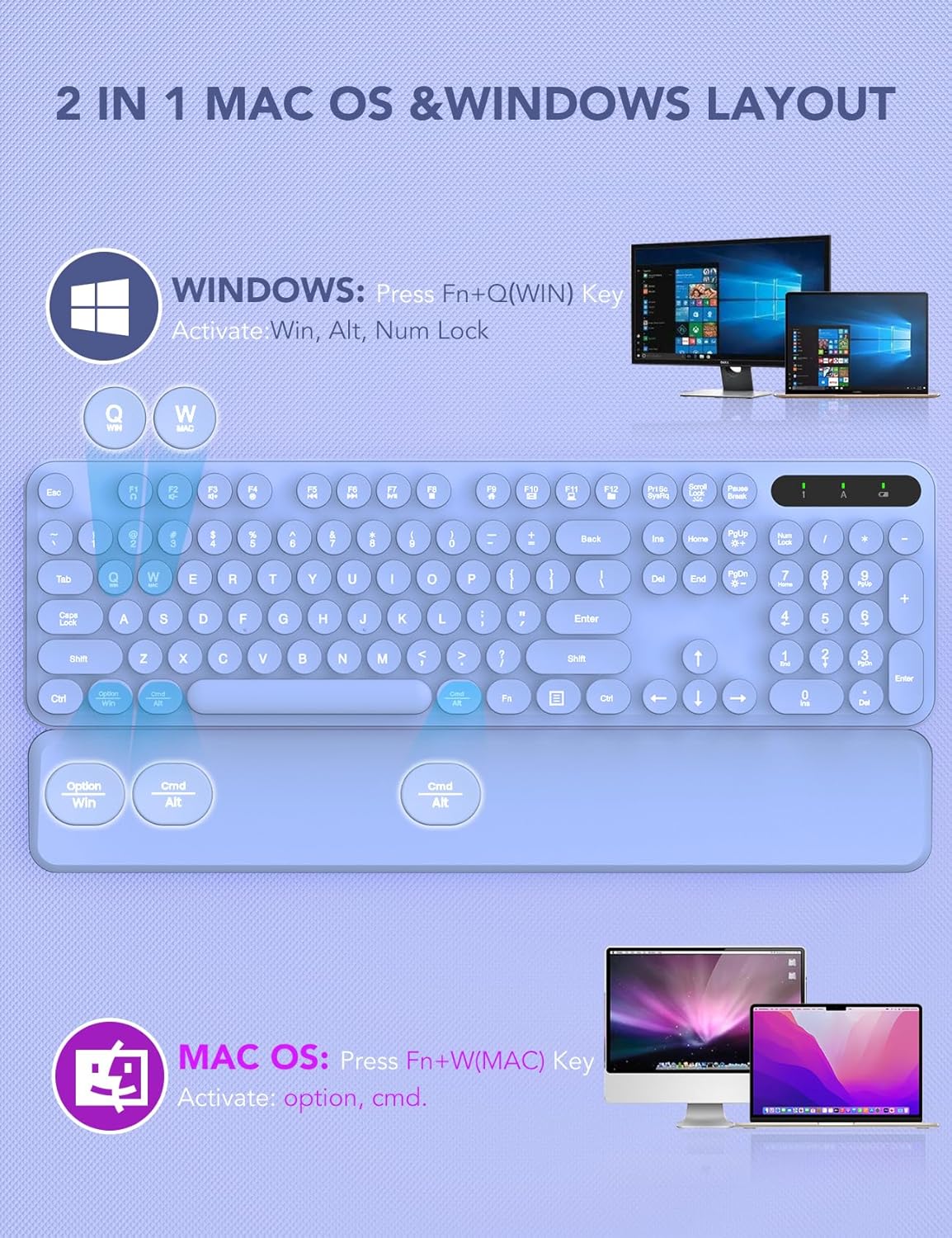
Image: Instructions for switching between Windows and Mac layouts on the keyboard.
2.2 Mouse Features
- RGB Lighting: The mouse features automatic RGB color-changing lighting.
- 6-Button Design: Includes standard left/right click, scroll wheel, DPI button, and forward/backward buttons for enhanced navigation.
- 3 Tracking Speeds (DPI): Adjust the mouse sensitivity by pressing the DPI button located below the scroll wheel.
2.3 Detachable Magnetic Wrist Rest
The keyboard comes with a detachable magnetic wrist rest designed to provide ergonomic support and alleviate wrist pressure during typing. It can be easily attached or removed as needed.
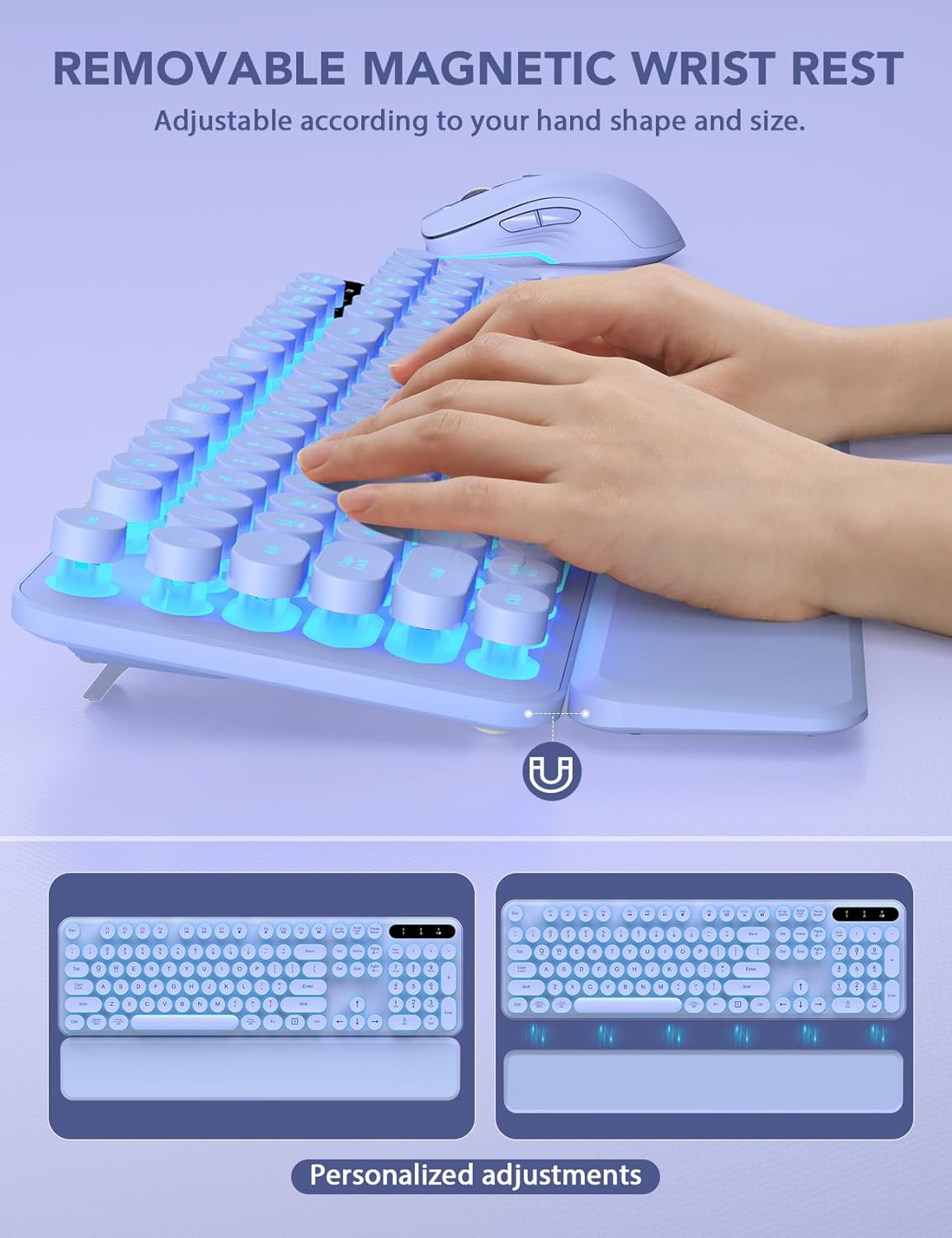
Image: The detachable magnetic wrist rest providing ergonomic support for typing.
3. Maintenance
3.1 Cleaning
The keyboard features spill-resistant technology and detachable keycaps for easy cleaning.
- For general cleaning, wipe the surfaces with a soft, damp cloth.
- For deeper cleaning, the round keycaps can be carefully detached and cleaned individually.
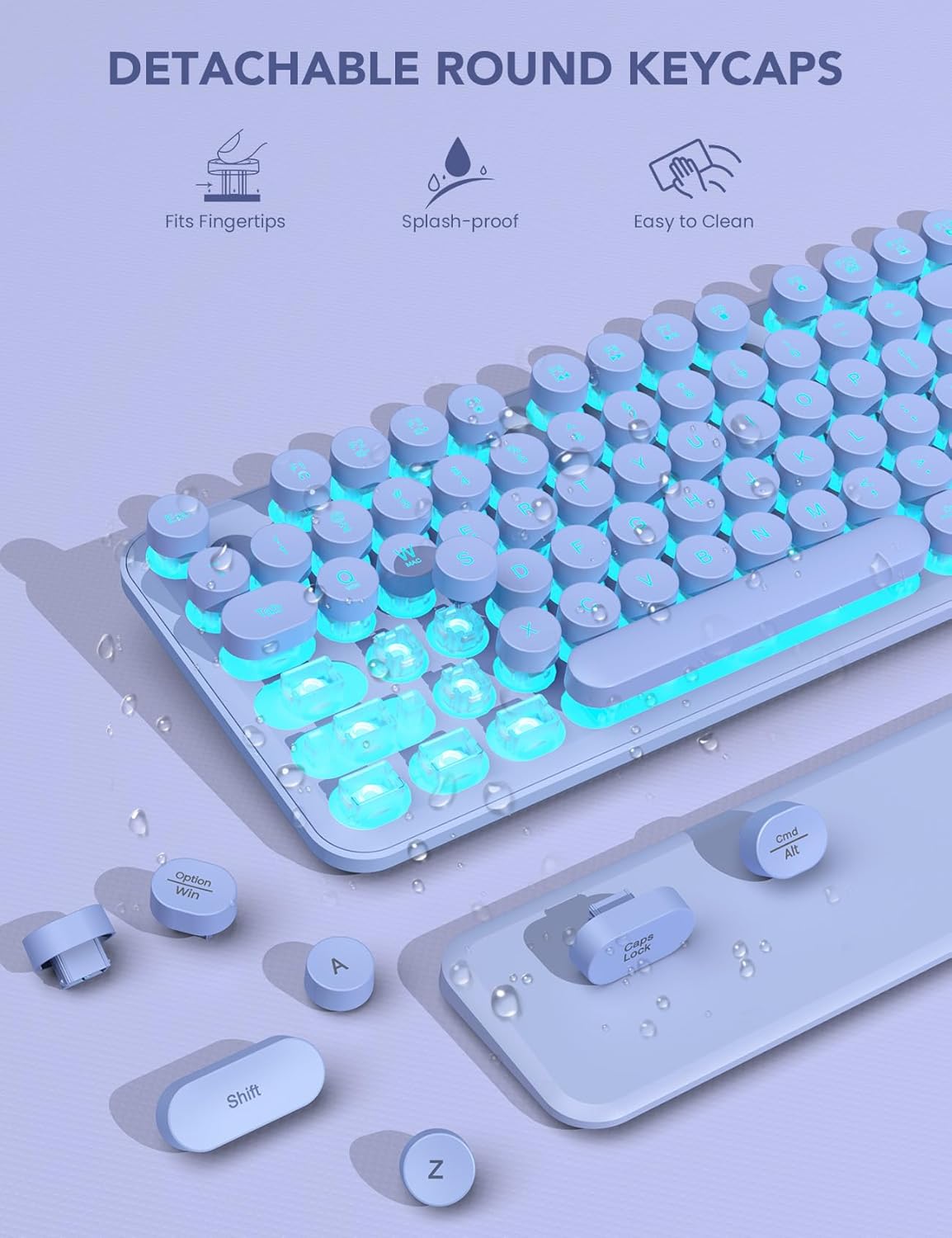
Image: Detachable round keycaps and splash-proof design for easy cleaning.
3.2 Charging
Both the keyboard and mouse are rechargeable via the supplied USB-C charging cable.
- Connect the USB-C end of the cable to the charging port on the keyboard or mouse.
- Connect the USB-A end of the cable to a power source (e.g., computer USB port, USB wall adapter).
- The smart auto-sleep function and ON/OFF switches help conserve power. The keyboard enters sleep mode after 1.5 minutes of inactivity, and the mouse after 2 minutes.

Image: Rechargeable keyboard and mouse with USB-C charging and power-saving features.
4. Troubleshooting
4.1 Keyboard or Mouse Not Responding
- Check Power: Ensure both the keyboard and mouse are switched to the "ON" position.
- Charge Devices: Verify that both devices are sufficiently charged. Connect them to a power source using the USB-C cable.
- USB Receiver: Confirm the 2.4GHz USB receiver is securely plugged into a functional USB port on your computer. Try a different USB port if necessary.
- Re-pairing: If connection issues persist, try re-pairing the devices. Refer to the specific pairing instructions in the included user manual.
- Range: Ensure the devices are within the 33ft wireless range of the USB receiver.
Video: Troubleshooting tips for when the keyboard and mouse are not working properly.
4.2 Backlight Issues
- Brightness: Adjust the brightness levels using Fn + PgUp or Fn + PgDn.
- Battery Level: Low battery can affect backlight performance. Charge the keyboard fully.
Video: Common questions and answers regarding the wireless keyboard and mouse, including backlight functionality.
5. Specifications
| Feature | Detail |
|---|---|
| Model | KL302 |
| Connectivity Technology | 2.4GHz USB Wireless |
| Wireless Range | Up to 33 feet |
| Keyboard Backlight | 7 switchable colors, 3 brightness levels |
| Mouse Lighting | Automatic RGB color change |
| Keyboard Layout | Dual-system (Mac/Windows) |
| Keycaps | Retro Round, Detachable, Spill-resistant |
| Wrist Rest | Detachable Magnetic |
| Mouse Buttons | 6-button (including DPI, forward/backward) |
| Battery | Rechargeable Lithium Ion (included) |
| Charging Port | USB-C |
| Power Saving | Auto-sleep function, ON/OFF switches |
| Compatible Devices | PC, Desktop, Laptop, Notebook (Windows, Linux, Chrome, Mac) |
| Item Weight | 2.27 pounds |
| Package Dimensions | 17.56 x 8.86 x 2.13 inches |
6. Warranty and Support
6.1 Warranty Information
This Trueque product is covered by a 12-month warranty from the date of purchase. Please retain your proof of purchase for warranty claims.
6.2 Customer Support
For any questions, technical assistance, or warranty inquiries, please contact Trueque customer support:
- Email: truequeservice@outlook.com
- We aim to respond within 24 hours.
- Enjoy 360 days of Brand Care.
